Arrange a meeting, then audit what it actually required
You want to meet a friend at a café. In your messaging app, you photograph the entrance and record a short voice note. You open the café’s website in Chrome to check the street address, then paste that address into the conversation. Camera, microphone, location: three permissions appear relevant, but only two were essential to the way you chose to communicate.
This is a hypothetical review, not a report of device testing. Its useful question is specific: can this meeting still be arranged if the messaging app loses location access? The example uses Android and Chrome for Android. An iPhone translation appears later; desktop browser menus are outside this walkthrough.
Use an app you already trust and understand. For the rehearsal, use a saved-message space if your app provides one, photograph an ordinary object rather than a person, and record harmless words. If recording automatically sends a message, do not test that control in a live conversation. Choose a private draft or mark that part untested.
The entrance photo and the address are different requests
Taking a new photo inside the messaging app gives the camera a clear job. Recording your own voice gives the microphone a separate job. Reading an address from a webpage does not inherently require either sensor. Nor does typing a street name into a message inherently require the messaging app to know where your phone is.
That distinction changes if you choose another feature. A live location pin needs a location workflow; a typed address does not promise to update as you move. Do not remove location from an app while depending on its active sharing, navigation, arrival alerts, or another background feature. Finish that activity first and decide whether you still need it.
Start a private note with the app’s displayed name, the three current permissions, and the exact feature you intend to preserve. Copy the actual labels. “Allowed” is too vague when the screen distinguishes ongoing location access from access during use. Also record the date and whether your device is managed by work or school.
Camera access is not the same as permission to browse your entire photo library. An existing-photo attachment may follow a different permission or system picker path. Keep that outside this trial: the chosen task takes a new photo.
Make location the single reversible trial
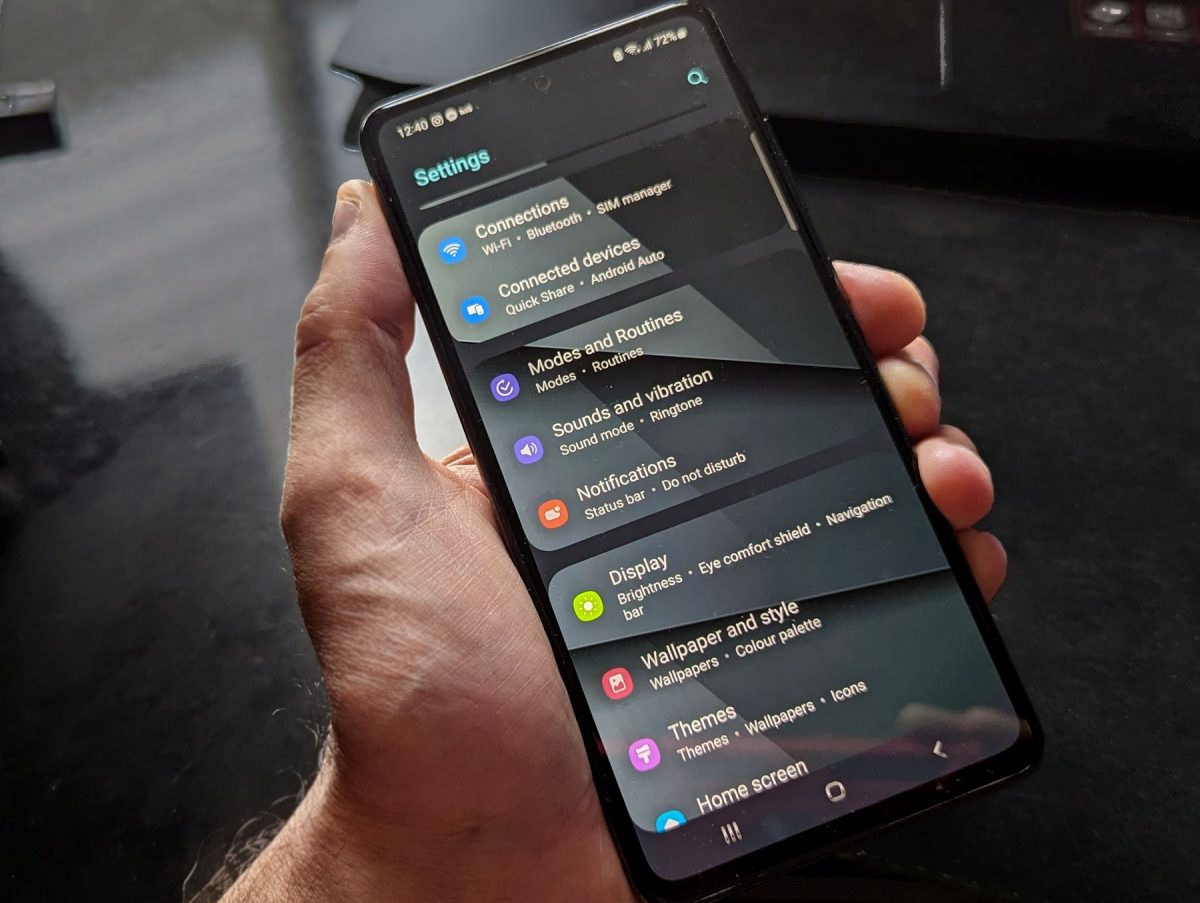
Google’s Android permission instructions put an individual app’s controls under Settings → Apps → the app → Permissions, with See all apps when needed. Inspect Camera and Microphone without changing them. Open Location and write down its present setting before selecting Don’t allow. Change nothing else during this trial.
Those are Google’s documented labels, not a universal map of Samsung, Motorola, Xiaomi, or every Android release. If they differ, search Settings for the app or “permissions,” or consult the manufacturer’s help. Some devices expose App info by touching and holding the app icon. Google’s location permission guide documents that alternative. Confirm the app’s identity before proceeding.
- Return to the messaging app and reopen the harmless camera draft. Check whether a new photo can be captured. Cancel rather than sending it to someone accidentally.
- Use the private voice-note draft, if available, and confirm that your recording can be played back. A moving waveform alone is weaker evidence than hearing the intended words. Delete the disposable draft afterward if desired.
- Open the café’s genuine website in Chrome, read its address, and paste it into the private message draft. Avoid the “near me” or “use my location” shortcut for this rehearsal.
- Reopen the messaging app’s Android Location permission. Confirm it still says Don’t allow and record what worked, what failed, and what you did not test.
If an unwanted location prompt appears, decline it and see whether manual entry remains available. If the app refuses a feature you need, return to the same Location screen and restore the recorded setting, then repeat only the failed action. This restores one known control. Reinstalling the app or resetting all permissions would obscure the result.
A completed ledger might look like this
The entries below are invented example settings and outcomes. They show a successful trial, not a prediction for your app. In this example, earlier live sharing explains why the messaging app had ongoing location access.
| Control | Before | After | Observation or reason |
|---|---|---|---|
| Messaging app: camera | While using | Unchanged | New photo draft works |
| Messaging app: microphone | While using | Unchanged | Private recording plays back |
| Messaging app: location | All the time | Don’t allow | Typed address works; live sharing intentionally unavailable |
| Chrome app: location | While using | Unchanged | Not needed for reading this address |
| Café site: location | Ask | Unchanged | No location grant made |
| Café site: camera and microphone | No saved grants | Unchanged | Neither needed for address page |
Record “not listed” if that is what your screen shows; do not translate it into a confirmed denial. If photo capture works but recording fails, preserve that distinction. Your finding concerns a particular feature and permission state, not whether every part of the app works.
The website does not inherit your messaging app’s permission
Suppose the café page offers a browser voice assistant. Its microphone request belongs to the website, not your messaging app. Decide whether that extra feature is useful before granting it. Reading the address is already a complete route through this task.
In Chrome for Android, open the intended site, tap View site information to the left of the address bar, then Permissions. Inspect the particular capability. If it is not shown, use Chrome’s More menu → Settings → Site settings, then the relevant category to inspect saved entries. Google documents site-specific controls and temporary grants; follow the options actually offered. Avoid Reset permissions for this review because it changes more than your chosen row.
A website grant and Android’s permission for Chrome are separate gates. If a deliberately chosen browser microphone feature fails, inspect that site’s microphone setting and Android Settings → Apps → Chrome → Permissions → Microphone. A site allowance cannot compensate for device-level denial. Changing Chrome’s Android permission also affects other sites that need that capability, so prefer inspecting the individual site first. Google’s camera and microphone help covers both layers and notes that managed settings may be controlled by an administrator.
The same separation matters for location. Chrome’s location documentation explains how to review a particular site’s access. Do not grant every website location merely because one page offers directions.
Translate the controls, then keep the finding modest
On iPhone, inspect the messaging app under Settings → Privacy & Security → Camera and, separately, Microphone. Location is under Privacy & Security → Location Services → the app. Apple’s privacy and Location Services guidance describes those controls and explains that an app appears in a permission list after requesting access. Do not import Android’s permission labels or Chrome-for-Android website menus into this route. If continuing in Safari or Chrome on iPhone, use that browser’s own current help for website controls.
Keep the ledger for the next time you actually need live sharing. That is a new purpose and may justify a new location decision. Choose the supported scope that fits it, and record the change instead of restoring unrelated access out of habit.
Finally, denying location is not a way to retract an address you pasted, erase an uploaded recording, or remove coordinates already embedded in an old photo. An app may also infer an area from information you provide or network information. The defensible finding here is narrower and useful: this particular meeting can be arranged without giving the messaging app continuing device-location access.
Sources, versions & scope
The steps describe the documented controls and expected checks; they are not a claim that every device or software release has been physically tested. Platform and version differences are stated with the procedure.
- Change app permissions on your Android phone
- Apple: Privacy controls
- Microsoft: Windows camera, microphone, and privacy
- About privacy and Location Services in iOS, iPadOS, and watchOS
- Google Chrome: Camera and microphone site permissions
- Manage location permissions for apps
- Change site settings permissions — Android
- Use your camera and microphone in Chrome — Android
- Manage your location settings in Chrome — Android