Wi-Fi & Internet
Measure DNS resolution without confusing it with download speed
Compare repeated DNS query timings, account for cache effects, and check whether lookup delay actually explains a slow web request before changing resolvers.
Technology & digital life
Practical guidance for your devices, connections and digital work. Start with the question you need answered.
The latest
Compare repeated DNS query timings, account for cache effects, and check whether lookup delay actually explains a slow web request before changing resolvers.
Compare a download with its publisher’s SHA-256 on Windows, macOS or Linux, interpret mismatches and understand what a matching checksum proves.
Separate NVMe wear estimates, active warnings and error history, capture a trustworthy report, and decide when to monitor, migrate or prioritize recovery.
Build a useful PDF bookmark outline, repair wrong destinations in Acrobat, and verify the saved copy before sharing it.
Rehearse a NAS connection before buying: map link limits, test both directions from real rooms, and reserve a final file-copy check for the installed storage.
Build a smaller travel-phone setup, preserve recovery access, and rehearse what remains readable offline before crossing a border.
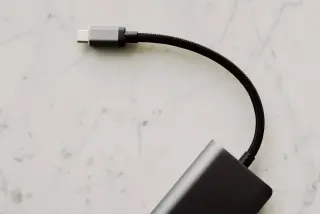
Isolate a USB-C hub fault with direct-versus-hub comparisons, separate power checks and one-device-at-a-time trials before replacing laptop hardware.
Recover an overwritten file on Windows 11 using OneDrive history or an existing File History backup, preserve both versions, and check the recovered contents.
Start with a situation
A direct route into a practical guide, without working through a topic directory first.
Understand what is still using the space before deleting more files.
Separate a device problem from a router or internet connection problem.
Verify the request through a separate, trusted route before acting.
Narrow down browser settings and extensions before resetting everything.
Check charging, data and display capabilities as separate requirements.
Reduce file size while keeping the text and intended use in view.
Explore the detail
Work out what your device, cable or accessory supports before replacing it or changing a setting.
Use Windows 11 sleep settings, battery reports and an overnight comparison to separate standby activity, connected accessories and reduced battery capacity.
Recover a Windows 11 laptop with a dark screen, separate display trouble from failed resume, and isolate power, lid and dock triggers before changing settings.
Adjust your Windows 11 mouse and keyboard one annoyance at a time, with practical checks for pointer control, scrolling, typing and easy recovery.
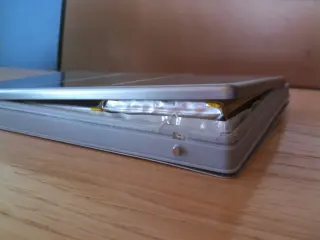
Spot physical battery swelling, stop charging a Windows 11 laptop safely, and arrange repair or disposal without risking another startup for your files.
Trace the connection from your device to the router and beyond. Separate local Wi-Fi trouble from an internet-service issue.
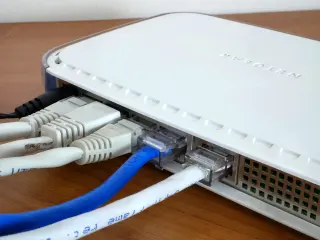
Wire one TP-Link Deco satellite, check the correct router-side connection, verify Ethernet backhaul, and isolate cable or switch failures without resetting the mesh.
Compare coverage, Ethernet backhaul and wireless mesh links, then plan a reversible addition without assuming matching network names guarantee seamless roaming.
Find why downloads disrupt calls, compare idle and loaded latency, separate Wi-Fi trouble, and try reversible bandwidth limits or OpenWrt SQM settings.
Identify two routing layers, distinguish provider NAT, and switch TP-Link Deco to Access Point mode only after checking which gateway will protect your network.
Keep recovery options open. Understand copies, permissions and sign-in methods before moving or deleting information.
Verify an identity-document request, choose a confirmed upload portal or private Drive link, limit the copy you disclose, and close access after receipt.
Keep work and personal documents in the right Windows 11 locations: check OneDrive accounts, inspect folder backup, and verify copies before removing originals.
See what encrypted DNS hides, what its provider can still learn, and how to try Android Private DNS while keeping a clear route back if browsing breaks.
Evaluate OneDrive personal storage by deleted-file recovery, version history and bulk rollback, with practical checks and clear limits before you choose a plan.
Make documents, files and browser workflows easier to check, reproduce and hand to someone else.
Choose UTF-8 TXT or simple Markdown for lasting notes, then check filenames, accented characters and attachment links with a Windows 11 practice file.
Build a narrow Gmail filter, check it with labels before archiving, and recover messages when a rule hides mail you still need to read.
Use Google Docs to separate decisions from open questions, give actions owners and deadlines, confirm commitments, and keep a useful record of later changes.
Cross-check a Google Sheets total with a fresh selection, numeric counts, hidden-row rules and original records, then repair the cause of any mismatch.
Build an understanding
Some tasks are easier when you understand the decision before changing a setting. These routes connect the explanation, the practical checks and a tool you can use.
Understand what occupies the device, what a synced deletion can affect, and what a recoverable copy should give you.
Separate the links in the connection, interpret a speed test and then consider the position of your router.
Keep a recognizable version, check how a document appears and choose an appropriate way to send it.
Explore a subject
Understand your phone, computer and accessories.
50 guidesFollow the connection from your device to the internet.
50 guidesKnow where your files live, what your accounts protect and how to recover when something goes wrong.
49 guidesWork more confidently with documents, browsers, images and everyday software.
48 guidesWorth understanding
Learn how synchronized folders handle deletion and overwrites, test file versions with disposable documents, and build a recovery copy outside the sync chain.
Find out whether photos remain in recovery bins, cloud libraries or local downloads, then reclaim phone space without accidentally deleting your only copy.
Build a capability checklist for USB-C ports, cables and docks so charging success does not become a mistaken promise of fast transfers or a working display.
Supporting sources, clear assumptions and version notes accompany the guides.