A warning fills the screen. Someone claiming to be support says they can fix it if you enter a code, share your desktop, or install a remote access app. Stop before that handover: a convincing explanation does not establish who is asking.
This guide covers a personally owned Windows 11 PC, with Microsoft Quick Assist as the concrete remote support example. If a session is already active, go straight to cut the connection. For a work computer, contact your established IT help desk through its usual channel.
Break contact before checking the story
End an unexpected support call. Leave the message’s links, attachments, QR codes and callback number alone. Microsoft’s scam guidance says it does not make unsolicited calls offering computer repairs; its error messages do not include support phone numbers.
A hypothetical renewal email might claim a $399 charge and give you a number to cancel. Check the actual account or statement through your usual app on a separate trusted device. A message is not a payment record. If a charge exists, raise it through the provider or bank you contacted independently; the email’s phone number still proves nothing.
For a browser warning, use Alt + F4 to close the active browser window. This can lose unsaved browser work. If closing fails, restart Windows through Start’s power menu. When reopening the browser, decline restoration of the offending page. A warning that returns independently of that page needs investigation; do not assume every recurring alert is merely a website.
To obtain real help, type the company’s known official address yourself or use an established bookmark. Choose its Support route. For a familiar technician or relative, call a number you already had. Do not let the person under suspicion supply the verification channel.

A real remote support app can still connect you to a scammer
Quick Assist is legitimate software. Its presence, Microsoft branding and connection code establish neither the caller’s employer nor their reason for connecting. Treat the moment before sharing as a separate decision, even if the conversation has already lasted half an hour.
Microsoft documents two permission boundaries. After you enter the helper’s six-digit code in Code from assistant and select Submit, an Allow confirmation starts screen sharing. A later request for full control needs another Allow. You can expose information through viewing alone.
If an unexpected caller directs you into that sequence, stop before Allow and close the app. Do not install a different remote tool because the first connection failed. A failure to connect gives you a useful chance to step away.
For help you independently arranged, agree on the task before opening the connection: for example, finding why a printer is offline. Close private documents and messages first. Ask the helper to explain each change. If the conversation shifts to bank balances, verification codes or moving money, end the session and verify the new request separately.
A helper asking you to sign into banking while your screen is shared has crossed a practical boundary. You do not need to prove criminal intent before withdrawing access. Likewise, an approval prompt that appears during the call is still your decision; do not approve unexplained system changes just because someone is waiting.
Cut the connection if you already allowed access
- In Quick Assist, select Leave to end the session. Cancel control stops full control but does not end screen sharing; use Leave when you want the connection finished.
- If you cannot reach that control, physically unplug Ethernet and turn off Wi-Fi. Disconnect every active internet connection. If you cannot do that promptly, shut down the PC. This is containment, with possible loss of unsaved work.
- Hang up. Keep the PC offline while you write down what happened and arrange trusted assistance from another device. Do not reconnect to accept an alleged refund or a promise to undo the changes.
After Leave, the Quick Assist session should be over. That does not establish that other remote software was never installed. If you saw downloads, installation prompts or changes you cannot explain, keep the computer isolated until those are reviewed. Photograph useful details with your phone only after containment; preserving evidence should not delay ending access.
Recover according to what they could reach
- You only saw or received the message
- Close or delete it after recording details you need for reporting. Receiving a message alone does not show that someone gained remote access. Note whether you also opened a file, entered credentials or granted any permissions.
- They could see the screen
- List what was visible: email, documents, account information or a one-time code. Take account recovery actions for information actually exposed, and consider what might have appeared in notifications. Closing the session cannot recall a copied image.
- They controlled the PC or you installed their software
- Record the app names and actions you remember. Arrange a review by someone you independently trust. On a managed device, give IT the timeline and follow its incident process instead of attempting your own cleanup.
For exposed accounts, use another trusted device to change affected passwords, including reused passwords elsewhere. Check the service’s security settings for unfamiliar recovery details and active sessions; revoke sessions where supported. If you cannot sign in, use its official account recovery route. For a broader recovery checklist, see password managers and account recovery.
If money or card information was involved, contact the bank or payment provider immediately using its official app or the number on your card. Explain the remote access and ask about stopping or disputing transactions. Recovery is not guaranteed. Ignore follow-up offers demanding a fee to recover the loss.
Review the PC before trusting it again
For a personal PC with suspected installed software, have the trusted reviewer identify it before reconnecting. Windows’ removal route is Settings → Apps → Installed apps → More → Uninstall beside the identified app. Confirm its entry disappears. An unfamiliar name alone is not sufficient reason to remove a component.
Open Windows Security from Start and select Virus & threat protection. Inspect the protection provider through Manage providers; the security software actually protecting your PC determines which scanning controls are available.
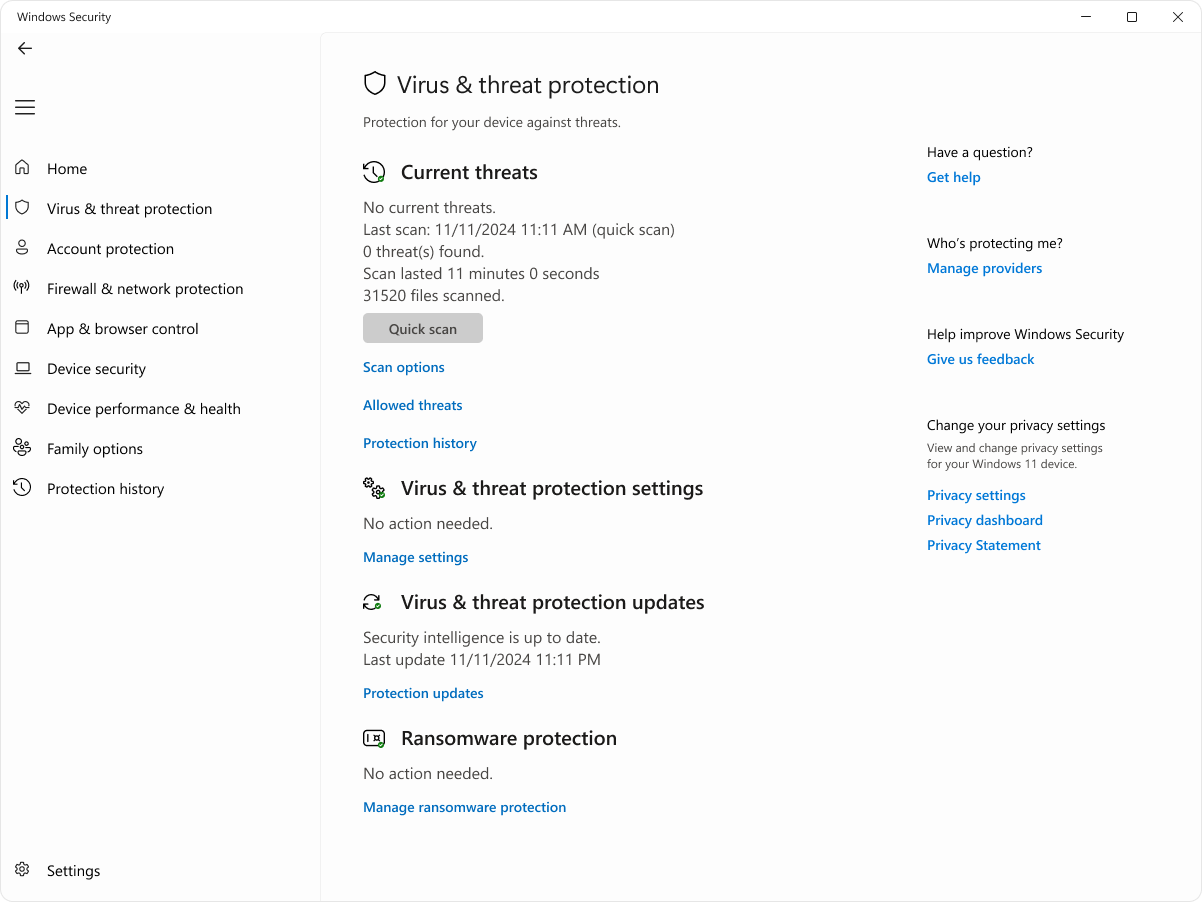
In Microsoft Windows 11 Windows Security, Manage providers identifies the security software protecting the PC. This unchanged vendor example shows historical scan data, not a result for your computer or evidence that remote access was harmless. Used with permission from Microsoft.
Version notes
Authentic complete window supplied by Microsoft’s current Windows 11/Windows 10 support page, checked 2026-10-31. The window itself says Windows 11 under privacy settings. Exact capture date and Windows build are undisclosed; sample scan/update timestamps show November 2024. Current-reference pass is limited to the documented entry controls, not a latest-build or new scan-result claim. Original bytes unchanged.With Microsoft Defender Antivirus active, open Scan options and choose Full scan. Review the completed result and follow recommended actions. Microsoft also documents Microsoft Defender Antivirus (offline scan) for suspected persistent malware: save work first because it restarts the PC. Its results are in Protection history.
A scan cannot prove that no files were copied or no account session was stolen. If changes remain unexplained, or warnings and remote access recur, seek trusted help with a reset or clean reinstall. Before erasing anything, use the device reset preparation guide to protect recovery access and needed files.
Finally, report the attempt through Microsoft’s reporting route. US readers can also use ReportFraud.ftc.gov; elsewhere, use the local fraud reporting authority. Keep the message, times, app names and payment references. Reporting does not replace contacting your bank or securing exposed accounts.
Sources, versions & scope
The steps describe the documented controls and expected checks; they are not a claim that every device or software release has been physically tested. Platform and version differences are stated with the procedure.