Which connection can carry your home?
A phone hotspot can be enough for one person with modest internet needs. A household with daily video calls, streaming televisions, large downloads and devices that must stay online usually has stronger reasons to keep home broadband. Decide using the workload, the actual plan terms and a trial at home before cancelling anything.
This comparison uses a Windows 11 laptop and a Google Pixel phone for the short hotspot trial. Other phones have different controls. It is a buying decision and replacement rehearsal, rather than a guide to calculating every application's data consumption.
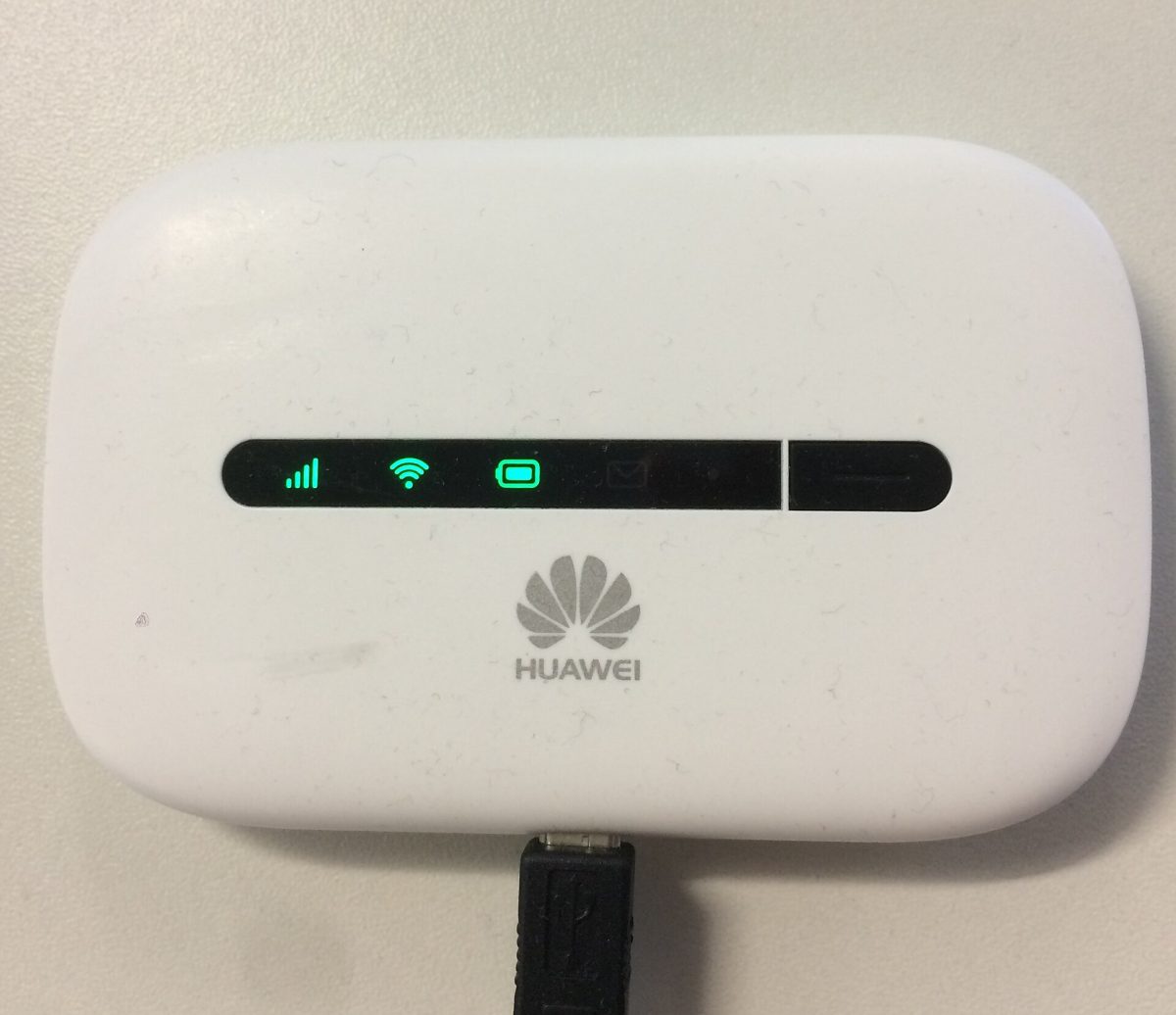
A phone hotspot and a dedicated portable hotspot both share a cellular connection. A dedicated device lets the household stay connected when your phone leaves, but its own service plan still matters. Home broadband here means a service sold for a fixed address: fibre, cable, DSL or fixed wireless. A 5G home gateway belongs in that last group; sharing cellular technology does not make its subscription interchangeable with a phone's tethering plan.
Write down what must keep working
List the devices and tasks that overlap during your busiest hour. Include uploads, cloud backups, a work VPN, televisions, consoles, cameras and anything another person uses while you are away. Mark which tasks can wait until another connection is available. A connection that handles email but needs every backup postponed indefinitely is not replacing the same service.
| Your situation | What to investigate first |
|---|---|
| One laptop, light browsing, temporary accommodation | A hotspot's allowance and reception may meet the need without installation. |
| Several people need internet throughout the day | Home broadband or an address-qualified fixed wireless plan; test simultaneous activity. |
| Large game downloads or continuous cloud transfers | Included monthly data and restrictions after the allowance, before headline speed. |
| Internet needed while the phone owner is out | An independent gateway or dedicated hotspot with its own suitable plan. |
| Short interruptions to an otherwise suitable home service | Keep broadband and price a modest hotspot backup. |
Inspect the router for occupied sockets labelled LAN, then trace which devices depend on those cables. Distinguish them from the socket labelled WAN or Internet. Record the labels without unplugging anything. For each wired device, check whether the proposed hotspot equipment supports a documented connection method; do not assume a charging socket accepts Ethernet or that every appliance has Wi-Fi.
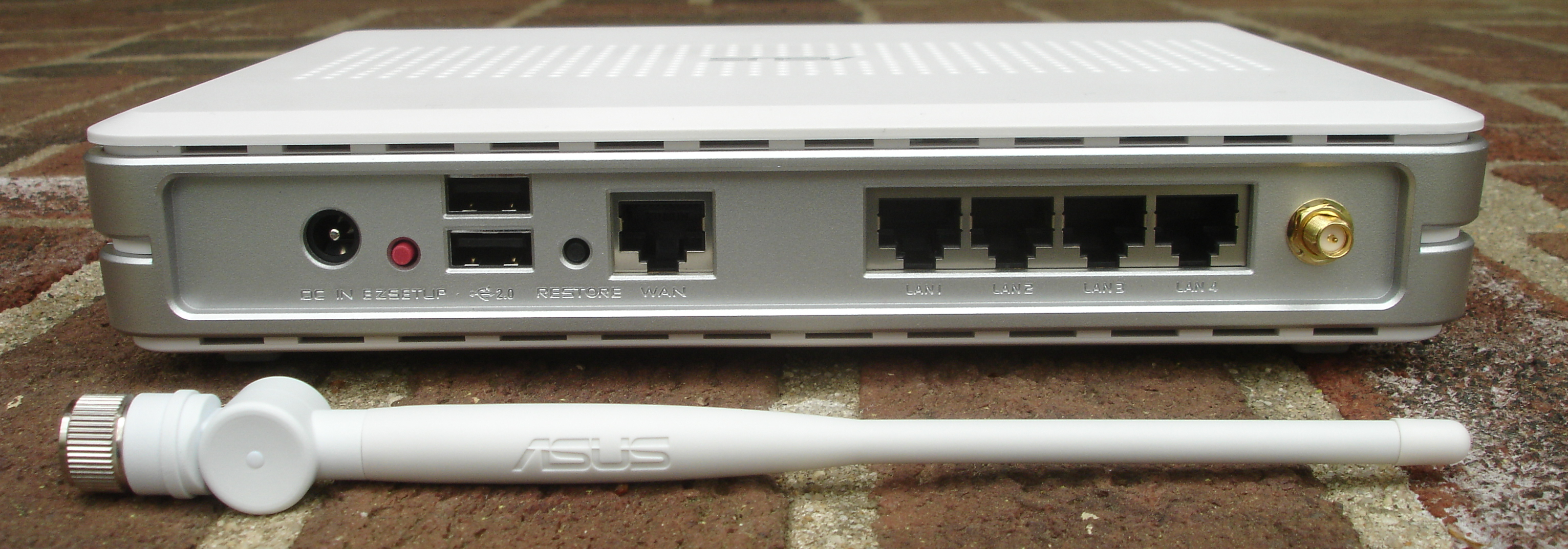
Find the printed LAN labels when recording wired-device dependencies. This older ASUS example separates WAN from LAN 1–4; its sockets are empty, so it does not show any household wiring. Leave your own cables connected. Photograph: Zuzu, 26 April 2008; unchanged.
Version notes
Evergreen physical label example from 2008, not current router software or a model recommendation. WAN and LAN 1–4 are legible. Does not establish speed, supported operating mode, or whether a proposed hotspot can replace wired connections. Display photograph resized for loading speed; the full-size link preserves the original download.The photograph below is an older physical label example, not a recommended router. Your hardware manual decides socket roles and supported arrangements. If replacing the gateway requires extra adapters or a different router, add their cost before calling the hotspot cheaper.
Compare the contract you will actually pay for
For each candidate, save the current plan summary and ask for any missing terms in writing. In the United States, the FCC's Broadband Facts explainer identifies prices, introductory rates, data allowances and speeds as comparison fields. Elsewhere, request the equivalent provider disclosures. Treat a coverage map as a reason to try a service, not proof of indoor performance.
- Allowance: find the tethering allowance specifically, its reset date, roaming restrictions and what happens when it runs out. “Unlimited” phone data does not establish unlimited high-speed laptop use. T-Mobile's hotspot guidance, for example, says speeds fall after the high-speed hotspot allotment is used; your plan may differ.
- Performance: compare typical download, upload and latency where disclosed. Ask about congestion management and any hotspot-specific speed ceiling. Upload capacity matters when sending files and joining calls.
- Total price: include equipment, activation, delivery, installation, recurring fees, taxes where applicable, promotional expiry and any lost bundle discount. Compare the same ownership period.
- Exit: record trial deadlines, cancellation terms, equipment return requirements and whether your existing number or bundled services would be affected.
Hypothetical twelve-month comparison: home service at $45 monthly plus $60 installation costs $600. A suitable mobile upgrade costing $25 extra monthly plus a $120 hotspot costs $420. The apparent saving is $180. If the workload also requires a $20 data add-on every month, the mobile total becomes $660. These are invented prices, not offers. Count only the extra mobile charge when you would keep the underlying phone plan anyway.
Rehearse a normal day before switching
Keep the current connection available. Choose a trial window within the candidate service's return period, with enough remaining allowance for essential work. Record the starting carrier usage reading and time; reporting may lag. Do not use a successful five-minute browse as the whole replacement test.
- On the Pixel, turn off its Wi-Fi connection and confirm that ordinary browsing works over mobile data. This prevents accidentally testing the home connection shared through the phone.
- Open Settings → Network & internet → Hotspot & tethering → Wi-Fi hotspot. Check the network name and password, retain password protection, and turn the hotspot on. Google's Pixel instructions say Data Saver must be off for Wi-Fi tethering; note its starting state if you change it.
- Connect the laptop to that hotspot using its Wi-Fi network list and password. Disconnect any laptop Ethernet cable for the trial, recording its socket first. Load a fresh web page to confirm access.
- In Windows 11, open Settings → Network & internet → Wi-Fi → the connected network and turn Metered connection on. Confirm the toggle shows On. Microsoft documents this as a way to reduce some background activity; it is not a hard spending cap.
Try your normal call, VPN and upload in the place you actually work. Repeat during the busy evening period, adding the other devices that would realistically compete. Record freezes, reconnects, failed tasks and whether the phone needs an impractical location or constant attention. Check usage afterward over the same accounting period. Include a separate estimate for monthly downloads that the short trial did not contain.
Interpret failures before buying more data
If the phone itself cannot browse with Wi-Fi off, investigate mobile coverage, remaining allowance or carrier service first. If the phone works but the laptop cannot join, recheck the hotspot name and password and switch sharing off and on. Do not factory-reset the phone or router to complete this comparison.
If browsing works but calls fail, try the laptop near the hotspot and repeat the same task. Improvement suggests the local wireless link or placement needs attention; persistent failures need further investigation. If the connection becomes slow only after heavy use, check the carrier's allowance and restrictions before purchasing faster hardware. An evening-only problem calls for another busy-period trial.
When finished, turn hotspot sharing off, restore the phone's previous Wi-Fi and Data Saver settings, and reconnect the laptop to its original network or recorded Ethernet socket. Resume any paused transfers and check updates and backups. Leave metering enabled for a capped hotspot; change that profile only if its plan warrants it. If a managed laptop blocks the setting, consult its administrator.
Make the decision with a return path
Choose hotspot-only service when its terms cover your expected month, the busy-hour trial works, every essential device has a supported connection and the household can stay online without borrowing someone's departing phone. Choose home broadband when those conditions fail or its complete cost buys useful independence and capacity.
If both have value, keep broadband as the main connection and use a hotspot for essential tasks during outages. A battery-powered phone still depends on a functioning mobile network, so it is not an outage guarantee. Cancel the old service only after the replacement works and you have saved the return deadline, cancellation confirmation and equipment-return instructions.
Sources, versions & scope
The steps describe the documented controls and expected checks; they are not a claim that every device or software release has been physically tested. Platform and version differences are stated with the procedure.