Three jobs arrive at the export counter
Imagine preparing a product photograph for a listing, a transparent badge for a presentation, and an archive of the artwork behind both. These are hypothetical jobs, but they expose a common mistake: asking one image format to satisfy three different contracts. The listing needs a convincing picture within its upload rules. The badge needs clean edges against someone else's background. The archive needs enough information to make tomorrow's revision.
Choose the export by the job it must perform. A file extension names a family of capabilities; the export settings decide which capabilities survive. A smaller file is useful only after it clears the destination's requirements.
| Job | Start here | Pay attention to |
|---|---|---|
| Share a photograph | JPEG; WebP or AVIF when accepted | Texture, gradients, dimensions and upload support |
| Place a transparent graphic | PNG for raster artwork; SVG for vector artwork | Alpha, edge appearance and destination rendering |
| Keep an editable master | The editor's native document, plus the original source | Layers, masks, text, linked assets and reopening |
The photograph: spend bytes where the picture needs them
For an ordinary photograph going to a recipient whose software you do not control, JPEG is a sensible first candidate. Its usual export mode is lossy: it discards some image information to reduce storage. Fine foliage, hair, fabric and smooth skies are useful places to look for the cost. A picture containing tiny lettering needs special attention even if most of it is photographic.
A JPEG quality control is a tradeoff, not a percentage of original detail retained. Compare a few settings from the same source and inspect their actual outputs. Do not assume that a quality value of 80 in two different exporters produces equivalent files. Viewing a saved JPEG does not itself degrade it; editing and re-encoding it can introduce further losses.
WebP offers both lossy and lossless encoding. AVIF is another candidate for a destination that explicitly accepts it. Neither earns a place merely by being newer: a website's browser support and its upload system are separate questions. A browser might display an AVIF while a particular listing form rejects it. MDN's format guide provides a useful capability comparison; the actual receiving application decides your shortlist.
For this hypothetical listing, suppose the required image is 1600 × 1200 pixels. Export candidates at those dimensions from the same master, with the same crop and color treatment. Compare the resulting bytes and appearance. A 4000-pixel JPEG and a 1600-pixel WebP cannot tell you which encoder used storage more efficiently: you also changed the amount of picture being delivered.
PNG is an option when you need lossless raster storage, especially for screenshots or graphics with precise labels. It is often an expensive delivery choice for a photograph. Lossless encoding preserves the pixel values supplied to the encoder, but resizing, color conversion or reducing the palette before encoding can still change the picture. Saving a damaged JPEG as PNG preserves the damage; it does not recover the discarded detail.
The transparent badge: buy the edge treatment
A transparent graphic has a different acceptance test. It must blend into its eventual background without an unwanted rectangle or fringe. PNG supports lossless raster storage and an optional alpha channel, which describes pixel opacity. Those are separate features: a PNG can be fully opaque. The W3C PNG specification establishes both capabilities.
For a raster badge, export a PNG with transparency enabled, then insert that exported copy into a presentation. Put it over a white shape and then a dark one. A white rectangle means transparency did not survive somewhere in the route, or was never present. A pale halo can mean the edge pixels were previously blended against a light background. Changing the extension cannot repair those pixels; return to the source selection or mask.
WebP can also carry transparency, including with lossy color encoding. That makes it worth comparing when the destination accepts it. Transparency does not imply lossless color, and a WebP extension does not tell you which mode the exporter used. Google's container specification documents these independent capabilities.
For a badge built from paths and shapes, SVG may be the better purchase: vector geometry can scale without turning its curves into enlarged raster pixels. But SVG can contain text and raster images too. Wrapping a small photograph in SVG adds no photographic detail. Verify fonts, effects and embedded assets in the destination; its rendering may differ from your editor. The SVG specification describes this mixture of graphic objects.
Ordinary JPEG exports do not carry alpha transparency. If the destination requires JPEG, create a separate copy with the intended background color deliberately applied. Keep the transparent source for other placements.
The archive: pay for the next edit
A crisp preview is a poor test of an editable master. Open the saved document and try selecting a text layer, adjusting a mask or changing one object without disturbing the others. A flattened PNG may look perfect while making all three operations much harder.
Keep the native document that preserves the editor's working structure. In Photoshop, Adobe identifies PSD and PSB as the formats that retain its full feature set. Other editors have their own native formats and compatibility limits; saving into PSD from another application is not a guarantee of complete interchange. Preserve linked assets and the fonts needed to edit text, subject to their licenses. Adobe's format guidance distinguishes feature preservation from delivery compatibility.
A lossless TIFF can be a useful additional rendered reference for an archive or an agreed print handoff. Check its settings: TIFF is not automatically lossless. Photoshop offers lossless LZW and ZIP compression as well as a JPEG compression option. A layered TIFF also needs testing in the receiving editor before you rely on its editability. See Adobe's TIFF save options.
Retain the original capture alongside the working document. If it is already a JPEG, keep that original unchanged rather than converting it and calling the conversion a superior original. Maintain a separate backup of the archive; a format choice cannot protect against losing the only copy.
Decide what travels beside the pixels
Metadata deserves its own export decision. Copyright and contact information may belong in a delivery copy; a location tag may not. An embedded color profile helps software interpret colors, while editing layers serve another purpose entirely. “Keep everything” and “strip everything” are both too blunt when the requirements differ.
Conversion alone is no promise of privacy. WebP, for example, can store Exif and XMP metadata and an ICC color profile. Check the actual exported file with a trusted metadata viewer if location or authorship matters. For everyday web delivery, an intentional sRGB conversion is a practical starting point; retain the master profile and use a print supplier's requested workflow for print.
Photoshop desktop exposes Quick Export defaults under Edit > Preferences > Export on Windows, or Photoshop > Settings > Export on macOS. Review its metadata and color-space choices before relying on a quick export. Adobe documents those preferences; other applications expose different controls.
Compare the copies you will actually deliver
Use the local image inspector to record each raster candidate's decoded dimensions, aspect ratio and byte size. Select one copy at a time and write those values beside its filename. The tool processes the selected image in your browser. It accepts recognized JPEG, PNG, WebP, GIF and AVIF files up to 20 MiB; decoding depends on the browser. It does not accept SVG, TIFF or native editing documents.
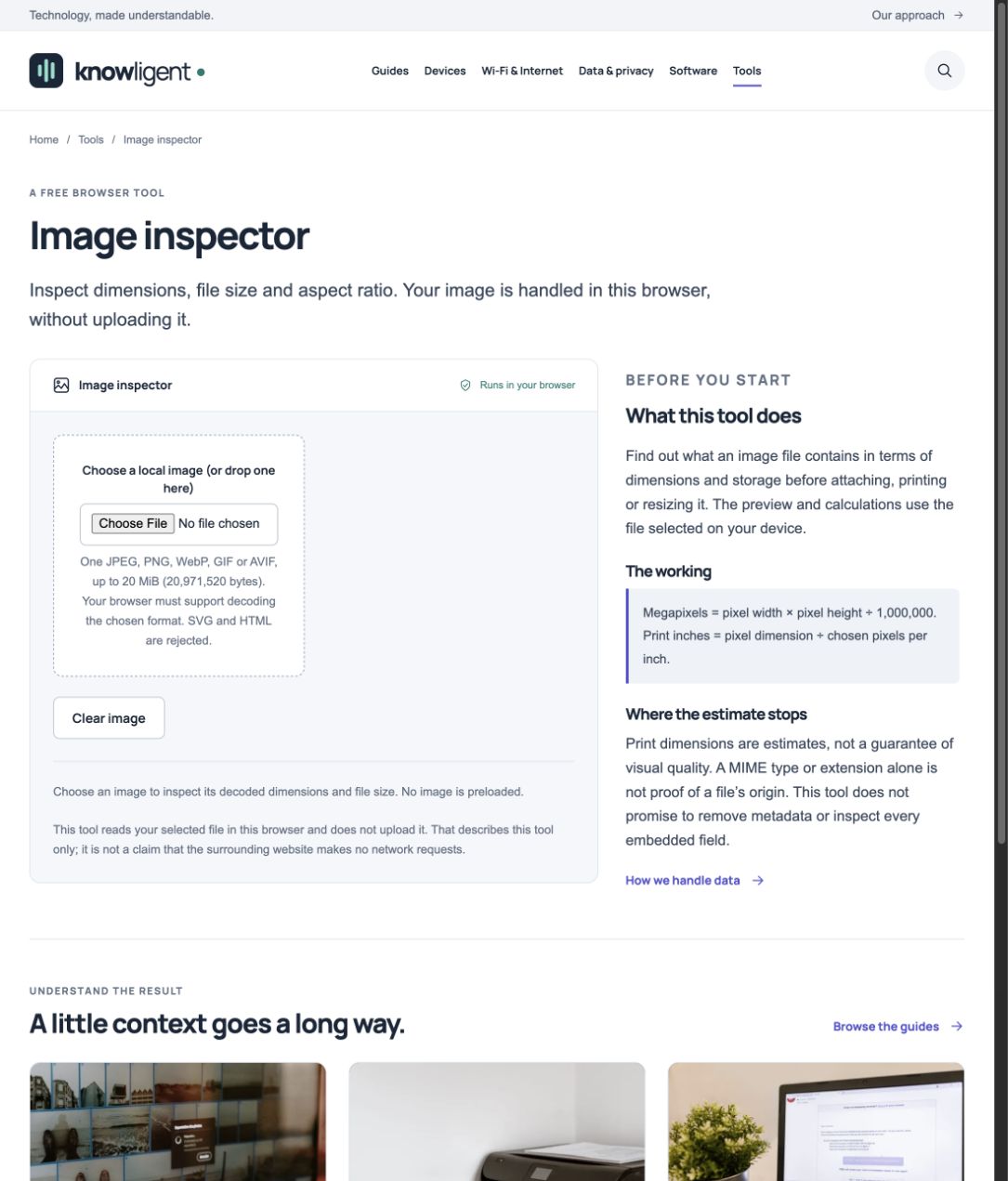
Choose a local image or drop one into this area. No file is loaded in this capture; the dimensions and file-size results appear after your browser decodes your selection.
Version notes
Knowligent browser tool, current local working build inspected 31 October 2026. Fresh actual screenshot of the displayed state; no simulated device UI or measured performance claim.Its numbers make comparisons fairer, but they do not certify visual fidelity, transparency or metadata removal. The inspector performs no Exif audit. Judge difficult picture areas in the same viewer at the same scale, and check the image at its intended display size. Then insert or upload the preferred candidate into its actual destination. Some services resize or recompress uploads, so inspect that result too.
In Photoshop desktop, File > Save a Copy provides a route to a separately named delivery file while leaving the working document open. Choose a new location or filename and reopen the copy after saving. Adobe's save instructions explain this workflow. If your editor lacks the needed format, use another trusted exporter on a copy rather than renaming the extension.
For the three jobs at the counter, the final handoff can quite reasonably contain three different things: an accepted photo export, a badge that passes the background test, and an archive that passes the next-edit test. Give each a filename that states its role so tomorrow's revision starts from the master.
Sources, versions & scope
The steps describe the documented controls and expected checks; they are not a claim that every device or software release has been physically tested. Platform and version differences are stated with the procedure.
- MDN: Image file type and format guide
- Google: WebP compression techniques
- W3C: SVG processing modes and active features
- Apple: Convert image file types using Preview
- Apple: View PDFs and images in Preview
- Apple: Get file, folder and disk information
- W3C: Portable Network Graphics (PNG) Specification (Second Edition)
- Google: WebP Container Specification
- W3C: SVG 2 — Introduction
- Adobe: Image file formats supported in Photoshop
- Adobe: Save images in TIFF format
- Adobe: Export your work using the Quick Export as option
- Adobe: Save your work
- Current vendor instructions for the reviewed operation