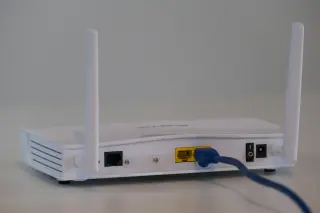
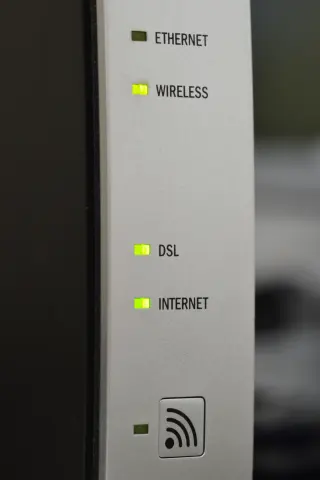
A Wi-Fi connection establishes a link to a nearby access point. Internet access still depends on an address, a route out of the network, working name lookups and the service you are trying to reach. Diagnose those boundaries in order instead of applying a long list of resets.
This guide follows a Windows 11 PC on a home network you are allowed to troubleshoot. Keep a note of each result before changing anything. On an employer-managed PC, collect the observations and let its administrator handle locked settings or required VPN software.
First establish what “no internet” means
Select the network, sound or battery area at the right of the taskbar and check the connected network name. Confirm it is your intended network. Windows’ status indicator is a clue: Microsoft explains that its connectivity check can fail even while the local wireless connection remains established.
Now open two unrelated, familiar websites and try an internet-dependent app. If only one service fails, investigate that service before changing the PC’s network. If normal tasks work despite the warning, record that mismatch; resetting a usable connection would destroy useful evidence.
At a hotel or café, look for the network’s sign-in notification and follow the venue’s access instructions. A local connection can precede permission to use the internet. Ask staff if the expected portal does not appear. Do not bypass certificate warnings or install software offered by an unexpected login page.
Compare another device on the same Wi-Fi. Temporarily turn off mobile data on a phone so cellular fallback cannot hide the failure; restore it afterward. If both devices fail across unrelated services, investigate the shared connection. If the phone works, concentrate on the Windows PC or a restriction affecting that device.
Read the address before replacing it
Open Start, search for Command Prompt and open it normally. Enter ipconfig. In the active wireless adapter’s block, note IPv4 Address and Default Gateway. Ignore disconnected adapters and do not mistake a VPN adapter’s entries for the Wi-Fi connection. Microsoft’s ipconfig reference documents this read-only view.
A hypothetical home setup might show IPv4 address 192.168.1.23 and gateway 192.168.1.1. These are examples, not values to enter. Your router’s address may be different. A gateway is the next hop toward destinations outside the local network; seeing one configured does not prove it is reachable.
An address beginning 169.254. on a typical home DHCP network suggests the PC has not obtained its normal IPv4 lease. A blank IPv4 gateway also leaves this IPv4 path incomplete. Neither observation rules out a separate working IPv6 path, so preserve any contradictory browsing result.
For this branch, reconnect Wi-Fi once and rerun ipconfig. If the lease remains missing, run ipconfig /all and check DHCP Enabled in the wireless block. If it says Yes, you can request another lease as described below. If it says No, preserve the manual configuration and ask whoever set it up; inventing an address can create a conflict.
Ask the next hop, then an outside destination
With an IPv4 gateway present, enter ping 192.168.1.1, substituting your actual gateway. The plain command sends four echo requests and stops. A reply confirms that this target returned an IP-level response at that moment. A timeout means no reply arrived within the wait period; filtering can cause that too. See Microsoft’s ping reference.
Next enter ping 1.1.1.1. This is one example public IP destination, not a DNS setting to apply. It avoids needing a hostname lookup for this probe. Interpret it alongside the gateway result and the real tasks you already tried:
| Observed pattern | Next inquiry |
|---|---|
| Gateway replies; public address replies | Some outward IPv4 connectivity exists. Continue to name resolution and application behavior. |
| Gateway replies; public address times out | Check whether other devices also fail. The onward route or the probe target may be unavailable or filtering echoes. |
| Neither replies | Recheck the Wi-Fi connection and address. Compare another device before blaming the router. |
Four replies are not a speed test or proof that every application works. Four timeouts are not proof of a dead internet connection. These IPv4 probes cannot diagnose every IPv6 problem, and a VPN may alter the path. If websites work, that stronger practical result prevents an echo failure from becoming a false outage diagnosis.
Separate a naming failure from an application failure
In the same ordinary command window, enter nslookup microsoft.com. Microsoft’s nslookup documentation confirms that omitting a second argument queries the default DNS server. This checks one public name without changing your resolver.
Read the target answer separately from the server label. Returned addresses show that this lookup received an answer. A timeout suggests the query received no timely response; a nonexistent-domain response is a different result. A resolver labelled Unknown alone does not mean the target lookup failed.
If the public IP probe succeeds but several familiar public names time out in nslookup, name resolution deserves attention. Record the names and time for support. If nslookup returns answers but the browser fails, try the same sites in another installed browser. Browsers can use a different secure-DNS path, so a successful system lookup does not clear every browser naming problem.
Keep the browser’s exact error. A certificate warning, a connection timeout and a name-resolution error require different follow-up. Do not substitute a numeric IP in the browser and accept a certificate warning: that does not reproduce the original hostname-based HTTPS request.
Recover the branch you identified
- Missing DHCP lease on this PC
- Save online work. Open Command Prompt with Run as administrator if authorized, then enter
ipconfig /renew "Wi-Fi", replacing Wi-Fi with the adapter’s exact name. This targets a DHCP renewal rather than releasing every adapter. Rerun ipconfig: success means a normal address and gateway return. If renewal times out, retain the error and investigate DHCP availability with the network owner. - Suspected stale local DNS cache
- In an authorized administrator Command Prompt, run
ipconfig /flushdnsonce, then retry the affected hostname normally. The cache repopulates through later lookups; there is no old cache to restore. This cannot repair an unreachable DNS server, so stop repeating it if the symptom persists. - Multiple devices fail
- Check the provider’s outage information using another connection. If appropriate, restart your own modem and router according to their instructions, warning other users first. Restore power to the modem before a separate router. Wait for normal startup indications. Leave the factory Reset button alone.
Microsoft’s Windows Wi-Fi troubleshooting guide also offers the Network and Internet troubleshooter in Get Help. Record any change it makes. Keep required VPN and security controls intact; broader network reset can require VPN or virtual-network software to be configured again.
Finish by repeating the original websites and app. If they still fail, send support the time, affected devices, address/gateway status, probe pattern, lookup result and exact error through a private channel. Remove unnecessary personal network details. That record identifies the next investigation without leaving a trail of unexplained settings changes.
Sources, versions & scope
The steps describe the documented controls and expected checks; they are not a claim that every device or software release has been physically tested. Platform and version differences are stated with the procedure.