Read the address on your PC first
You can find a Windows 11 PC’s local IP address in Settings without opening an IP-lookup website, uploading a screenshot or changing the connection. Reading that page does not publish the address. The privacy problem usually starts when someone pastes the entire result into a public help thread.
This guide covers your own Windows 11 computer on a home network. Start by asking what the address is needed for: identifying this PC to a local device, finding the router, or investigating the address an internet service sees. Those are different requests. If someone simply asks for “your IP,” ask which one before sending anything.
Which address would answer the question?
- The PC’s local address
- The address assigned to its Wi-Fi or Ethernet connection. A home IPv4 address is often in a private range and is useful for local troubleshooting.
- The default gateway
- The next router for traffic leaving that local network. Its address is not the PC’s address, even when the numbers look almost identical.
- The public-facing address
- The source address an internet destination sees for a particular connection. It can differ from the local address because of translation, a VPN or a proxy.
IPv6 addresses also appear on many PCs. Do not assume every address listed by Windows is private or that a local IPv4 value describes an IPv6 connection. Keep the address-family label with any value you record. This article concentrates on finding and handling the IPv4 value, rather than diagnosing IPv6 connectivity.
The IANA registry identifies three private IPv4 ranges: 10.0.0.0–10.255.255.255, 172.16.0.0–172.31.255.255, and 192.168.0.0–192.168.255.255. They are not globally reachable addresses. That does not make an entire diagnostic report safe to publish: it may contain other addresses and identifying details.
Find the connected adapter’s IPv4 address
- Open Start > Settings > Network & internet. Read the connection status at the top so you know which network you are inspecting.
- For wireless, select Wi-Fi, then the network you are connected to. For a cable connection, select Ethernet. Choose the connection relevant to the problem if more than one is available.
- Find IPv4 address in the connection details, scrolling if necessary. Write that value in a private note with “Wi-Fi” or “Ethernet” and the time. Keep the dots and all four number groups.
On Ethernet, leave the Copy button and the Edit buttons beside IP assignment and DNS server assignment alone; transcribe only the IPv4 value you need. Copying a collection of connection properties creates more material to review before sharing.
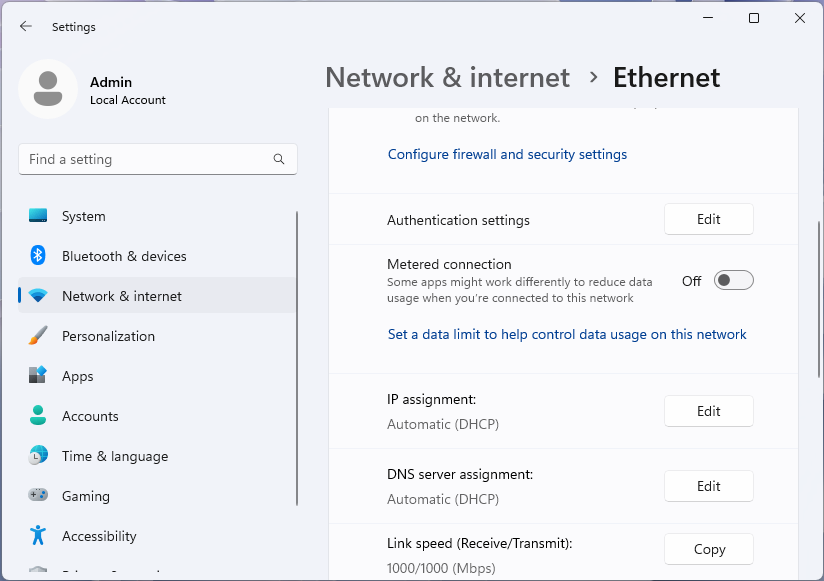
Read the needed value without changing IP or DNS assignment or copying all properties. This Microsoft Windows 11 reference shows the Edit and Copy controls; the IPv4 address row is below the visible area. Used with permission from Microsoft.
Version notes
Microsoft Learn explicitly identifies the supplied desktop Settings screenshots as Windows 11. Current network documentation confirms the named Settings route; exact Windows build and capture date unknown. No live network comparison performed.The expected result is one address associated with the connection you selected. Merely viewing it needs no undo. Microsoft documents this Settings route. If you cannot find the field, use the command method below rather than changing settings to make a value appear.
Windows also offers Public and Private network profiles. Those labels control network behavior such as discoverability; switching profiles does not convert your local address into a public internet address. Leave the existing profile unchanged for this lookup.
Use ipconfig when the page is unclear
Press Windows + R, type cmd, and press Enter. In the Command Prompt window that opens, type the following and press Enter:
ipconfigRead the block for the connected Wi-Fi or Ethernet adapter. Names vary; ignore blocks marked Media disconnected. Record the IPv4 Address line. If you also need the router address, record Default Gateway separately and label it clearly.
Microsoft’s command reference confirms that bare ipconfig displays addresses, subnet masks and gateways. It is an inspection command and needs no administrator window. It does not ask a public lookup service to report your address.
With a VPN, virtual machine or several adapters, the first address printed may belong to a different connection. Match the adapter to the Settings connection you just inspected. Keep a required work VPN running; if you cannot tell which address support wants, give them the adapter labels privately before sending values.
A hypothetical result might show PC IPv4 192.168.1.37 and gateway 192.168.1.1. The first identifies the PC on that network; the second identifies its gateway. Neither should be substituted for a public-facing address. These are invented examples, not observed results.
Avoid adding /all unless the extra detail is needed. It includes a fuller adapter configuration and can expose more information when copied. Do not run /release or /renew merely to read an address: those change DHCP configuration and can interrupt the connection.
When the number is missing or looks wrong
Only disconnected adapters: check that you selected your actual connection. For Ethernet, check the existing cable is seated; for Wi-Fi, confirm you are connected to the intended network. Repeat the lookup after reconnecting. A saved network name alone is not evidence of a current connection.
An address beginning 169.254: on a home connection expected to receive an IPv4 address automatically, this commonly means Windows could not obtain one from the router. Microsoft flags this condition in its Wi-Fi troubleshooting. Record the symptom and check whether another device connects. Do not invent a replacement address or factory-reset the router just to complete the lookup.
The number changed: automatic address assignment can give a device a different address later. Repeat the check on the relevant network before using an old note. Finding an address does not reserve it permanently.
If support really needs the public address
The local Settings value may not answer that request. Your own router may show an internet or WAN address in its status information; consult its model’s official instructions. That value can still differ from what a website sees if the provider uses additional address translation. A VPN or proxy adds another possible difference.
An online lookup necessarily receives a connection from you and sees its source address. Using one does not inherently publish the result to other people, but it does disclose the connection to that service. There is no universal Windows Settings field that proves the public-facing address for every destination and route.
For a support case, ask whether the provider can identify your connection through its authenticated support channel. If an exact public address is necessary, use its requested method and send the result privately. Record the time and whether a VPN was active. Avoid posting it to a searchable forum.
Sources, versions & scope
The steps describe the documented controls and expected checks; they are not a claim that every device or software release has been physically tested. Platform and version differences are stated with the procedure.