A delivery date becomes July 8 when the sender meant 7 August. Or a column that used to show dates now shows long numbers. These symptoms need different repairs: changing the display cannot undo an import that assigned the wrong month.
This guide covers Microsoft Excel for Microsoft 365 on Windows, with a CSV source and Power Query. It concentrates on recovering date meaning after import. It does not cover timestamps with time zones or dates shifted between workbook date systems.
Keep the original before fixing anything
Save the affected workbook under a new name as an .xlsx file. Keep the original downloaded CSV untouched. Open that CSV in Notepad, rather than double-clicking it into Excel, and compare a few records using their identifiers. If you already saved over the source after Excel changed it, ask the sender for another export.
Establish what the source means. The text 07/08/2026 could represent 7 August or July 8. Ask for the export convention or compare against a known transaction. A value such as 23/08/2026 suggests day/month/year, but it cannot prove every row follows that convention. Keep a note of the agreed order beside your working file.

Find out whether the date changed or just its appearance
Choose one affected date whose meaning you can confirm independently. In the workbook copy, select that cell and press Ctrl+1. In Format Cells, open the Number tab and select Date in Category. Choose a Type that spells out the month, check the Sample, and select OK.
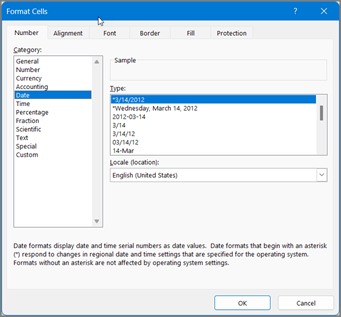
The Date category changes how a stored value appears. Choose a Type and check Sample; this does not repair a date imported as the wrong month.
Version notes
Current Windows tab of Microsoft Support lists Excel for Microsoft 365. Published classic Format Cells reference remains the documented control; exact screenshot build is undisclosed. No current workbook or particular date result is claimed.Microsoft’s date-format instructions document these controls. A non-asterisk format avoids the regional-setting dependency of starred formats. If the confirmed date reads correctly with a named month, you can apply that display to the rest of the date column. Press Ctrl+Z if you want to reverse the formatting change.
| What you see | What to do next |
|---|---|
| A number becomes the correct named date | The numeric date needed a readable display. Verify other records before stopping. |
| A valid date shows the wrong month or day | Return to the original text and repair its interpretation during import. |
| The slash-separated text does not change | Formatting alone has not produced a usable date. Reimport with an explicit convention. |
| The cell shows ##### | Widen the column first; double-click its right header boundary to fit the contents. |
Do not replace slashes, swap every pair of numbers, or apply a blanket day/month formula yet. A column can contain correctly imported dates alongside misinterpreted dates and unconverted text. An indiscriminate repair can damage the rows that survived.
Reimport the date column from untouched text
Use a fresh workbook for this repair so existing calculations and manually edited records stay available for comparison. Microsoft’s CSV import guide distinguishes opening a file from importing through Power Query.
- Select Data > From Text/CSV, locate the preserved CSV, and choose Import. Check the delimiter in the preview: the date and record identifier must occupy separate, correctly headed columns. If everything appears in one column, choose the separator actually used by the file before continuing.
- If the preview offers Data Type Detection, choose Do not detect data types, then Transform Data. The Text/CSV connector documentation confirms that detection can be disabled, leaving columns as Text.
- In Power Query Editor, inspect Query Settings > Applied Steps. If an automatic Changed Type step has already interpreted the dates, remove that step with its X in this fresh query. Keep the step that promotes the first row to headers. Confirm that the dates again match the literal strings in Notepad. Merely converting an already wrong date back to Text would preserve the wrong interpretation.
- With the original date column still Text, right-click its heading and choose Duplicate Column. Keep the original as
DateRawand rename the duplicateDateFixed. This preserves a readable comparison within each record. - Right-click
DateFixedand choose Change Type > Using Locale. Select the Date data type. For a confirmed day/month/year source, choose English (United Kingdom); for a confirmed month/day/year source, choose English (United States). Confirm with OK. Choose the locale of the source convention, even if your computer uses another region.
That last operation interprets text as dates; it does not set the final worksheet appearance. Microsoft’s data-type guidance explains this locale distinction. If Error appears, inspect the original string and the selected convention. Do not remove error rows simply to finish the import.
Prove the month before accepting the repair
For a hypothetical day/month/year file, compare these records in the preview. These are expected interpretations, not results from a tested workbook.
| DateRaw | DateFixed must mean | Why inspect it? |
|---|---|---|
| 07/08/2026 | 7 August 2026 | Both parts could be months; the wrong answer can look valid. |
| 23/08/2026 | 23 August 2026 | The day exceeds twelve, exposing a month-first interpretation. |
| 02/01/2026 | 2 January 2026 | A second ambiguous record checks that January did not become February. |
If the preview’s own display is ambiguous, select DateFixed and use Add Column > Date > Month > Month to add its month number. For those three examples, expect 8, 8, and 1. Compare against DateRaw and the source record identifiers. Check dates beyond the first previewed rows as well; a clean sample does not establish a clean file.
When satisfied, choose Home > Close & Load. On the loaded worksheet, give DateFixed a named-month display using Ctrl+1. Compare the imported record count with the source and investigate errors or missing records before using the dates in a report.
Know when the source must be corrected
If one column mixes day-first and month-first dates, no single locale can resolve every ambiguous value. Separate records by a documented source convention, or request a consistent export. Do not infer the order individually from whichever interpretation avoids an error: both interpretations of 07/08 are valid.
If only the altered workbook survives, a wrongly parsed date does not retain an explanation of the sender’s original intent. Recover the source export, an earlier copy, or another authoritative record. A visual pattern is insufficient evidence for rewriting a delivery schedule.
Keep the corrected workbook and its raw comparison column until downstream reports have been checked. Correct the query rather than typing replacements into its loaded table, where a later refresh can replace them. Request future exports with four-digit years and an explicit convention, preferably dates written as 2026-08-07, and retain the explicit import rule. Recheck any changed export format before refreshing a working report.
Sources, versions & scope
The steps describe the documented controls and expected checks; they are not a claim that every device or software release has been physically tested. Platform and version differences are stated with the procedure.