Start with the text behind the picture
A scanned page can show a perfectly clear surname while its searchable text spells something else. Your eyes read the image; Find and Copy may read a recognition layer beneath it. Making the PDF searchable gives you another representation to inspect.
Before processing anything, open the PDF in Acrobat and try selecting a sentence with the text selection tool. Paste it into a blank local text document, then search the PDF for an unusual word visible in that sentence. If Acrobat offers to run recognition, cancel the prompt until you have made a working copy. These first probes establish what the file already contains.
If no words select and a visible word cannot be found, the page may contain only an image. If words select but paste incorrectly, there is already text to investigate. A failed search alone is inconclusive: punctuation, search options or restrictions can interfere. A selected rectangle around the whole page is not evidence of selectable words.
Repeat on pages with different origins. A cover exported from Word and an attached scanned letter can coexist in one PDF. Record which PDF page positions need recognition, distinguishing them from printed page numbers. Do not flatten or print the entire packet to images merely because some pages lack text.
Give Acrobat one difficult page first
Keep the received PDF unchanged and duplicate it as a clearly named working file, such as packet-ocr-working.pdf. Use an approved application and storage location for confidential material; choosing a desktop application does not establish the processing or synchronization policy of every feature and folder.
The route below is scoped to Acrobat desktop on Windows or macOS with Scan & OCR enabled under your license. Adobe's current plan comparison lists turning scans into searchable PDFs among Pro features. Do not assume free Reader, Standard, browser tools and mobile apps offer identical controls. If your installation lacks the tool, obtain access through your organization or request the digital source.
Choose a representative difficult page: small text, an accent in a name, a table or two columns. Inspect it enlarged. A clipped final digit is a source defect; OCR cannot establish the missing value. Obtain a clearer scan when possible. Preserve faint annotations rather than applying aggressive cleanup to the only copy.
- Open the working copy. Choose All tools > Scan & OCR > In this file. Limit the page range to your chosen page and set the recognition language to match its text.
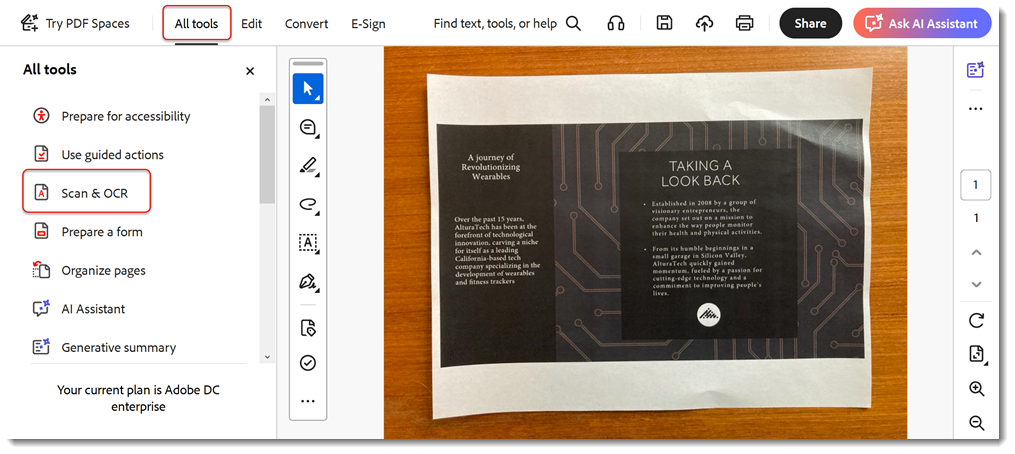
Visual 01 · Adobe Acrobat desktop; operating system and build not identified by source Open All tools and choose Scan & OCR to begin the desktop workflow. Adobe’s original outlines mark those two controls in its tutorial example.
Adobe official instructional screenshot. Copyright retained by Adobe and any owners of the displayed sample document; no third-party rights clearance asserted. Image source · Usage termsVersion notes
Adobe Acrobat desktop new experience, corroborated by current Continuous 26 release documentation. Exact captured minor build and OS undisclosed. Initial All tools > Scan & OCR action only. - Open Settings if needed to inspect additional options, then select Recognize Text. The expected result is a searchable text layer. Adobe documents this sequence in its desktop recognition instructions.
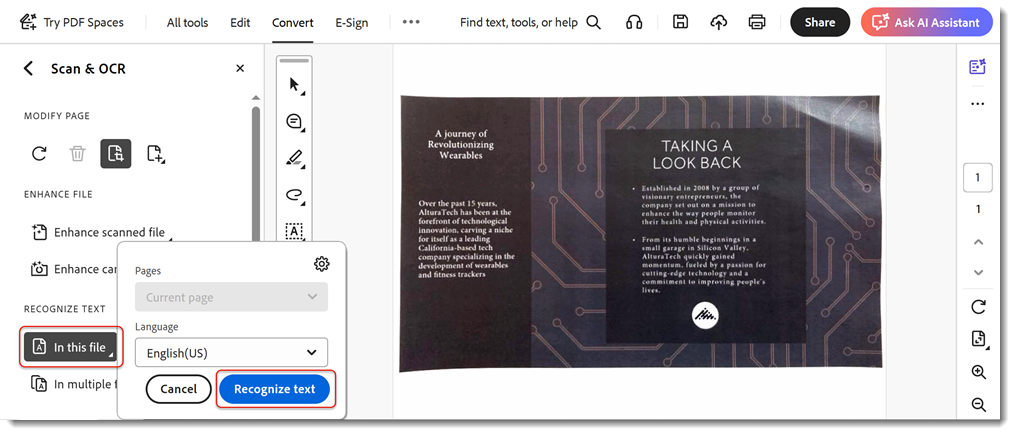
Visual 02 · Adobe Acrobat desktop; operating system and build not identified by source For the one-page OCR trial, inspect page scope and recognition language, then choose Recognize text. Adobe’s example shows Current page and English(US); choose the language of your own page.
Adobe official instructional screenshot. Copyright retained by Adobe and any owners of the displayed sample document; no third-party rights clearance asserted. Image source · Usage termsVersion notes
Adobe Acrobat desktop new experience corroborated by current Continuous 26 release docs. Exact captured minor build and OS undisclosed. One-page recognition popup open before submission; settings gear closed. - Save the working copy. Repeat the selection, paste and search probes before expanding to other pages. If Acrobat reports existing text or cannot process a page, record the message and investigate that page; avoid repeated conversions over the original.
Older interfaces may group recognition controls differently. Use your installed Help to locate Scan & OCR rather than following an unrelated browser upload workflow. Once the trial page is useful, process the remaining required ranges and inspect examples from every distinct scan source.
Read names and numbers character by character
Start with the fields that somebody will actually use. For a correspondence archive, that might be surnames and reference numbers. For an expense packet, it might be supplier, invoice identifier, date, currency and amount. Check every value that will drive a payment, calculation or consequential record update; a sample elsewhere cannot validate it.
Copy each chosen field into plain text and compare against the unchanged scan. Inspect accents, apostrophes and hyphens in names. In identifiers, compare O with 0, I with 1, and B with 8. A plausible spelling is insufficient: the source spelling is the target, including apparent mistakes in the original.
For amounts, include the currency, decimal separator, thousands separator, minus sign and any parentheses. For dates, preserve the printed form in your record before interpreting it. Correctly recognizing 04/05/2026 does not decide whether the writer meant April 5 or May 4.
When a value is unclear in the image, mark it unresolved and ask for a better source. Do not repair a faint digit by choosing whichever value makes a total balance. Two errors can cancel arithmetically while leaving both transactions wrong.
A correct number can belong to the wrong row
Copy a complete table row, including its label and amount, into the same plain text document. Compare the association, not only the digits. Then copy several adjacent rows. Watch for amounts appearing before labels, empty cells disappearing, or a wrapped description becoming a separate apparent record.
For two columns of prose, copy a passage spanning several lines in both columns. Read the pasted result as a sentence sequence. Alternating a line from the left column with one from the right can produce individually correct words and unusable meaning. Check the intended destination too: a spreadsheet import or another PDF reader may expose different ordering.
If this test fails, the PDF may remain useful for locating pages, but that region has not passed extraction review. Transcribe the required rows separately with source references or obtain the original table. Avoid presenting an unreviewed export as structured data.
Search for things you already know are there
Write down a few visible targets before searching: a distinctive surname, an identifier, a word near a page edge and a word in a different typeface. Search each and confirm that the result highlights the intended place. A common heading found on the cover proves little about recognition in the attachments.
For a missed target, inspect the copied spelling from that location. Try a shorter distinctive fragment, then check case and whole-word options. A line-end hyphen or changed character can explain why the full query fails. Record the miss even if the fragment finds the passage. This distinction matters when someone later treats “no results” as evidence that a person or term never appears.
Keep a small inspection record
The following is a hypothetical record, not a test result. In your own log, identify the input filename, output revision, application version, recognition language and pages inspected. Add each comparison as you perform it.
| Location and check | Image versus extracted text | Disposition |
|---|---|---|
| PDF page 2, surname | Image: Peña; copy: Pena | Record missing accent; correct and retest |
| PDF page 4, amount | Image: −12.50; copy: 12.50 | Hold extracted value; sign is missing |
| PDF page 5, columns | Pasted passage interleaves columns | Search use only; extraction unresolved |
| PDF page 7, identifier search | Visible AB-108; exact query misses | Inspect copied identifier and search settings |
Include successful checks too, with precise locations and scope. These deliberately difficult selections reveal failure modes; they do not constitute a random sample. Do not divide passing rows by inspected rows and announce document accuracy. A clean inspection leaves uninspected content unverified.
Repair what the source establishes
For flagged recognition errors, Adobe's correction workflow uses All tools > Scan & OCR > Correct recognized text. Enable Review recognized text, select a highlighted suspect, compare the image with Recognized as, enter a supported correction and select Accept. Continue through suspects. Unflagged fields still need your independent inspection.
If an observed error is not offered for correction, keep it unresolved in the log until an approved repair workflow is available. A separate transcription can support a specific task, but does not fix the PDF's search layer. After corrections, save a distinct final copy, reopen it and repeat the affected searches and paste comparisons. Confirm page count and order against the original.
Keep the acceptance boundary concrete: “Searchable copy; names and identifiers on pages 2–4 reviewed; page 5 column extraction unresolved.” Searchability alone also does not establish accessibility: Section508.gov's scanned-document training treats tagging, image alternatives and accessibility testing as additional work. Deliver the inspection record alongside the copy so the next reader knows which uses the evidence supports.
Sources, versions & scope
The steps describe the documented controls and expected checks; they are not a claim that every device or software release has been physically tested. Platform and version differences are stated with the procedure.