The pictures vanished. The storage warning didn’t.
You delete a batch of photographs, watch them disappear from the library, and return to the same nearly full storage bar. It feels as though the phone has ignored you. But a disappearing thumbnail tells you where an item is displayed; it does not establish which copy was removed or how many local bytes became available.
There are two accounts to reconcile: LOCAL, the physical phone’s storage, and CLOUD, the signed-in service’s quota. A photograph can belong to both, occupy very different amounts in each, or remain in one after a change to the other. Buying more cloud capacity does not enlarge the phone. Deleting an online original does not establish that a full-sized original was on the phone.
Before another deletion, identify the screen reporting the problem. An operating-system storage warning belongs to LOCAL. An iCloud or Google Account quota warning belongs to CLOUD. This investigation follows a local-space complaint, with an iPhone inspection first and a separate Google Photos route for Android.
Write down what each number actually counts
Use a private note, with the time beside each reading. Keep account identities recognizable to you without publishing email addresses. A compact ledger helps prevent an online estimate from becoming a false promise about phone capacity.
- LOCAL · capacity used and remaining
- Read the phone’s own storage screen. This is the account that must improve if you need room to record a video.
- LOCAL · largest occupants
- Record Photos or your gallery, plus the largest other apps. A camera roll is a suspect, not automatically the biggest occupant.
- CLOUD · service, account and quota
- Record iCloud and Google Photos separately if you use both. A backup in one account says nothing about another account’s coverage.
- COPY STATUS · retained, recoverable or independently saved
- Note whether wanted material remains in the library, a recovery collection or an exported archive. This annotation explains the numbers; it is not another storage total to add.
Two explanations can coexist: some removed photographs may remain recoverable, while others had only small local versions. Counting selected images cannot distinguish those situations. Neither can comparing the size of a cloud library with the phone’s free space.
On iPhone, follow the local entry before touching the bin
Open Settings → General → iPhone Storage. Allow the list to populate, record the usage shown, then tap Photos to inspect its allocation. Return to the list and compare it with other large apps. Apple counts Messages attachments and downloaded iCloud Drive content in categories separate from Photos; removing a library picture need not remove a separately saved attachment or download. See Apple’s storage-category guide.
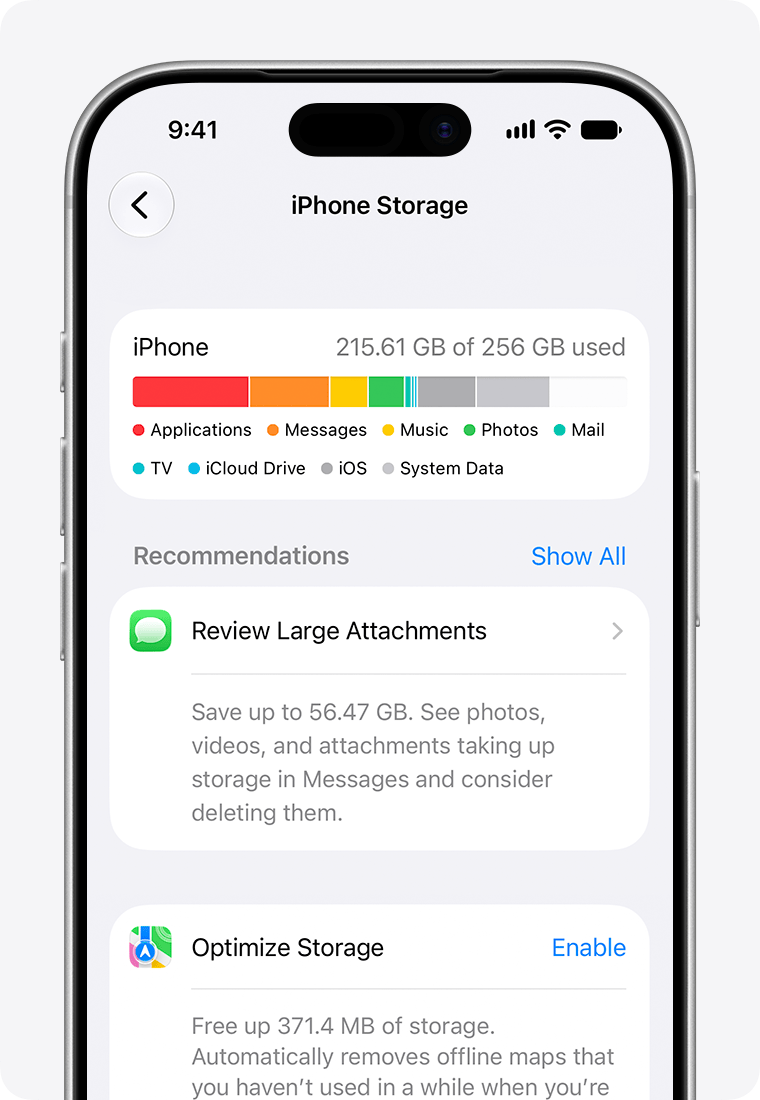
Read capacity at Settings → General → iPhone Storage. Apple’s example shows the used-capacity total and categories. The lower Maps recommendation is separate from Photos optimization.
Version notes
Apple identifies this asset as iOS 27 / iPhone 17 Pro. Its current photo-storage guide documents iOS 27; the security-release list establishes iOS 27 as released (27.2 on 26 October 2026). Exact minor build of the illustration is unknown; no device testing claimed.Next, open Settings → your name → iCloud and record the cloud reading on its own line. Tap Storage to inspect the per-app allocations in Manage Storage. Under Photos, inspect whether this iPhone is syncing and whether storage optimization is selected. With optimization, iCloud can hold full-resolution originals while the phone keeps smaller copies when needed. That makes a large online library compatible with a much smaller local Photos allocation. Apple’s photo-storage guide explains these two readings.
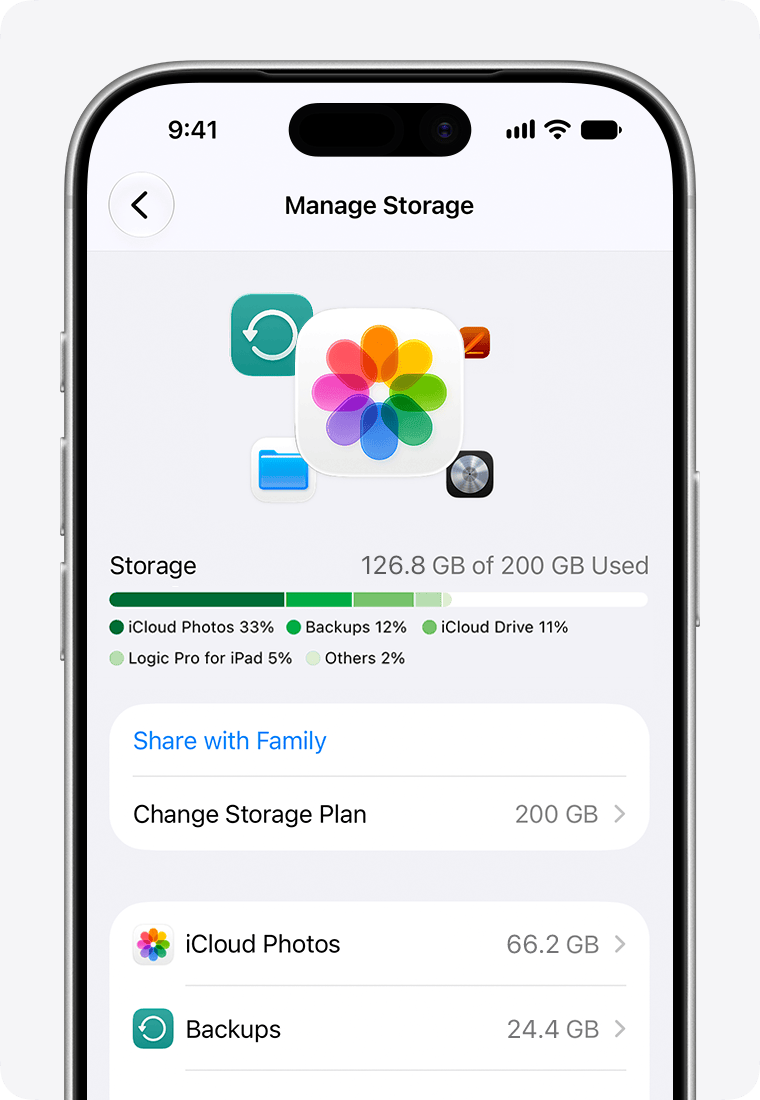
Tap Storage after opening Settings → your name → iCloud to reach this Manage Storage screen. Read the cloud quota and per-app allocations here; they are separate from physical iPhone storage.
Version notes
Official asset filename identifies iOS 27 and iPhone 17 Pro. Shows the deeper Manage Storage screen, not every tap from Settings or the iCloud overview. Numbers are Apple demonstration data, not measurements from a user phone.Now inspect Photos → Collections → Utilities → Recently Deleted. Tap View Album if offered and authenticate. Older layouts may place Utilities under Albums. Finding the missing pictures here establishes that their deletion is still recoverable; it does not tell you the exact local saving from permanently purging them. Apple normally retains deleted items for 30 days. If you wanted an item, select it and choose More → Recover, then confirm. Leave permanent deletion alone during this inspection. Apple documents the recovery controls.
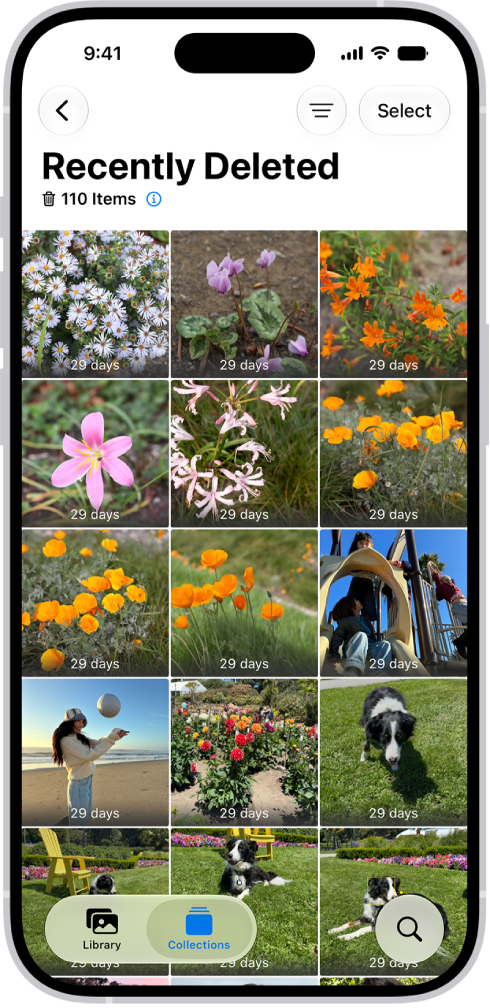
Inspect Recently Deleted before deciding what to recover. Apple’s iOS 27 example shows the unlocked album and the Select control, with 29 days remaining on the visible items. The recovery menu and confirmation are not open.
Version notes
Unchanged original linked in Apple’s explicitly versioned iOS 27 deletion and recovery guide. Exact device and minor build are undisclosed. Shows the album after unlocking, before selecting an item; no authentication, More menu, Recover action or completed recovery is shown.If the objective is keeping pictures while reducing local occupancy, optimization is the relevant mechanism. For an existing iCloud Photos library, go to Settings → your name → iCloud → Photos. Apple’s current instructions add an iPhone Storage submenu in iOS 27 or later; in iOS 26 or earlier, choose the optimization option directly. Check that wanted originals have synced before relying on cloud access. Optimization works as space is needed, so do not treat it as a guaranteed immediate release of a particular amount.
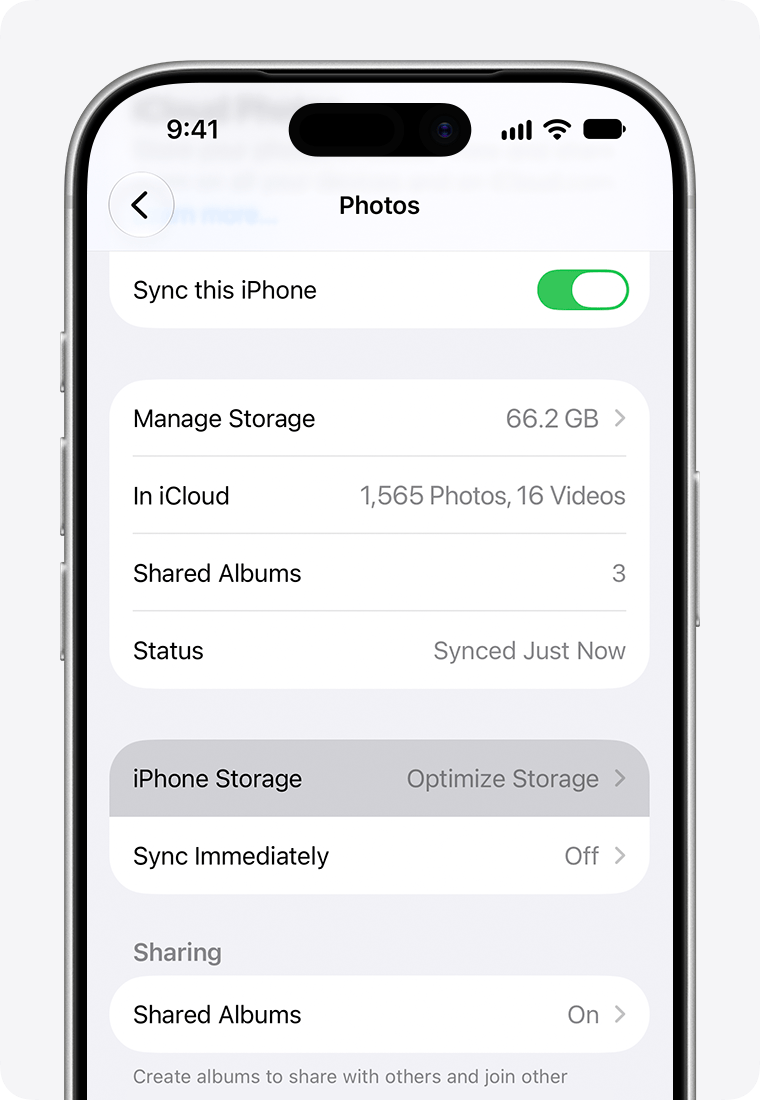
At Settings → your name → iCloud → Photos, inspect the iPhone Storage row. It reports Optimize Storage here; tap that row to inspect the optimization setting. Sync this iPhone is on in Apple’s example.
Version notes
Apple identifies this asset as iOS 27 / iPhone 17 Pro. Its current photo-storage guide documents iOS 27; the security-release list establishes iOS 27 as released (27.2 on 26 October 2026). Exact minor build of the illustration is unknown; no device testing claimed.Ordinary Photos deletion has a different purpose: with iCloud Photos, it propagates to the other devices using that library. Apple also says iCloud Photos content is not duplicated in the device’s iCloud backup. Preserve a separate copy of irreplaceable material rather than treating those two iCloud features as independent archives. Apple explains synchronization, optimization and backup separation.
On Android, a completed backup still needs a quality decision
For Google Photos, the important distinction is between the library’s Trash action and Free up space on this device. Ordinary deletion can remove the device copy and the online copy, with consequences for other devices using backup. Moving something to Archive merely changes its visibility. Neither is the dedicated local-space operation. Google’s deletion guide describes those effects.
In Google Photos, tap your profile picture or initial and identify the backup account. Wait for Backup complete. Then inspect Photos settings → Backup → Back up device folders: camera backup alone does not establish coverage of every folder you care about. Open a recent photograph, a video and an important non-camera image; use More → About → Details to inspect each item’s backup status. These are useful samples, not proof that an entire collection is covered. Follow Google’s backup-status instructions.
Quality is a separate gate. Under the profile menu, open Google Photos settings → Backup → Photos & videos quality. Original quality preserves the captured resolution and quality. Storage saver can compress pictures, resize those above 16 MP and reduce videos above 1080p. Express, where available, can reduce pictures above 3 MP and videos above 480p. Even an unchanged pixel count does not prove an unchanged file. Inspect an individual item’s Details by swiping up. Google documents quality settings and item details.
On a trusted browser, sign in at Google Photos with that same account and open retained items, including a video with sound. This establishes access outside the phone’s local gallery. It complements the quality check; successful playback alone cannot prove preservation of every original feature.
Review the local removal, then decide
Once backup coverage, retained quality and independent preservation meet your needs, return to the Google Photos profile menu and tap Free up space on this device. Read the proposed amount. If it suits your intention, confirm Free up [x] from device. Back out if you reached an account-storage cleanup screen instead. The documented Android operation removes eligible backed-up device copies while retaining the online library.
Google notes that media less than 30 days old may remain locally, so eligible cleanup can be smaller than expected. Removed copies will no longer be available through the built-in gallery or offline. Keep essential offline material separately before proceeding. The distinction and these exceptions are in Google’s device-space instructions. This route is scoped to Android; Google Photos on iPhone has a separate workflow.
If the phone is still full, change the suspect
Return to the same device-storage screen after the operation finishes and the display refreshes. Record the new reading beside the old one. If Photos was already a small occupant, further photo deletion has little room to help. Inspect the largest app’s own downloads or storage controls instead: a replaceable downloaded film is a better candidate than an unsynced project. Read each recommendation before accepting it; deleting an app can remove its data.
If the readings remain contradictory, record the exact screen, app, action and time for vendor support. Avoid account sign-outs and repeated sync changes: they introduce more variables without identifying the missing allocation. Leave the ledger with a concrete explanation—recoverable deletion, optimized local copies, retained recent media, or storage belonging to another app—and the next action attached to that evidence.
Sources, versions & scope
The steps describe the documented controls and expected checks; they are not a claim that every device or software release has been physically tested. Platform and version differences are stated with the procedure.
- Set up and use iCloud Photos
- Free up space on your device — Android
- Back up photos & videos — Android
- Apple: Manage photo and video storage
- Apple: Delete and recover photos
- How to check the storage on your iPhone and iPad
- Manage your photo and video storage
- Delete photos on your iPhone or iPad
- Delete photos & videos — Android
- Choose the backup quality of your photos & videos — Android