Keep whatever access you still have
Your old phone is broken, missing or already traded in. You know the account password, but the next screen asks you to approve a notification or enter a code from that phone. Start by finding a surviving way to prove ownership. Reinstalling an app cannot create a verification method that was never enrolled.
This guide covers personal Google, Apple and Microsoft accounts. Use the branch for the account you need, even if your replacement phone uses a different operating system. Work and school accounts have a separate administrator route.
Keep your own working laptop browser sessions open while you assess the options. Avoid clearing cookies, signing out everywhere or resetting another device merely to troubleshoot. A surviving session can help, although sensitive changes may still require verification. Apple’s formal recovery wait has different device-use rules, explained below.
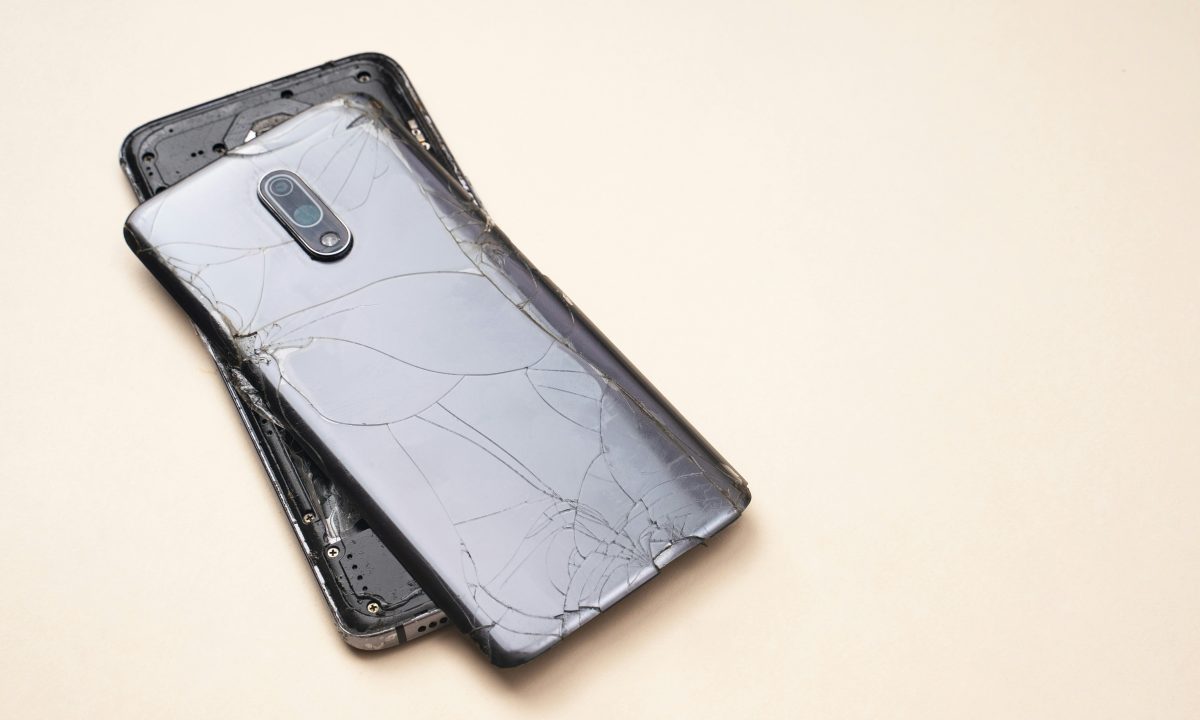
If the phone was stolen, contact your carrier about suspending its SIM and securing the number. Also use the device maker’s lost-device protections where available. Preserving access on your own computer does not mean leaving a stolen phone signed in.
First distinguish the phone from its number
- The handset is gone; the number is still yours
- Ask your carrier to transfer the number to a replacement SIM or eSIM after its identity checks. This can restore text or call verification where the account still offers it. It does not restore authenticator secrets or approve a prompt sent to the old phone.
- You also lost the number
- Look for another method already attached to the account: a recovery mailbox, another trusted device, a security key, a usable passkey elsewhere or saved recovery codes. Availability depends on the service and your setup.
- The only copies are behind the locked account
- A backup-code photo in that account’s cloud storage is not reachable until you regain access. Check independent records before starting a recovery request.
Write down the account address, available methods and any recovery request’s start time. Keep actual passwords and codes private. This small record helps you distinguish an unavailable method from one you have not checked.
Google: try a surviving second step, then recovery
Google’s lost-phone guidance lists another signed-in phone, an enrolled backup number, a saved backup code, an added security key or a passkey on another device. A previously trusted computer may also help. These routes depend on preparation before the loss.
- Start sign-in at Google’s own site. When the unavailable second step appears, choose Try another way if offered. Select a method you can actually complete; repeatedly requesting the same missing-phone prompt will not move it to your replacement.
- If you have a saved backup code, choose Enter one of your 8-digit backup codes and enter one unused code. You still need your password. Mark that code used after successful sign-in.
- If no available option works, open Google Account recovery. On the Account recovery screen, enter your account in Email or phone, then choose Next. Follow the questions shown for your account.
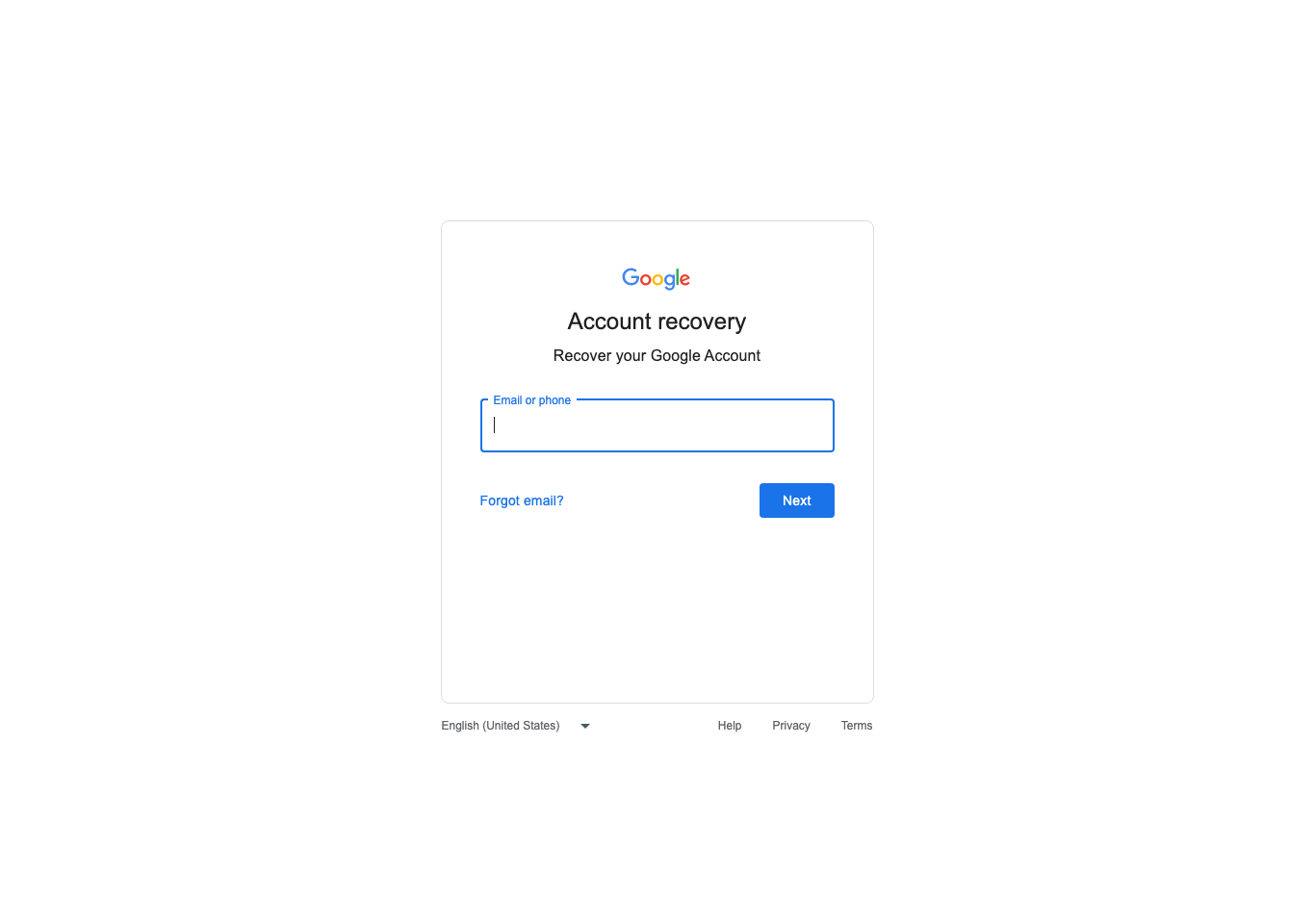
Visual 01 · Google Account web recovery, desktop Chrome on macOS Start with the account you need to recover. This live public screen is shown before any account information is entered; the questions after Next depend on that account.
Google interface; screenshot captured for Signal Desk instructional use. Google retains interface and trademark rights. Image source · Usage termsVersion notes
Captured from live accounts.google.com on 2026-10-31 using installed Google Chrome 156.0.8078.74, 1365 × 960 viewport, isolated new profile, no account data entered. Google web service exposes no release number; currency is established by same-day live rendering, not inferred from an old support asset. Layout can vary by device and server rollout.
Google’s recovery tips recommend a familiar device, your usual browser and a location where you normally sign in. Use those when safely available. Enter the most recent password you remember if asked, and provide answers rather than skipping questions. A reachable recovery address helps only within the checks Google presents; it is not guaranteed admission.
If Google cannot verify ownership, review the answers and try again with better information. Save any displayed waiting instructions. Do not treat repeated attempts as a way to bypass verification or assume a fixed completion time.
Backup codes are single-use. Hypothetical example: you have ten unused codes and successfully use one; nine remain. Creating a replacement set invalidates the entire previous set, so update every stored copy together. Advanced Protection accounts cannot download these codes.
Apple: check trusted access before starting the wait
An already trusted Apple device or reachable trusted number may supply verification without the missing iPhone. Apple’s trusted-device instructions also document the route when those options are gone:
- Try signing in to your Apple Account.
- At the verification screen, choose Didn’t Get a Code? or Can’t get to your devices?, whichever appears.
- Choose Can’t use [phone number]. If no trusted number is accessible, follow the onscreen account-recovery instructions.
If you previously enabled a recovery key, Apple’s standard account recovery is disabled. Follow the key-specific route instead; the key does not by itself replace access to the trusted number.
Once a recovery request exists, change your approach
Apple’s current waiting-period guidance says confirmation arrives within 72 hours, with the expected recovery timing. That is a confirmation deadline, not a promise that access returns in three days. The wait can take several days or longer; support cannot shorten it.
If you started recovery on the web, turn off your Apple devices during the wait. For recovery initiated on a device, Apple permits continued use of the initiating device on iOS 17, iPadOS 17 or macOS 27 and later. Follow your request’s instructions; using other signed-in devices can cancel recovery. A successful password change on an available trusted device also cancels the request because you have regained access.
Check status at iforgot.apple.com using the same account and phone information you supplied originally. Do not submit another request merely to hurry the first. If the completion text or call never arrives, Apple directs you to apple.com/recover after the stated time.
Microsoft: find out which recovery process applies
For a personal account, begin with Microsoft’s Sign-in Helper. Enter the account email address or phone number and follow the diagnosed problem. Use an available alternate verification method if offered.
The account recovery form has a firm boundary: Microsoft cannot help through this route when two-step verification is enabled and none of the alternate verification methods is accessible. Support agents cannot override that protection.
If the form applies, prepare a working contact mailbox, old account passwords and, for Outlook, exact subject lines and contacts from past messages. Complete it from a familiar device and location where possible. Microsoft says results go to the contact mailbox within 24 hours. A rejected submission can be retried up to twice per day; improve the evidence rather than submitting identical answers.
A message saying Your security info change is still pending is a different process. Replacing all security information can impose a 30-day restriction. Support cannot expedite it. If you did not request the change, use the window’s let us know link. Canceling your own request requires access to the previous security proofs.
Restoring Microsoft Authenticator is not universal account recovery. Its backup restoration works within the same device type; an iOS backup cannot restore to Android. Work and school credentials require registration again. For those accounts, try Sign in another way if shown; otherwise contact your administrator through your organization’s known support channel.
Finish by replacing the missing method
Once access returns, enroll the replacement phone or another supported method and confirm it works in an additional sign-in while retaining your working session. Then remove the missing phone’s obsolete verification methods and revoke its account sessions. If theft or unauthorized access is possible, change the password and review recent activity.
Keep a second recovery route outside the replacement phone: otherwise the same loss recreates the lockout. Store codes securely and independently of the account they unlock. Never send them to someone offering recovery help. Account access also does not prove that every local file or encrypted backup survived; check the data separately.
Sources, versions & scope
The steps describe the documented controls and expected checks; they are not a claim that every device or software release has been physically tested. Platform and version differences are stated with the procedure.
- Google: Fix common issues with 2-Step Verification
- Google: Tips to complete account recovery steps
- Google: Sign in with backup codes
- Apple: About trusted phone numbers and trusted devices
- Apple: What to expect during account recovery
- Apple: Set up a recovery key for your Apple Account
- Microsoft: Account sign-in helper
- Microsoft: Help with the account recovery form
- Microsoft: Security info change is still pending
- Microsoft: Restore one-time password codes in Authenticator
- Microsoft: Sign in using two-step verification or security info