Before a used laptop gets your email, password manager or banking session, replace the software environment you inherited. An empty desktop tells you very little about what remains underneath it. A clean installation from media prepared on another trusted computer gives you a more defensible starting point.
This guide covers an Intel or AMD laptop eligible for Windows 11, with one internal storage drive. It does not cover Arm laptops or Macs. You will need another trusted Windows PC, internet access, a blank USB drive of at least 8 GB and the laptop’s correct charger. Keep your everyday accounts off the inherited Windows installation.
Settle the handover before erasing anything
Record the exact model, serial number, seller’s details and return deadline. Compare the machine with the listing while you can still raise a straightforward return. Check that it starts reliably, the charger fits securely, the keyboard responds and the display has no obvious damage. A reinstall cannot repair a loose hinge or an unreliable power socket.
Ask whether the laptop belonged to a business or school and whether any firmware password remains. A seller’s Windows password is not the same as a password protecting firmware settings or startup. If a password blocks booting your installer, have the seller resolve it before proceeding. Do not turn a returnable purchase into a password-bypass project.
If the seller can demonstrate the current installation, note its Windows edition and activation status without adding your own account. Microsoft’s activation guide uses Settings → System → Activation. Preserve any supplied product key privately. For a refurbished PC, Microsoft says the refurbisher must provide the key. Resolve missing licensing evidence with the seller before wiping.
Save only your own files if you already put some on the machine, and verify the copies on another device. Have the seller recover their files themselves. Do not copy the previous user’s browser profile, installed utilities or entire Windows folder into your new setup. Plan the reset boundary with a safe plan before resetting a device if your own data is already involved.
Prepare the installer away from the used laptop
On the trusted Windows PC, open Microsoft’s Windows 11 download page. Confirm that the used model meets the linked requirements; an existing Windows 11 desktop alone does not establish eligibility. This procedure uses the x64 Media Creation Tool, which does not create Arm installation media.
- Under Create Windows 11 Installation Media, download and run the tool with administrator permission.
- Accept its terms, choose installation media for another PC if prompted, and select the language and Windows 11 options appropriate to the laptop.
- Choose USB flash drive and carefully select the blank drive. Its contents will be erased. Let creation finish before removing it.
Use the laptop manufacturer’s support site on the trusted computer to find the model’s USB boot instructions and any necessary network or storage drivers. Keep those downloads identifiable by model. Avoid a search-ad “driver updater”: you need the manufacturer’s files, not a new intermediary.
The preparation result is bootable installation media, not merely an ISO copied onto a drive. Label the USB so it cannot be confused with a backup. Unplug backup drives and other unnecessary storage from the laptop before installation.
Replace the inherited installation
Connect power and the installer. Use the manufacturer’s boot menu to start from USB. If the old desktop appears, restart and follow that model’s boot instructions again. Opening the installer from inside the inherited desktop is not this workflow.
- In Windows 11 Setup, select language and keyboard settings.
- At Select setup option, choose Install Windows 11, check I agree everything will be deleted including files, apps, and settings, then choose Next.
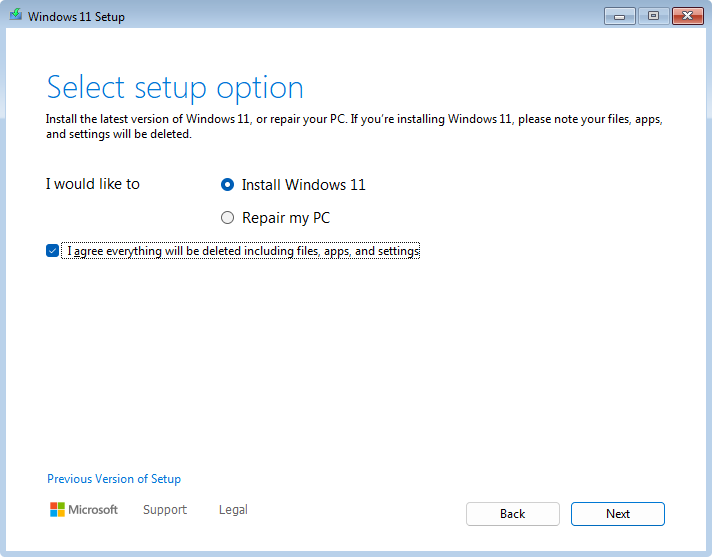
Visual 01 · Microsoft Windows 11 Setup Check the deletion consent only after preserving needed files. This official Windows 11 Setup example shows the clean-install choice before proceeding.
Microsoft Corporation. Used with permission from Microsoft. Image source · Usage termsVersion notes
Official current reinstall documentation and unchanged image checked 2026-10-31. Matching setup-option controls and selected state; no precise Windows build or local execution claimed. - If asked for a key, enter your legitimate key. With an established digital license for this device, choose I don’t have a product key and the licensed edition. Firmware may supply the key automatically.
- Accept the license terms. At the installation-location screen, delete the existing partitions on Disk 0 until it shows Disk 0 Unallocated Space. Select that space, then Next.
- At Ready to install, choose Install. Expect several restarts.
Those controls follow Microsoft’s current clean-install instructions. Partition deletion is destructive: this removes the old installation and its recovery partitions. There is no undo button that restores the seller’s desktop. Stop before deletion if you need manufacturer recovery media that you have not obtained.
The one-drive scope matters here. If another internal disk appears, the drive is missing, or the capacities do not make sense, stop before deleting anything. Ask the manufacturer or a competent technician to identify the storage and required driver. Do not guess from a drive number or change storage-controller settings at random.
Let online setup reveal an unfinished business handover
Proceed through initial setup and connect to the internet. If it directs you into an unfamiliar company’s sign-in, stop and photograph the message for the seller without entering credentials. Ask for the machine to be properly released or returned.
Microsoft’s Autopilot documentation explains that registration associates a device’s hardware identity with an organization and should be removed when the device permanently leaves it. Reinstalling Windows does not itself perform that administrative deregistration. A promise to delete a local account does not resolve the same problem.
For a correctly transferred personal machine, finish setup with your own identity and read the privacy choices. Treat the first successful desktop as a checkpoint. Do not immediately restore a collection of old utilities and extensions that makes the new environment difficult to assess.
Earn the first everyday login
Before putting the laptop into service, make these checks in the new installation:
- Update: open Settings → Windows Update → Check for updates. Install offered security updates, restart when requested and check again. Obtain any remaining model-specific drivers or firmware from the manufacturer. Keep power connected during firmware updates.
- Activate: revisit Settings → System → Activation. If activation fails, record the error and confirm the installed edition matches the license. Home and Pro are different entitlements. Use the supplied legitimate key through Change product key when applicable; unresolved entitlement goes back to the seller.
- Exercise the hardware: type in a disposable document, test Wi-Fi, play audio, try the camera preview and restart once. These are checks for you to perform, not proof that this particular laptop has passed testing. Record failures while the return window remains open.
Install needed apps from their publishers or the Microsoft Store, then bring back documents selectively. Keep the verified backup until you have opened the restored files. Update browser extensions deliberately rather than accepting an inherited set.
A clean installation reduces uncertainty about the previous Windows environment. It does not certify firmware, eliminate every possible compromise or guarantee hardware reliability. Persistent unexpected management prompts, unexplained software returning or repeat installation failures are reasons to pause and involve the seller or manufacturer before entrusting the machine with sensitive accounts.
Sources, versions & scope
The steps describe the documented controls and expected checks; they are not a claim that every device or software release has been physically tested. Platform and version differences are stated with the procedure.