Earlier in the day: book an interruption you can afford
Before closing a document for an update, leave yourself somewhere to return. A computer can restart successfully while you lose twenty minutes remembering which spreadsheet was final, what a browser form contained or why a project was open. Your update appointment needs to protect that context as deliberately as it protects files.
This brief follows a personal Windows 11 PC through its normal Windows Update process. It does not give macOS or phone menu paths. On a work or school computer, an administrator may control timing and recovery; use that support route if the available controls differ.
Choose a gap with room for preparation, installation and a small piece of real work afterward. Keep urgent contact details available on another device. A major version upgrade also deserves a check of the application vendor’s compatibility guidance, especially for specialist software or essential plugins.
16:00–16:10: leave a handoff for your future self
Save each active document through its application. For a new file, choose a recognizable name and a location you can find without the application’s Recent list. For a cloud document, check that the current revision has finished saving to the intended account. Resolve a failed save before closing the application.
Then write a short “resume here” note in a saved file or on paper. Include the project’s full location, the next action and any unresolved choice. “Budget.xlsx, Shared Projects/Budget; check the April total before sending” is more useful than “finish spreadsheet.” Add links to browser pages you need, but preserve unsent text separately where permitted: a bookmark preserves an address, not a form’s contents.
Close applications one at a time and read their save prompts. Give exports, uploads and file transfers time to finish. For a project containing linked media, make sure the project and its dependencies are accounted for; an exported preview alone may not let you continue editing. If a task cannot safely pause, choose another maintenance window using the controls available before installation starts.

16:10–16:25: check the copy you would actually need
Identify a recoverable copy of today’s important work outside the PC’s working storage. A local save protects the current edit from closing the application. Synchronization makes a revision available elsewhere, but may also propagate unwanted changes. A backup needs a known destination, scope and usable revision. Check those properties rather than relying on a familiar green icon.
If you already use File History, Microsoft documents its entry point as Control Panel > System and Security > Save backup copies of your files with File History. Check that the intended drive or network destination is available and the relevant folders are included. A project stored outside the covered libraries needs separate attention. Starting a new backup arrangement may take longer than this appointment allows. See Microsoft’s File History instructions.
Inspect a recent backed-up document without replacing the working original. With File History, in File Explorer right-click the original folder, select Restore previous versions, select a version, then expand Open and choose Open in File History. Check recognizable content. If no suitable version appears, the copy is not established. If you need a recovered sample, expand Restore and choose Restore to… for a different location; an in-place restore replaces current content. One readable sample checks that recovery route, not every file.
If the drive uses BitLocker or device encryption, confirm you can reach the appropriate recovery information independently of this PC. Microsoft’s recovery-key guidance covers personal Microsoft accounts, organizational accounts and saved copies. If a recovery screen later appears, use its key ID to identify the matching key. Keep the key private. An inaccessible account is something to resolve before elective maintenance, not a reason to disable encryption.
16:25–16:30: read what Windows is waiting for
Open Start > Settings > Windows Update. Read the displayed state before selecting anything: downloading, awaiting installation and awaiting restart are different points in the process. Record a listed update identifier or error for later comparison. If Schedule the restart is offered, choose your intended interruption time and recheck the displayed schedule. Microsoft describes this control in its Windows Update FAQ. If it is absent, do not assume a restart has been reserved.
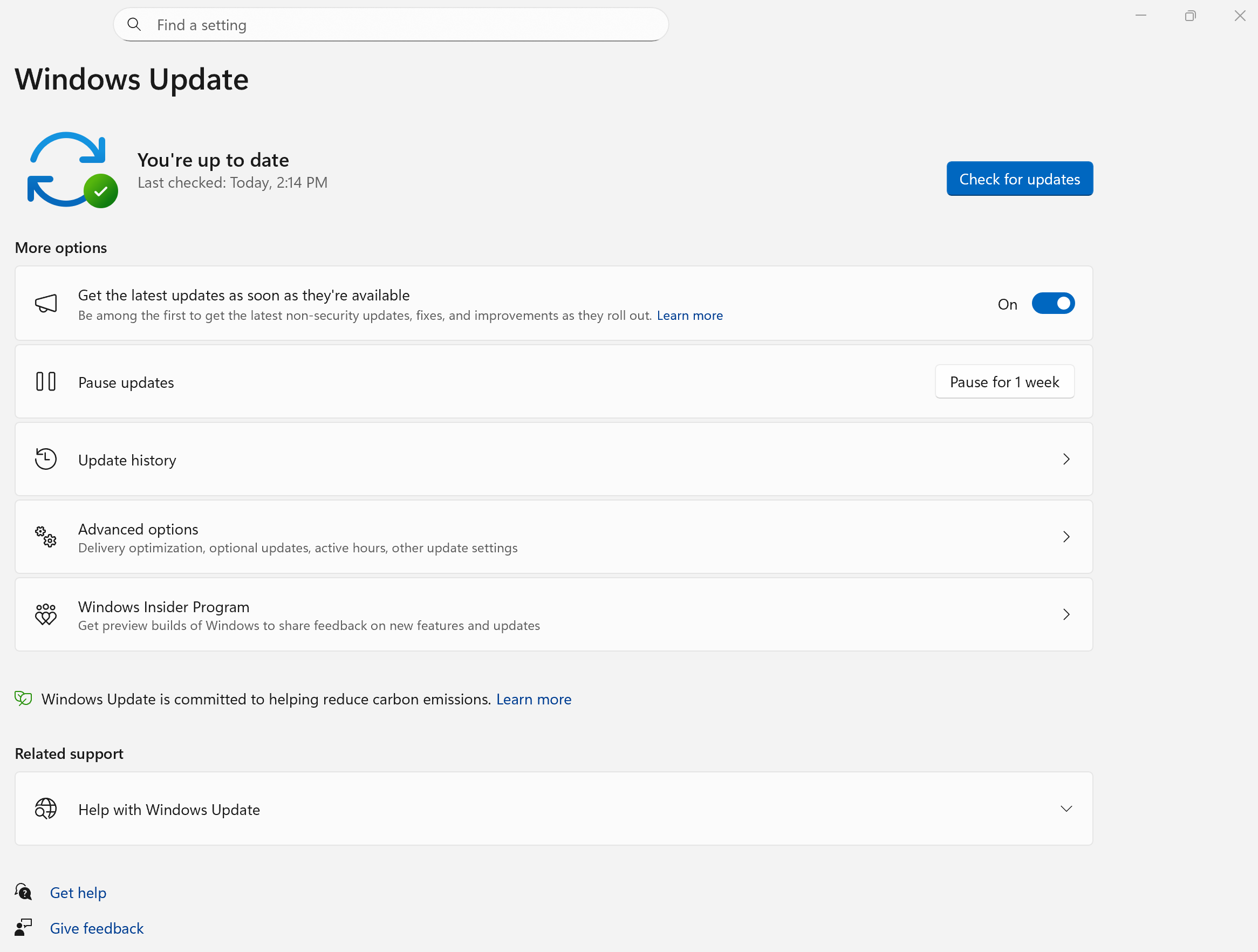
Initial Microsoft Windows 11 Windows Update screen: read the status before selecting an action. This example says You’re up to date; Update history and Advanced options are visible navigation choices.
Version notes
Official Windows 11 reference linked from Microsoft’s current 2026 Update documentation. Exact capture build is undisclosed. This up-to-date initial state does not show Schedule the restart or the Active hours screen.For your normal working schedule, Windows Update > Advanced options > Active hours lets you choose automatic adjustment or manual hours. These hours help Windows avoid inconvenient update restarts; they do not save documents or certify that overnight work has finished. Microsoft provides the current active-hours paths.
Connect the laptop to compatible mains power, keep ventilation clear and maintain the network connection. If Windows reports insufficient storage, allow more preparation time. Under Settings > System > Storage > Cleanup recommendations, review proposed removals individually. Preserve personal files and recovery material you may need. Microsoft’s space guidance also describes external-storage assistance when offered; it is not a substitute for a file backup.
From 16:30: let the installation finish
With work closed and the recovery copy checked, use the installation or restart action Windows Update presents for the current state. Read any prompts before proceeding. Keep the computer powered and follow the screen’s instructions throughout installation.
If the reserved window expires, move your next commitment to the alternate device if possible. Do not interpret a motionless progress display as permission to interrupt power. There is no universal waiting threshold that proves every update has failed. Use another device to consult Microsoft’s update troubleshooting guidance for the exact symptom. Record an error code and the screen’s wording, excluding account details and recovery secrets from anything you share.
After sign-in: spend the first half-hour on one familiar task
Return to Windows Update and check whether it still requests installation or another restart. Then use the handoff note to open the exact file you left. Confirm the latest recognizable edit before changing anything. If the file looks older or missing, check the signed-in account and full location before creating a competing replacement.
Do one small, reversible piece of the work you planned to resume. For a document, save a separately named copy, change a harmless line, close it and reopen it. For a specialist project, use a copy to check the plugin or export needed next. If your next commitment is a call, check the actual microphone and speakers in the meeting application’s settings. Test the printer only if printing is part of the next task.
These are checks to perform, not reported test results. Keep them narrow enough to distinguish a new failure from an unfamiliar workflow. Do not combine this appointment with unrelated driver replacements or application migrations. Keep the pre-update backup available while you verify the work you depend on.
If that task fails: preserve the evidence before choosing recovery
Save any new work separately and note the failing action, error and affected application. A problem confined to one application calls for its supported troubleshooting before a whole-system recovery. Microsoft’s recovery guide distinguishes a PC that starts from one that cannot boot. Choose the route that matches the actual condition.
Uninstalling a particular update and returning to an earlier Windows version are different operations. Some updates cannot be removed; a version-return option depends on eligibility and retained installation files. Microsoft documents removal under Settings > Windows Update > Update history > Uninstall updates, but reaching that page is not a recommendation to remove anything. Read the removal guidance before proceeding, including the consequences of removing a security fix.
If startup fails, keep the backup intact and use the supported recovery or administrator route with your recorded error. Do not erase the PC to discover whether that helps. The appointment can end with a documented problem and preserved work; it cannot honestly end with a promise that every update has an undo button.
Sources, versions & scope
The steps describe the documented controls and expected checks; they are not a claim that every device or software release has been physically tested. Platform and version differences are stated with the procedure.
- Windows Update: FAQ
- Microsoft: Backup, restore, and recovery
- Microsoft: Recovery options in Windows
- Find your BitLocker recovery key
- Microsoft: Free up space for Windows updates
- Keep your PC up to date with active hours
- Backup and restore with File History
- Free up space for Windows updates
- Troubleshoot problems updating Windows
- Recovery options in Windows
- How to uninstall a Windows Update