A long report can be harder to follow when every paragraph competes with navigation, promotions and a narrow text column. Firefox’s Reader View offers a simpler place to read eligible web articles. Use it for the reading pass, while keeping the original page available for anything the simplified view leaves behind.
This guide covers Firefox desktop on Windows 11. “Long documents” here means documents published as ordinary web pages, such as essays, policy explanations and detailed instructions. A PDF, a document editor and an interactive dashboard require their own reading controls.
First, decide whether simplification suits the document
Open the document itself rather than a search result or a site’s list of articles. Before switching views, note its title and look through its headings. If the information you need lives mainly in prose, Reader View is a useful candidate. If you need a comparison table, a map or a sequence of annotated pictures, plan to consult the original alongside it.
Mozilla’s Reader Mode documentation explains that eligibility depends on identifying an article within the page. A page can contain plenty of words without presenting an identifiable article. The missing button therefore does not establish that Firefox is broken.
For important reading, keep the original in another tab before you begin. Copy the page address, open a new tab with Ctrl + T, paste the address and press Enter. Leave one tab in the publisher’s layout. This gives you an easy comparison when a footnote, illustration or section seems absent, without repeatedly changing the view you are reading.

Enter Reader View and confirm the result
- Let the article load, then look for the Reader View page-shaped button inside the address bar, near its right end. It appears on eligible pages.

Visual 01 · Firefox desktop on Windows 11 · current vendor control reference Find the page-shaped Reader View button inside the address bar, immediately before Downloads in this Mozilla example. This is the inactive entry state; the image does not show the article after switching views.
Mozilla Support · unchanged vendor screenshot Image source · Usage termsVersion notes
Mozilla Help currently shows this Fx157ReaderViewIconURL reference with Version 159 and Windows 11 selected. Gallery asset dated September 29, 2026, matching September 30 help revision. Exact capture patch unknown; only the unchanged address-bar entry control is illustrated. No live Firefox session or completed toggle test claimed. This is a compact toolbar reference. Use Open full size to inspect the icon at its native scale. - Click that button. The article should change to a simplified reading layout, and the address-bar button turns blue.
- On Windows, F9 also toggles the mode when it is available. If your keyboard assigns F9 to a hardware function, use the visible button instead.
The current Mozilla instructions place the reading controls to the left of the article. To return to the publisher’s page, click the address-bar Reader View button again or the reading toolbar’s cross button.
Before settling in, compare the first paragraph, a middle heading and the ending with your original tab. These are practical checkpoints, not proof that every item survived. For a procedure, also compare any warnings and the material immediately before and after a picture. An attractive column is only useful if it retains what your task needs.
Fit the column to the way you read
Open the text control on the left. Its options include text size, font, content width and line spacing. Increase size with + or decrease it with −. The separate theme control offers backgrounds including Light, Dark and Sepia.
Start with one change: make the letters comfortable to read at your normal sitting distance. Read a full paragraph before changing anything else. Then adjust the column width if your eyes have trouble finding the start of the next line. A very narrow column can produce so many short lines that following a sentence becomes awkward; a very wide one can make returning to the left edge tiring.
Next, consider line spacing. If you repeatedly resume on the wrong line, try more space and read the same paragraph again. If the document becomes fragmented into isolated lines, reduce it. There is no single setting that makes every font, window size and reader equally comfortable.
Choose a theme by reading ordinary body text and a link, rather than judging the blank background alone. Keep a brief note of the choices you prefer. If later adjustments make reading worse, reverse the last change first instead of trying several new combinations at once. These are appearance adjustments; they do not edit the publisher’s document.
Use Find to move through a long document
Press Ctrl + F and type a distinctive phrase. Firefox opens a Find bar at the bottom and highlights a match. Use its next and previous arrows to move between occurrences; Highlight All marks the other matches. Press Esc to close the bar. Mozilla documents these controls in its Find in page guide.

Type your phrase in Find in page. Highlight All marks other occurrences; inspect matching options if needed. Mozilla’s reference shows the empty bar before a search.
Version notes
Mozilla’s Firefox159-selected support instructions display this Fx157FindBar original from September2026. It is a current documentation reference, not a claim of capture on build159 or on the reader’s machine. No query/result count is claimed.For a hypothetical benefits policy, search for “eligibility period” rather than “the.” Read the paragraph around each result, including qualifications immediately above it. Finding the term does not tell you whether that passage describes the general rule, an exception or an example.
If a phrase is not found, shorten it and check whether Match case or Whole Words is restricting the search. Then search the original tab. A result there but not in the reading copy is a reason to continue in the original for that section. Do not interpret an unsuccessful search as evidence that the policy contains no relevant condition.
When the button is missing or the document loses context
If you started on a listing page, open the actual article and check again. If no Reader View button appears there, use the original page with zoom. Press Ctrl + + to enlarge it and Ctrl + − to reduce it. Ctrl + 0 resets zoom. Firefox’s zoom documentation notes that site zoom is remembered by hostname, so check another page on that site if its size later surprises you.
For a mouse-based route, open the Firefox menu at the upper right. In its Zoom row, use + or −; click the percentage between them to reset the level.
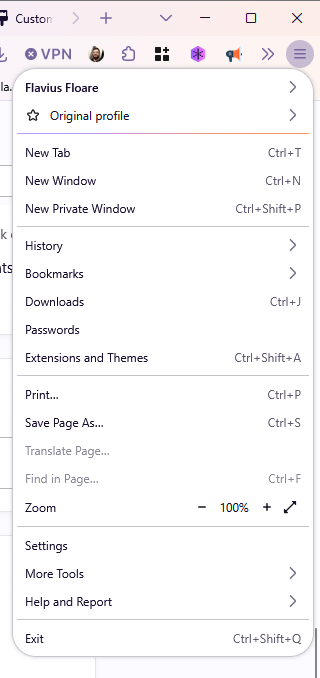
Use − or + in Zoom; click the middle percentage to reset. Mozilla’s example reads 100%. Its profile and extension icons are incidental vendor content.
Version notes
Current Firefox159 support selects this October2026 Fx157MenuPanel original instead of the hidden Fx103 panel. Vendor Windows-style reference; exact OS/browser capture build undisclosed. No live personal profile or Firefox-setting change was performed.Zoom is also a useful recovery when the text depends on a table or diagram. Return to the original, enlarge it until the labels are readable, and inspect the relationships there. Do not reconstruct a missing table from nearby prose or assume that a caption contains everything the picture explains.
If you encounter a sign-in requirement or only a preview, follow the publisher’s normal access route. Treat reading mode as a display choice, not a way to obtain unavailable material. Likewise, if the original offers separate chapters or a next-page link, check those in the original rather than assuming the simplified page contains the entire publication.
When you finish, use the original tab to copy the publisher’s address for your notes or to share the document. Record a section heading and a distinctive phrase if you will return later. That gives you a searchable place marker even if the page’s layout or your preferred text size changes.
Sources, versions & scope
The steps describe the documented controls and expected checks; they are not a claim that every device or software release has been physically tested. Platform and version differences are stated with the procedure.