A voice arrives after the speaker’s lips move. A podcast loses the ends of words. Music turns thin as soon as a meeting starts. All three can happen through the same Bluetooth headphones, but calling all three “lag” hides the most useful clue: what the fault actually sounds like.
The following listening scenes are hypothetical, not reports of device testing. Start with the one that matches your problem. Keep the volume comfortable and change one thing at a time; a different result should have an identifiable cause.
Constant delay: every word arrives late
Imagine a presenter tapping a pen on a desk. You see each tap, then hear it, with roughly the same gap every time. No taps disappear. That is a timing problem, even if the connection otherwise sounds excellent.
Run a small comparison with a video already stored on your device, ideally one with an obvious visible sound such as a clap. Play the same passage through the built-in speakers, then through the Bluetooth headphones. On Windows 11, choose the output in Start > Settings > System > Sound > Output. On a Mac, use Control Center > Sound. Lower the volume before switching because output levels can differ.
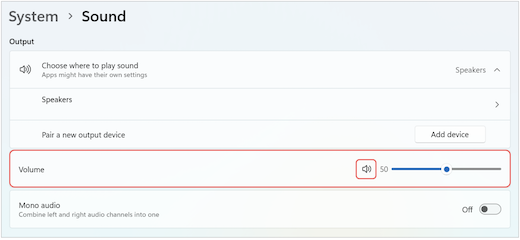
Initial state in Microsoft Windows 11 System > Sound: locate Choose where to play sound for the output comparison. This example lists Speakers; connect the headphones before selecting their output.
Version notes
Current Microsoft Windows 11 sound guidance uses the shown Output / Choose where to play sound layout. Exact Windows build is undisclosed. This image illustrates the initial output-control location; it does not show a selected Bluetooth headset or measured delay.If the gap is present through the speakers too, the headphones are not the only place to investigate. Open that file in another player: an offset that follows the file suggests its recorded synchronization, while one confined to a player suggests that app or its settings. If the speakers look synchronized and Bluetooth consistently falls behind, the wireless playback route is implicated. This comparison does not identify a codec or measure latency in milliseconds.
Audio passes through processing and queues before you hear it. A player can compensate for a predictable delay by holding the picture back. That can make a film look synchronized without making the headphone sound arrive sooner. Sony’s A/V sync guidance for supported televisions explicitly describes delayed picture output and warns that games can feel less responsive.
This explains a familiar puzzle: a film looks fine, yet an interactive instrument or game feels late. The application cannot wait for a future key press in the way it can hold back an already available video frame. Do not treat good movie synchronization as proof that the route will suit live monitoring.
For a movie, try the player’s documented audio synchronization control, if it has one. Note the original value, make a small adjustment, and replay the same moment. Controls differ in whether a positive value delays or advances audio; follow the app’s description rather than copying a number from another player. Restore the value before judging another output.
For an interactive task, compare a compatible wired audio route you already have. If it removes the bothersome delay, it is a practical working route. A headset’s supported low-latency mode is another candidate, but verify the exact headset and source requirements first. A Bluetooth version number on a box does not establish the latency of your complete setup.
Broken syllables: pieces of sound go missing
Now imagine a podcast that says “turn le— at the next—” while the playback counter keeps moving. Moving the phone from a pocket to the desk changes the problem. This scene points toward interrupted delivery, rather than a constant timing offset. An audio sync slider cannot restore missing syllables.
First replay the troublesome passage. If exactly the same fragment is missing at exactly the same point, listen through the device’s speakers. A defect that survives both routes may be in the recording or playback app. If the gaps move around, give the headphones a repeatable local source: open a fully downloaded track in your usual music app and play it with the source nearby and unobstructed. Apple recommends this stored-content comparison when wireless audio cuts out. A track listed in your library is not necessarily downloaded; confirm its offline availability.
Separate an empty stream buffer from an interrupted radio link
Internet streaming adds another delivery stage before Bluetooth. The app accumulates incoming media in a buffer; if that reserve runs out, playback may pause while more arrives. A spinner, a frozen picture, or a stalled progress counter is useful evidence, although apps do not all display buffering the same way.
Keep the device position unchanged and compare downloaded playback with streaming. Then compare that stream through the built-in speakers. If only the stream stalls and it does so through both outputs, investigate the app, service, or internet connection before changing headphone settings. If downloaded playback also breaks up only through Bluetooth, concentrate on the wireless route.
For a Bluetooth-only interruption, repeat the local track while changing one physical condition. Bring the source closer first. If nothing changes, try another location. At a computer desk, move a nearby USB 3 hub or external drive farther from the wireless devices without disconnecting an active drive. Apple’s interference guidance identifies obstructions, shared 2.4 GHz activity, and nearby USB 3 or Thunderbolt 3 equipment as possible contributors. If your existing network offers 5 GHz, testing that connection is another option; leave router configuration alone for this comparison.
Repeat a promising change before declaring success. A single quiet minute can be chance. If proximity repeatedly helps, keep that placement while checking the manufacturer’s connection guidance. If interruptions persist with a local track at close range, try the same headphones on another available source. Failure across sources increases suspicion of the headset; failure confined to one computer makes its Bluetooth hardware, drivers, or software worth investigating. Neither result alone proves a defective component.
Voice-call quality shift: opening the microphone changes the sound
The third scene is abrupt: music sounds full until a meeting or voice chat opens, then becomes narrow or seemingly mono. After the app quits, the music recovers. Instead of moving closer to the router, test whether microphone use triggers the change.
Play a downloaded song, then open the app associated with the problem and activate its microphone test or call preview. Listen for the change in the song. End the test and fully quit the app, including any browser tab still using the microphone. Muting yourself may leave the microphone connection open, so it is not an equivalent comparison.
On a Mac, Apple advises quitting microphone-using apps and closing System Settings if it is showing Sound settings. If playback remains degraded, choose the internal speakers in Control Center > Sound, then reselect the headphones. This is Apple’s documented reduced-quality troubleshooting route.
On Bluetooth Classic connections, the mechanism has a name. A2DP provides stereo playback; HFP, the Hands-Free Profile, provides microphone capture alongside mono playback. Microsoft documents automatic profile selection in Windows 11 when the headset microphone opens, or an app uses a communications playback stream. Windows 11 presents unified endpoints, so you may not see separate “Stereo” and “Hands-Free” choices.
If available, select the laptop’s built-in microphone or a separate USB microphone in the call app, keeping the headphones as its speaker output. On Windows 11, the system input selection is under Settings > System > Sound > Input, as described in Microsoft’s microphone guidance; check the call app’s selection too. Repeat the comparison. Recovery supports a profile-related explanation, but some communications streams can still select HFP. Confirm that the replacement microphone actually records your voice before relying on it.
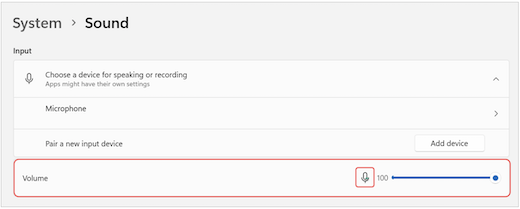
Windows 11 Sound → Input is the system-side device selector. Microsoft’s example lists a generic Microphone; choose your actual built-in or USB input and check the call app separately. This image does not establish the selected hardware or audio quality.
Version notes
Microsoft’s current microphone troubleshooting reference links this genuine Windows 11 Sound Input pane. Exact Windows build and capture date undisclosed. Current released Windows 11 host verified independently; no live recording, test playback or hardware selection result claimed. Microsoft’s original red outlines retained unchanged.The exception: compatible LE Audio systems
A quality drop during microphone use is not universal. Microsoft supports stereo playback with an active microphone on some Windows 11 LE Audio configurations. Its quality-settings documentation requires Windows 11 24H2 or newer, the applicable updates, compatible factory-integrated hardware, manufacturer drivers, and LE Audio headphones.
On supported configurations, open Settings > System > Sound, select the Bluetooth output, and expand Output settings > Format. Look for Format when microphone is active. If stereo causes disruptive glitches, Microsoft suggests trying mono for compatibility; note the original setting so you can restore it.
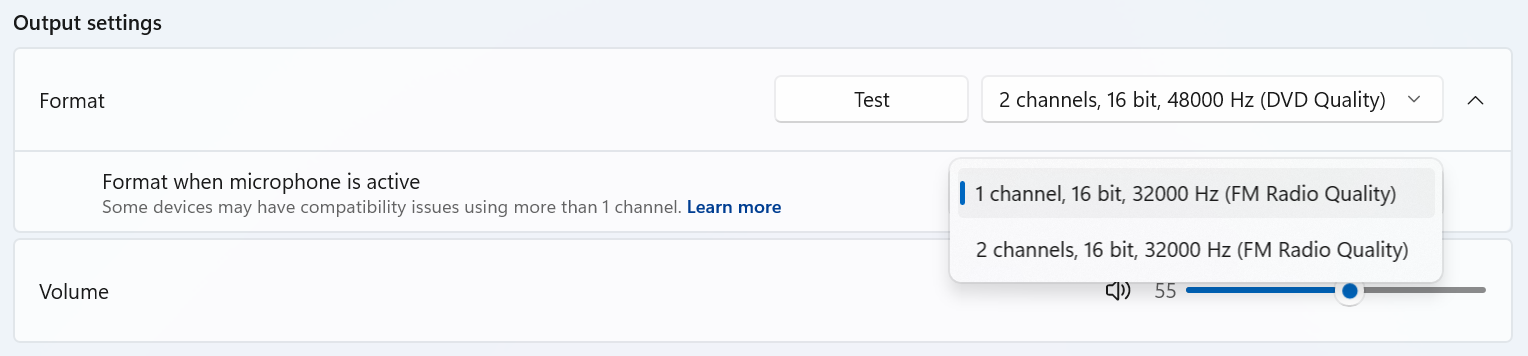
In Microsoft Windows 11, expand Format and use Format when microphone is active for the compatibility test. The open lower menu shows 1 channel selected and 2 channels as the alternative.
Version notes
Microsoft documents this released Windows 11 LE Audio feature for version 24H2 or newer with build 26100.4484 or newer, compatible integrated hardware, drivers and LE Audio headphones. Exact screenshot build is undisclosed. The lower menu visibly selects mono despite the asset’s stereo filename.If that control is absent, do not force it with registry edits. Microsoft’s separate LE Audio support check uses Settings > Bluetooth & devices > Devices > Use LE Audio when available. Bluetooth LE branding alone does not establish LE Audio support. Ask the computer manufacturer about missing hardware or driver support, with the headset model, Windows version, and your microphone comparison recorded. Meanwhile, a verified separate microphone or working wired headset gives the next call a usable audio path.
Sources, versions & scope
The steps describe the documented controls and expected checks; they are not a claim that every device or software release has been physically tested. Platform and version differences are stated with the procedure.
- Apple: Resolve wireless interference
- Bluetooth SIG: Introducing Bluetooth LE Audio
- Apple: Reduced sound quality with Bluetooth headphones
- Microsoft: Fix microphone problems
- Microsoft: Configuring Bluetooth LE Audio quality settings on Windows 11
- Microsoft: Check if a Windows 11 device supports Bluetooth Low Energy Audio
- Sony Help Guide: Adjusting the AV sync setting
- Apple: If the sound from your wireless headphones cuts out or is distorted
- Apple: Resolve Wi-Fi and Bluetooth issues caused by wireless interference
- Apple: If sound quality is reduced when using Bluetooth headphones with your Mac
- Microsoft Learn: Bluetooth Classic audio