Before the long press: is the laptop asleep?
An open lid and a black screen do not establish that a laptop failed to wake. Windows may be running with its display stuck, an external screen may have the picture, or the battery may have run down. The first job is to recover the session without cutting its power.
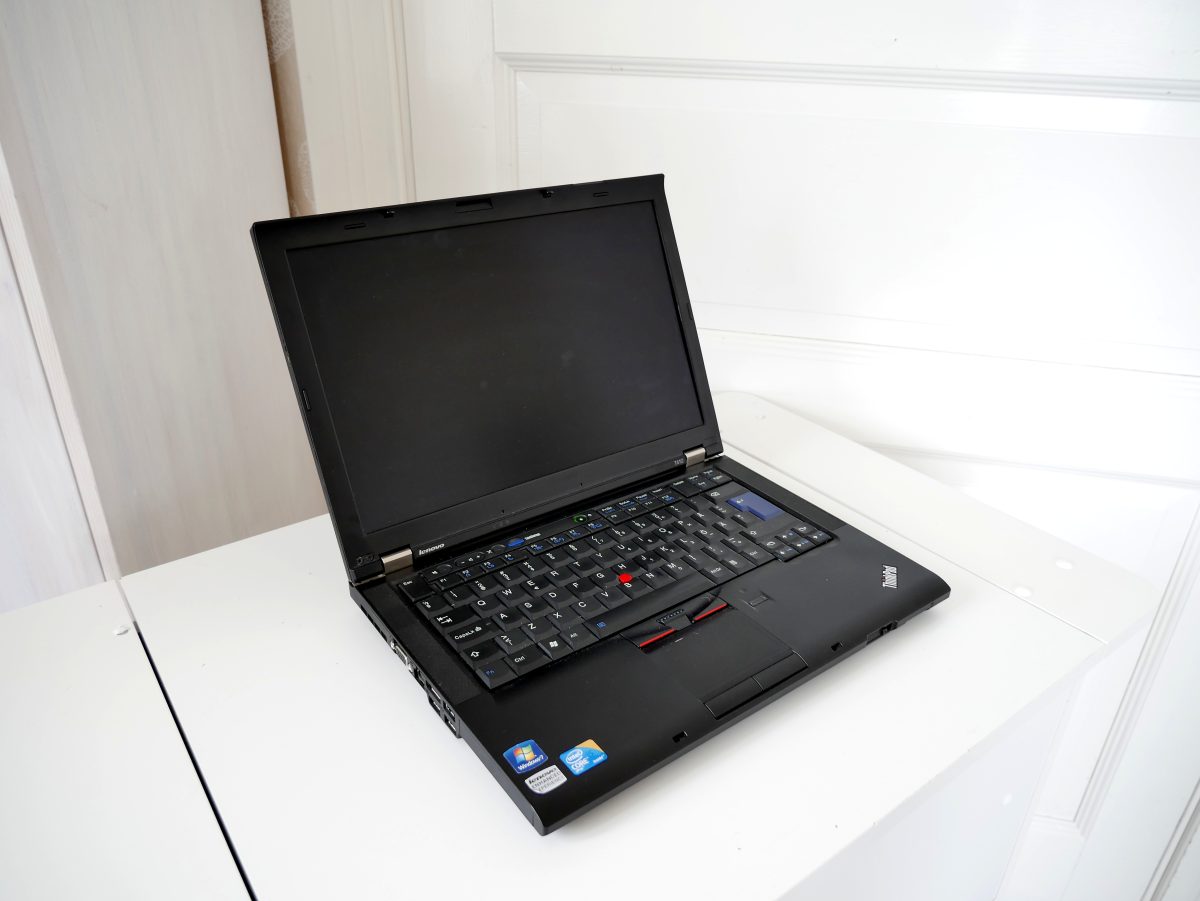
This guide covers Windows 11 laptops. Keep the lid open and use the built-in keyboard during diagnosis so a disconnected wireless accessory cannot confuse the result. If a firmware update is visibly in progress, leave power connected and let it finish. The cover photograph is an illustrative older laptop, not a tested Windows 11 machine.
Write down what happened: a closed lid or Start-menu Sleep, battery or charger, dock connected or absent, and roughly how long the laptop rested. An overnight failure and an immediate failure may need different comparisons. Treat lights and fan noise as clues; neither proves that Windows is accepting input.
Try to recover the picture and the session
- Connect the laptop's compatible charger directly, bypassing the dock if possible. Check the outlet and connector. Open the lid, tap a built-in key, then briefly press and release the laptop's power button if there is no response. Pause between attempts. Microsoft notes that supported wake methods vary by PC; a mouse that does nothing is not conclusive.
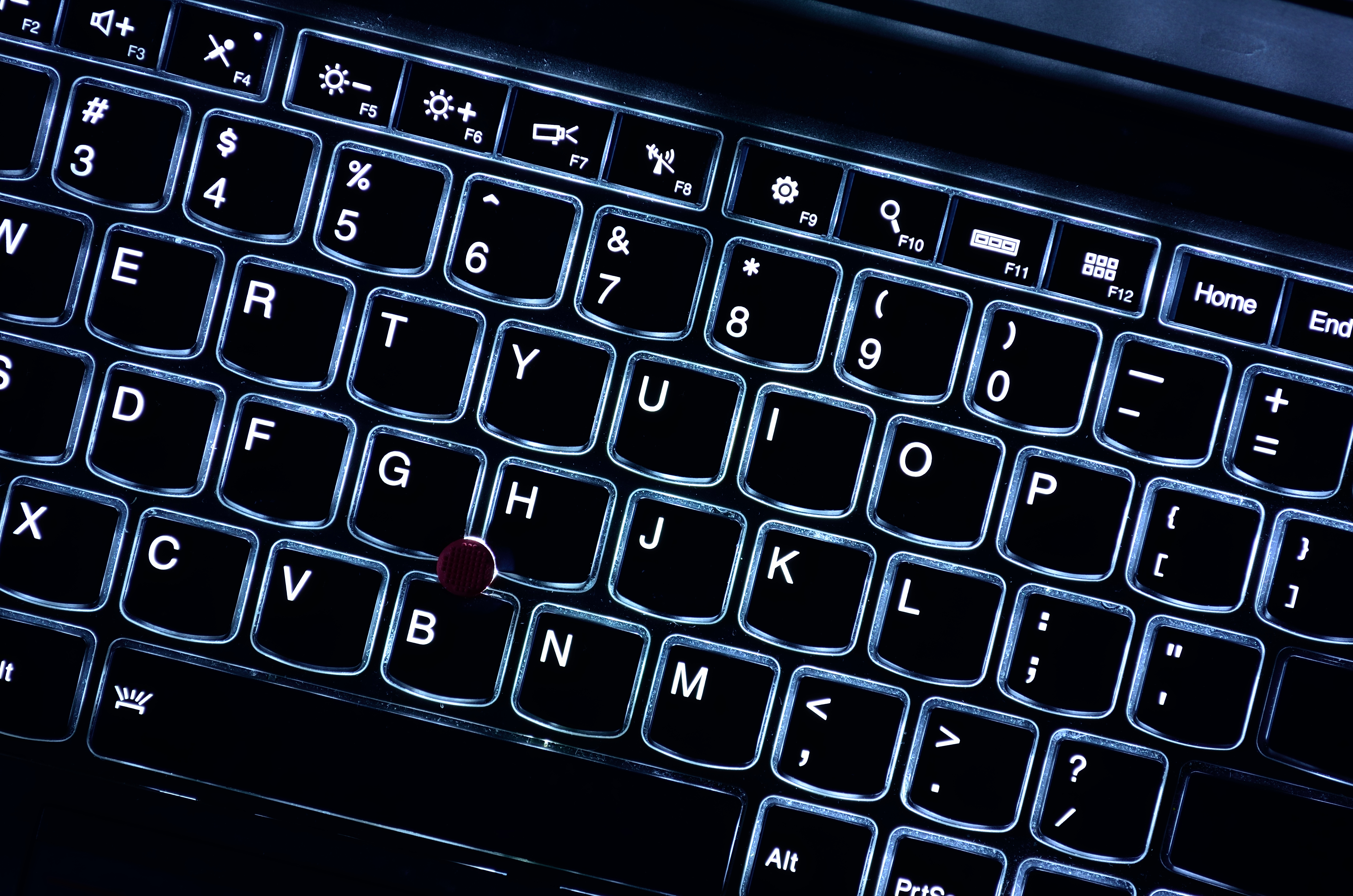
- Look for the sun-shaped brightness symbols on the keyboard and try the brightness-up key. Some layouts need Fn as well; follow the laptop's key legends or manual. The reference photo shows sun-minus and sun-plus symbols on F5 and F6, but your layout may differ. This checks for a dimmed screen without assuming that a backlit keyboard means the display is working.
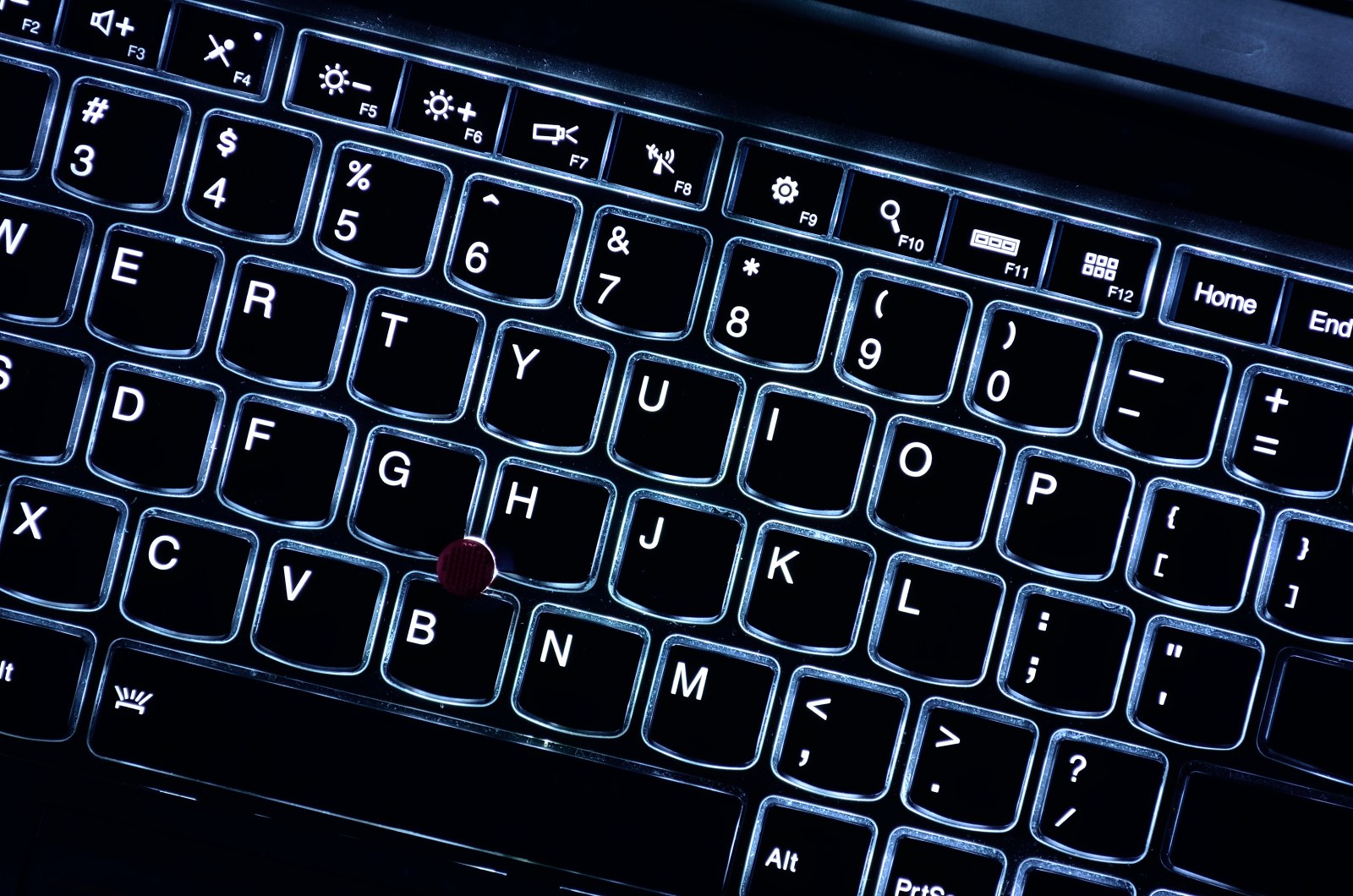
Visual 01 · Physical laptop brightness-key inspection Identify the sun-plus brightness key before trying it. This keyboard uses F6; your laptop may place the symbol elsewhere or require Fn. The photograph does not demonstrate a successful wake.
Raysonho @ Open Grid Scheduler / Grid Engine, ThinkpadKeyboard, CC0 1.0, via Wikimedia Commons. Original unchanged. Image source · Usage termsVersion notes
Camera photograph dated 31 March 2017, checked 2026-10-31 for the physical sun-minus and sun-plus legends only. No Windows UI or current model compatibility claim. Display photograph resized for loading speed; the full-size link preserves the original download. - Press Windows + Ctrl + Shift + B once. Microsoft recommends this graphics-driver reset for a blank screen; a beep or brief flicker can indicate a response. If the desktop returns, save open work immediately. Record “picture recovered with graphics reset” rather than declaring the sleep system fixed.
- Try Ctrl + Alt + Delete. If the security screen appears, Windows is responding. Press Esc to return; if the desktop remains unusable, use the visible power control to restart after considering unsaved work. Avoid guessing through an invisible menu.
If an external display or dock is attached, check that display's power and input, then disconnect the display connection and check the laptop panel. Avoid unplugging storage during an active transfer. When you can see Windows, Windows + P lets you choose PC screen only. Reconnect the display later and restore your usual mode. These are display-path checks from Microsoft's blank-screen guidance.
A working external picture with a persistently dark laptop panel points toward the internal display path. A working panel after undocking points toward the dock, display connection or its software. Those observations narrow the next comparison; they do not identify a failed component by themselves.
When the session cannot be recovered
If ordinary wake and display checks produce nothing, a forced shutdown may be necessary. Unsaved changes can be lost, and an interrupted write can damage a file. Use the exact model's documented forced-shutdown procedure; Microsoft's general blank-screen instructions specify holding the power button for 20 seconds. Release it, then press normally to start.
Do this as a recovery boundary, not a repeated diagnostic loop. Once Windows starts, inspect recovered documents and save them under sensible names before testing sleep again. A forced restart restoring the screen does not tell you whether the original fault involved sleep, graphics or power.
If the laptop still shows no startup image or signs of power with its correct charger, stop treating this as a Windows sleep-setting problem. Seek the manufacturer's no-power or no-display procedure for that exact model. Do not open the case, disconnect an internal battery or use an unidentified reset hole as a generic remedy.
Make one controlled sleep comparison
After recovering, save everything and close work you cannot afford to lose. Restart normally, connect direct power, and remove the dock and unnecessary accessories. Keep the built-in display open. Select Start > Power > Sleep, then try the power button after a short interval. This deliberately separates entering sleep from closing the lid.
If that works, reconnect one accessory and repeat the same sequence. Test closing and reopening the lid separately. Then, if useful, compare a battery-powered attempt with the same accessories removed. Stop at the first repeatable failure; there is no benefit in deliberately losing another unsaved session.
A hypothetical log might read: “Two short sleeps on direct power resumed; the next sleep with the dock connected left both displays black.” That is a reason to investigate the dock setup, not a failure rate or proof of a defective dock. Use your own observations, including attempts that worked.
If only a lid-close attempt fails, search Start for Control Panel, then open System and Security > Power Options > Choose what closing the lid does. Read the battery and plugged-in actions before changing anything. The laptop may be configured to hibernate or shut down. Photograph or note existing values so any deliberate change can be reversed.
Collect evidence before changing power settings
Search Start for Command Prompt and open it. Run these informational commands individually:
powercfg /a
powercfg /lastwake
powercfg /devicequery wake_armed
In Microsoft's command reference, /a lists available sleep states and reasons others are unavailable; /lastwake describes the last sleep transition's wake information; wake_armed lists devices configured to wake the system. Copy the results with your symptom log. None changes a setting.
A missing mouse in the wake list can explain why moving it did nothing. It does not explain every blank screen. Likewise, last-wake information is not a crash diagnosis and may be unhelpful after a forced restart. Keep the available sleep-state names for support rather than forcing a different standby mode through registry edits.
For Modern Standby systems, support may request powercfg /sleepstudy, which generates a report covering the last three days by default. This is not a universal sleep test. If it reports unsupported hardware, retain that message rather than trying to enable the feature.
Choose a repair you can verify
For recurring failures, use Settings > Windows Update for recommended updates. For optional drivers, Microsoft's documented route is Windows Update > Advanced options > Optional updates, under Additional options. Select a relevant listed driver and choose Download and install; optional drivers are not automatic. Restart afterward. An empty list does not prove the installed driver is fault-free.
Microsoft also directs readers to the hardware manufacturer's website when Windows Update cannot find a suitable driver. Match the exact laptop and dock models. Read release notes for resume or display fixes; avoid unrelated driver bundles. For firmware, follow the model's power and recovery-key prerequisites and check whether rollback is supported before installing.
Repeat the comparison that previously failed after each targeted change. Until resume is dependable, save work and shut down before transport; use Hibernate only if available and its own resume works. Give support the model, Windows build, trigger log, command results and recovery method if failures persist. That is more actionable than “sometimes won't wake.”
Sources, versions & scope
The steps describe the documented controls and expected checks; they are not a claim that every device or software release has been physically tested. Platform and version differences are stated with the procedure.