The charge: the editor pauses when you scroll
“The browser is slow” is too broad a charge to investigate. Consider a hypothetical complaint: a saved web document stops responding briefly when its owner scrolls back to an earlier paragraph. A reference page remains responsive. A video is playing in another tab. An optional annotation extension is installed. None of those details establishes guilt.
This investigation uses that invented case to show how to test competing explanations. It reports no measured results. Follow the method in desktop Firefox on Windows, macOS or Linux; Chrome has a separate resource-view route below. Mobile interfaces are outside this scope.
First, preserve the document through its supported save or export command and confirm completion. Do not assume that reopening a tab restores a draft. Choose a disposable copy with non-sensitive content for repeated actions. Record the browser version, operating system, power connection and whether other applications also hesitate. Keep those conditions stable during each comparison.
Define an observable failure: “Scrolling from paragraph ten to paragraph two leaves the document unresponsive.” Use the same document, route and wait after loading each time. If the original symptom cannot be reproduced twice without changing anything, there is no dependable baseline yet. Mark it intermittent and observe another occurrence.

Hear the process evidence without ending a task
In Firefox, open the menu, choose More Tools → Task Manager, or enter about:processes in the address bar. CPU and Memory are estimates; click either heading to sort. The Extensions entry aggregates enabled extensions, so its position cannot identify an individual add-on. These details are documented in Mozilla’s Process Manager guide.
In desktop Chrome, choose More → More tools → Task Manager. Google documents sorting on Memory and warns that End Process loses unsaved work. For this investigation, leave End Process alone. Use the view to observe the task associated with the pause, following the navigation in Google’s Chrome performance help.
Compare a quiet moment with the exact scroll action. Does activity rise as the document stalls, remain high afterward, or belong to the intentional video playback? A large memory figure is a lead. It becomes useful evidence when an experiment connects a changed condition to the user-visible failure.
Keep the resource view open for both sides of a comparison. Opening it only for the second attempt adds another difference. If switching away from the document prevents the failure, record that limitation rather than treating the visible resource readings as a complete account.
Give each explanation a way to fail
Write the prediction before touching a setting. This prevents a faster attempt from becoming an explanation invented afterward. The following hypotheses belong to the hypothetical document case; choose the one that fits your observations.
| Hypothesis | One proposed change | Observation that weakens it |
|---|---|---|
| Optional video playback contributes to the pause. | Pause that one video using its player controls. | The same pause persists with playback stopped. |
| The annotation extension contributes on this document. | Temporarily disable that optional extension only. | The pause remains under otherwise matched conditions. |
| The failure depends on this document. | Open a small disposable document in the same editor and account. | The same action also stalls in the small document. |
Begin with playback if it is yours to pause. Keep the document, tabs and extension states unchanged. Repeat the scroll, resume playback, and repeat again. If the failure follows playback in both directions on another round, playback becomes a useful lead. It still does not establish whether the underlying constraint is decoding, graphics work or broader resource pressure.
If pausing changes nothing, restore playback before testing another hypothesis. Closing the video tab as well would change both playback and the loaded page. That may be a later experiment, but it answers a different question.
Cross-examine one optional extension
An extension test is warranted by a plausible relationship to the affected task, not merely by having extensions installed. An annotation tool that acts on page text is a reasonable candidate for this case. Required security, accessibility, password-management and employer tools are outside this casual experiment. If an extension is managed or its purpose is unclear, leave it enabled and take the evidence to the administrator.
In Firefox, open Extensions and themes → Extensions from the menu; some releases label the entry Add-ons and themes. Record the candidate’s enabled state. Its toggle disables it without uninstalling it, and the same toggle restores it, as explained in Mozilla’s add-on controls.
- With the candidate enabled, reload the saved practice document, wait for loading to settle, and perform the agreed scroll. Record whether the pause appears.
- Disable only that candidate. Reload the same practice document again so both conditions begin with a reload. Repeat the same wait and action. If the page content, sign-in or required functionality changes, restore the extension and mark the comparison invalid.
- Re-enable the candidate, reload again, and repeat. A returning pause strengthens the hypothesis. If the enabled condition is now also smooth, the earlier improvement could reflect caching, server variation or an intermittent failure.
Reproduce the pattern before drawing a conclusion. A convincing result is scoped: “This extension’s enabled state affects scrolling in this editor under these conditions.” It does not establish that the extension is malicious, that it slows every website, or that removing all extensions would help.
Troubleshoot Mode asks a broader question
If the narrower experiments are inconclusive, Firefox offers a broader diagnostic comparison. Save work and finish transfers first. If suspending required extensions is unacceptable, skip this mode.
Open the Firefox menu, then Help (or Help and Report), Troubleshoot Mode… → Restart. In the next dialog choose Open. Avoid Refresh Firefox, which makes permanent changes. To exit, fully quit Firefox—Firefox → Quit Firefox on macOS, or the menu’s Exit/Quit command elsewhere—and start normally. See Mozilla’s Troubleshoot Mode instructions.
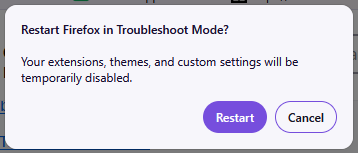
This is the first restart confirmation: save work before choosing Restart. Cancel backs out. It does not show the later Open / Refresh Firefox dialog; at that later prompt choose Open for this temporary experiment.
Version notes
Mozilla’s current 159 Help displays this original 1 October 2026 reference labelled Fx157TroubleshootModeWin10. It shows Firefox’s own restart confirmation; vendor reference was made on Windows10. No claim that a Windows11, Mac or Linux device was physically tested, or that the subsequent Open / Refresh prompt is pictured. Current159 release verified27 October 2026.This mode disables extensions, themes, hardware acceleration, WebGL and other customizations, including the JavaScript JIT compiler. Improvement therefore points toward a bundle of changed features; it cannot isolate an extension. Continued failure under matched conditions directs attention beyond that bundle.
A normal restart is itself a competing explanation. Compare a saved reproduction after an ordinary restart before attributing an improvement to Troubleshoot Mode. If both restart conditions behave well, report that the original failure did not recur. Do not call that an extension diagnosis.
A private window changes the witness
Opening the same address privately can look like a clean extension test, but it changes the session. Chrome Incognito starts a separate browsing session without automatically signing you into websites, and blocks third-party cookies by default. A public landing page is not an equivalent workload to your signed-in editor. Google describes those Incognito boundaries.
Firefox extensions are not enabled in private windows by default, but individual permissions can allow them. The extension’s details show Run in Private Windows, according to Mozilla’s private-window extension documentation. Do not change that permission simply to manufacture a comparison.
Keep controlled trials in the original account and ordinary window. If a private comparison already helped, log it as a separate clue with the account and extension differences attached. Do not sign a work account into an unapproved context to make the experiments match.
Deliver a finding someone can act on
Your final note should name the action, the changed factor, the observations before and after restoration, and anything that broke equivalence. Include negative findings: playback made no difference, or a small document also stalled. Those details prevent the next investigator from repeating an exhausted lead.
Restore every temporary toggle and confirm that required features work. Share a neutral document label and sanitized reproduction with the site owner, extension maintainer or administrator. Inspect screenshots for account names, page titles and private addresses. If no variable tracked the failure consistently, leave the finding unresolved. A preserved session and a falsified hypothesis are useful progress; neither requires deleting a profile or clearing all site data.
Sources, versions & scope
The steps describe the documented controls and expected checks; they are not a claim that every device or software release has been physically tested. Platform and version differences are stated with the procedure.