Find the copy that still has your bookmarks
A new computer’s empty bookmarks bar does not tell you whether your bookmarks were lost. They might be stored in your Google Account, still sitting in the old computer’s Chrome profile, or waiting inside an exported file. This guide covers desktop Chrome on Windows 11, with Chrome on the old computer as the source. It restores saved links and folders; it does not migrate passwords, open tabs or website sign-ins.
Before changing anything, write down three recognizable bookmarks: an everyday link, a link buried in a folder, and one saved recently. These become your checks at the end. If the old computer still works, leave it intact until all three open correctly on the new one. A familiar folder name alone is weak evidence: an older copy can look convincing while missing recent additions.
- Bookmarks were saved in your Google Account: try the account route below before importing a file.
- The old computer has them, but you did not save them online: export an HTML file and transfer it.
- You already have a bookmark export: keep an untouched copy, then use the import route.
- The old computer is gone and there is no known export: check the original Google Account and any computer backup before assuming a new Chrome installation can recover them.
First try the account that held the old bookmarks
On the new computer, sign in to Chrome with the same Google Account used for the old bookmarks. Open More → Settings → You and Google, select the account name, and review which information is saved. Google’s saved-information guide distinguishes account storage from information kept only on a device.
If you still have the old computer and its bookmarks are local, Chrome documents Profile → Save x items in Account. Choose the information to save and select Save in account. Use that route only if you want those links in that account; an HTML transfer below avoids that requirement. Check the full email address, especially if you have both office and personal accounts.
If Chrome requests a custom encryption passphrase, it needs the passphrase previously set for that data. Do not use Delete data in the account dashboard as a troubleshooting shortcut: Google says resetting the passphrase deletes encrypted data from its servers. If the old computer still displays the links, export them before considering account repairs.
Once the expected folders are available, check your three sample links. Stop here if they are complete. Importing an export on top of a successful account restoration creates an unnecessary cleanup task.
Carry an HTML copy from the old computer
Use a dated filename that identifies the source computer. For example, bookmarks-old-laptop-2026-10-31.html is a hypothetical name that distinguishes this export from a backup of the new computer. Keep the date truthful when making your own file.
- On the old computer, open Chrome’s More → Bookmarks and lists → Bookmark manager. Check that your expected folders are present.
- Open the manager’s own More menu at the top and select Export Bookmarks. Save the HTML file somewhere you can find again.
- Copy the file to a USB drive or a private transfer location, then copy it onto the new computer. Retain the original export separately.
These export controls follow Google’s import and export instructions. Export from each old profile separately if your links were split between profiles; label the files before moving them. Avoid combining personal and work collections simply because both are available.
In Windows 11 File Explorer, choose View → Show → File name extensions if suffixes are hidden. Check that the transferred export ends in .html; a website shortcut is not a bookmark collection. Microsoft documents this visibility control in its file-extension guide.
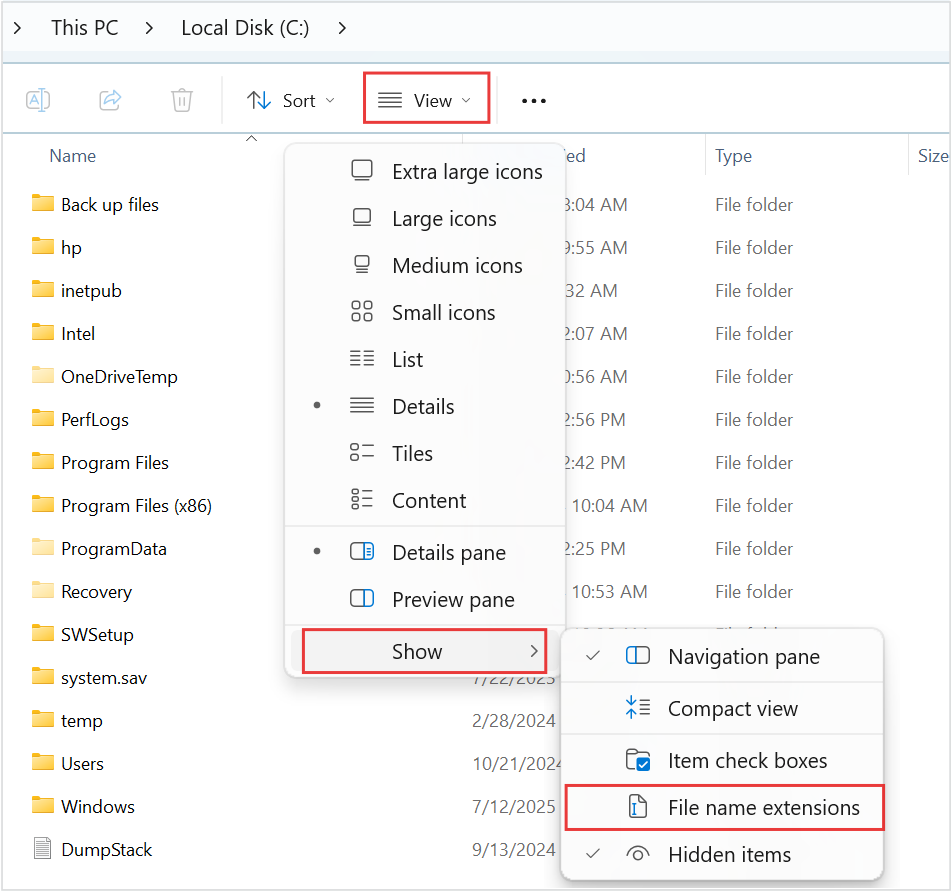
Windows 11: reveal file suffixes with View → Show → File name extensions before checking that your bookmark export is an HTML file. Microsoft’s reference shows the option unchecked and outlines the route in red; no bookmark export is pictured.
Version notes
Microsoft’s current Windows 11 file-extension instructions provide this Windows 11 command-bar and Show-submenu image. Complete downloaded asset retained, including the source’s red outlines. Exact Windows build is not stated. Initial menu state only; it does not show the article’s files or completed extension display.Changing a suffix does not convert a file. If you copied a shortcut or saved an ordinary web page, return to Chrome’s Export Bookmarks command. As an extra check, open the export locally in a browser: look for recognizable link titles and folders. Do not upload it to a public “bookmark repair” service; titles and URLs can reveal private projects or internal sites.
Import once, then find where the folders landed
If you have already saved useful links on the new computer, export those first using the same manager command. Give this second file a different name, such as bookmarks-new-pc-before-import.html. It preserves your starting collection if cleanup becomes confusing.
- In the intended Chrome profile on the new computer, choose More → Bookmarks and lists → Import bookmarks and settings.
- Select Choose file, select the transferred HTML export, and choose Open → Done.
Google says imported bookmarks appear on the bookmarks bar if Chrome had none; otherwise look in Other bookmarks at the end of that bar. Inspect those folders before repeating the import.
For a hidden bar, use More → Bookmarks and lists → Show bookmarks bar. To find a particular link, type @bookmarks in the address bar, press Tab or Space, then enter a distinctive word. Both routes are documented in Google’s bookmark management guide.
Open your everyday, nested and recently saved samples. Compare the destination addresses with the old computer or the untouched export. A sign-in prompt on a restored site is normal: the bookmark brought its address, not the old browser’s authenticated session. A removed web page can also fail even when its bookmark transferred correctly.
When the result is incomplete or duplicated
- The newest links are missing
Check whether you exported the correct old profile and the latest collection. Compare a missing link against the saved HTML file. If it is absent there too, importing that file again cannot recover it. Return to the source computer or look for a newer export in your backups.
- The same folders appear twice
Keep the original export and your pre-import backup. Compare both folder trees before removing anything. Delete only a clearly identified redundant imported folder; do not delete a whole profile to undo an import. Treat deletion as permanent rather than relying on an undo prompt. If you cannot distinguish the copies, leave them until you can compare individual addresses.
- There is no old computer, saved account copy or usable export
Search your backup and transferred files for bookmark exports, including dated HTML files. If a full computer backup survives, preserve it and seek help recovering the old Chrome data from that copy. This guide does not prescribe overwriting a live profile with database files. Reinstalling Chrome cannot reconstruct a collection whose only copy was erased.
Before retiring the old machine, make one final export from the verified new collection and store it with your backups. Keep the earlier export too until you are satisfied that no folders were overlooked. The handover is complete when the links you actually use work from the intended new profile.
Sources, versions & scope
The steps describe the documented controls and expected checks; they are not a claim that every device or software release has been physically tested. Platform and version differences are stated with the procedure.