The final delivery leaves a second job
A project can be finished while its draft budget, contact sheet, and review folder remain available through last month's messages. Renaming the folder “Archive” gives those links no new boundary. A useful closeout checks what the old URLs still allow, then records who should retain access.
This guide covers Google Drive in a desktop browser, principally files and folders you own in My Drive. It also checks the separate published versions of Google Docs, Sheets, and Slides. For shared-drive material, involve its manager rather than transferring team records into personal storage. This is a proposed audit, not a report of account testing.
Agree what must remain available before removing anything: perhaps a client retains the approved deliverable while temporary reviewers lose the working drafts. Keep the accepted master and any required project records. Access cleanup should leave a usable archive for its responsible owner.

Start with the messages that carried the work
Search the project email thread, chat, calendar description, and handover document for links. Open each from a trusted project record and identify the actual Drive item. Collect the review folder, individually shared files outside it, and any published presentation or spreadsheet. A folder-only inspection can miss a standalone attachment link circulated early in the job.
Make a private inventory with one row per distinct item: original URL, owner, purpose, intended remaining audience, action, and verification result. Multiple messages may point to the same file; consolidate those entries while retaining a note of where the URL appeared. Keep genuinely different copies separate even when their filenames match.
For a hypothetical three-item project, the rows might be “draft budget: owner only,” “approved report: named client can view,” and “published timetable: publication ends.” Three rows do not mean three identical permission changes. The report may stay accessible while the timetable's public endpoint closes.
If somebody else owns an item, assign its review to that owner and keep the row open. A missing control is useful evidence about your authority. Deleting your bookmark or removing the message will not establish what the original link permits.
Read both parts of Share
Open the item's Share dialog and compare People with access and General access with your inventory. Record group entries and parent-folder access as well as individuals. Google's sharing guide explains these permissions. Restricted permits authorized people; it does not mean only the owner.
For a limited-access folder, inspect People with access and General access together. Google's example shows named commenters even though General access is Restricted. The Access removed tab is not a complete exclusion list: a group grant or General access can still let someone in. Check the surviving routes before marking a person removed.
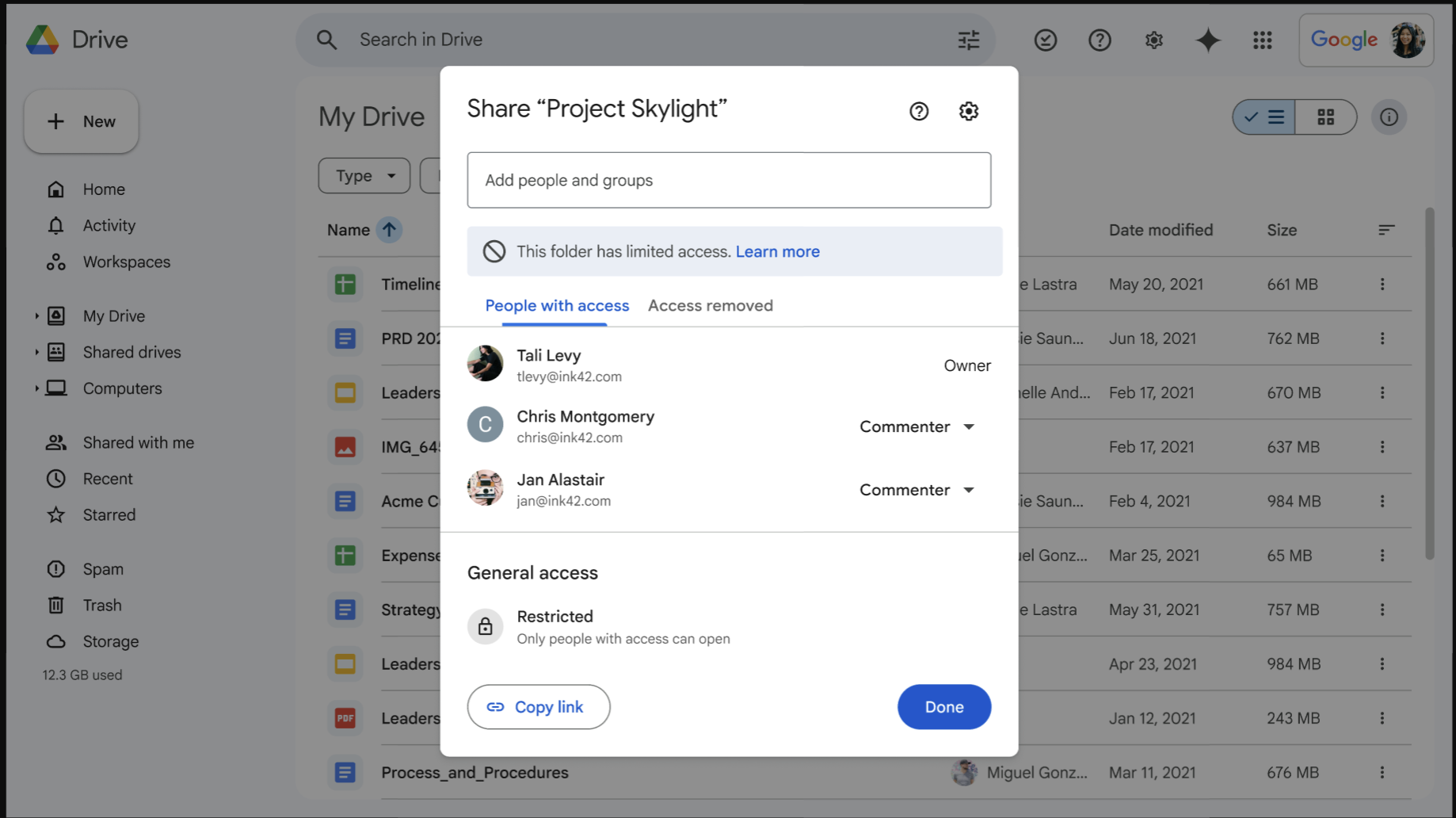
Google’s current example shows named commenters alongside Restricted General access. Inspect both areas; the Access removed tab alone cannot establish who is blocked. This is Google’s demonstration folder, not an audited project.
Version notes
Official rollout announcement published 7 April 2026, available to personal accounts and all Workspace editions. The updated dialog has Limited access, People with access and Access removed. Exact captured web build is undisclosed. Background file modification dates are demonstration content, not the screenshot date. This is Google’s public example, not a personal account capture.For an item you control, replace unnecessary broad General access with Restricted and complete the dialog's save or Done action. For a directly invited person whose task has ended, use the arrow beside their name, choose Remove access, then Save. Reopen Share to confirm the saved audience. Retain the approved client's invitation where your handover requires it.
Work one inventory row at a time. Record what changed before continuing, including the exact account address and previous role. This makes an accidental removal recoverable without reopening access to everyone. An unfamiliar group deserves an owner check; its display name alone does not explain its membership.
When a file refuses to become private
A child file cannot ordinarily reduce access inherited from its parent folder. If Drive directs you to the parent, inspect that folder's audience and the other work it contains before changing it. Removing a project-only invitation there may be appropriate; removing a department's access to a folder that also holds active work may not be.
Where a smaller archive audience is needed, agree a limited-access folder with the owner. To inspect an existing folder's boundary, right-click it in Drive, choose Share → Share, and open the Settings gear. Read Limit access without changing it during this inspection. The unchecked box in Google's reference shows an initial state, not a completed restriction.
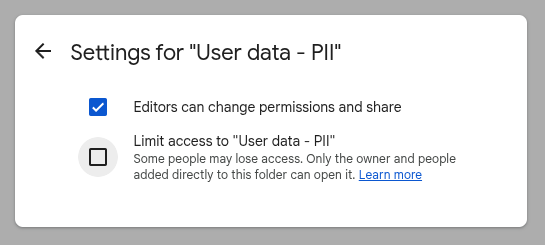
Google’s folder Settings example shows Limit access unchecked and the separate editor-sharing option checked. Inspect the current boundary before deciding whether an owner should change it; this image shows no completed restriction.
Version notes
Current Google Drive Help illustrates the updated limited-access folder controls. This is the complete vendor-delivered image, not a live account test. Exact web build undisclosed. Names and checkbox values are Google’s demonstration state.Google's limited-access guidance describes who can manage this boundary. Shared-drive managers retain access; the My Drive owner also retains access. Do not turn off an automatically applied file-level limited-access setting as an experiment: Google says you cannot manually add that setting back to an individual file.
If you cannot safely resolve inheritance, record the folder, surviving audience, and responsible owner as unfinished work. Moving records somewhere else just to make a permission menu easier can create a second archive problem. Ask for the approved destination and audience first.
Check for a second, published URL
A published Google document has a separate URL from its editable source. Restricting the source's collaborators is therefore only one part of closeout. Look for website embeds and “view the timetable” links in the project messages; they may point to a published rendition rather than the ordinary Drive file.
In the original Google Doc, Sheet, or Slides presentation, open File → Share → Publish to web. If it is published and publication should end, expand Published content & settings and choose Stop publishing. Google's publishing instructions distinguish this from changing collaborator permissions. If the dialog instead offers to start publication, leave it unpublished.
Do not substitute turning off automatic updates for stopping publication. That can leave the already published content available. Record and retry the old published URL separately from the ordinary file link. After publication stops, that endpoint should no longer show the published content. If it does, confirm you stopped publication on the matching source file and retry in a fresh session; leave the row unresolved until the old endpoint withholds the content. Ask the website owner to remove an obsolete embed or replace it with an approved public document; keeping an empty frame is poor handover even after the content stops loading.
Give every row an observed ending
Open the original ordinary link in a private window and confirm no Google Account is signed in. A restricted item should withhold its contents and may request sign-in. If it still displays the document, recheck General access and whether you are opening a published URL. Your owner session opening the file successfully cannot establish what an outsider sees.
That signed-out check cannot establish whether a particular former reviewer still has permission. For an agreed verification, ask that reviewer to close the old tab and reopen the original URL under the same account previously invited. Record access denied, access requested, or content visible. If it opens, investigate the account, groups, and parent permissions before removing more entries.
Also check the retained client's route where continued access is required. If you removed the wrong direct invitation, re-add the verified address through Share with its recorded role, save, and have the recipient retry. Restore the intended invitation rather than restoring a broad link audience. Republishing should be a separate decision; verify its resulting URL before replacing any website link.
Finish the inventory with the review date, remaining audience, outcome for each original URL, and any owner action still pending. Revocation cannot retrieve exported files, email attachments, or screenshots already held elsewhere. Handle any agreed copy deletion separately. A completed audit has evidence for its boundaries and names the exceptions it could not close.
Sources, versions & scope
The steps describe the documented controls and expected checks; they are not a claim that every device or software release has been physically tested. Platform and version differences are stated with the procedure.