What should Maya be able to do?
Imagine Maya receives a link to a draft event schedule. She needs to check the arrival time, leave one correction, and finish by Friday. An invitation that lets her read but not comment creates another email exchange. An invitation that lets her edit the whole project folder gives her a job she never accepted.
This is a hypothetical handoff, and we will rehearse it with harmless material before using the real schedule. You are the sender; Maya is a consenting colleague, or a second account you control. The exercise follows what she encounters: the invitation, the document, the permitted action, and finally the closed door. No actual sharing test or measured result is being claimed here.
The concrete controls below are for Google Drive and Google Docs in a desktop browser, in a My Drive location you own. Shared drives and managed accounts add rules discussed later. Keep the real schedule private until you can explain the practice file's access and remove it successfully.
Give the rehearsal its own document
Create a new, harmless Google Doc called “Invitation rehearsal — sample schedule” in your own My Drive. Type two invented entries: “Doors open at 09:00” and “Practice review ends Friday.” Do not duplicate an existing project document: a fresh specimen avoids bringing along real comments, earlier revisions, or unrelated material. Keep your working schedule where it is.
Open the specimen's Share dialog. Under General access, use Restricted. Inspect the people already shown. For this rehearsal, choose a location where only the owner has access initially; if a group or parent folder already supplies access, create the specimen in a suitable private location instead of changing the team's folder.
The name of a folder is no evidence about its audience. A folder called “Private drafts” can still be shared. Also, Restricted does not mean “owner only”: it allows people who already have permission. That distinction will matter when we ask Maya to retry after removal.
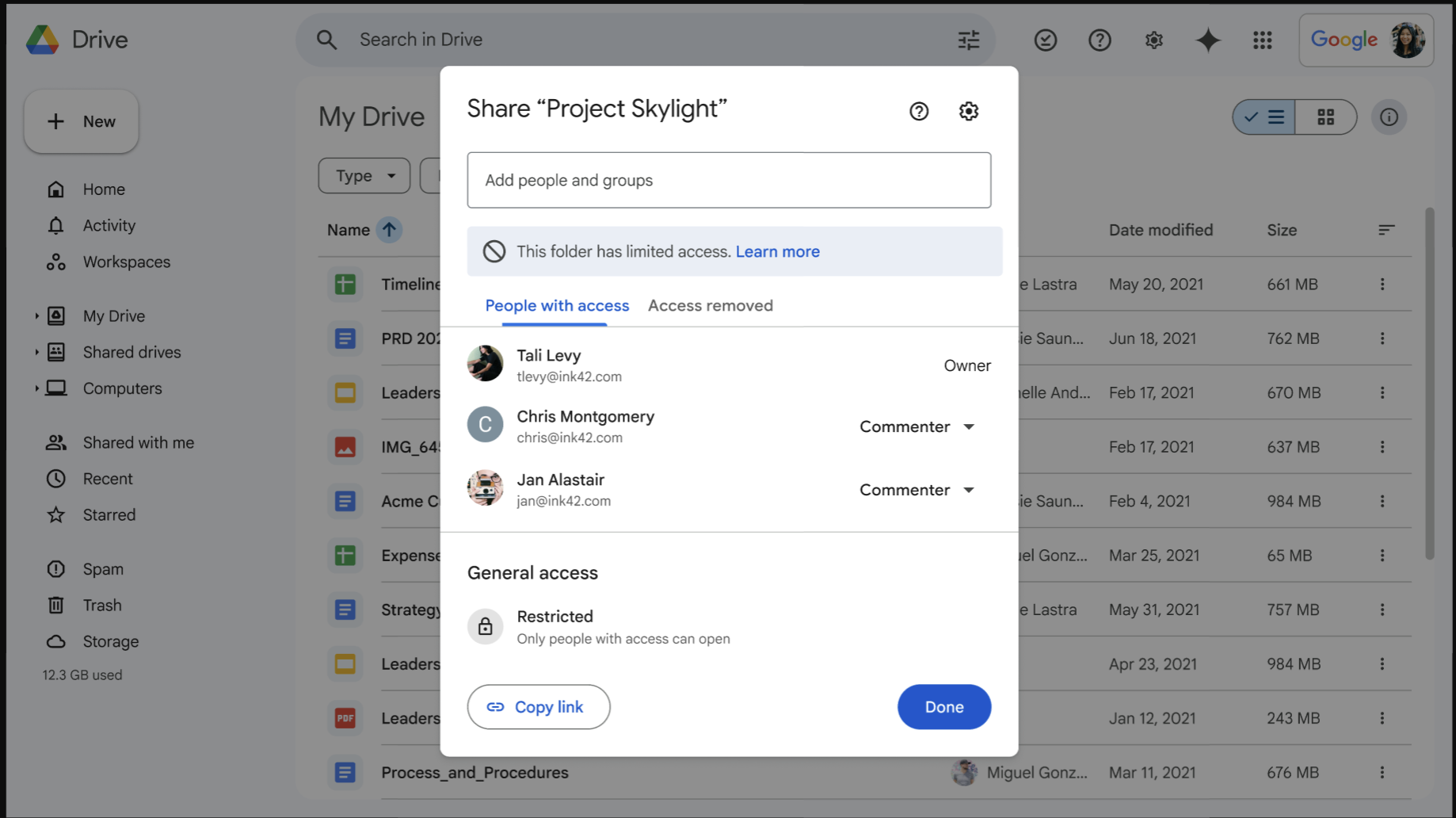
Restricted still permits the people already listed under People with access. Google’s example folder has named members; it is not the owner-only rehearsal file described above. Check both the audience list and General access before using the practice document.
Version notes
Official rollout announcement published 7 April 2026, available to personal accounts and all Workspace editions. The updated dialog has Limited access, People with access and Access removed. Exact captured web build is undisclosed. Background file modification dates are demonstration content, not the screenshot date. This is Google’s public example, not a personal account capture.
Send an invitation that describes the work
Confirm Maya's intended account address through your existing conversation. Do not rely solely on an autocomplete name, especially if she has both personal and work accounts. In Share, enter that address, choose Commenter, and keep Notify people selected. Use the message field to explain the rehearsal, then select Send or Share, as displayed.
This is a harmless sharing rehearsal. Please open it using the account we agreed, comment beside the arrival time, and leave the document text unchanged. I will remove access afterward and ask you to reopen the same link.
A useful invitation tells the recipient what a successful visit looks like. In the real handoff, replace the rehearsal language with the task and an actual review deadline. If people need access for different jobs, invite them separately with the role each job requires.
The choices are consequential. A Viewer can read but cannot add comments. A Commenter can comment and suggest changes without directly rewriting the document's content. An Editor can change that content. For Maya's correction, Commenter fits. If the eventual collaborator must rewrite the running order, Editor may be justified on that document; it does not follow that they need an entire folder.
Google's sharing documentation describes the invitation controls. Leave General access restricted while you test the named invitation. Copying the document's link gives Maya a route to the file; it need not give everyone who receives a forwarded message permission.
“I need access” is a clue
Ask Maya to open the practice link in her own browser session and check the active Google Account using the account avatar. Then have her add a comment beside “Doors open at 09:00,” with an obviously fictional correction. You should see her comment while the original sentence remains intact. Together, those observations test the intended job more convincingly than your own owner account opening the link.
If she sees “You need access,” compare the signed-in account with the exact address you invited. Google's recipient access guidance specifically identifies multiple accounts as a possible cause. Switch to the invited account and reopen the same file. A separate browser profile can help keep identities apart, but check its account rather than assuming a new window uses the right one.
If the address matches and access still fails, reopen Share and confirm that the invitation was saved for the correct file. A work or school policy can prevent external sharing. Refer that case to the organization's approved sharing process; changing the audience to anyone with the link would change the assignment rather than fix the named invitation.
If Maya can read but cannot comment, check that she is viewing the Google Doc and that her saved role is Commenter. Avoid promoting her to Editor just to make the error disappear. The observed capability should match the requested work.
The real schedule may have another entrance
A successful rehearsal in private My Drive says little about a real document inside a shared project folder. Before the real invitation, inspect the actual schedule's Share dialog and its parent folder's sharing. Ask a precise question: could Maya already reach this through a folder or Google Group, even without her individual invitation?
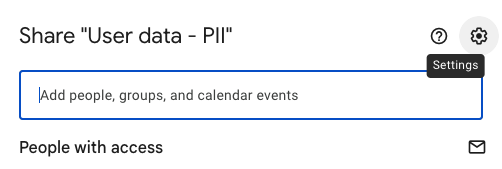
To inspect a folder’s sharing settings, open Share and use the Settings gear at the upper right. Google’s example shows the dialog header and entry point.
Version notes
Current Google Drive desktop-web support illustration of the released limited-access feature. Google’s 2026 migration notice establishes production availability; no numbered web build or browser build is published. No private account test claimed.Ordinary folder permissions pass to their contents. A file-level Viewer invitation cannot reduce an Editor grant inherited from the parent folder. Adding a narrower role does not cancel the broader route.
Google documents limited-access folders for cases that need a smaller audience within a larger hierarchy. In My Drive, the folder owner can manage that boundary; shared-drive managers have the corresponding authority in shared drives. This is a separate folder design decision. Do not experiment by changing a live project parent during the rehearsal. Ask its owner to establish an approved delivery location if you cannot explain its permissions.
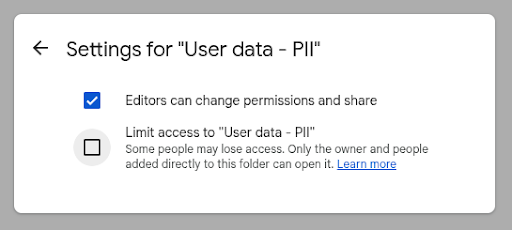
Inspect the folder’s Limit access setting separately from file roles. In this initial settings view it is unchecked. Leave the live project folder unchanged during the rehearsal.
Version notes
Current Google Drive desktop-web support illustration of the released limited-access feature. Google’s 2026 migration notice establishes production availability; no numbered web build or browser build is published. No private account test claimed.For a folder you own, right-click it in Drive, choose Share → Share, and locate the Settings gear in the sharing dialog. Open it to inspect the folder rules; use a harmless specimen rather than a live project.
The Settings gear opens the folder-sharing rules. Google’s example is named User data - PII; it is a vendor reference, not the practice document or a personal account.
Version notes
Current Google Drive Help illustrates the updated limited-access folder controls. This is the complete vendor-delivered image, not a live account test. Exact web build undisclosed. Names and checkbox values are Google’s demonstration state.Read the Limit access checkbox and leave it unchanged during this inspection. Google’s reference shows it unchecked. Turning it on can remove inherited access. For team content, agree on the boundary with the responsible owner before changing it; the inspection itself does not grant or revoke access.
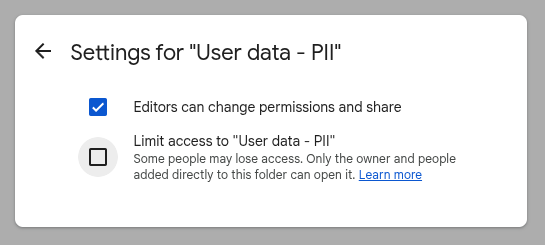
Inspect the checkbox before changing a boundary. Limit access is unchecked in this reference; the separate Editors can change permissions and share setting is checked. This is an initial state, not evidence of a change being applied.
Version notes
Current Google Drive Help illustrates the updated limited-access folder controls. This is the complete vendor-delivered image, not a live account test. Exact web build undisclosed. Names and checkbox values are Google’s demonstration state.A shared drive also has membership beyond a file's direct invitees. Google's shared-drive access guide describes those additional permissions. A manager retains access even to limited-access folders. For organizational records, have the responsible owner confirm the boundary rather than moving files into personal storage for convenience.
Give Friday an owner
Before ending the rehearsal, decide who will close the real invitation. “Review ends Friday” in a message does not configure expiration.
Where your work or school account supports it, open Share, use the menu beside the person's name, choose Add expiration, select the date, and save. Reopen the dialog to verify the setting. Availability depends on the account; Google documents folder expiration for Viewer roles only. If the option is absent, put a manual removal reminder on your calendar for an explicit date and time.
Tell Maya whether the closing time is automatic or something you will do. If she needs an approved retained copy, settle that before Friday. Access duration and permission to retain an export are different parts of the handoff.
Remove the invitation, then reopen the link
Now finish the practice. In Share, open the role menu beside Maya's name, choose Remove access, and select Save. Have her close the document tab and reopen the same original link while signed in to the same recipient account. Ask what happens on this fresh attempt, rather than whether an already displayed page remains visible.
In the isolated rehearsal, the expected result is an access request or denial. If the file still opens, investigate the surviving route: the wrong signed-in identity, a group grant, parent-folder access, or broader General access. Recheck the current permissions rather than repeatedly removing an entry that is already gone. Preserve the specimen while you investigate; deleting the file obscures which permission was responsible.
Google's guidance on limiting sharing also distinguishes in-product copy controls from other ways people can reproduce content. Hiding a download action does not prevent a photograph of the screen or recall information already seen. For the real schedule, agree on any handling or deletion requirement before disclosure; do not describe it as technical recall.
Once the rehearsal is understood, prepare the approved real document, inspect its actual location, and repeat the invitation there. Keep a brief private note naming the document, recipient account, role, and removal date. Maya's final retry gives that note a concrete ending: the original link no longer opens under the identity you invited, or a named owner still has an access route to resolve.
Sources, versions & scope
The steps describe the documented controls and expected checks; they are not a claim that every device or software release has been physically tested. Platform and version differences are stated with the procedure.
- Share and manage access to files and folders in Google Drive
- Microsoft: Share files and folders in OneDrive
- Google Drive: Organize files and create folders
- Google Drive: Use Drive and upload files
- Learn more about access to Google files
- Learn about limited access to files and folders in Google Drive
- How file access works in shared drives
- Stop, limit or change sharing
- Google Workspace Updates: April 2026 restricted-access migration and updated sharing experience