Decide whether you need a diagnosis or a rescue
A USB stick that disappears during copying deserves attention. One slow transfer, however, does not establish that its flash memory is failing. The useful distinction is whether trouble follows the stick, follows one connection, or affects only the file system.
This guide uses Windows 11 and a USB flash drive, rather than a cable-connected external hard disk. Its checks can expose reasons to retire a stick; they cannot predict its remaining life. If it holds the only copy of important files, recover those before experimenting.
When the drive is readable, open File Explorer, select the important folders, press Ctrl+C, then open a new folder on the computer’s internal storage and press Ctrl+V. Copy rather than move. Start with irreplaceable small documents, then larger material. Open the copied files from their destination. If reads repeatedly stall or the stick disconnects, stop retrying everything; preserve what copied and consider professional recovery for the rest.
Cancel prompts to format the drive. Do not initialize it, delete its volume, run a repair, or fill it with test data while its contents remain your only copy. These are not recovery steps with an easy undo.
Make the fault follow something
With the stick disconnected, inspect the exposed plug and housing in good light. Look for a bent metal shell, contamination, or a connector loose in its casing. Do not straighten contacts, probe with metal, open the housing, or hold the drive at an angle to make it work. Visible damage plus intermittent contact is enough reason to stop ordinary testing.
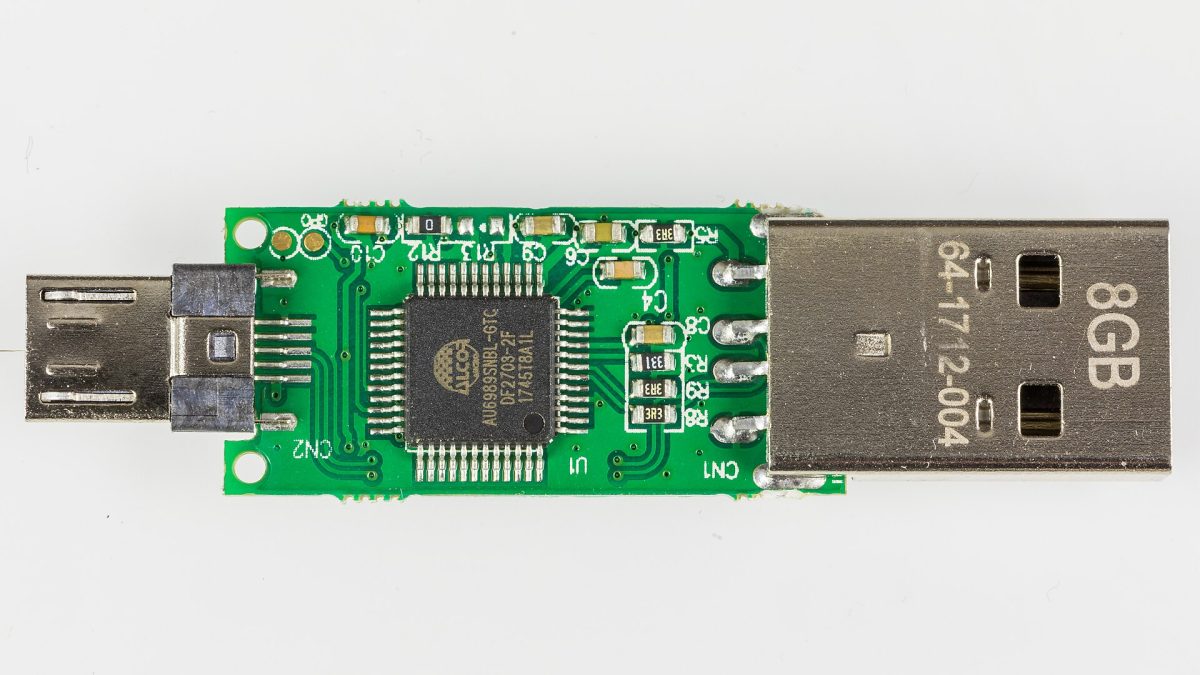
On a retractable model, extend the plug fully before insertion. The example photograph shows an exposed plug and its housing slider; it does not show a damaged device or establish its health. Check your own drive externally, without dismantling it.
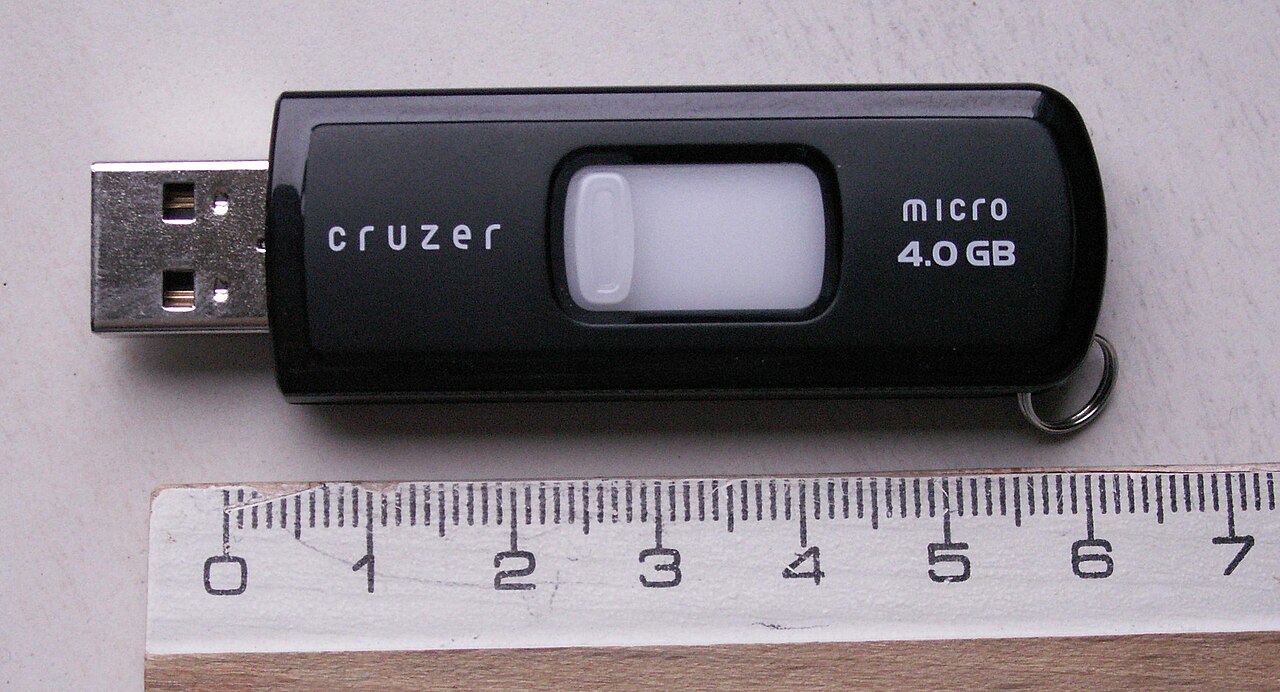
Inspect the outside: this intact example shows the extended plug, housing and white slider. It does not show a fault or certify the pictured drive. Keep your own stick assembled; the ruler is incidental.
Version notes
Evergreen physical inspection photograph taken 23 January 2008, retrieved 31 October 2026. Historical drive shown only for the exposed plug, casing and slider; no OS interface, speed, health or current product availability claimed. Official 1280px thumbnail retained unchanged.- Connect the stick directly to another compatible USB port on the computer, bypassing a hub or dock. Repeat the same small read or copy that failed, provided the files are already protected.
- If available, try it on a second trusted Windows computer. Note whether it appears, stays connected, and reads the same file. Avoid unknown public computers and do not open unfamiliar programs stored on the stick.
- Try a known-working spare stick through the original connection. Keep its important data backed up too. Record the port, drive, operation and result so that “sometimes works” becomes a specific comparison.
If both sticks fail only through the hub, investigate that route. If the suspect stick fails across direct ports and computers while the spare works, the drive becomes the stronger suspect. This comparison is evidence, not proof of which internal component failed. Microsoft’s disk troubleshooting guidance likewise recommends changing the USB port, bypassing a hub, and trying another PC.
Read what Windows actually recognizes
Right-click Start and select Disk Management. Match the removable drive by its capacity and the volume you recognize. If uncertain, close the window, disconnect the idle stick, reopen Disk Management and compare; reconnect and check again. Never select a disk merely because it is called Disk 1.
- A recognized file system and a drive letter
- Windows can identify the volume. A Healthy status describes the volume’s reported state; it is not a clean bill of health for every memory cell.
- A recognized volume but no drive letter
- This can explain absence from File Explorer. If the identity is certain, right-click that volume, choose Change Drive Letter and Paths > Add, select an unused letter, and confirm with OK and Yes if prompted. Administrator permissions may be needed. If disabled, stop rather than changing partitions. Record the letter; it can be changed through the same dialog later.
- RAW, Unallocated or Not Initialized
- These labels do not by themselves identify failed flash. They can reflect damaged or unrecognized disk structures. For a previously used stick containing wanted files, close Disk Management and pursue recovery rather than formatting or creating a volume.
A drive formatted for another system may also be unreadable here. If it works normally on its original computer, copy the contents there first. The separate file-system guide covers compatibility; changing formats is outside this diagnosis.
Ask for a report before authorizing a repair
Only continue once needed files are protected and the connection is stable. Search Start for Command Prompt, select Run as administrator, and approve the Windows prompt. If you lack administrator access, skip this check. Confirm the stick’s current letter in File Explorer.
For a stick currently assigned E:, enter the following, replacing E with its actual letter:
chkdsk E:CHKDSK without repair switches reports file-system status. Close programs using the stick first: Microsoft warns that an active volume can produce spurious errors. Save the report. A clean result does not test future reliability or certify the full advertised capacity.
If it reports logical errors, the connection remains stable, and your copies are verified, you can run chkdsk E: /f to request repair. This changes file-system structures and can lose data; there is no simple undo. If asked to force a dismount or schedule a check, answer N, close remaining apps and retry later. Skip /r as a routine first test: it includes repair and attempts recovery from affected sectors. A RAW-volume refusal calls for recovery, not additional switches.
Check whether a saved file survives reconnection
After backup, use a disposable file whose original remains safely on the computer. This is a small confidence check, not a full-capacity qualification. In a hypothetical example, a 1 GB archive can pass while unused areas of a 64 GB stick remain untested.
- Create a folder called
USB-checkin Downloads and put a non-sensitivesample.zipthere. Copy it into a newUSB-checkfolder on the stick. Do not replace existing files. - Wait for copying to finish. Close its windows, right-click the stick in File Explorer’s This PC view and choose Eject. If Windows says it is in use, close apps and retry; do not pull it during activity. Reconnect it and recheck its drive letter.
- Open Windows PowerShell from Start. Run these commands, adjusting the filename and drive letter. Do not edit either file between checks.
Get-FileHash -LiteralPath "$env:USERPROFILE\Downloads\USB-check\sample.zip" -Algorithm SHA256
Get-FileHash -LiteralPath "E:\USB-check\sample.zip" -Algorithm SHA256
Compare the complete Hash values, not the paths. Microsoft documents SHA-256 hashing for comparing file contents. Identical hashes give strong evidence that this file survived the transfer and reconnection unchanged. A read error or mismatch fails the check. Confirm you compared the intended, unchanged files before blaming hardware.
Repeat a failed comparison through another direct port if recovery is no longer at risk. Repeated mismatches or disconnections across computers justify retiring the stick even without an internal diagnosis. Passing once supports limited reuse, never sole-copy storage. Remove only your test folder afterward, keep the protected originals, and replace a stick whose faults return after repair.
Sources, versions & scope
The steps describe the documented controls and expected checks; they are not a claim that every device or software release has been physically tested. Platform and version differences are stated with the procedure.