Protect the drive, keep the way back
A lost laptop creates two separate problems: someone else might read its storage, and you might lose your files. Drive encryption addresses the first; a recoverable backup addresses the second. Keeping the encryption recovery key protects your own route back when normal unlocking fails.
This guide covers a personally owned Windows 11 Pro PC with a working Trusted Platform Module (TPM), using Microsoft BitLocker Drive Encryption in Control Panel. It concentrates on the Windows operating-system drive. Windows Home uses a different Device Encryption route on supported hardware; do not expect these controls there. For an employer’s or school’s computer, follow its administrator’s process.

Encryption helps protect stored data when someone obtains the computer or its drive. It does not stop a malicious app reading files in your unlocked session, undo accidental deletion or supply a backup. Treat the recovery key as a secret capable of unlocking the drive, rather than a harmless receipt.
Start with the drive you have
Before changing anything, connect power, save your work and confirm that important files have a separate backup you can open. Set aside a private place for a recovery-key printout or a separate storage device. Avoid doing this immediately before travel or a repair appointment.
Sign in with an administrator account. Open Start, type BitLocker, and choose Manage BitLocker. Under Operating system drive, locate the Windows volume, normally C:. Microsoft’s Control Panel guide distinguishes this from fixed data drives and removable drives.
- Already on: preserve the existing recovery key using the next section. Do not decrypt just to repeat enrollment.
- Off: use the enrollment sequence below after deciding where the recovery key will go.
- Suspended or Waiting for Activation: do not count the drive as protected. Complete the pending setup or investigate why protection was suspended before relying on it.
If the applet is missing, check your Windows edition before changing hardware settings. If enrollment reports a TPM or policy problem, stop and consult the PC manufacturer or administrator. Clearing the TPM or experimenting with firmware settings is a poor way to make a tutorial’s next screen appear.
Give the existing key a reachable home
If the operating-system drive is already protected, select Back up your recovery key beside that drive. Use the upper operating-system entry, rather than an identically named link beside another volume.
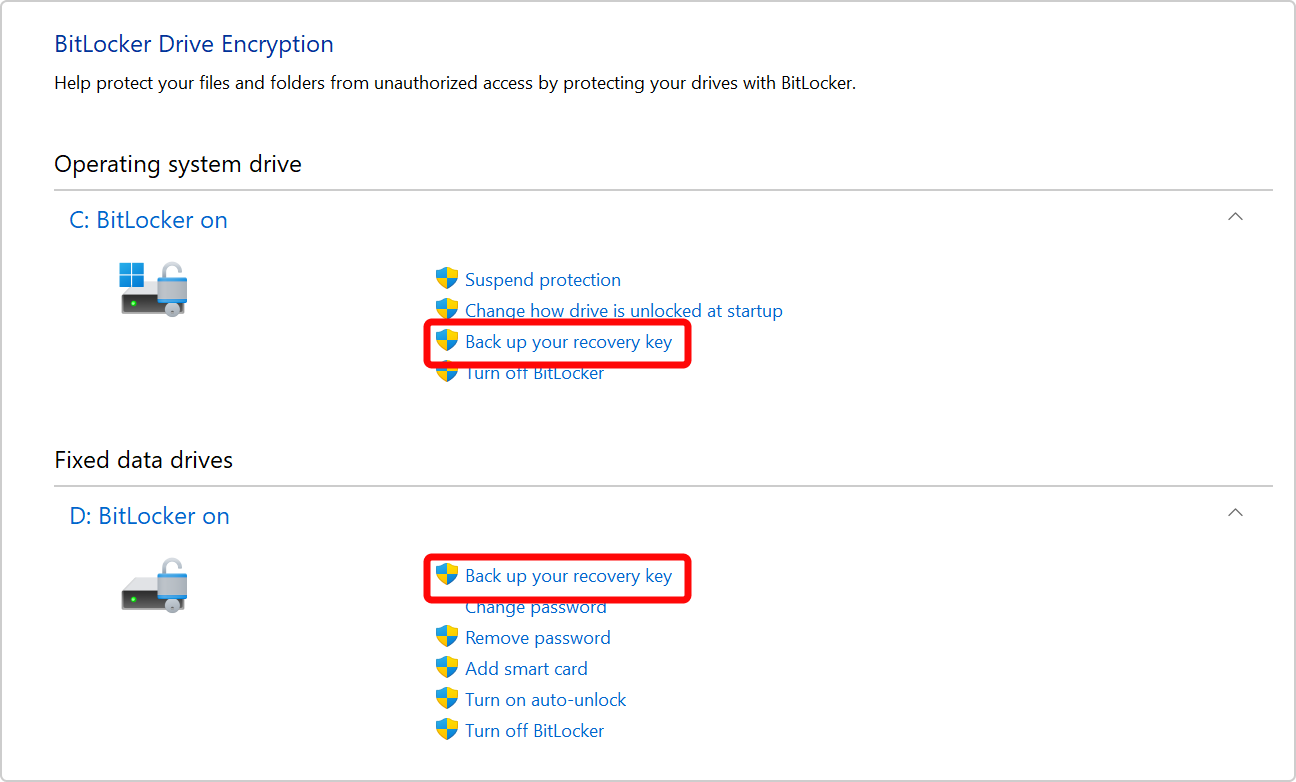
For the already protected Windows drive, choose Back up your recovery key in the upper Operating system drive section. Microsoft’s example also shows an independently protected D: drive; your drive list may differ.
Version notes
Checked 2026-10-31 against the current Windows 11-applicable Microsoft Support backup guide and its exact embedded asset. The image illustrates backup on an already protected operating-system drive, not enrollment or successful key storage. No exact Windows build or live account test claimed.The official backup instructions offer account storage, USB storage, a file or a printout. Choose the available destination and finish the backup. A file is plain text; the protected drive cannot be its own recovery destination. Keep USB media and paper away from the computer.
For a personal PC, consider an account copy plus a protected paper copy. The account copy is convenient away from home; paper gives you a route when online sign-in is unavailable. Decide whether that tradeoff fits your circumstances. A cloud copy means access to that account becomes part of protecting the key.
Label the protected record with the computer’s recognizable name, drive, key ID and saved date. Keep the full key with that record. A separate everyday reminder should contain only its location: for example, “Laptop drive key: locked document box.” Do not put the secret itself on a label attached to the laptop.
For a hypothetical household with two Windows PCs, use two clearly identified records. A loose page titled “recovery” creates ambiguity precisely when you cannot open either machine to check. Keep each record complete and legible; avoid retyping a long number when you can preserve the original file or printout.
If it is off, enroll once and let encryption finish
Use this sequence for the supported TPM-based operating-system drive. The key-storage decisions above apply during the wizard too.
- Beside the Windows drive, choose Turn on BitLocker. Follow the unlock prompts; where offered, Let BitLocker automatically unlock my drive uses the TPM.
- Back up the recovery key to your chosen independent destination. Verify that the saved record opens or the printout is readable before continuing.
- For a previously used system drive, choose Encrypt entire drive, then Next. It includes free space, where remnants of deleted files may remain. Encrypt used disk space only suits a genuinely new drive without previous unencrypted sensitive data.
- For this internal Windows drive, choose New encryption mode, then Next. Follow Continue → Restart now when offered; the restart performs the system check and starts encryption.
These choices follow Microsoft’s operations guide. Keep power connected and check progress in Manage BitLocker. Starting the wizard is not evidence that encryption has finished. You can continue working during encryption, but leave time to return and confirm completion.
Enabling the Windows volume does not establish that every connected disk is protected. Review any additional drive holding private files separately, with its own key record. Do not unplug an external drive and assume the laptop’s setting follows it.
Rehearse retrieval while the PC still works
Leave the PC running and use another trusted device to open Microsoft’s recovery-key page. Sign into the account used for the backup. Confirm that you can identify the correct record and read the complete 48-digit recovery key. Then locate your independent copy and compare the ID and number privately.
This checks retrieval, not an actual recovery boot. Do not deliberately trigger recovery, clear the TPM or disable security features as a rehearsal. If online access needs approval from the same unavailable laptop, repair that dependency or keep a reachable offline route.
Store the record where the failure you are planning for will not remove it too. Paper inside the laptop bag will disappear with that bag. A USB text file inside the same bag has the same weakness. Check physical access as carefully as digital access: a locked box is useful only if you can obtain its key.
When Windows asks for the number
At a recovery prompt, note the first eight characters of the recovery key ID. On another device, find the matching record and enter its associated 48-digit key into the affected PC. The ID identifies the record; it is not the unlocking number. Microsoft’s recovery guide explains the available locations.
If the key is absent, check whether someone else originally set up the computer; it may be in that person’s account. For a device connected to work or school, ask the organization about its stored key. If a number is rejected, recheck the ID and transcription before trying unrelated records.
If the key cannot be found and the triggering change cannot be undone, Microsoft warns that resetting removes the files. Support cannot recreate a missing key. Pause before erasing the device and assess your separate backups.
After access returns, check protection again. If it remains suspended, use Resume protection once the maintenance requiring suspension is complete. Turn off BitLocker and its confirmation begin decryption; that is an intentional removal of protection, not a key-backup step. Preserve your key record while resolving the problem.
Sources, versions & scope
The steps describe the documented controls and expected checks; they are not a claim that every device or software release has been physically tested. Platform and version differences are stated with the procedure.