Describe the file you need back
Imagine opening a recovered proposal ten minutes before a client call. Its filename looks right. The first page looks right. Then you reach the budget and discover that the backup predates yesterday's revisions. The transfer succeeded; the recovery did not meet your need.
Start your backup plan with a sentence that would settle that argument: “I can recover the proposal version containing the agreed budget, open it in my usual editor, and continue work within four hours.” That is a hypothetical acceptance condition, not a performance claim. It names content, an application, and a deadline. A green backup notification names none of those.
Choose one important activity and identify what would make its recovered files usable. For a spreadsheet, that might mean the expected worksheet and functioning formulas. For a design project, it might mean the project document plus linked images and fonts. Write down a recognizable detail inside the desired version. A file that opens but contains the wrong work should fail the rehearsal.
Now work backward from that successful opening. First prove a small retrieval. Then decide how recent the retrieved work must be, which failures its copies should survive, how you will unlock them, and how much history you can afford to keep.
Make the first recovery deliberately small
This rehearsal is for Windows 11 with File History already configured to a recognized external drive or network destination. It tests one disposable text document and an earlier version, restored to a separate folder on the working PC. It does not establish that you can rebuild Windows or recover on a replacement computer. Mac backup interfaces require their own instructions.
If you have no File History backup, the prerequisite is a configured destination and a completed first copy of a known local folder. Return here after establishing that coverage. Do not select an unfamiliar disk or erase anything to make a restore exercise possible.
Create a uniquely named folder, such as RecoveryPractice-October, inside a local Documents location you intend to protect. Check its actual address in File Explorer; a familiar sidebar label alone is insufficient. In Notepad, save proposal-practice.txt there with the sentence “Budget approved: 420 units.” These invented contents make the desired revision unambiguous. Confirm the filename and extension in File Explorer.
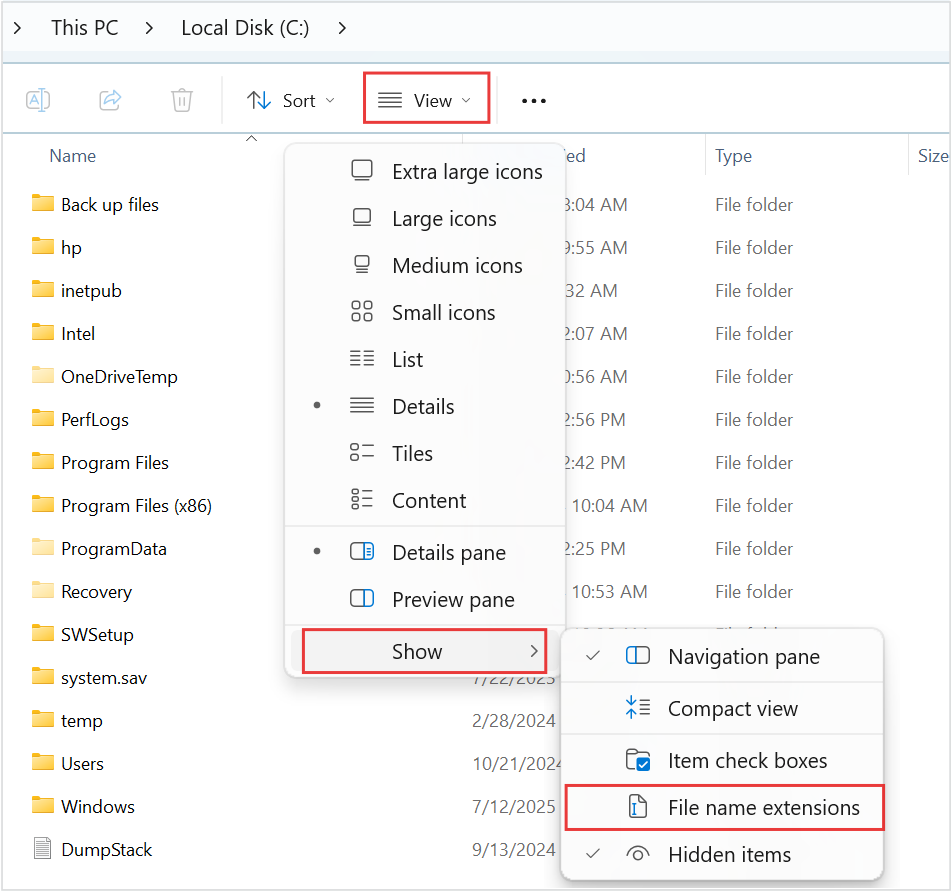
Microsoft Windows 11: View → Show → File name extensions exposes suffixes for inspection. The source outlines the menu route in red. The option is not checked in this image; enable it before checking your own sample filename.
Version notes
Microsoft’s current Windows 11 file-extension instructions provide this Windows 11 command-bar and Show-submenu image. Complete downloaded asset retained, including the source’s red outlines. Exact Windows build is not stated. Initial menu state only; it does not show the article’s files or completed extension display.Search Windows for File History and open it. The alternate route is Control Panel > System and Security > Save backup copies of your files with File History. Confirm the destination is yours. Allow a completed backup after creating the sample. In Restore personal files, browse to the practice folder and use the date arrows to confirm that the saved version exists. ASUS documents this browsing route. If the sample is missing, stop and investigate coverage or exclusions.
Close that browser without restoring. In Notepad, change the sample to “Budget revised: 470 units,” save it, and close the editor. Keep a separate copy of this current sample outside the practice folder. Wait for another completed backup. You now have two deliberately different states to distinguish; if the earlier state cannot be found, the version-history part of the drill is not ready.
In File Explorer, create an empty private destination outside your synchronized folders, for example C:\Users\<your-name>\RestorePracticeOutput. Use your actual user folder and a location you can write to. Keep this destination separate from both the source practice folder and the backup repository.
At the practice folder's actual location, right-click the folder and choose Restore previous versions; use Show more options if necessary. Select the version corresponding to the first sentence. Expand Open and choose Open in File History to inspect it. Then expand Restore, choose Restore to…, and select your empty output destination. This separate-location option is documented by Microsoft. Avoid the main Restore action, which can replace current contents. If the separate-location choice is unavailable or the destination is unclear, cancel.
Browse the recovered folder under the output destination and open the recovered text document in Notepad. It must contain “Budget approved: 420 units.” Open the original sample separately: it must still contain “Budget revised: 470 units.” Check both addresses, not just the editor's title. Record the chosen backup date, recovered location, and outcome. Measure elapsed retrieval time if useful, excluding the earlier wait to create backup history. This is a procedure for you to perform; no timings or successful test results are claimed here.
How much work may disappear between copies?
The sample gives you a question for scheduling: how far behind the current work was the usable version? If losing an afternoon would be unacceptable, a once-daily job cannot meet that requirement even when it runs perfectly. Separately, a four-hour recovery deadline includes finding the backup, obtaining access, retrieving content, opening applications, and checking dependencies.
In File History, Advanced settings exposes Save copies of files and Keep saved versions, as the ASUS instructions show. Choose frequency and retention to match two different risks: recent work that has not yet been copied, and an old mistake discovered weeks later. A shorter interval addresses the first. Retaining older versions addresses the second.
Make the schedule physically possible. A laptop cannot write to an external destination left at home. Review the last completed copy after an ordinary working day away from the desk. Compare its age with the loss you agreed to tolerate. Assign a regular moment to notice stale jobs, rather than relying on remembering to inspect them during an emergency.
Which copy remains after the incident?
The Canadian Centre for Cyber Security describes the 3-2-1 pattern: three copies including the original, on two media types, with one copy offsite. It also recommends testing recovery and separating removable backup media from the device after backup. Use that guidance to examine shared failures.
Picture the laptop and its attached backup disk disappearing together. Which named copy could you retrieve? Next picture your main account becoming inaccessible. Does the offsite copy depend on that same account? Write one sentence for each destination explaining the incident it is meant to survive. Two folders on one drive cannot answer the stolen-drive question differently.
For an illustrative personal plan, the working files might have local version history plus a separately protected offsite backup. An offline rotation can provide another boundary, but its disconnected time affects freshness. Rehearse each recovery route separately. Success from the desk drive says nothing about whether the offsite provider will admit you.
Can you get in without the lost laptop?
List the dependencies between you and each copy: drive unlock method, backup encryption secret, account sign-in, and second authentication factor. Do not write secrets into the rehearsal log. Record where an authorized person can obtain them. A recovery instruction stored only inside the encrypted archive creates a circular dependency.
For a BitLocker-protected backup drive, verify that its recovery-key backup exists and is accessible. Microsoft explains the available key-backup methods and states that support cannot recreate a lost key. Keep any printed key or recovery USB secure and separate from the computer. A backup program's own encryption password is a separate dependency; a Windows sign-in password does not prove you have it.
On a managed device, establish the recovery contact and permitted procedure with IT. For personal accounts, check your supported recovery methods while access still works. The same-machine File History rehearsal leaves replacement-machine access unproven; put that unresolved dependency in your plan explicitly.
Capacity follows the versions you promise to keep
Suppose, hypothetically, you protect 120 GB and add 2 GB of new material each week. Twelve weeks adds 24 GB, giving a 144 GB live footprint. These are decimal gigabytes. That calculation excludes retained revisions, deleted-file history, metadata, and working space; it is not a recommended backup-drive size.
Net growth also conceals replacement. Repeatedly editing a large project may create substantial version storage while the live folder barely grows. Measure destination consumption over representative work, inspect actual retention behavior, and reserve room before capacity pressure shortens the history you depend on. Keep older recovery copies while proving a replacement destination.
A failed rehearsal changes a specific promise
A missing sample means coverage remains unproven. Check its real location, exclusions, and backup completion before adding destinations. A recovered file with the wrong sentence means the selected version failed your acceptance condition. Inspect the available dates; increasing frequency now cannot manufacture a missing past revision.
A connection error deserves diagnosis before replacing the drive. Microsoft's September 22, 2026 update notes document a File History fix, including false reconnect messages. That notice is a reason to compare your Windows version and update history with applicable support guidance, not proof that every reconnect error is software-related.
If access fails, repair the credential dependency and repeat retrieval. If opening the project reveals missing assets, expand backup scope and rehearse the complete project. If useful recovery takes longer than the deadline, change the retrieval route or the promised deadline. Record the unresolved failure beside the exact promise it invalidates, preserve the existing copies, and repeat the same acceptance test after the change.
Sources, versions & scope
The steps describe the documented controls and expected checks; they are not a claim that every device or software release has been physically tested. Platform and version differences are stated with the procedure.
- Canadian Centre for Cyber Security: Tips for backing up your information (ITSAP.40.002)
- Apple: Back up your Mac with Time Machine
- ASUS: [Windows 11/10] Backup and Restore your files (File History)
- Apple: Recover files using Time Machine and Spotlight on Mac
- Microsoft: Backup and restore with File History
- Microsoft: Back Up Your BitLocker Recovery Key
- Microsoft: September 22, 2026—KB5124010 (OS Builds 26300.9550, 26200.9550, and 26100.9550) Preview