Start with the desktop, not a movie
A television can show a laptop’s picture while hiding the taskbar, clipping window corners or making everything look too large. Those symptoms need different adjustments. If the picture extends beyond the panel, the TV may be enlarging it through overscan. If all four edges remain visible but text is huge, investigate Windows scaling instead.
This guide covers a Windows 11 laptop connected to a television by HDMI. Samsung’s published TV controls provide one concrete menu example; your model’s manual takes priority. Wireless casting, Mac settings and gaming calibration are outside this procedure.
Use an ordinary desktop window for the check. A film’s black bars can be intentional, and a game may have its own display-area setting. Keep the laptop lid open so its screen remains available while you adjust the television. Save your work before moving cables.
Get one reliable picture before changing its size
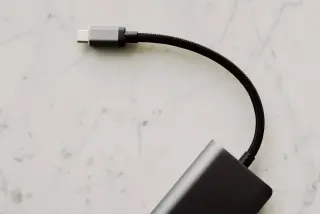
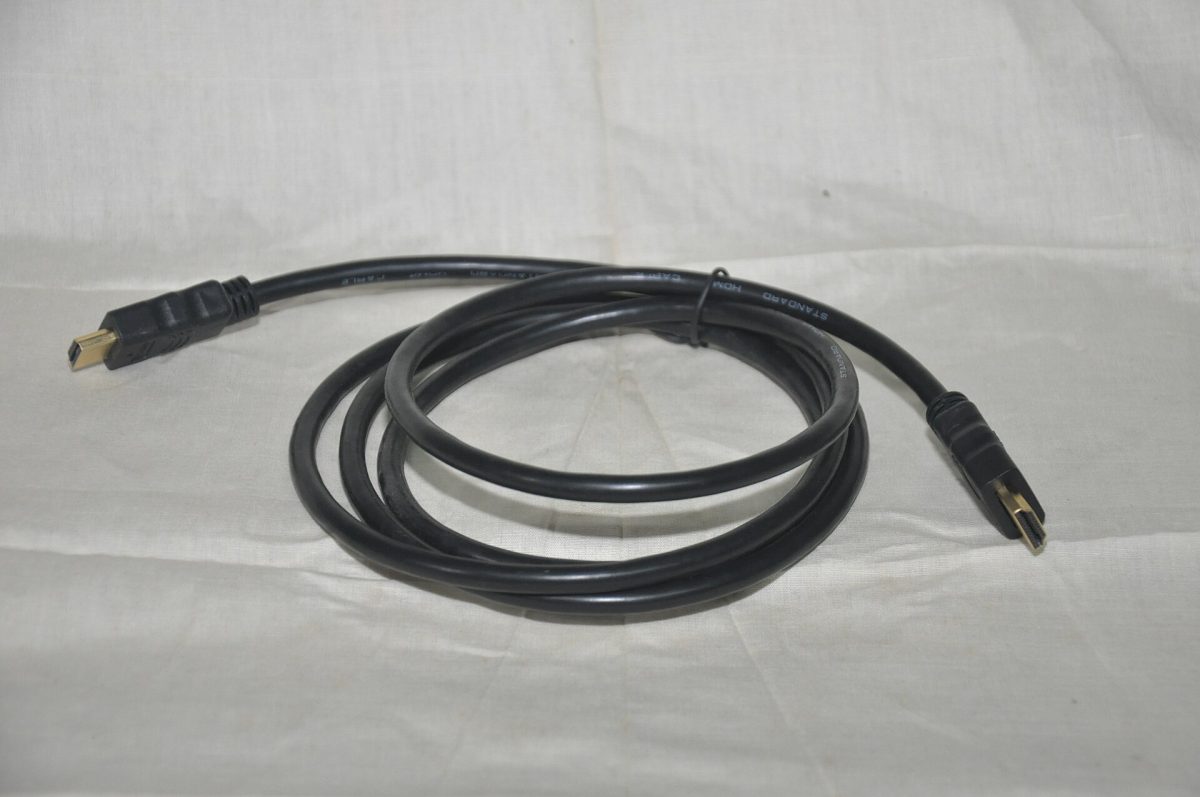
- Find the laptop’s HDMI output and a TV socket labelled HDMI IN. Connect them with an HDMI cable that fits without force. Note the television’s port number. If the laptop needs an adapter, check its documentation for video output support; a USB-C socket’s shape alone does not establish that capability.
- Turn on the TV and use its remote’s input or source selection to choose the matching HDMI number. Seeing the TV’s home screen or streaming app does not mean you are viewing the laptop’s input.
- On the laptop, press Windows key + P and choose Extend. The television becomes additional desktop space, so an empty wallpaper can be normal. Move a window onto it to check the picture. Microsoft explains the projection choices.
If the television says No signal, stay with the connection check. Reseat both cable ends, recheck the input number and try another known-working HDMI cable or TV input. Where the laptop has a suitable direct output, temporarily bypass a dock. Change one part at a time so the result identifies something useful.
Open Settings > System > Display. If Windows has not found the TV, expand Multiple displays and select Detect. Detection does not repair a loose cable or prove that an adapter supports video. If another input or cable works, keep that working route while investigating the failed component.
Before proceeding, you should have a stable desktop picture. Intermittent blackouts belong to connection troubleshooting; picture zoom will not fix them.
Select the television, then establish its resolution
In Settings > System > Display, select Identify, note the number appearing on the TV, then select that numbered display panel. Microsoft’s example shows display 1 selected among three panels; your television may have a different number. Make every following Windows adjustment with the TV selected.
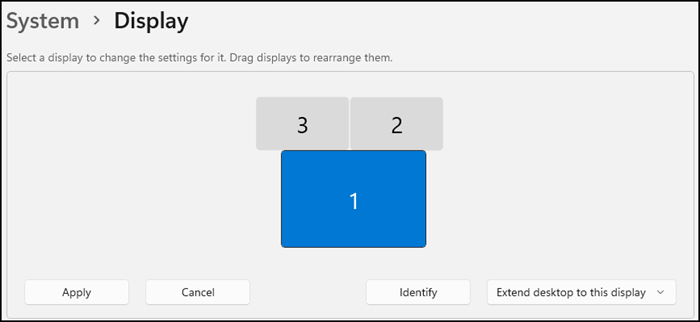
Use Identify to match a display number to the TV, then select its panel. Microsoft’s example selects display 1 among three screens; it does not depict a particular television.
Version notes
Current Microsoft Windows 11 support reference, checked 2026-10-31. Exact Windows release build and original capture date are undisclosed. Illustrates only the named control, not a tested reader setup.Under Scale & layout, open Display resolution and start with the value marked Recommended. Microsoft recommends this setting; lower resolutions can soften or stretch text.
For example, if a hypothetical TV’s native resolution is 1920 × 1080 and Windows recommends that value, use it as the baseline. Selecting 1280 × 720 merely to make the taskbar appear can obscure the original problem while reducing detail. Do not assume every television is 4K or manually force a resolution absent from its supported list.
After a resolution change, choose Keep changes only when the picture is usable. If it goes blank, wait without confirming: Dell documents automatic reversion after 15 seconds. If the TV remains unusable, disconnect HDMI and continue on the open laptop screen.
Extend is useful for this diagnosis because each screen can use its own resolution. Duplicate mode must accommodate both displays’ supported resolutions, as Dell explains. Establish a good TV picture in Extend before deciding whether mirroring suits the final task.
Recover the edges with the TV’s picture-size control
Place a maximized ordinary window on the television. Check whether its upper corners and bottom boundary are fully visible. A missing strip on several sides, especially with clipped desktop controls, is a reason to inspect the television’s picture size before changing Windows Scale.
Keep the laptop’s HDMI input selected. Write down the current picture-size setting so you can restore it. In Samsung’s documented example, open Settings (All Settings) > Picture > Expert Settings > Picture Size Settings. Select Fit to Screen when available. Samsung describes this as displaying the full image without cutting any part off.
The menu path and availability vary by model and year. If your television lacks Expert Settings at that point, consult its model-specific manual for Picture Size Settings. On another brand, find the manual’s instructions for showing the complete HDMI picture or disabling overscan. Do not assume a setting called 16:9 guarantees uncropped edges.
Close the TV menu and inspect the same window again. The useful result is recovered corners and a complete bottom edge, without stretching. If the change distorts the picture or adds an unwanted border, restore the recorded value and check the model’s instructions before trying a different control.
A greyed-out fit option is a limitation to investigate, not a reason to factory-reset the TV. Confirm you are adjusting the live HDMI input and check which picture sizes that model supports for the incoming signal. Avoid entering service menus or changing unrelated picture controls to unlock it.
Make text readable after the frame fits
Once all edges are visible, adjust reading comfort separately. With the TV still selected in Windows Display settings, use Scale & layout > Scale. Start with the recommended preset, then compare another offered preset if needed. Keep the resolution at the established baseline. Scaling changes the size of interface content; it does not disable the TV’s overscan.
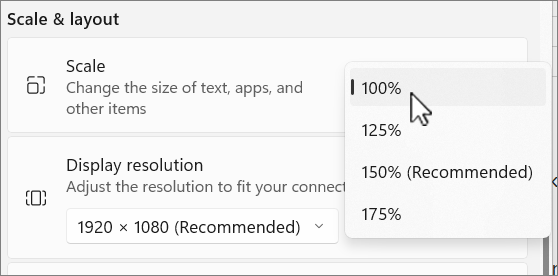
With the television selected, open Scale and compare an offered preset. Microsoft’s Windows 11 example marks 150% Recommended while 100% is selected. Keep your established resolution unchanged; this control does not change the television’s overscan.
Version notes
Current Microsoft Windows 11 support reference for Display > Scale & layout > Scale. The menu is open with the selection marker at 100%; 150% is labeled Recommended. Available values depend on the display. Exact Windows release build and capture date are not disclosed.If only a browser page looks enlarged while its tabs and window edges look normal, inspect that browser’s zoom setting. If the desktop fits but one video or game still loses content, investigate that application’s aspect ratio, zoom or display-area controls. Repeating the TV adjustment can break the desktop you just fixed.
For a presentation, you can now try Windows key + P > Duplicate and repeat the edge check. If clarity or proportions worsen, return to Extend. Move the intended presentation window onto the television and confirm that the audience sees it before starting.
Finally, disconnect and reconnect the same cable to the same HDMI input and check the corners again. Record the input number, projection mode, resolution and TV fit setting that worked. A different HDMI input may require checking again. If cropping persists, give support those details and the exact TV model; they are more useful than “the screen is too big.”
Sources, versions & scope
The steps describe the documented controls and expected checks; they are not a claim that every device or software release has been physically tested. Platform and version differences are stated with the procedure.