Release the webcam before changing its settings
A meeting preview says another application is using your webcam, even though your last call has ended. Start by releasing the camera and reopening one app. Reinstalling drivers before checking competing previews makes it harder to tell what actually fixed the problem.
This guide covers Microsoft Windows 11, with either a built-in camera or a USB webcam. It focuses on getting one intended app working first. Simultaneous use is a separate, optional step once that baseline works.
Write down the error message, the camera name selected in the failing app and whether its preview ever worked. “Camera busy,” a black picture and “camera not found” are different observations. Keep this short record as you work; it helps distinguish a released camera from a changed device selection.
- Leave any other video meeting, stop webcam recordings and close camera-test browser tabs. Quit video-call apps and webcam companion utilities you recognize. If an app remains in the notification area after its window closes, use its own Quit or Exit command.
- Close Windows Camera and any camera preview in Settings. A troubleshooting preview is still another camera user. Keep only the app you actually need, then close and reopen that app too.
- Reopen its video settings and select the physical webcam by name. If several entries appear, check that you have not selected an unwanted virtual camera or a disconnected external device. Watch for a moving picture before joining the meeting.
Dell’s webcam troubleshooting guide specifically recommends closing camera-enabled tabs and conferencing apps for this error. If the preview returns, stop changing settings. Reopen other camera-related apps individually later; the first one that brings the failure back is a useful lead, although that alone does not prove which software component is faulty.
When closing the window was not enough
Save work in any suspected app before forcing it to close. Browser windows may contain unsent forms, and a recording program may still need to finish saving a file.
Right-click the Windows taskbar and choose Task Manager. In Processes, find a familiar conferencing, recording or webcam app that should have closed. Right-click that app and select End task. Reopen your intended app and check its preview again.
Do not treat Task Manager as a reliable camera-owner detector: a running process name is a suspect, not proof of access. Avoid ending unfamiliar Windows services or every browser process at once. If you cannot identify a safe candidate, save your work and choose Start → Power → Restart. After signing back in, test your intended app before opening other call or recording software. Microsoft includes app closure and restarting in its camera troubleshooting guidance.
If restarting fixes the problem only until your usual workspace opens, repeat the same app-opening order and note where it fails. That is more useful evidence than repeatedly restarting immediately before each call.
Check access without opening another preview
Open Start → Settings → Privacy & security → Camera. This is the permission page; it is different from the device page under Bluetooth & devices.
- Check that Camera access is on. If it is unavailable or greyed out, ask the device administrator rather than trying to bypass the restriction.
- For an app with an individual switch, enable Let apps access your camera and its own camera permission.
- For a browser or another desktop app, check Let desktop apps access your camera. Microsoft documents this as a shared desktop-app control; do not expect every installed program to have an individual switch.
The desktop-app list can provide clues about previous access, but it is not a complete inventory of everything that could use the camera. Microsoft’s camera privacy explanation describes exceptions and indirect access through Windows components. A missing app entry does not clear it of involvement.
For a meeting in Microsoft Edge, Windows access and website permission are separate. At the intended meeting site, allow its camera request if you want that site to use the webcam. Granting Windows access does not grant every website access. If the site was blocked earlier, review that site’s camera permission rather than deleting all browser data.
Change only a permission needed for this task, then retry. Record any change so you can restore it if it does not help. Turning off access for every app can remove the error while also preventing the meeting you were trying to join.
Use one clean preview to choose the next branch
Close the meeting app and its browser tabs. Open Start, search for Camera and open the Windows Camera app. Look for live movement; you do not need to take a photograph or record a video. Check the physical privacy shutter if the view is black. Then close Camera before reopening the meeting app.
- Camera works; the meeting app fails
The webcam can produce a picture in Windows. Recheck the meeting app’s chosen device and permissions, then update or troubleshoot that app. Do not replace the webcam solely on this result.
- Both report that the camera is busy
Repeat the test immediately after a restart, before launching your normal workspace. Note any camera utility that opens automatically. If the same failure remains, save the exact message for support rather than assuming an invisible meeting is running.
- Neither can find the webcam
For an external webcam, reconnect its USB cable and try another computer USB port. For a built-in webcam, check its physical camera switch. Persistent absence calls for device detection or manufacturer support, beyond releasing another application.
If you actually need two apps to share it
Once one app works, Windows offers an optional sharing mode on supported, updated installations. Go to Settings → Bluetooth & devices → Cameras, select your webcam and choose Edit under Advanced camera options. Inspect the dialog before changing it: Microsoft’s example shows Allow multiple apps to use camera at the same time and Turn on basic camera both Off.
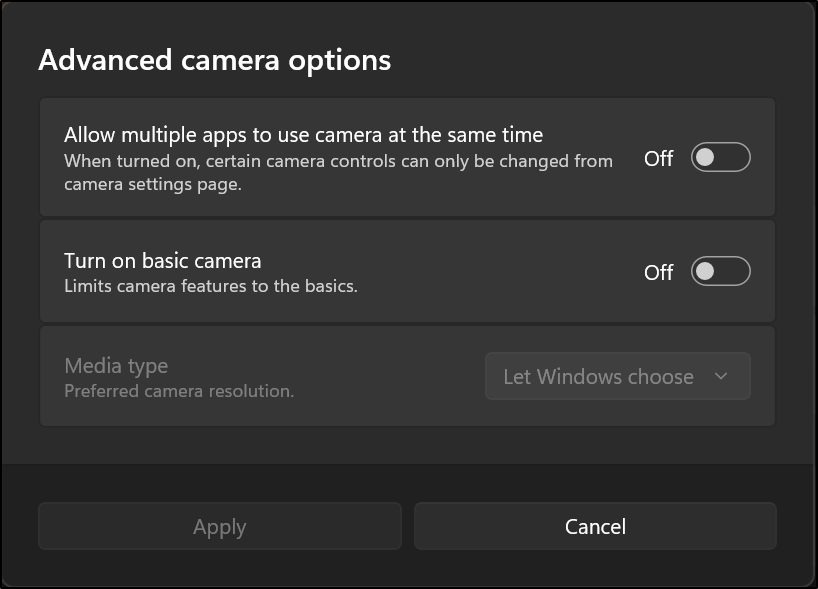
Inspect the two separate modes before changing anything. Microsoft’s example has both Off, so Apply is disabled; it does not show sharing enabled or a successful camera test.
Version notes
Checked 2026-10-31 against the current official Windows 11 camera settings guide, which documents this dialog for version 24H2 and later and embeds this exact image. Full supplied dialog retained unchanged. No precise capture date, Windows build or live testing claimed.If sharing is needed, turn on Allow multiple apps to use camera at the same time and choose Apply. Close Settings, then test the two intended apps. Leave Turn on basic camera unchanged: it is a different troubleshooting mode and disables Windows Studio Effects.
Microsoft’s camera settings guide documents these options for Windows 11 version 24H2 and later; organizational policy may manage them. If the control is absent, continue using one camera app at a time. In sharing mode, Windows Hello may fall back to PIN sign-in while another app uses that camera.
If sharing causes new problems, close the apps, return to the same dialog, restore the original switch setting and apply it. A successful finish is a live picture in your intended app, followed by another successful opening after you close it. If that still fails after a clean restart, give support the camera model, exact error and both preview results. Those observations help separate app access from a driver or hardware fault.
Sources, versions & scope
The steps describe the documented controls and expected checks; they are not a claim that every device or software release has been physically tested. Platform and version differences are stated with the procedure.