A faster internet plan is worth considering when your household regularly needs more capacity than its current connection can deliver. Before ordering, name the improvement you want: two calls that stay clear, television that stops buffering, or a large download that finishes before dinner. A bigger advertised number is useful only if it addresses that particular constraint.
This guide uses a Windows 11 laptop and FAST.com in a desktop browser for a short comparison. It ends with a purchase decision, rather than a complete network repair. Keep your current plan details, a few observations and the proposed offer together.
Find what the new tier actually changes
Read your existing service summary and the proposed offer. Write down download speed, upload speed, monthly allowance, recurring price after discounts expire, equipment charges and any commitment. Download capacity serves incoming streams and files; upload capacity serves outgoing camera video and backups. An allowance measures total data over time, not transfer speed.
Ask specifically whether upload increases. A move from a hypothetical 100/10 Mbps plan to 500/10 raises download capacity fivefold while leaving the 10 Mbps upload limit unchanged. If uploading is the problem, that offer needs another justification. Also ask whether the advertised tier requires different provider equipment and whether your existing router can handle it.
Count devices doing demanding work simultaneously, not everything connected. Idle bulbs and sleeping tablets should not carry the same weight as a television streaming 4K or a computer sending a backup. Write a typical busy-hour list and a separate occasional list: a monthly game download may justify waiting longer rather than paying more every month.

Give the household two capacity budgets
Netflix recommends a stable connection of at least 5 Mbps for 1080p and 15 Mbps for 4K. Those figures concern a stream's connection needs, not a promise that every household on a 15 Mbps plan can watch several 4K streams together.
For the browser-based Zoom Web App, Zoom lists 3.8 Mbps upload and 3.0 Mbps download for 1080p group video. Its software adapts to network conditions; listing 1080p here does not promise that a meeting will offer that resolution.
| Activity | Download budget | Upload budget |
|---|---|---|
| Two Netflix 4K streams | 30 Mbps | Small control traffic; not budgeted here |
| Two Zoom Web App 1080p group calls | 6 Mbps | 7.6 Mbps |
| Subtotal | 36 Mbps | 7.6 Mbps plus other traffic |
That subtotal leaves little upload space on the invented 100/10 plan once other traffic joins in. A cloud backup could compete with calls even though the download side has room. The table is planning arithmetic, not a measurement or a precise prediction of application traffic.
Leave room above the subtotal for ordinary browsing, bursts and variation. There is no universal percentage that guarantees success. If the only overload comes from optional backups, try scheduling them outside call hours before buying capacity. If several people must upload concurrently every day, prioritize a tier with materially more upload.
Collect just enough evidence to challenge the offer
Use tests only if your data allowance permits bulk transfers. Agree on a quiet interval, pause optional transfers you control, and retain required work security software. Record whether a VPN is active so a constrained work route is not silently mistaken for the household's capacity.
- On the laptop, open FAST.com and let its automatic download estimate finish. Keep this browser and device for the comparisons.
- Select Show more info, then wait for the upload estimate. Record download and upload in Mbps, plus the Unloaded and Loaded latency values in milliseconds. A failed or missing reading is not zero.
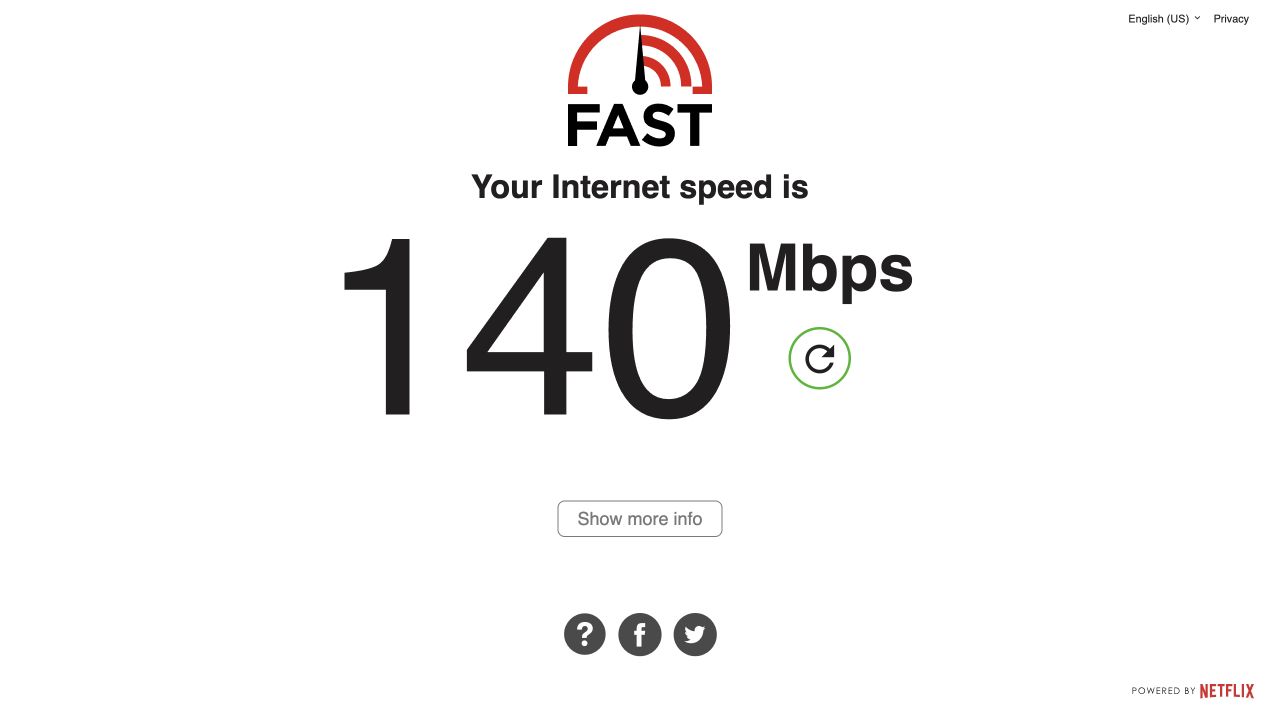
Visual 01 · FAST.com, English (US), desktop browser Choose Show more info to reveal upload and latency. The visible number is incidental to this editorial capture and is not a target speed or a test of your household.
Original browser capture by Signal Desk; FAST.com interface © Netflix. Image source · Usage termsVersion notes
Fresh unaltered viewport capture from the live FAST.com website on 31 October 2026. The captured collapsed result screen matches the instruction immediately before selecting Show more info. A web interface, independent of Windows build. - Close the test. Repeat once during another quiet interval and once at the usual problem time; note household activity with each result. These are small observations, not proof of guaranteed service.
FAST.com transfers data to Netflix servers. Its results describe that path; they do not predict every website's speed. Loaded latency describes delay while traffic is present. A large increase can help explain why a call feels unresponsive during a transfer, but cannot by itself identify the component responsible.
Check whether Wi-Fi is hiding available capacity
If the laptop is slow at its usual desk, compare it near the router. If you have suitable equipment, make a wired comparison using the same laptop. Connect a known-working Ethernet cable between the laptop or its adapter and a router LAN port; leave the modem-to-router Internet connection in place. Microsoft's guidance distinguishes these ports and recommends trying another cable when one fails.
Temporarily turn the laptop's Wi-Fi off so the comparison uses Ethernet. Confirm a familiar webpage loads, then repeat the same test. If it cannot connect, reseat the cable or try another known-working cable; restore Wi-Fi to recover. Afterward, restore your original connection and resume paused transfers.
A capable wired connection that comfortably serves the household while distant Wi-Fi struggles points toward a local wireless constraint. Paying the provider for extra capacity does not remove that constraint. For that branch, use the existing guide to separating Wi-Fi from internet slowdowns.
The comparison also has a ceiling: a 100 Mbps Ethernet adapter cannot establish whether a 500 Mbps service is delivering its full rate. Check the adapter and router specifications before treating a plateau as a provider limit. If suitable wired equipment is unavailable, record that uncertainty rather than buying a plan to resolve it.
Match the evidence to one next move
- Keep the current plan
Ordinary simultaneous tasks work, and capacity is comfortably above your busy-hour budget. Faster downloads would be a convenience purchase; judge whether the time saved is worth the recurring cost.
- Investigate service or equipment first
Repeated capable wired results fall well below the current tier, or performance collapses only at certain times. Give the provider your timestamps, connection method and symptoms. Ask it to investigate delivery of the service you already buy. An upgrade is not an established remedy for an unresolved fault.
- Consider a specific capacity upgrade
Required concurrent work repeatedly exhausts the relevant direction, including on a capable wired connection. Choose an offer that increases that direction enough to leave useful room. If speed tests look healthy but only one application fails, investigate that application's route or service before changing the household plan.
Set a success condition before ordering
Write a concrete acceptance check: “Both calls remain usable while the televisions stream during our normal evening.” Confirm the full ongoing cost and any provider-supported downgrade or cancellation window before committing; do not assume reverting is free or immediate.
After any required activation or equipment change, repeat that household task at the same time and locations. Also repeat the capable wired comparison if available. A higher speed-test number without a better experience leaves the original problem unresolved. Keep the evidence and contact support within the agreed window. If the current plan already passes your real workload, keeping it is a complete decision.
Sources, versions & scope
The steps describe the documented controls and expected checks; they are not a claim that every device or software release has been physically tested. Platform and version differences are stated with the procedure.