Make the plan fit the first evening
Before moving house, aim to leave yourself three things: a confirmed service appointment, a marked floor plan and one clearly labelled box of network equipment. Buying extra Wi-Fi units can wait until you know where the incoming connection and your furniture will be.
This is a preparation and handover guide, with an existing Google Nest Wifi Pro system as the worked mesh example. Provider equipment rules vary; the BT/Openreach example below applies specifically to that UK service. The plan does not assume you can plug a personal router directly into any provider's fibre box.

Get the service handover in writing
Contact your provider with the complete new address, including the flat or unit number. Ask it to confirm availability at that address, activation date, whether an engineer needs indoor access, any installation charge, and which equipment to bring or return. Record the order reference and support contact somewhere available offline.
Keep the old service's end date separate from the new service's start date. Ask whether an overlap is possible and what it costs; do not assume moving the account creates uninterrupted connectivity. If you work from home, arrange a fallback for the first working day rather than treating an estimated installation date as a guarantee.
Identify what stays with the building. BT says to take your Hub but leave the wall-mounted Openreach fibre modem for the next occupant. It also warns that existing routers may not work with a new service. Follow your own provider's instructions and keep fixed fibre equipment undisturbed.
For a personal Nest system, ask whether the new service supports it and whether provider equipment must remain for authentication, telephone service or other features. Record the approved connection arrangement. Do not schedule an unfamiliar bridge-mode change for moving morning.
Use the viewing to draw the cable route
During an authorised visit, photograph the incoming connection, nearby power sockets, existing network wall plates and any communications cupboard. Avoid recording the current occupant's passwords or account details. Ask where room cables terminate; an Ethernet-shaped socket alone does not prove a working network run.
Sketch the floor plan with the actual desk, television and other important device positions. Mark thick walls, floors between rooms and places where a cable would cross a doorway. Give each priority room a requirement: a reliable work call, a wired console, or ordinary browsing. That makes placement decisions more useful than counting signal bars in an empty hallway.
Pick an accessible, ventilated position for the main router with power and a feasible Ethernet route to the provider connection. Google's placement guidance favours an open, elevated, central position where possible. A convenient cupboard at the edge of the property may need a cable to a better router location.
For a wireless Nest Wifi Pro point, mark a powered position between the main router and the room needing coverage. Google suggests starting about halfway towards that room, no more than two rooms from the router or another point. Treat this as a starting position to test after moving, not a coverage promise through your particular walls.
If concealed cabling or new holes are needed, agree the route and permissions before installation. Ask an installer to identify and test existing runs. Keep unverified sockets marked “unknown” on the plan; do not buy a switch on the assumption that every room is already connected.
Count connections before buying equipment
Draw the intended chain in words: provider-approved internet handoff, main Nest Wifi Pro, then household devices. If using Ethernet between mesh units, that connecting cable is the backhaul. Google documents a downstream switch layout: main router LAN to switch, then switch to additional mesh points or wired devices. Do not connect the main router and its point side by side on a switch before the main router.
Hypothetically, a five-port switch uses one port for its router connection. A desktop, television and wired mesh point consume three more, leaving one spare. Four household connections plus the uplink would fill it. Count both ends of the proposed arrangement before ordering, including any future device you already know you need.
For this simple Nest layout, Google recommends an unmanaged switch and at least Cat 5e Ethernet cabling. Measure patch leads along the actual route with slack for access. Read equipment specifications rather than inferring speed from connector colour. The existing mesh or access-point guide can help if you are still choosing the architecture.
Inventory mesh models carefully: Nest Wifi Pro cannot form a mesh with older Nest Wifi or Google Wifi units. Reuse compatible working equipment first. Save optional purchases until you have checked the new rooms with the furniture in place.
Pack the configuration with the hardware
- While the old network works, photograph its cable positions and label each removable lead at both ends. Note which unit is the main router. Keep these photographs private because labels may contain access information.
- Record the Wi-Fi name, password and any settings you depend on in a secure place available offline. Verify that you can access the Google account controlling the existing Nest network. Avoid factory-resetting a working system just to pack it.
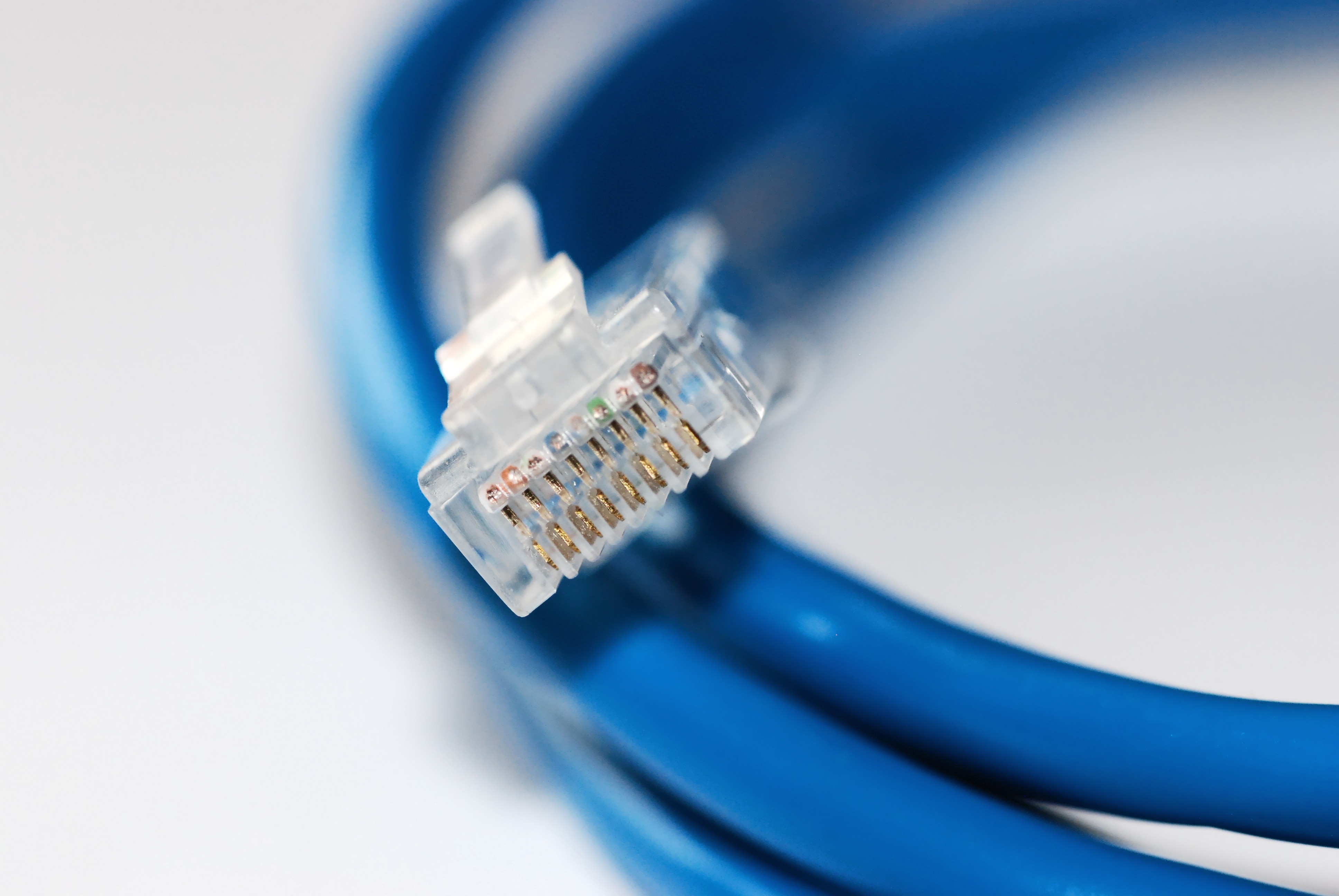
- Inspect each Ethernet plug's retaining latch and plastic body before packing. Set aside leads with broken latches or crushed jackets and pack a known-good spare. The close-up shows the inspection points; appearance cannot prove cable category or electrical condition.
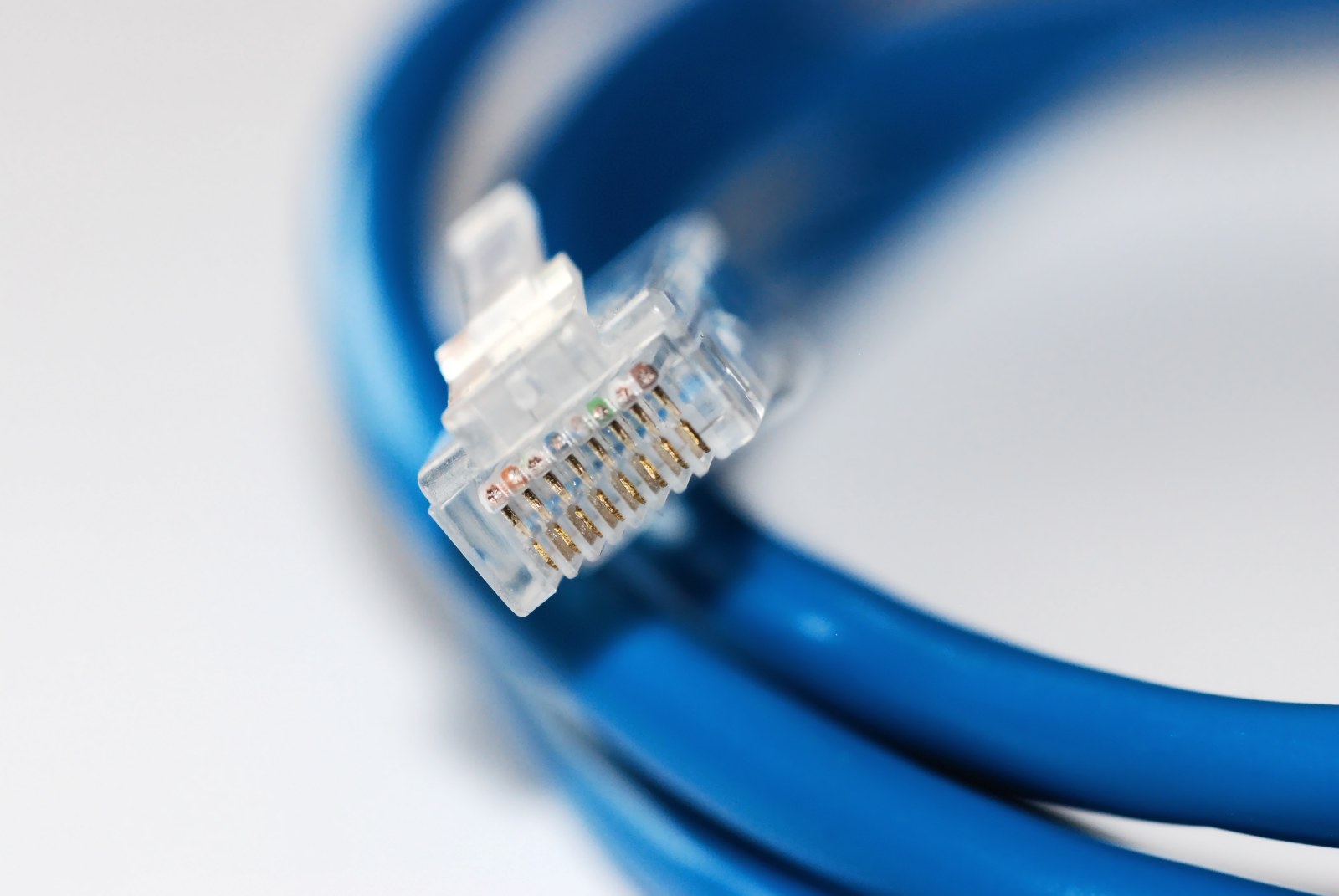
Visual 01 · Physical Ethernet plug inspection; independent of operating system Check the latch and housing before packing a lead for the move. A connector photograph cannot establish cable category or a working electrical link.
Devcore / Wikimedia Commons; CC0 1.0. Original unchanged. Image source · Usage termsVersion notes
Real photograph captured 26 May 2012; visually checked 31 October 2026. This is a connector inspection reference, not a current product recommendation or a Windows screenshot. No performance capability inferred from the plug. Display photograph resized for loading speed; the full-size link preserves the original download. - Keep each unit with its correct power adapter, labelled by room or role. Put network kit, patch leads, provider instructions and the floor plan in an accessible box. Leave fixed provider equipment that must stay with the property.
If planning a phone hotspot fallback, test your essential work task on it before the move and check your allowance. Download installation instructions in advance. Keep large updates and cloud synchronisation paused during a limited-data fallback.
Write the arrival test now
Put this order on the floor plan: establish the provider connection, confirm internet through the main router, then add room connections one at a time. Follow the provider's activation instructions first. For a fresh Nest setup, complete Google's setup process before connecting downstream switches and devices; the planning sketch is not a substitute for activation.
For an established multi-unit Nest Wifi Pro network, open Google Home and tap Home > Wifi > Points > Test mesh, following Google's current mesh-test instructions. Record the result after positioning the units. This checks the connections between mesh units; it does not establish that a laptop at the far desk has a good connection.
Visit each priority room with the same device and try its intended task. Note the room, unit position and any interruption. If mesh reception is weak, move the point closer to the main router and rerun the test. If only one desk fails while the mesh test is satisfactory, investigate that room's device connection before buying another point.
If a wall-cable route fails, substitute a known-good temporary lead without creating a trip hazard. If that works, have the installed path checked. If adding a connection destabilises the network, remove that last addition and restore the photographed arrangement. If internet fails at the main router, check activation with the provider before rearranging satellites. Keep resets and permanent cable fastening until the basic connection and room tests pass.
Sources, versions & scope
The steps describe the documented controls and expected checks; they are not a claim that every device or software release has been physically tested. Platform and version differences are stated with the procedure.