Find out what happened while the lid was closed
A laptop that loses charge overnight may have stayed awake, used power during standby, or started the night with a worn battery. Replacing the battery before distinguishing those possibilities can leave the original problem untouched. This guide focuses on Windows 11 and uses its built-in reports; no battery utility or case opening is required.
First record the bedtime charge, morning charge, elapsed hours and whether the charger or a dock was connected. Note the action you actually took: closing the lid, choosing Sleep, choosing Hibernate or shutting down. A dark screen alone does not tell you which state the computer reached.
For a hypothetical eight-hour night, a fall from 80% to 64% is 16 percentage points, averaging two points per hour. That is a useful comparison for your next trial, not a universal failure threshold. Compare similar starting charges and durations; a percentage is an estimate, not a laboratory energy measurement.
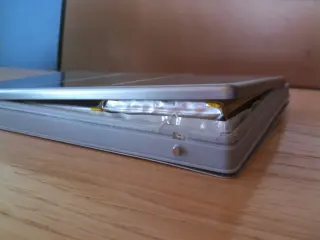
If the case is bulging or the trackpad has lifted, stop using the computer rather than running overnight experiments. Microsoft warns against continuing to use an expanded battery. Arrange service without pressing on the enclosure.
Check the instruction the lid actually gives Windows
Search Start for Control Panel. Open System and Security, then under Power Options choose Choose what the power buttons do. Inspect When I close the lid, especially the On battery column. Microsoft documents this route in its sleep and hibernate instructions.
If it says Do nothing, closing the lid has not requested sleep. Record the original choice, select Sleep for battery use and choose Save changes. Use Change settings that are currently unavailable if needed and permitted. Restore the recorded choice through the same page if it was intentional for a docked setup. If your employer manages these controls, ask IT instead of trying to override policy.
Before the next trial, finish pending saves and safely eject external storage. Disconnect optional USB devices and the dock, then deliberately choose Start → Power → Sleep. Leave the laptop on an uncovered desk. This establishes a simple baseline and removes lid behavior as an unknown; it does not yet identify an accessory as faulty.
Save evidence before changing more settings
- Open Start, type Command Prompt, right-click the result and choose Run as administrator. Approve the permission prompt only if authorized. Use this Command Prompt window for the commands below.
- Enter
powercfg /a. Read the available states. Standby (S0 Low Power Idle) identifies Modern Standby; Standby (S3) identifies the traditional standby path. Unavailable states have explanatory text. Do not follow registry tricks to force a different sleep model. - Enter
powercfg /batteryreport /output "%USERPROFILE%\battery-report.html". In File Explorer, enter%USERPROFILE%in the address bar and open battery-report.html.
The official powercfg reference documents the commands. If generation fails, check the spelling, quotation marks and administrator step. A managed computer may require IT assistance. These reporting commands do not change power settings. Save dated copies elsewhere before rerunning them, because the same output filename can replace the previous report.
In the battery report, inspect Recent usage around your recorded bedtime and morning. Check whether entries show battery or AC power; an overnight charging period invalidates a simple unplugged comparison. Under Installed batteries, compare Full charge capacity with Design capacity. Reduced capacity means less stored energy, but does not establish why Windows consumed it overnight.
For example, hypothetically losing 10% of a 30 Wh full-charge capacity represents about 3 Wh; the same percentage of 60 Wh represents about 6 Wh. The percentage alone cannot separate battery size from energy consumption. Missing or implausible capacity readings are a reason to seek model-specific diagnostics, not proof that the pack is healthy or defective.
Modern Standby: open the actual overnight session
If powercfg /a listed S0 Low Power Idle, run powercfg /sleepstudy /output "%USERPROFILE%\sleepstudy-report.html". Open that HTML file from the same user folder. Microsoft’s SleepStudy guide explains the report; its default window covers the last three days.
Locate the rows spanning the recorded night, checking start time, duration and battery power source. Modern reports distinguish Screen Off from Sleep. A prolonged Screen Off period deserves investigation even if the display looked asleep. Follow the session’s link and note any blockers or listed active components. A component name is an investigative lead, not an instruction to uninstall its driver.
Do not judge the whole night from one colored row. Read adjacent segments and their durations: a short transition and a long battery-powered interval answer different questions. If the report does not include your night, collect it sooner after the next occurrence. If SleepStudy reports that the system is unsupported, stop that branch; this report is for Modern Standby systems.
For an S3 machine, or an unexplained wake, run powercfg /lastwake immediately after returning. It describes the last sleep transition’s wake, which might be your own morning action. It cannot reconstruct every overnight event. An empty or unhelpful result leaves the cause unresolved; keep the time record and continue with the comparison below.
Use the next night to test one explanation
Keep the first report and change one variable. If the accessory-free sleep trial improves substantially, reconnect one optional accessory for the next comparable trial. Save and eject storage before disconnecting it again. A repeatable difference implicates that setup, although further checks may still be needed to distinguish the accessory, dock and driver.
If a report repeatedly names an application, save its documents and quit that optional application before the next sleep trial. Reopen it afterward. Do not disable security software or force power-request overrides to make a report look better. If a device or driver repeatedly appears, give the laptop manufacturer or IT the exact component name and session time before changing drivers.
For a separate comparison, try Hibernate, which Microsoft says uses less power than sleep. On the Control Panel page above, choose Change settings that are currently unavailable, check Hibernate under Shutdown settings if offered, and save. Choose Start → Power → Hibernate for the trial. You can remove that menu option afterward by clearing the same checkbox. If unavailable, save and close your work and use Shut down instead; do not force firmware changes.
If sleep loses much more charge than hibernate under comparable conditions, prioritize the standby path. If both repeatedly lose substantial charge with accessories disconnected, provide the reports, model and overnight log to support for battery or firmware investigation. Neither comparison alone proves a failed battery. Keep whichever verified overnight mode preserves the charge you need, and stop experimenting once you have a repeatable result and a clear next action.
Sources, versions & scope
The steps describe the documented controls and expected checks; they are not a claim that every device or software release has been physically tested. Platform and version differences are stated with the procedure.