Start with what someone needs to find
A document can look orderly while giving a screen-reader user an exhausting stream of text. Large bold words may have no heading structure. A deadline may exist only inside a picture. A table may announce a number without enough context to explain it. The useful goal is a document someone can navigate, understand and act on.
This guide covers Word for Microsoft 365 desktop on Windows and an editable Word document. Save a separate working copy before changing an established layout. If you only have a scan, recover and proofread its text first; our guide to OCR and searchable text covers that starting point. Recognized words still need document structure.

Use a concrete reading task throughout the edit. In a hypothetical meeting handout, a reader needs to find the venue, discover the registration deadline and compare two ticket prices. Write those three tasks down. They will give you a better final check than simply asking whether the pages look tidy.
Make the outline work before adjusting its appearance
Word’s built-in heading styles identify sections for navigation. Use Title for the document title, Heading 1 for main sections and Heading 2 for subsections. Keep levels logical rather than choosing a level because its default font looks attractive. Microsoft’s Windows accessibility instructions describe these styles and the other structural controls below.
- Place the cursor in a section heading. On Home, choose the appropriate heading in Styles. Repeat for the remaining sections.
- Open View → Navigation Pane, then select Headings. Your section names should appear as a useful outline. Click one to check that it takes you to the intended text.
- If a heading is missing, check its style and location. Microsoft’s Navigation pane guidance explains that headings in tables, text boxes, headers and footers do not appear there. Put essential section headings in ordinary body paragraphs.
For the hypothetical handout, “Attending the meeting” and “Booking a place” could be main sections, with “Ticket prices” beneath booking. A reader can choose a destination without hearing every preceding paragraph. Names such as “Other” or “More information” give much less help.
Inspect the outline without dragging entries: dragging a heading in the Navigation pane can move its section. If you move one accidentally, use Ctrl+Z immediately and check that its paragraphs return. If ordinary prose appears in the outline, give that paragraph the appropriate body style, usually Normal.
Keep the complete message in the main text
Follow the handout from its opening sentence to its last instruction. Does the deadline occur where a reader needs it, or only in a colored footer? Repeat essential details in the main body. Microsoft’s document accessibility guidance advises against placing important information exclusively in headers or footers.
Repair instructions that depend on appearance. In the hypothetical handout, replace “Choose the green option” with “Choose Standard admission.” Replace “Use the link on the right” with a link named “Meeting registration form.” Keep any useful visual distinction, but make its meaning explicit in words.
For a new link, select its descriptive words, press Ctrl+K, enter the destination address and choose OK. Check that the linked words identify the destination without their surrounding sentence. Open the link once to verify that a convincing label has not been attached to the wrong page.
For a sequence of instructions, select the relevant paragraphs and use Home → Numbering; use Bullets for items without an order. Replace manually typed numbers or bullet characters so they do not become duplicate markers. Read each item as a complete instruction: “Bring identification” is more useful than an isolated “Identification” beside an unexplained symbol.
Give tables and pictures enough context
Reserve tables for data relationships. If a table merely holds a notice beside a photograph, consider replacing it with ordinary paragraphs. For necessary data, keep a simple grid without merged, split or nested cells. Select the top row and choose Table Design → Header Row in Table Style Options. Supply meaningful column names; bold styling alone does not explain what the columns represent.
In the hypothetical price comparison, columns named “Ticket type” and “Price per person” make “Standard admission — £12” and “Student admission — £8” understandable. A bare pair of values, 12 and 8, leaves the unit and purchase unclear. Put any eligibility rule beside the table so the cheaper price cannot be mistaken for an unrestricted offer.
Select an informative picture, then choose Picture Format → Alt Text. Describe the information it contributes. If the picture contains the only copy of the registration deadline, put that deadline into ordinary document text as well.
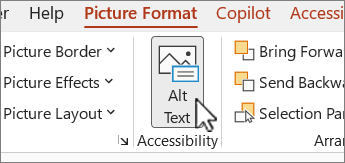
Microsoft Word for Microsoft 365: select the informative picture, then open Picture Format → Alt Text. The screenshot shows the ribbon command, not a completed description or an accessibility-check result.
Version notes
Checked 2026-10-31 against the current Microsoft 365 Windows tab of Microsoft’s alt-text instructions and its exact embedded asset. Documentary verification only; no precise build or hands-on test claimed. Full vendor-supplied asset retained unchanged.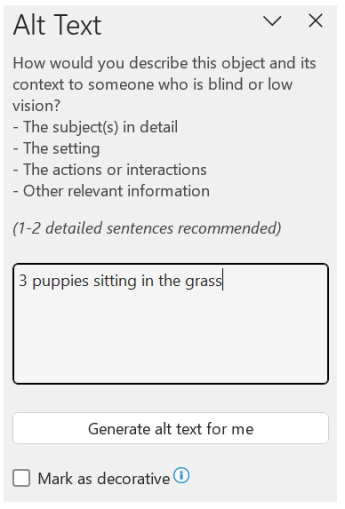
After opening Alt Text, enter a useful description in the text field. Microsoft’s example says “3 puppies sitting in the grass”; it does not show this guide’s handout or certify that its images are accessible.
Version notes
Checked 2026-10-31 against the current Microsoft 365 Windows tab of Microsoft’s alt-text instructions and its exact embedded asset. Documentary verification only; no precise build or hands-on test claimed. Full vendor-supplied asset retained unchanged.Mark a purely ornamental image as decorative in the Alt Text pane. For a detailed chart, include its conclusion and necessary values in visible text or a simple table. Our guide to writing useful alternative text covers the wording in depth. This pass asks a broader question: can the reader complete the task without seeing the image?
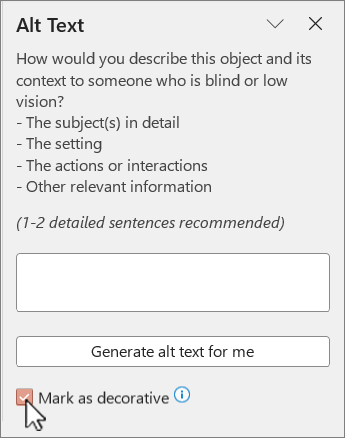
For a purely ornamental image, Mark as decorative is checked and the description field becomes unavailable. Use this only for an image that adds no information; this pane is Microsoft’s reference, not a check of your handout.
Version notes
Checked 2026-10-31 against the current Microsoft 365 Windows tab of Microsoft’s alt-text instructions and its exact embedded asset. Documentary verification only; no precise build or hands-on test claimed. Full vendor-supplied asset retained unchanged.Run the checker, then try the reading tasks
Select Review → Check Accessibility to open the accessibility pane. Follow each finding to its affected content, read the explanation and make the relevant correction. Revisit the findings after editing. Treat the pane as a repair aid; a description can exist while saying the wrong thing, and a link can have readable words while pointing elsewhere.
If you already use Narrator, Microsoft’s screen-reader instructions for Word provide a practical listening check. With focus in the document body, use your configured screen-reader key + Ctrl+R to read from the cursor. Press Ctrl to stop. These are Narrator commands; other readers use their own commands.
For keyboard heading navigation, press Alt+W, then K. In the Navigation pane, use Tab to reach its selected tab, then the arrow keys to select Headings. Tab or Shift+Tab through the heading list and press Enter at a destination. Return focus to the body before testing continuous reading again.
Now attempt the three handout tasks: reach the venue, find the deadline and compare the prices. Note the exact point where information becomes unclear. Does a heading land in the right place? Can you identify which price belongs to which ticket? Does an image description supply something useful? Repair that passage and repeat the task. If you do not use a screen reader, record that the listening check remains outstanding; visual review cannot stand in for it.
Save and reopen the finished Word file before distributing it. Share that checked file and keep the editable source. A PDF export needs its own accessibility review: checking the Word document does not establish that another file preserves its structure or reading order.
Sources, versions & scope
The steps describe the documented controls and expected checks; they are not a claim that every device or software release has been physically tested. Platform and version differences are stated with the procedure.