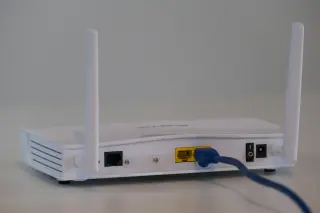
Give support a timeline they can investigate
A useful ISP report connects a symptom to a time, a device and a connection path. “Internet keeps dropping” leaves support guessing. “Two devices lost fresh website access at 20:14, including a laptop connected to the router by Ethernet” gives them something to compare with their own records.
This guide builds a small incident file using a personally owned Windows 11 PC. It collects evidence before disruptive repairs. You need a text editor, your router model and, if available, an Ethernet cable. You do not need a router administrator password or a paid diagnostic app.
Save the file locally so you can read it during an outage. Use one incident per dated entry, and keep the same ticket number across follow-ups. The aim is a concise account an agent can reproduce or escalate, with supporting output available if requested.
Capture the failure before changing anything
At the first interruption, write the date, local time and time zone. Record when service recovered, or “still failing” with the last check time. For intermittent problems, note each observed window; do not describe an unobserved overnight period as continuous downtime.
- Symptom: name the task and exact error, such as a fresh webpage failing to load or a call disconnecting. Distinguish slow transfer, lost connection and one unavailable service.
- Scope: list affected and unaffected devices, their rooms, and whether each used Wi-Fi or Ethernet. Say whether another device actually attempted a new connection.
- Path: record modem or fibre terminal, router, mesh unit or switch, then PC. Include model names and whether the equipment belongs to the provider.
- Context: note a large backup, download, VPN connection, recent equipment change or power interruption. Record what you know; mark anything else unknown.
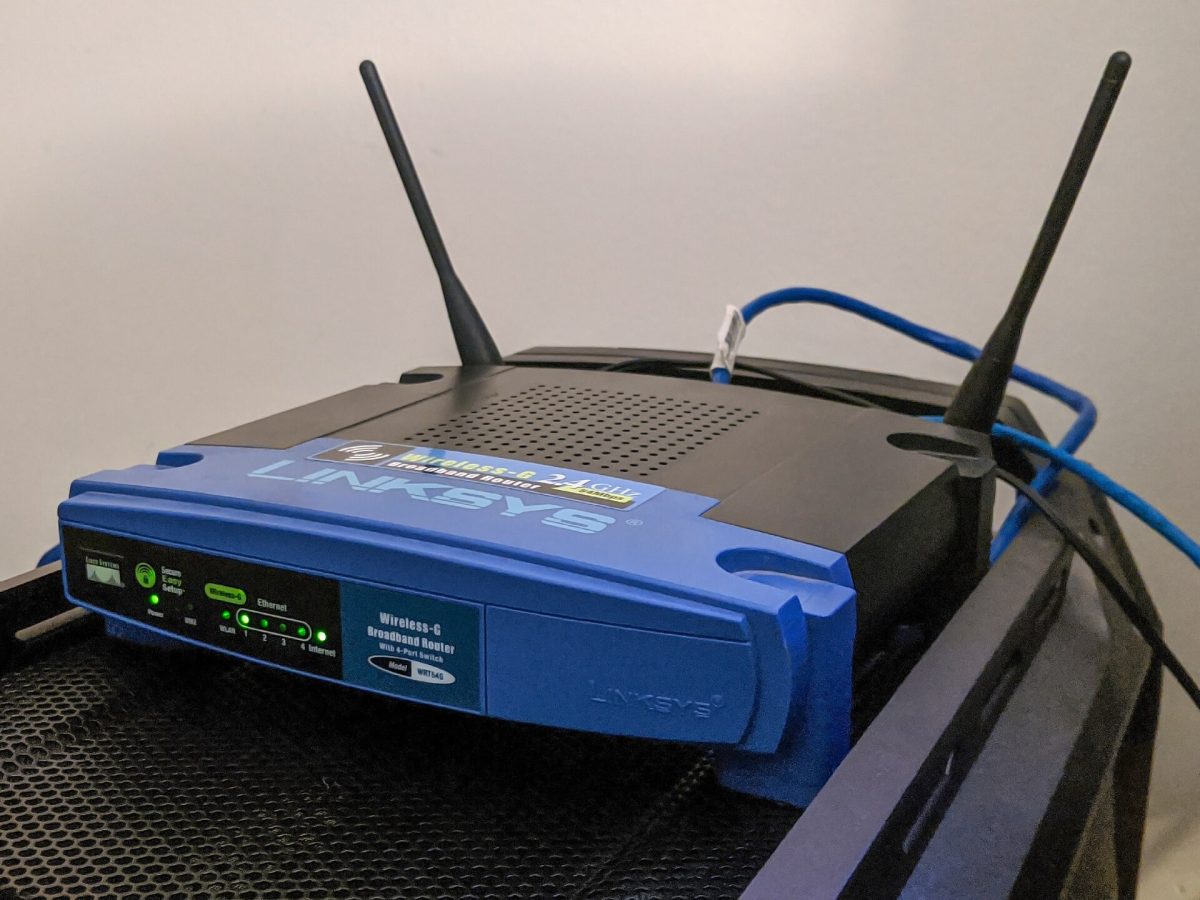
Photograph indicator labels and their observed state before restarting equipment. Write “Internet light flashing amber” rather than “line down” unless the model's manual establishes that meaning. Keep password labels, QR codes and account paperwork outside the frame. Check the provider's official outage notice if reachable, recording its time and reference.
Add one controlled comparison
Try the same failing task on a second device on the same home network. If using a phone, ensure the check really uses home Wi-Fi rather than cellular fallback. A previously loaded page or buffered video is weak evidence; request fresh content. Microsoft's connection guidance also uses a second device to narrow the problem.
If practical, compare the Windows PC on Wi-Fi with the same PC connected to a router LAN socket. Record whether a mesh point, wall cable or switch remains in the route. A wired connection through a wireless mesh satellite still includes that satellite's radio link.
Before using a spare Ethernet lead, inspect its detached plug's contact row and transparent plastic body for obvious damage or debris. Set a damaged lead aside and use a known-good alternative. The close-up identifies inspection points; it cannot certify electrical condition or cable speed.
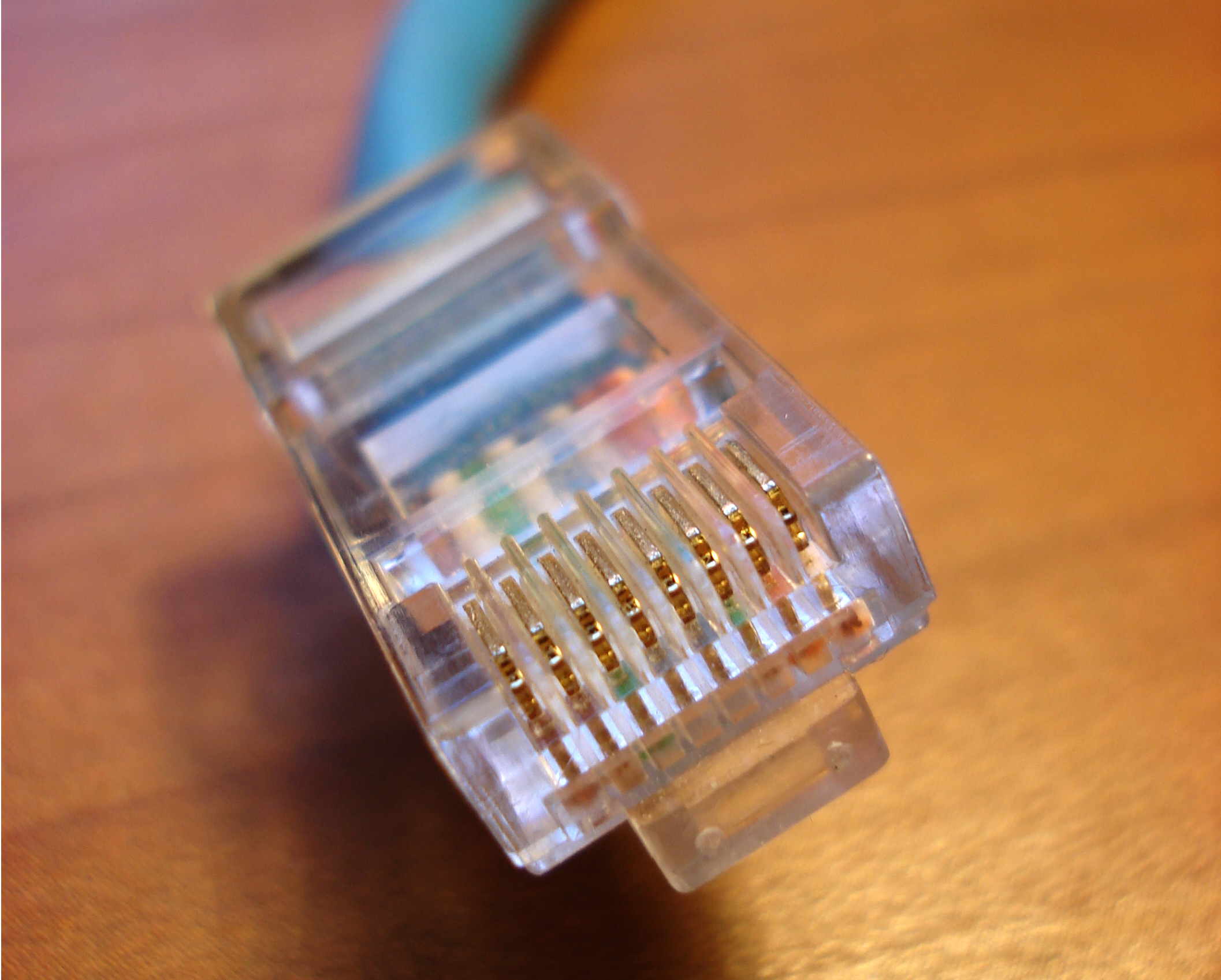
Inspect the detached test lead for visible contact or housing damage before the wired comparison. This real close-up identifies those areas; it proves neither cable performance nor a successful connection.
Version notes
Hardware reference, photographed 28 March 2009. Checked 2026-10-31 for the visible eight-contact connector features used in this inspection. No software version or current product recommendation claimed. Display photograph resized for loading speed; the full-size link preserves the original download.Connect to the router's household LAN side, leaving its incoming connection alone. To make the comparison unambiguous, open Start > Settings > Network & internet > Wi-Fi and turn Wi-Fi off temporarily. Record the result, then turn Wi-Fi back on after the wired test. Skip this change if it would interrupt something essential. Do not connect directly to a bare modem or fibre terminal just to complete the record.
If only the room's Wi-Fi test fails, say that. If both paths fail, report that too. The Wi-Fi versus internet guide covers deeper isolation; this incident file should retain the comparison without declaring the provider responsible.
Keep the command evidence small and readable
Search Start for Command Prompt and open it normally. These observation commands do not require an administrator window. Run ipconfig and press Enter. In the adapter used for this test, record the IPv4 address and Default Gateway. Microsoft's reference explains that the basic command displays addresses and gateways; unrelated disconnected adapters can be ignored.
If there is no IPv4 gateway, record that and skip the following IPv4 tests rather than guessing an address. This small record does not assess an IPv6-only service. If support requests fuller configuration, ipconfig /all includes more detail; keep the complete output private.
Next, substitute your actual IPv4 gateway in the first command. The address below is hypothetical. Run the commands separately, noting each start time:
ping /n 20 192.168.1.1
ping /4 /n 20 www.microsoft.com
nslookup www.microsoft.com
For each ping, copy the destination address and final sent, received, lost and round-trip statistics into the file. Microsoft documents the count and address-family options. These runs stop after 20 requests; Ctrl+C stops one early. Record an interrupted run as incomplete.
The first target checks echo traffic to your local gateway. The second requests IPv4 echo traffic to an external hostname, which is not a guaranteed diagnostic responder. Timeouts can reflect filtering; replies do not measure broadband capacity. Retain actual webpage behaviour beside these results.
The name lookup uses the default DNS server when no server is supplied. Copy its server address, returned answer or exact error. An answer shows this lookup succeeded; it does not establish that a browser used the same resolver. A timeout identifies an unanswered query, not its cause. If you accidentally ran nslookup alone and see its interactive prompt, type exit to return.
Copy results as text into the incident file. If a command is blocked or unrecognised, retain the exact message and skip it. Do not disable security software to make a test pass.
Turn the notes into a support handoff
Lead with the impact, then the time window and strongest comparison. This deliberately short example is hypothetical; none of its results are measurements from a tested installation:
31 October 2026, UTC+7. Fresh pages failed on two home devices from 20:14 to 20:19. Windows 11 laptop failed on router LAN Ethernet with Wi-Fi off; phone failed on home Wi-Fi. At 20:16, gateway ping received 20/20; external IPv4 ping received 17/20; DNS lookup returned an address. No restart during capture. Router Internet indicator remained steady. Please compare the time window with line/session records and advise the next test. Ticket: [reference].
Three missing replies out of 20 are 15% of that sample. That is not a claim that the broadband line loses 15% of all traffic. Attach the exact destination and output so an agent can assess the limited result.
If slowdown is the complaint, add your plan's advertised download/upload rates and any speed-test service, server, time, units and connection path used. Include failed runs as failures. Keep results from different servers or Wi-Fi positions separate; omit speed figures you never measured.
Preserve the follow-up and the recovery
Send the summary through the provider's private support channel. Supply account identifiers only where needed for authentication; omit passwords and unrelated device identifiers from attachments. Keep an untouched local original and send a redacted copy.
Log each requested change, its time, the person or ticket requesting it, and the observed result. Before an agreed restart, save the evidence and warn other users. Follow the provider's model-specific restart instructions; do not press a reset pinhole. Factory resets and Windows network resets change configuration and are outside this recording exercise.
When service returns, repeat the failed task and the same short checks, recording the recovery time. If a temporary cable or Wi-Fi change was used, restore the previous arrangement and note whether the fault returns. Close Command Prompt when finished; the observation commands require no undo. Resume any transfers you deliberately paused.
Ask support to confirm the ticket number, findings and next action in writing. If the fault recurs, append a new dated entry to that case. A sequence of comparable incidents is easier to investigate than a fresh description with the previous evidence missing.
Sources, versions & scope
The steps describe the documented controls and expected checks; they are not a claim that every device or software release has been physically tested. Platform and version differences are stated with the procedure.