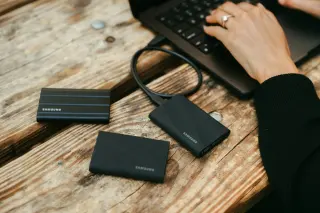
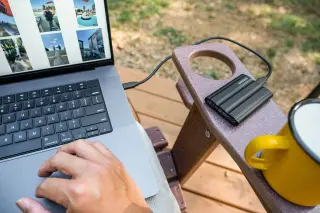
A photo library can look complete inside an app while remaining difficult to move. The pictures, captions, album arrangements and moving-photo components may travel differently. An archive should leave you with files you can inspect without the service, enough context to understand them, and another copy you can recover.
This workshop starts with Google Photos in a desktop browser and a Windows 11 PC. The destination is an ordinary folder archive, independent of whichever cloud gallery you choose next. You need download space, room to unpack the export, and a separate backup location. Keep your existing library while you establish the archive.
Decide what must survive the move
Write a short acceptance list before downloading: the years you expect, important albums, videos, captions you care about, edited favourites and any photos that move when played. Choose a dozen representative items, including your oldest picture and a recent addition. Record their names or identifying details so you can find the same items later.
Your archive has two jobs. An untouched export preserves what the service delivered; a working collection makes pictures convenient to browse and import. Keep these separate. Tidying folders, changing dates or converting formats directly in the only export removes your route back when a migration tool makes a mistake.
Create a folder such as D:\Photo-Archive\2026-10-31-Google-Photos, substituting a real local drive you control. Check that it is outside any cloud synchronization folder. Inside it, create Export-packages, Extracted, Working and Readme.txt. These are your own folder names, not Google controls.
Bring home a complete export
- Open Google Takeout in the account holding your library. Clear unwanted products and select Google Photos. Check its included-data selection; retain all albums for a full archive. Choose Next step.
- Choose Send download link via email, a one-time export and ZIP. Pick an archive size your connection can reliably download, then choose Create export.
- When ready, download every listed part into
Export-packages. Compare downloaded filenames with the export listing before continuing.
These choices follow Google’s export instructions. Links expire after about seven days; request another export if necessary.
Record the request date, completion date and number of downloaded parts in your readme. Note any deliberate exclusions. Leave the files unchanged: their package names help you identify missing downloads later.
Budget for packages and extracted files together. In a hypothetical example, 80 GB of downloaded packages plus 82 GB after extraction needs roughly 162 GB before working copies or spare capacity. Use measured file sizes once available; the account’s storage meter is not a reliable estimate of your whole workspace.
Unpack without discarding the context
In File Explorer, right-click each ZIP and select Extract All.... Choose a separate destination beneath Extracted for each package, such as Part-01. Repeat for every part. Microsoft documents this extraction command. Separate destinations prevent accidental overwrites while you inspect the contents.
If extraction reports an error, keep the package and record which part failed. Check free space and retry into a fresh, short destination path. If the download is incomplete, download that part again. A folder appearing on disk does not prove every file extracted; resolve the error before marking the export complete.
Keep the exported folder structure and accompanying JSON files. Google explains that extra metadata, such as Photos comments, can be delivered in separate JSON files. They are text records rather than additional pictures; deleting them can discard context unavailable in the image alone.
Do not flatten all folders into one directory or approve blanket replacement prompts. Different pictures can share a filename. Copy representative media into Working for experiments, keeping their original relative paths in your notes. A future importer may handle sidecars differently, so do not assume retaining JSON guarantees automatic caption restoration.
Check pictures, dates and motion separately
Disconnect from the internet temporarily and open your representative items from the extracted folders. Enlarge photographs, inspect detail, and play videos through several points with sound. This checks local availability and basic readability; a thumbnail is not enough. Sampling helps find problems but does not certify every file.
Compare a known picture’s capture date with its date in Google Photos. In File Explorer, right-click the extracted image, choose Properties, then Details, and look for Date taken when available. Google distinguishes embedded photo metadata from the new file timestamp an operating system may assign during download. A recent file creation date alone does not mean the historical capture date vanished.
If Date taken is empty, record the discrepancy and inspect the accompanying metadata before changing anything. Some files never contained a capture date. Do not rewrite an entire archive based on one blank field or trust a bulk metadata repair tool with the sole copy.
For a moving photo, verify whether you actually have a playable motion component; an opening still is insufficient. For an edited favourite, compare the exported appearance with the version you want to remember. List missing versions explicitly, and obtain them separately where the service allows. Converting everything to JPEG would lose video and can lose other useful information.
Treat the next cloud gallery as an import experiment
Copy a small representative set from Working into a private test album at your prospective destination. Include a captioned image, an old scan and a video. Compare dates, orientation, captions, playback and album placement. Check who can see the imported items before adding personal material in bulk.
A direct cloud transfer can be convenient, but Google lists transfer omissions, including Locked Folder content, manually edited metadata and the video portion of Motion Photos and Live Photos. Unsupported formats and insufficient destination space can also leave items behind. That transfer is a separate process from downloading this archive.
If the test loses captions or dates, stop the bulk import. Retain the source records and decide whether to use a compatible importer, keep a separate caption index, or accept a documented limitation. Repeated full transfers can create duplicates. Delete only disposable destination test copies when restarting; preserve the archive.
Make the archive recoverable next year
Copy the complete dated archive to a separate physical drive. Keep another copy away from the computer’s location, using storage independent of the account you might leave. Disconnect an offline backup after copying so ordinary synchronization or editing cannot change it.
Restore the representative set from the backup into a new folder and open it while offline. Compare file sizes and contents with the archive, including the associated metadata. Record the backup location, restoration date and failures in Readme.txt; a completed copy progress bar is not a recovery test.
Add a calendar reminder after major trips or every few months. Save later exports in separately dated folders and record their coverage before removing older ones. The finished archive should let you explain what is present, what remains missing and where a recoverable second copy lives, even if your favourite cloud service changes.
Sources, versions & scope
The steps describe the documented controls and expected checks; they are not a claim that every device or software release has been physically tested. Platform and version differences are stated with the procedure.