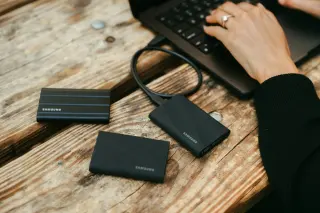
The photograph with four addresses
Imagine a photograph of your father repairing a bicycle. This is a hypothetical audit, not a tested library. You can see the picture on your phone, in a browser, and in a folder named Family Archive. Which one is the original? The three matching pictures do not answer that question. They might be three views of one cloud item, three copies of a compressed download, or genuinely separate files.
Before removing any local media, establish its backup quality. Google Photos Storage saver and Express may compress or resize uploads. If the phone holds the surviving capture file, removing it could leave only a reduced rendition. Upload completion, a sharp preview, and unchanged pixel dimensions cannot prove that the original survived. Changing future backup quality cannot reconstruct information already lost; any replacement upload needs a surviving source.
Follow this photograph through four addresses: its capture device, its cloud account, its downloaded export, and its independent backup. Keep existing copies intact while investigating. The useful result is a short history of the file, including any uncertainty, before deciding whether phone space is expendable.

Give the capture a name before following it
Start with a photograph whose origin you remember. Was it taken with this phone's camera, imported from a camera card, or saved from a family message? A message attachment may already be a reduced version. Even a service's Original quality label can describe faithful storage of that attachment, without establishing that it is the camera's original capture.
On Android, use the phone's file manager to locate the camera file, commonly under DCIM/Camera; manufacturers and camera apps can choose other folders. Record its filename, capture date, extension, dimensions, and file size. If you cannot locate a local file, record that gap. Seeing the picture in Google Photos does not settle whether the app is showing local data or a cloud representation.
Copy a known surviving capture file through your normal file-transfer route to a private computer folder or external drive. Copy rather than move. Keep the filename and an accompanying note identifying the device and source folder. Open the copied file from that destination. If all you can obtain is a cloud download, call it a cloud download for now.
For the bicycle photograph, an honest first entry might read: “Taken on this Android phone; local camera file found; copied to external drive; capture source retained.” That sentence establishes something a thumbnail never can: where the independent file came from.
Question the cloud witness
In Google Photos on Android, tap your profile picture or initial and identify the account. In a trusted computer browser, sign into the same account at Google Photos and locate the bicycle photograph. Match the scene and date; similar burst frames are easy to confuse.
Open it and click Info. Under Details, read the backup quality and size where provided. On Android, opening the item and swiping up also exposes backup details. Record the item's evidence separately from the current setting at profile picture → Google Photos settings → Backup → Photos & videos quality. Today's setting is not a complete history.
Google's quality documentation says Original quality preserves upload quality; Storage saver compresses photos and resizes those above 16 MP. Express, where available, can reduce photos above 3 MP. Some files are ineligible for Storage saver compression. Consequently, a mode label helps interpret provenance but is not a substitute for examining the actual file.
If quality details are absent, write “unknown.” Do not substitute your current settings or the appearance of the preview. Repeat the investigation for an older photograph, an edited image, an imported picture, and a video. Different devices and periods can have different histories. One successful sample supports that sample; it does not certify a whole library.
The export is another piece of evidence
Download the browser copy into a different folder from the capture-device copy. Google's documented computer route is to select the photograph, then choose More → Download. Label the folders by origin, such as Capture-device copy and Google download. Keeping the two apart prevents an ambiguous filename from silently replacing your better evidence.
Open both files in a trusted local viewer. On macOS, Preview's Tools → Show Inspector provides image information; on Windows, File Explorer's Properties → Details can expose dimensions and camera metadata for supported formats. Compare the scene, framing, file type, dimensions, and capture information. An edited crop may be a useful version worth preserving alongside the untouched capture. It should not accidentally become the only surviving version.
These observations answer different questions. Recognizable content establishes that you have the intended scene. Successful opening establishes readability. Dimensions describe the pixel grid. None alone establishes unchanged image data. If two verified local files have matching cryptographic checksums, that supports byte identity between those files; it still cannot tell you whether their shared ancestor was already compressed.
A mismatch also needs interpretation. A different file size can reflect changed metadata or encoding rather than obvious visible damage. Google notes that a download can acquire a new filesystem timestamp while photo metadata remains available. Keep filesystem dates distinct from capture dates. When differences remain unexplained, preserve both files and leave the original's location unresolved.
Following the same picture through iCloud
For an iPhone photograph, the local-file question has a different route. Apple documents iCloud Photos as retaining original formats at full resolution. With storage optimization enabled, the phone can keep smaller versions while originals remain in iCloud. A visible image therefore does not establish that the phone currently holds its full file.
To inspect an export on a computer, sign into iCloud.com/photos, select the photograph, and use More → More Download Options → Unmodified Originals, then Download. Apple's download instructions distinguish that choice from Highest Resolution and Most Compatible, which can use different formats. Record the option chosen. For provenance, the export's name matters less than what the option promises.
Apple also documents an iPhone route: Photos → Library → Select, choose the image, then Share → Export Unmodified Originals. In Files, the destination initially defaults to iCloud Drive; choose a suitable external device under Locations for a copy outside the account. Wait for the export and open the result. Preserve an edited rendition too if its appearance matters.
Do not count another synchronized device as an independent archive merely because it displays the picture. Apple says deletion propagates through iCloud Photos and that this library is not duplicated in iCloud Backup. Those facts make a separate, readable export particularly valuable.
Write the photograph's receipt
Your archive should let a future reader distinguish evidence from assumptions. Save a small note beside the copied files. For our hypothetical bicycle photograph, it might contain these entries:
- Capture
- Phone camera file copied from its source folder; source still retained.
- Cloud
- Named Google account; item details report Storage saver; inspection date recorded.
- Export
- Separate browser download opened locally; treated as the retained cloud rendition.
- Independent copy
- Capture-device copy on external storage; opened from that drive; location recorded privately.
This record does not need a scientific verdict on compression. It needs enough context to prevent the wrong file being discarded later. Keep accompanying export metadata and paired media together where supplied. A photo-library item can correspond to several files, so raw file counts need interpretation. Store a further copy of irreplaceable captures on another independent destination; one external drive remains a single point of failure.
The space decision belongs at the end
Only now consider Google's profile menu → Free up space on this device. Its documented purpose is removing backed-up device copies while retaining access through Google Photos. Ordinary Trash has broader deletion effects. This audit stops before confirming removal: the feature can affect many eligible items, and verifying one photograph does not authorize removing every local source.
If you later use it, first extend the audit to the material it would remove and preserve the original-quality copies you require. Google's device-space guidance says removed items will not be available through the built-in gallery or offline. Plan separately for travel access. Do not empty recovery areas to make the result look tidier.
On iPhone, use Apple's storage-optimization controls rather than deleting photographs to imitate Google's workflow. Menu wording varies by OS release. Leave optimization unchanged during the audit if exports or uploads remain unresolved. The bicycle photograph earns a local-space decision only when you can point to the file you intend to keep, explain its origin, and open its independent copy without relying on the phone you are trying to clear.
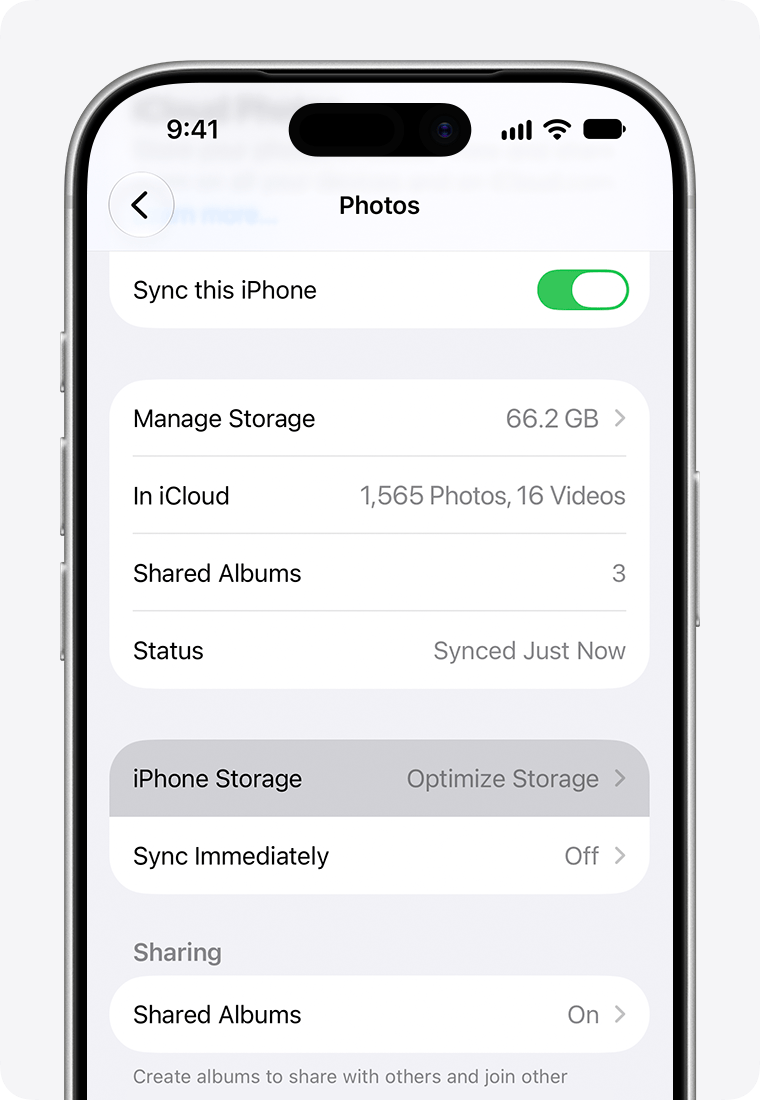
Apple’s iOS 27 example shows iPhone Storage already set to Optimize Storage, with Sync this iPhone enabled. Read the existing value and leave it unchanged while exports or uploads remain unresolved.
Version notes
Apple’s current storage guide explicitly documents the iPhone Storage submenu for iOS 27 or later and supplies this ios-27 asset. Apple’s release list identifies iOS 27.2 as released; this screenshot’s exact minor version/build is unknown. The Photos settings overview is visible, with Optimize Storage as the row value; its submenu is closed.Sources, versions & scope
The steps describe the documented controls and expected checks; they are not a claim that every device or software release has been physically tested. Platform and version differences are stated with the procedure.
- Apple: Set up and use iCloud Photos
- Apple: Download iCloud photos and videos
- Google Photos: Free up space on your device
- Google Photos: Choose the backup quality of your photos and videos
- Google Photos: Choose the backup quality of your photos & videos (Android)
- Google Photos: Choose the backup quality of your photos & videos (Computer)
- Google Photos: Download photos or videos to your device (Computer)
- Google Photos: Free up space on your device (Android)
- Google Photos: Delete photos & videos (Android)