Start with the rooms you cannot move
Before buying anything for a weak room, put three things on a rough floor plan: the existing router, the desk or chair where service fails, and every usable Ethernet outlet between them. Mark doors, substantial walls, available power sockets and any restrictions on running cable. A rented flat with no permitted cable route presents a different problem from a house with an unused office data socket.
Then write the actual requirement beside the room: a laptop must hold a video meeting at the desk, for example. If the same task fails beside the router, extending coverage is premature. If it works there and fails in the office on more than one device, the route to that room deserves attention.
For this article, imagine a hypothetical home with a router in the living room, a hallway around a corner, and an office beyond a heavy wall. The living room already works. The question is how to connect the office without rebuilding the rest of the network.
Living room              Hallway                 Office
Existing router          Possible shelf          Working desk
                         + power socket          Weak Wi-Fi

Possible cable route: router LAN — existing Ethernet run — office outlet
Possible radio route: router ))) hallway point ))) office laptop
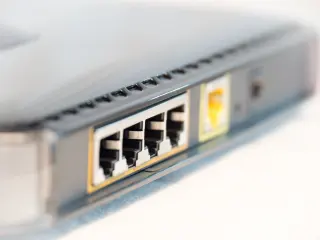
A socket is evidence of cabling, not evidence of a working network connection. With permission to use the network, connect a laptop through an Ethernet adapter at that outlet, disable its Wi-Fi temporarily, and check that it reaches the expected local network and internet. Re-enable Wi-Fi afterward. If the wired connection fails, identify the patch-panel endpoint or ask the installer before buying equipment that depends on it.
Three ways to cross the same floor plan
Every access point provides a nearby wireless connection for clients. It also needs an upstream connection to the rest of the network, often called backhaul. Mesh systems package several points with coordinated setup and management; their upstream links may be wireless, wired, or a supported mixture. Those are separate choices.
Route A: carry the connection into the office by cable
If the existing Ethernet run works, a wired access point can sit in or near the office. Traffic travels from the existing router's local network through the cable to the AP, then over Wi-Fi to the laptop. The AP does not need to hear the living-room router through the heavy wall. Its location can serve the desk rather than compromise between two rooms.
This is a strong candidate when one room needs help and the existing router can stay in charge. Confirm the AP's power requirements: some use a supplied adapter, others need a compatible Power over Ethernet switch or injector. Check the exact power standard and whether the required equipment is included. An Ethernet cable alone does not guarantee power.
The remaining radio link still matters. An AP hidden inside a metal cabinet can disappoint even with excellent backhaul. The cable, Ethernet ports and router also impose limits; wiring the office does not increase the purchased internet connection.
Route B: relay through the hallway
Without a cable, a wireless mesh point might work on the hallway shelf. That location must support both its upstream radio connection and useful coverage toward the office. Installing it beside the struggling laptop can simply move the weak link from laptop-to-router to point-to-router.
Google's placement guidance recommends an intermediate, open position rather than placing a point at the farthest weak spot. Treat room-count advice as a starting position for that vendor's hardware, not a promise through your walls. A hallway full of concrete turns may be a worse route than a more distant open doorway.
Wireless forwarding uses radio airtime. Where backhaul and client traffic share radio resources, they compete for it. Designs with separate backhaul resources change that trade-off, but cannot make an obstructed upstream link reliable by definition. There is no universal rule that every mesh hop halves speed; the radios, channels, traffic and layout determine the cost.
Route C: use mesh management over the office cable
A compatible mesh point with Ethernet backhaul can occupy the same useful office position as Route A. Its traffic crosses the building by cable while the system continues to manage its points together. Choosing mesh does not oblige you to discard existing wiring.
This route makes particular sense if a compatible mesh system already serves the house. Check the exact units: Google's wiring documentation says Nest Wifi points have no Ethernet ports, while Nest Wifi routers and Google Wifi units can support wired links. Nest Wifi Pro cannot join a mesh with those older families. Similar names do not establish compatibility.
The management choice survives after installation
For one stationary office laptop, a separately managed wired AP may be entirely adequate. The maintenance cost is another interface, another update process and a record of its settings. If you later change the household Wi-Fi password, independently configured points may need separate attention.
A coordinated system can reduce that work by distributing supported settings across its points and showing their connections together. Check what management actually requires: a local application, a controller, an online account or a subscription for particular functions. Ask whether the next person maintaining the network will have access to it. These are ownership questions, not radio specifications.
Wired access points can also belong to a centrally managed system. Wireless backhaul is not the source of centralized administration. Conversely, giving an unrelated AP the same network name does not enroll it in your mesh controller.
Keep the coverage addition on the intended network
Identify the box currently routing traffic and assigning local addresses through DHCP. A provider gateway may already do both. A dedicated AP normally extends that network; an extra consumer router in its default router mode may instead create another subnet behind network address translation. Browsing might work while discovering the living-room printer becomes awkward.
Operating modes differ materially between vendors. TP-Link documents Deco Access Point mode for retaining an upstream router and its DHCP service, but some Deco functions, including parental controls and port forwarding, become unavailable in the Deco app. In contrast, Google documents bridge mode for a single Wifi device; the primary unit cannot use it while running a multi-device mesh. A plan to keep the provider router therefore needs a supported design before equipment is ordered.
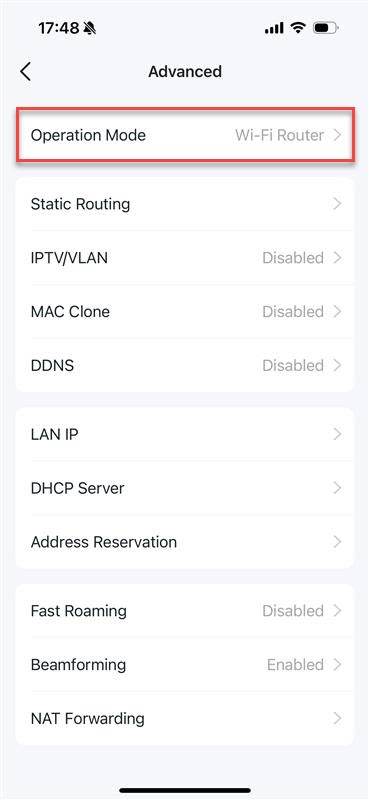
In the Deco app, open More > Advanced and inspect Operation Mode before choosing the wiring diagram. This initial inspection screen shows Wi-Fi Router.
Version notes
Current Deco app workflow in FAQ 1842, which requires the latest released app and uses Deco X60. Exact captured app build and iOS release undisclosed. Vendor outline unchanged; inspecting the mode only.The wiring diagram must match that mode too. TP-Link's Deco backhaul guide puts satellites downstream of the main Deco in Router mode, directly or through its LAN-side switch. Its Access Point mode permits different arrangements through the upstream router. Those instructions describe Deco, not every mesh brand.
Draw one intended upstream connection for the added unit and label the ports using its manual. Leave provider routing settings alone during this planning exercise. If the design requires changing them, establish the provider-supported arrangement and the effects on services first.
A walking call asks more than a working desk
Decide whether you need coverage while stationary or continuity while moving between rooms. A shared network name and compatible security settings can let devices use multiple APs, but they do not guarantee an invisible handoff. Cisco Meraki explains that clients decide when to roam, and may remain attached to a weaker AP despite hearing a stronger candidate.
For the desk, test the actual laptop at its normal position. For roaming, separately walk the normal route with the actual phone during a noncritical call. Repeat in both directions. A successful stationary test cannot establish handoff behavior, and one phone's result cannot establish another's.
Make the installation earn its place
Before adding one unit, preserve the existing configuration through supported export controls where available, record cable connections and retain administrator access. During a quiet interval, follow the chosen model's setup sequence. Then inspect the management application's reported upstream connection. For Deco, the documented route is the network map, then the satellite's details; check that it reports Ethernet when wired backhaul is intended. If it still reports wireless, investigate the cable and supported topology before judging the AP's radio performance.
Repeat the original office task, then check local printing and any work VPN you normally use. Compare the living room too. Record the point's location, operating mode, backhaul type and the result that justified keeping it. If the addition creates regressions, disconnect that addition and return to the recorded layout.
On our hypothetical plan, verified office Ethernet makes a wired AP the first candidate; an existing compatible mesh may make a wired satellite easier to maintain. Without that cable, the hallway earns a wireless trial only if its upstream connection holds. If neither route works, the unresolved job is finding a viable path into the room.
Sources, versions & scope
The steps describe the documented controls and expected checks; they are not a claim that every device or software release has been physically tested. Platform and version differences are stated with the procedure.