Count the jobs before counting the boxes
A modem connects to your internet provider's access network, a router moves traffic between networks, and an access point lets Wi-Fi devices join your local network. Those jobs can live in three separate units or inside one provider gateway. Calling every box “the router” becomes a problem when you unplug the wrong one or buy an access point expecting it to replace a modem.
Start with a written equipment map. You will identify the provider connection, the device directing traffic out of your home, and the radios your devices use. This is an inspection exercise: leave working cables and settings in place.
- Modem: the provider-facing connection
- A cable modem takes the provider's coaxial connection and presents a usable Ethernet connection. DSL uses a different modem and line type. A standalone modem normally needs a router to share service across household devices. NETGEAR's modem explanation distinguishes that access connection from the router behind it.
- Router: the route beyond your local network
- The router forwards traffic between your home network and an upstream network. Consumer routers commonly also supply local addresses through DHCP, provide firewall functions, and translate private IPv4 addresses using NAT. A “Wi-Fi router” adds an access point to those routing functions; Cisco describes that combination explicitly. A router can also work without Wi-Fi.
- Access point: the wireless entrance
- An AP bridges wireless clients onto the local network, usually through Ethernet. It needs an upstream network to reach the internet; broadcasting a network name does not create an internet service. Cisco's access-point guide describes both wired connections and repeater arrangements. “Access point” names the wireless role, while the upstream link can depend on the design.
A group of Ethernet LAN ports is often a built-in switch: it connects wired devices within the local network. That is another bundled job, rather than proof that every socket routes traffic independently.
Trace the connection without unplugging anything
- Give each powered network box a temporary name in your notes, such as hallway gateway and office AP. Record the manufacturer, exact model and hardware revision from its label. Keep passwords, QR setup codes and serial numbers out of any picture you plan to share.
- Follow the incoming service cable as far as it is visible. A threaded coaxial cable, a telephone-style DSL line, fiber or an Ethernet wall handoff are different clues. Record where it enters equipment. A coaxial socket alone does not prove “cable modem”: coax can also carry an in-home network connection.
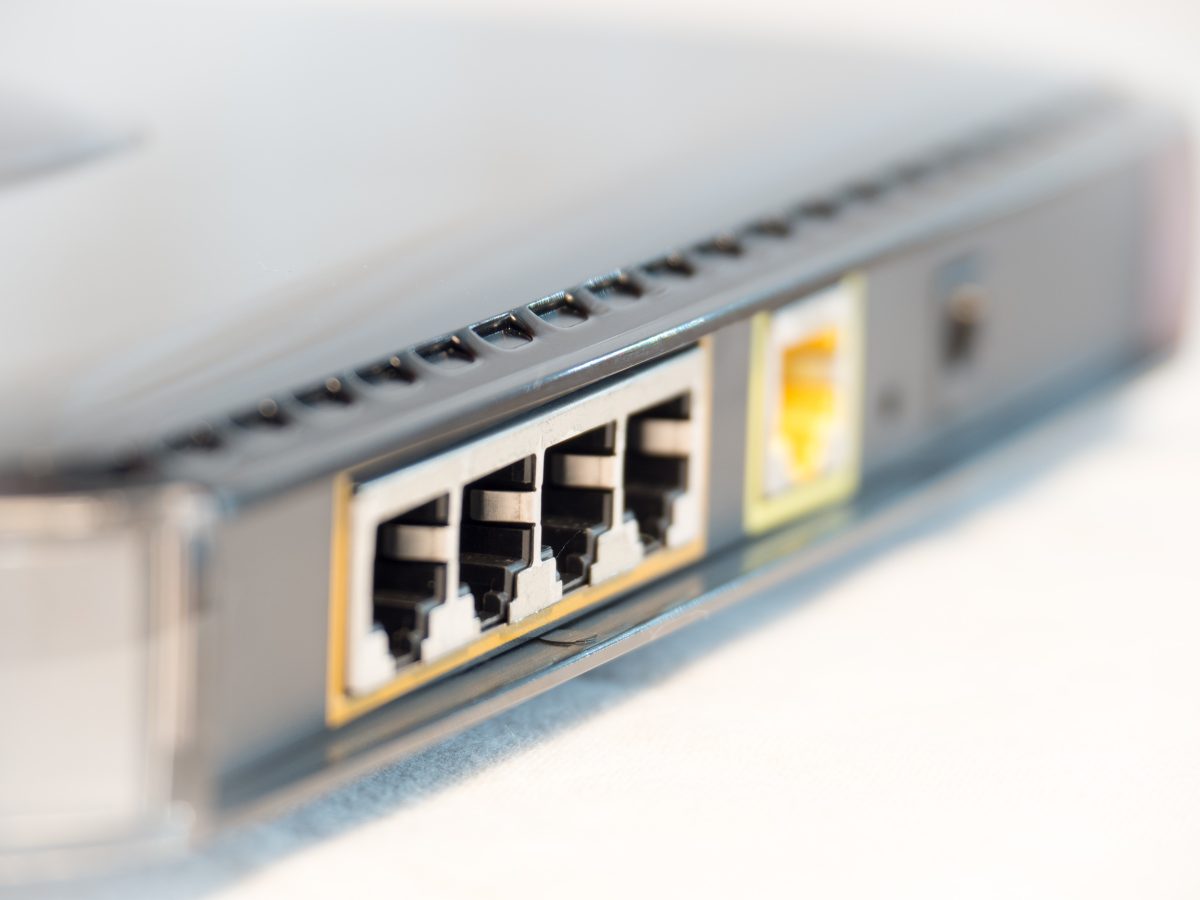
- Read the printed WAN, Internet and LAN labels before interpreting the sockets. Record the labels and existing cable destinations; do not identify their roles from colour alone. Some devices have configurable or automatically assigned Ethernet ports, so an unlabelled socket needs the exact model manual.
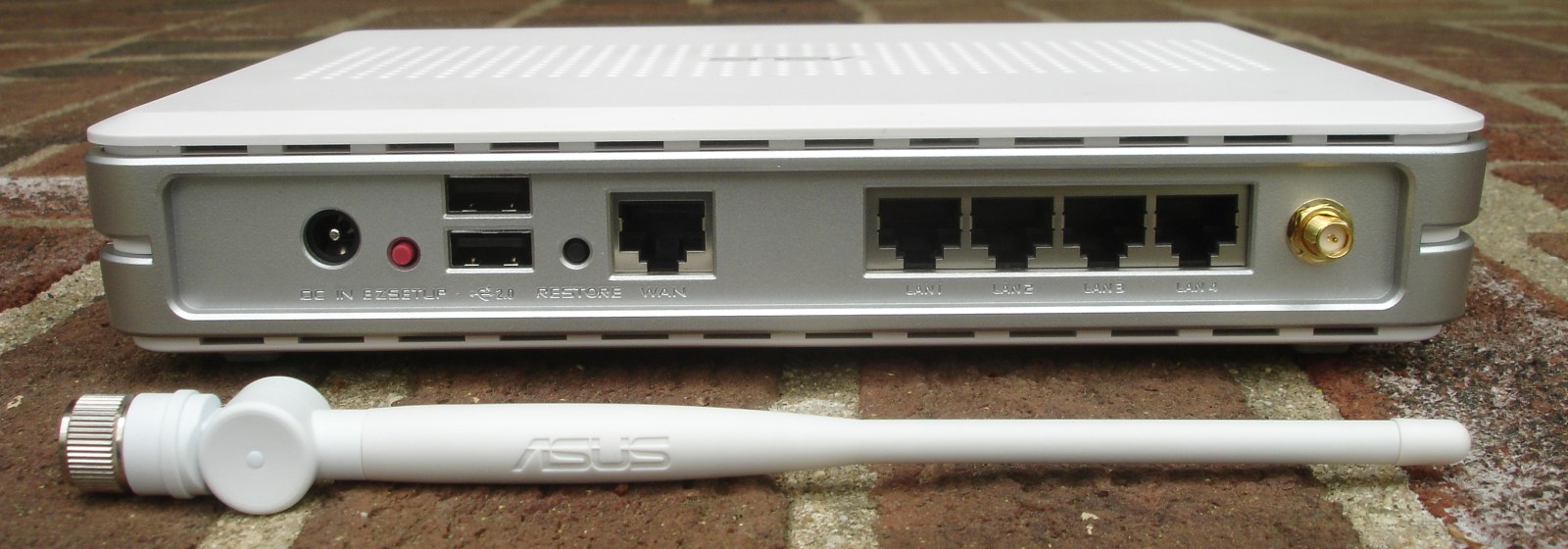
Visual 01 · Physical hardware: WAN and LAN label inspection Read labels before assigning roles: this ASUS reference marks WAN separately from LAN 1–4. Follow your own model manual; the detached antenna is not an instruction to remove yours. Photograph: Zuzu, 26 April 2008; unchanged.
Zuzu / Wikimedia Commons · CC BY-SA 4.0. Original unchanged. Image source · Usage termsVersion notes
Evergreen physical label reference, photographed 2008; not a current model recommendation, setup walkthrough or software interface. Printed labels alone do not prove operating mode, negotiated speed or PoE support. Display photograph resized for loading speed; the full-size link preserves the original download. - Find that model on the manufacturer's support site, matching its hardware revision where specified. Look for its connection diagram and supported operating modes. Confirm whether it is sold as a modem, modem-router, router or access point, then note any uncertainty about its current mode.
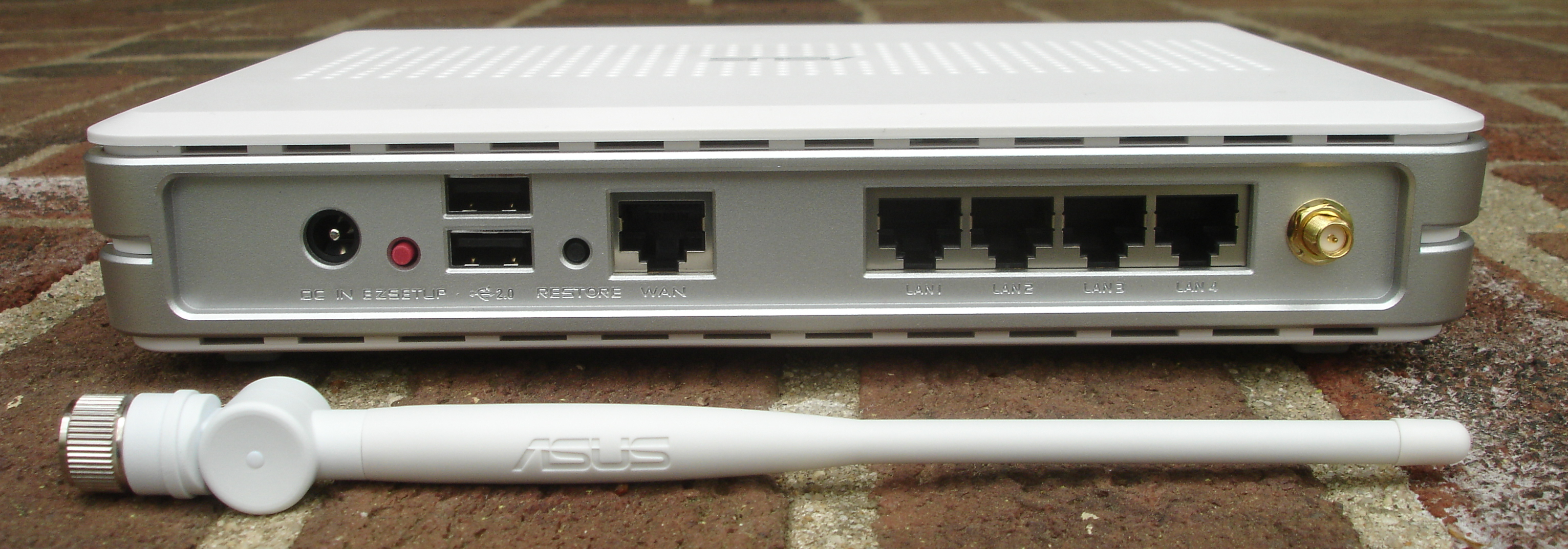
The port photograph illustrates this label-reading exercise: WAN and LAN 1–4 are separately marked on the pictured ASUS unit. It is an older hardware reference, not a current product recommendation. Its detached antenna is not an instruction to remove yours. Neither connector shape nor this photograph establishes a port's negotiated speed or power capability.
Fiber needs one extra term. An optical network terminal (ONT) terminates the provider's optical connection; it is not a cable or DSL modem. Verizon explains its ONT's conversion role and shows it as separate from the router. Your provider may combine optical termination and routing in one gateway, or hand you Ethernet from equipment elsewhere. Do not buy a cable modem just because your fiber setup has no box labelled modem.
Write the path in two lines
First write physical boxes and cable connections. Underneath, write the functions inside them. These hypothetical examples describe layouts, not measured or tested installations:
Separate cable equipment:
Provider coax → modem → Wi-Fi router → phone over Wi-Fi
Functions:      access   routing + access point

Gateway with an extra wired AP:
Provider line → gateway → Ethernet → office access point → laptop
Functions:      access + routing     wireless entrance
                + optional Wi-Fi
In the second layout there are two access points if the gateway's Wi-Fi is enabled, but only one household router performing the routing job. An extra Wi-Fi name does not establish an extra router. Conversely, two units sold as routers may create two routed networks if both retain their default router mode.
Check current mode only through the documented management interface for your exact model. Read the status or operating-mode information and leave without saving changes. A product label establishes what a device can do; its current configuration establishes which jobs it is doing now. If access fails, preserve the map and consult the owner or provider rather than resetting the unit to get in.
AP mode and bridge mode change different jobs
When keeping an existing router and adding wireless coverage, supported AP mode on the added unit generally leaves routing with the upstream device. Features tied to the added unit's routing role may disappear. TP-Link's mode comparison warns about unavailable controls and guest-network isolation on the devices it describes; it also says capabilities vary by model. Do not assume a guest name still isolates visitors after a mode change.
Bridge mode on a provider gateway is a different decision. Xfinity documents bridge mode as disabling gateway routing while retaining modem functionality so a personal router can take over. Its instructions also describe loss of private Wi-Fi and feature restrictions. That is a provider-specific example, not a universal menu path or a step required to identify equipment.
Two IPv4 NAT routers in succession create double NAT, a layout illustrated in NETGEAR's network-design documentation. It can be intentional, but do not accidentally introduce it when your goal is simply another wireless entrance. Establish which unit should route before following a model-specific setup guide. Disabling Wi-Fi alone does not disable routing.
Use the map to choose the next question
If phones connect to Wi-Fi but cannot reach websites, the access point may still be providing a working local link. Ask whether the upstream connection works before replacing its radios. If wired devices work while one room lacks coverage, the wireless entrance or its location deserves attention. The existing mesh-or-access-point guide handles that coverage choice.
If you accidentally loosen an ordinary Ethernet lead during inspection, return it to the recorded socket and check the original connection. Leave fiber connectors and provider enclosures alone. If a connection does not recover, use the exact model's connection and indicator guidance; a factory reset erases configuration and is not the undo button for this exercise.
Finish with a sentence you can hand to support: “The provider line enters this model; this unit currently routes; this other unit supplies office Wi-Fi.” Mark any unconfirmed role as unknown. That record makes the next purchase or support conversation specific enough to avoid replacing the wrong job.
Sources, versions & scope
The steps describe the documented controls and expected checks; they are not a claim that every device or software release has been physically tested. Platform and version differences are stated with the procedure.
- What's a modem? — NETGEAR Support
- What is a wireless router? — Cisco
- What is a wireless access point? — Cisco
- MoCA to Ethernet self-install: What is an ONT? — Verizon
- Access Point Mode vs Router Mode — TP-Link
- Use Bridge Mode on your wireless gateway — Xfinity
- Network design: Different ways of connecting to the Internet — NETGEAR