A log entry is an observation, not a verdict
A router log can make an ordinary evening look alarming: address requests, disconnected clients, firewall messages and services restarting. Some entries deserve attention. Others describe the router doing its job. The useful question is what happened to a connection, setting or login, and whether that matches something you observed.
This guide uses the local web interface on a personally managed ASUS router running stock ASUSWRT in router mode. ISP gateways, ASUS access-point mode and third-party firmware can expose different records. Menu availability varies by model; use your model’s documentation if the named page is absent.
Begin with one question: “Why did every device lose internet at 8:14?” or “Was this login mine?” Browsing without a question encourages you to collect scary words without establishing what they mean.
Save the window around the event
- Connect to your own router’s network and open its known local administration address. Sign in with the router administrator credentials. If you cannot sign in, recover access using your model’s instructions; do not factory-reset merely to read a log.
- Open System Log → General Log. Compare System Time with your actual local time and note Uptime. Write down the symptom’s time, including time zone, and whether one device or the whole household was affected.
- Select Save. ASUS documents a download named
syslog.txt; your browser may append a number. Open the downloaded file in a text editor and confirm it contains timestamped entries. Keep the original and work from a copy.
These controls are documented in ASUS’s log-saving instructions. A wrong date can reflect failed network time synchronization when internet access is unavailable. Do not align an unsynchronized timestamp with a real-world event as though it were exact.
Save before clearing, rebooting or resetting. ASUS’s general FAQ says logs survive reboot, while some model manuals say they reset; preservation is safer than assuming either applies universally. Factory restoration deletes logs. Storage is finite, so a missing older event does not establish that nothing happened.
Work out which side of the router is speaking
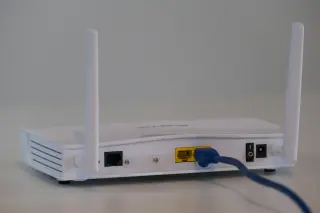
Read the printed WAN and LAN labels on your router without unplugging anything. In a typical router-mode installation, WAN faces the upstream internet connection and LAN faces local devices. A physical label is an orientation aid; it does not identify the router’s internal log-interface names or prove which operating mode is configured.
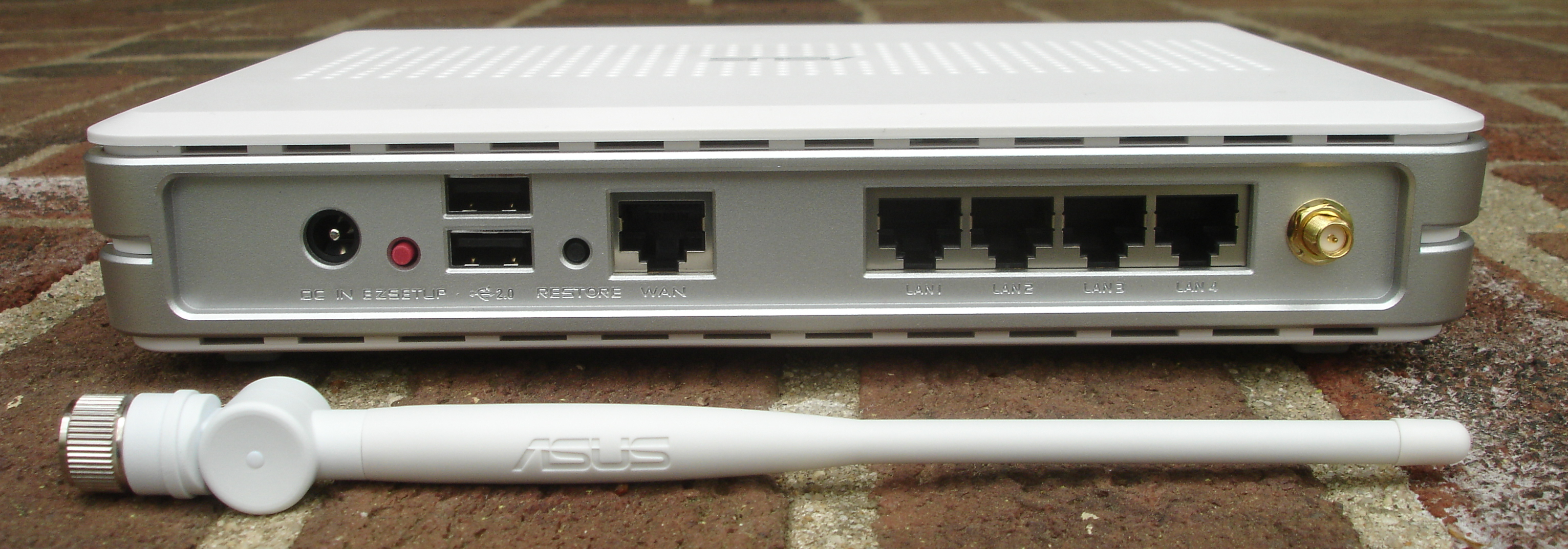
This physical ASUS example marks WAN separately from LAN 1–4. Use the labels to orient upstream and local sides, then verify your own operating mode and log-interface names. The detached antenna is not an instruction to remove yours. Photograph: Zuzu, 2008; unchanged.
Version notes
Evergreen physical label reference, photographed 2008; not a current model recommendation, setup walkthrough or software interface. Printed labels alone do not prove operating mode, negotiated speed or PoE support. Display photograph resized for loading speed; the full-size link preserves the original download.A router can be a DHCP server giving local devices addresses and a DHCP client obtaining its own upstream address. Consequently, a DHCP message about a laptop’s local lease has a different meaning from one about the router losing its WAN lease. Look for the named service, interface and address together. Do not assume every private address identifies one of your devices: upstream equipment can also use private addressing.
For a packet entry, identify the timestamp, source, destination, protocol, ports and recorded action, where present. Source means the sender described by that record, not the culprit. A destination port suggests which service was addressed; it does not prove that service was running. Internal interface names vary, so consult model-specific support rather than guessing from an unfamiliar abbreviation.
Translate routine activity before counting it
- DHCP requests and acknowledgments
DHCP assigns and renews address leases.
DHCPREQUESTfollowed byDHCPACKcan describe successful ordinary address maintenance. The DHCP specification defines both initial allocation and renewal; another request does not by itself mean a stranger joined. Repeated retries without success, coupled with a device losing connectivity, are more useful troubleshooting evidence.- Wireless disconnects and reconnects
A disconnect message records a change, but alone cannot distinguish sleep, movement, user action or a connection problem. Compare the device and time with what happened. Repeated changes affecting an actively used laptop deserve investigation; one sleeping phone’s departure does not establish an attack.
- Startup and service messages
A cluster after a known reboot or settings change has context. Similar restarts recurring without your action, especially with interruptions or unexpectedly low uptime, are worth reporting. Preserve the surrounding sequence instead of searching only the most dramatic line.
Hypothetical example: a router configured with an eight-hour lease might receive a renewal near four hours, the protocol’s default halfway renewal point. That is compatible with normal behavior, not a universal schedule. Server-provided timers and client behavior can differ.
A blocked packet is different from a successful login
A recorded drop means that packet was discarded at the recorded point. It does not demonstrate successful access. An accepted packet means it passed that decision; it still does not establish that an application authenticated anyone or that data was stolen. You need subsequent evidence for those conclusions.
Internet-facing addresses can receive unsolicited probes. Treat an isolated denied inbound attempt as a blocked attempt unless other evidence changes the picture. Conversely, a known local device repeatedly contacting an unexplained destination warrants checking that device, even if the router blocks the traffic. Direction and consequences matter more than a frightening hostname or port number.
Open Firewall → General only to inspect the existing logging configuration. ASUS lists Logged packets type as None by default in its firewall documentation. An empty packet history can therefore mean logging was not enabled, rather than that no packets arrived. General system activity and packet logging are different records.
Keep the firewall enabled. Do not open a port, enable remote administration or disable protection to see whether an entry disappears. If support requests a temporary logging change, record its original value, agree a collection period, save the resulting log and restore that value afterward. Collecting every packet decision can bury the event you need.
Let the pattern decide the next action
For a connection problem, read a few minutes before and after the symptom. In a hypothetical case, all devices stop working at 20:14, the WAN reports a loss, and service returns alongside a recovery message at 20:15. That sequence supports investigating the upstream connection. It does not identify whether the cable, modem, provider or router caused it. Give the ISP those times and the relevant excerpt; do not report an intrusion from that sequence alone.
For a security concern, prioritize an unfamiliar successful administrator login, unexplained DNS or forwarding changes, or remote access enabled without your knowledge. Verify that another authorized household administrator did not make the change. A warning label alone is weaker evidence than an actual unauthorized configuration change.
If unauthorized access appears credible, save evidence and use a trusted device to contact official vendor support. Review administrator credentials, firmware and unnecessary remote access using ASUS’s security guidance. Recovery may interrupt the household; arrange that work deliberately. A reset destroys evidence and configuration, and should follow a recovery plan rather than serve as a first diagnostic experiment.
Sources, versions & scope
The steps describe the documented controls and expected checks; they are not a claim that every device or software release has been physically tested. Platform and version differences are stated with the procedure.