A readable code can still lead to the wrong sign-in
A QR code outside a café, in an email or on a parcel can look equally ordinary. The useful question is what it asks you to do next. A menu that suddenly demands your email password deserves a pause, even if the phone recognised the code instantly.
QR phishing, sometimes called quishing, uses a code as the route into a deceptive request. Recognition tells you that your phone can read it; it does not establish who placed it there. This guide uses iPhone Camera for the inspection step and a personal Google Account for the recovery example. Other scanners and account providers have different controls.
Use this stopping rule: if a QR journey unexpectedly asks you to sign in, leave that journey and reach the service independently. You can investigate the request without completing its login. A genuine task should be confirmable through the organisation's established app, website or contact.
Check the reason for scanning first
The FTC documents QR codes placed over parking-meter codes and unexpected messages invoking delivery problems, account trouble or suspicious activity. For an unsolicited email or text, especially an urgent one, skip the scan and contact the organisation through a known route.
For a physical sign, look for a sticker covering another code, mismatched printing or a destination that staff cannot explain. Ask the venue to confirm the sign. These are inspection clues, not a guarantee: a neatly printed poster is easy to copy, and an untidy label may be legitimate.
Separate the task from the proposed shortcut. “I need to check my booking” is a task. “I must scan this code and sign in before the countdown expires” is an instruction from the material you are checking. Open the booking app you already use and look for the same issue there. An absent warning is a reason to ask support, rather than return to the suspect login.
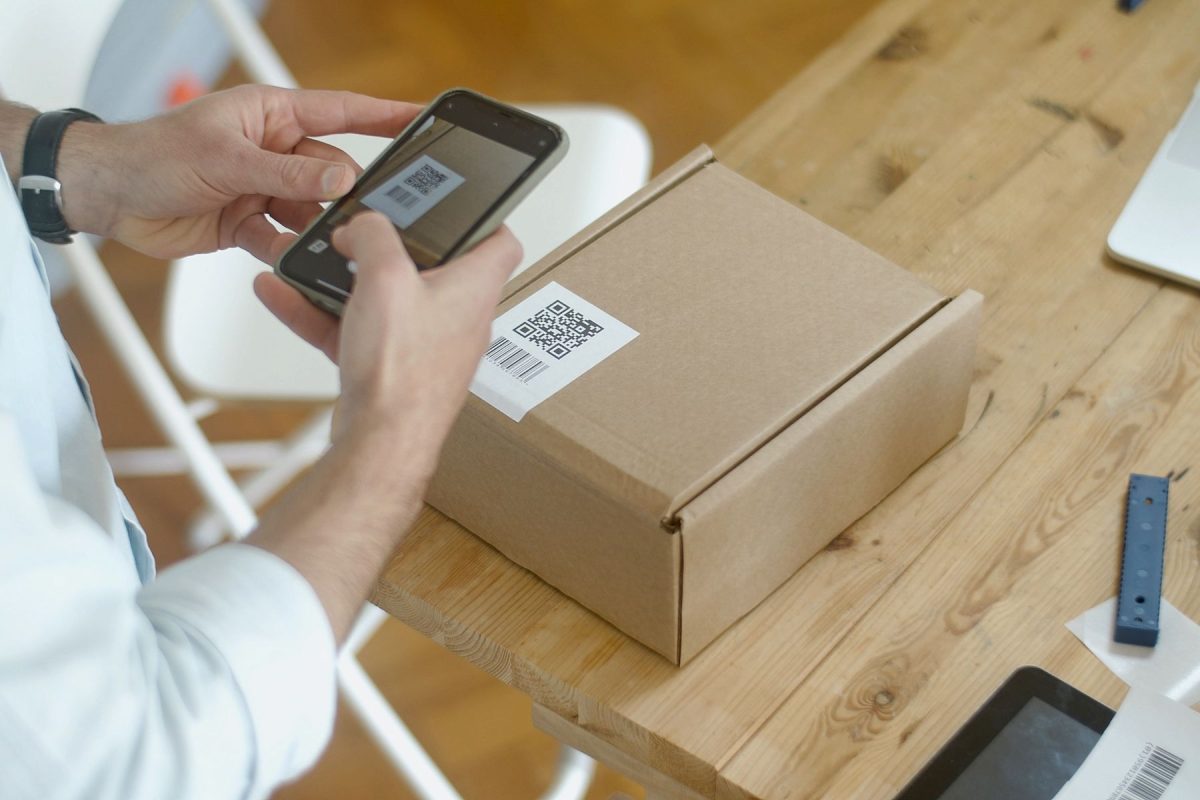
The cover photograph illustrates ordinary parcel-code scanning. It does not show a scam, an endorsed scanner or a tested security procedure.
On iPhone, pause at the detected link
For an expected physical code, use the built-in Camera rather than installing an unfamiliar scanner. Apple's current instructions distinguish recognising the code from tapping its link to open the content.
- Open Camera and select Photo. Hold the phone so the whole QR code is inside the camera frame.
- Wait for the detected link to appear. Stop before tapping it: the recognised link is your first checkpoint, not an instruction to continue.
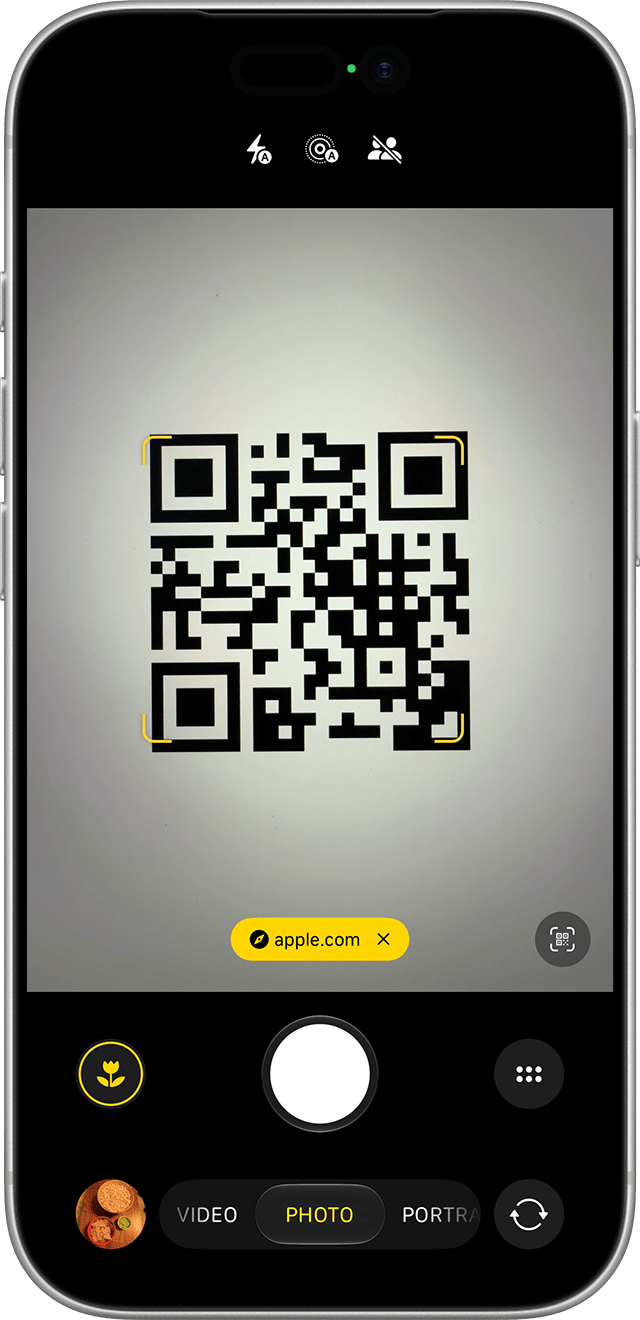
Visual 01 · iPhone Camera · iOS 27 Pause at the detected link before opening it. Apple’s current iOS 27 demonstration shows apple.com; recognition does not authenticate the source of another code. This is a vendor reference, not our own device capture.
Apple Support interface screenshot © Apple Inc. Image source · Usage termsVersion notes
Apple UK support page published September 14, 2026; checked October 31, 2026. Official asset filename identifies iOS 27 and iPhone 17 Pro. Visually inspected: PHOTO mode, detected QR corners and apple.com link match the article’s pre-opening state. Original unchanged. - Read the displayed destination. If it is unfamiliar, shortened or too incomplete to judge, put the phone down and use the service's known app or website instead. You do not need to open it to prove it is suspicious.
Apple's accompanying iOS 27 image shows a yellow apple.com link below the code and PHOTO selected. That is a vendor demonstration of the detection state, not a safety badge that will appear on every legitimate code.
If no link appears, the check has not produced a destination. Improve the light and framing for a code you expected, or ask for the ordinary web address. A failure to recognise the pattern is not evidence of fraud; neither does it justify downloading a scanner advertised beside the code.
Read the address, then question the task
The following are hypothetical, non-clickable addresses. Assume the organisation's independently established website is example.com. Compare the host, the part after https:// and before the next slash:
https://accounts.example.com/booking- The host is a subdomain of example.com. That relationship answers an address question; you still need to know whether this booking request is expected.
https://example.com.signin.example.net/booking- The host ends in example.net. The familiar example.com text at the front does not make it part of example.com.
https://example.net/example.com/booking- The host is example.net. Text after the slash is a path, so putting the organisation's name there does not change the destination.
This exercise teaches a distinction, not a universal domain-decoding trick. Real addresses can be less obvious, and a short-link preview may hide the eventual destination. If you cannot establish the address confidently, use the independent route. Do not turn uncertainty into a requirement to follow redirects.
If you already opened the page, inspect the browser's actual address before entering anything. A brand logo, familiar colours and an HTTPS connection do not establish that the page belongs to the organisation. Ask why this task needs this account. A café menu asking for your Google password is a mismatch worth stopping over; a booking portal reached through your established bookmark is a different starting point.
Likewise, a QR code presented as a way to authorise another device deserves separate verification. Only proceed with an account-linking request you deliberately started on a device you control. A stranger's request to scan and approve something is not made trustworthy by skipping a password box.
Recover according to what you actually disclosed
Only recognised the code? Leave Camera without opening the link. Opened the page but entered nothing? Close it and restart the real task independently. Opening a page alone does not establish that your account was taken over. If you downloaded or installed something, or granted access, record that separately and seek trusted technical help; password changes alone cannot assess an installation.
Entered a Google password, supplied a verification code or approved an unexpected sign-in? Treat that as possible account exposure. From a trusted device, type myaccount.google.com yourself. Follow Google's compromised-account guidance: change the exposed password immediately, change it wherever reused, and review recovery details and unfamiliar app access. If locked out, use the account-recovery link in that official guide.
- In Google Account, select Security & sign-in. Under Recent security events, choose Review security events. For activity that was not yours, select No, it wasn't me and follow the security prompts.
- Return to Security & sign-in. Under Your devices, select Manage all devices. Open an unfamiliar device or session and choose Sign out. Google documents this path in its device-access instructions.
Check for the Signed out indication. Multiple sessions can belong to one device; recent times can reflect background synchronisation. If you cannot identify all sessions under a suspect device name, sign out of those sessions. You will need to authenticate again on any of your own sessions affected. Signing out cannot retrieve information already copied.
For a work account, report the incident through your organisation's established security channel. Keep the original message or a photograph of the physical sign, and record what you entered or approved. Avoid circulating the QR code as a clickable invitation. A useful report says “entered password and approved a prompt,” rather than simply “scanned a code”: that difference determines the recovery work.
Sources, versions & scope
The steps describe the documented controls and expected checks; they are not a claim that every device or software release has been physically tested. Platform and version differences are stated with the procedure.