A device you stopped using can be easy to forget while it remains connected to your Apple Account. Review the list with a simple question for each entry: can you explain what this device is and why it should still have access? This guide uses iPhone Settings for the review, with a web fallback if your phone is unavailable.
Start by identifying entries, then decide what to change. An unfamiliar name deserves investigation; a phone you recognize but cannot find needs the lost-device route. Those situations call for different actions.
Keep a working way back into the account
Use an iPhone you control and can unlock. Before removing anything, check that you can still receive account verification through a trusted device or number you control. Avoid making your first account cleanup an experiment with your only working sign-in method.
Apple distinguishes a signed-in device from a trusted device. A trusted Apple device has already been authenticated with two-factor authentication and can help approve sign-ins or important account changes. A trusted phone number is another verification route, not a device entry you should delete just because you changed handsets.
On iPhone, check Settings → [your name] → Sign-In & Security → Two-Factor Authentication. Review the numbers there. If appropriate, use Add Trusted Phone Number to add another number you control and complete the verification offered. Apple recommends considering a number independent of your iPhone so losing that phone does not also remove your only way to receive codes.
If you have permanently lost both trusted-device and trusted-number access, stop the cleanup attempt. Apple's verification screen offers Didn’t Get a Code? or Can’t get to your devices?, followed by Can’t use [phone number] and recovery instructions. Recovery can take days or longer; support cannot accelerate it.

Open the list and account for each entry
- Open Settings, tap your name, then scroll down to the device list. Look for individual device rows below the account services.
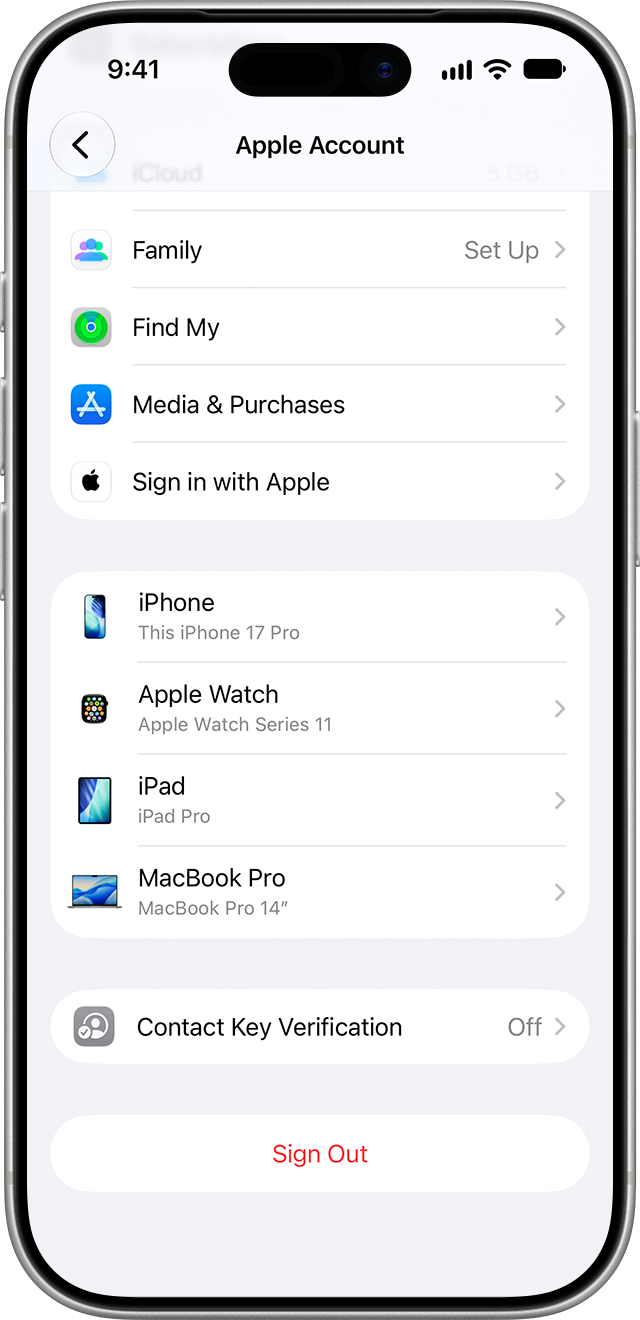
Visual 01 · iPhone / iOS 27 Apple Account settings Apple’s current iPhone example shows where the device rows appear. Tap a device row to review that device; the separate Sign Out button below is not Remove from Account.
Apple Inc. Official instructional interface image; copyright retained by Apple. Contextual editorial quotation, not a freely licensed stock image. Image source · Usage termsVersion notes
Current Apple support 102649, published September 14, 2026, links this ios-27 iPhone 17 Pro asset. Exact minor version and build are not supplied. This is the scrolled account overview; device details and removal confirmation are not open. - Tap a device name to open its information. Compare what appears with your own equipment and records before deciding whether to remove it.
The accompanying Apple example shows rows for an iPhone, Apple Watch, iPad and MacBook Pro. Its large Sign Out button belongs to the account screen; it is not the action for removing another device. Open that device's row first.
Work through the list deliberately. Write a short private note for any entry you cannot immediately place: its displayed name, identifying information available in its details, and the reason you think it may be yours. Compare it with an old purchase receipt or the equipment itself when available. Keep identifiers private rather than posting the whole screen to a public forum.
A hypothetical example: you recognize your current iPhone and laptop, but a third entry has a generic name. You remember lending an older tablet to a relative. Check that possibility before interpreting the third entry as an intruder. The useful result is an explanation for every entry, rather than a particular number of devices.
Apple's device-list documentation also includes non-Apple devices used with Apple services. Do not assume a Windows, Android or streaming-device entry is unauthorized solely because it is not an iPhone or Mac.
Make the decision before pressing Remove
- You recognize it and still use it
- Leave it connected. An occasional-use device can have a legitimate place in the list. Consider whether someone else can unlock it and whether that still fits your intended access.
- You recognize it and have retired it
- Remove its account access, then finish preparing the physical device for its next owner separately. Account-list cleanup alone is not evidence that private files have been erased. Use the separate device retirement guide before handing it over.
- You recognize it, but it is lost or stolen
- Follow the lost-device section below before changing its account relationship. Keeping recovery and theft protection available matters more than making the list shorter.
- You still cannot explain it
- Treat the entry as a possible security problem. Remove unfamiliar access and follow the account-security response below, especially if you also received unexpected verification requests.
For removal, open the target device's details, tap Remove from Account, read the message and confirm only for the intended device. Apple describes this as remote sign-out: the removed device loses Apple-service access and cannot display verification codes. Return to the list and check that the target entry is gone.
If an old Apple device returns, Apple says an existing sign-in can cause it to reappear when it reconnects. For permanent removal, sign out in Settings on that device. If you removed your own active device accidentally, sign in there again; expect authentication rather than an Undo button. Recheck the list afterward.
A missing iPhone needs Find My first
Use icloud.com/find or Find My on another available device to locate your missing iPhone and mark it as lost. Lost Mode locks it and suspends its Apple Pay cards and passes. If web sign-in asks for a verification code you cannot receive, Apple says to choose Find Devices instead.
Apple's lost-iPhone guidance says not to remove a missing device from Find My, even after remotely erasing it: removal disables Activation Lock. If you have an AppleCare+ Theft and Loss claim, do not remove the iPhone from either Find My or your Apple Account until the claim is fully approved.
Remote erase is a separate decision and cannot be undone. An offline device receives the erase command when it next comes online. If Find My was never enabled before the loss, it cannot provide Lost Mode or remote erase. A tidy account list cannot compensate for that missing preparation.
If the entry suggests someone else has access
Unexpected verification codes, messages you did not send, changed account details or a password that stops working strengthen the concern. Follow Apple's compromised-account instructions: change to a strong, unique password, correct unfamiliar personal or security information, and remove devices you do not recognize. If the password has already been changed, use Apple's password-reset process; if you cannot reset or sign in, start recovery at iforgot.apple.com.
Also check that you control the email addresses and phone numbers associated with the account. Apple recommends contacting the email provider and cellular carrier when necessary, including checking for unwanted SMS forwarding. Removing one device does not address another person's control over your recovery channels.
If you cannot use iPhone Settings, type account.apple.com into your browser and select Devices. Use View Details if authentication is requested, then select the target device. This provides the same review purpose without following an unexpected email link.
Finish with a short record of what you recognized, what you removed, and any unresolved device. Revisit unresolved entries after checking your equipment. The review is complete when every remaining connection has a reason to be there and your own verification routes still work.
Sources, versions & scope
The steps describe the documented controls and expected checks; they are not a claim that every device or software release has been physically tested. Platform and version differences are stated with the procedure.