Start where the connection lets you down
Take your usual phone or laptop to the room where Wi-Fi becomes frustrating. Sit where you actually use it: behind the desk, against the bedroom headboard, or in the chair beside the window. A connection that works while you stand in the doorway has not answered the question that brought you here.
This survey follows three occupied rooms, first with the router where it is and then after one safe move. You will draw the obstacles, preserve a baseline, and repeat the same task. You need paper or a notes app and a familiar device. You do not need a coverage prediction app or a new router to begin.
Choose a task that exposes the problem and can be repeated: a short video call with a willing participant, for example. Set a consistent duration and use the same calling app throughout. If calling is impractical, choose the same streaming service and clip, noting its quality setting and any buffering. Automatic quality changes can hide a weak connection, so record visible quality changes too.
Walk the rooms with a pencil
Sketch three rooms as rough rectangles. Mark one exact use position in each and label them A, B and C. Include the troublesome room, an important room that currently works, and a third regularly occupied room. Write the real room names beside the letters. These marks are where the device will return for every observation.
Add the current router position, R0. From there, trace a straight line toward each marked seat. This is a way to notice obstructions, not a drawing of the precise route radio waves will take. Label substantial walls, metal cabinets and large appliances along those lines. Mark an aquarium if one lies between the router and a seat. Add doors and note whether they are normally open or shut when trouble occurs.
Microsoft’s home-layout guidance recommends reducing intervening obstacles and considering the device’s orientation. Google’s placement guidance also identifies walls, doors and aquariums as potential obstructions. Neither turns your sketch into a reliable signal calculation. Leave wall thicknesses and distances as observations rather than inventing a penalty for each obstacle.
Now walk back from C toward the router. Look for an open, stable surface that changes an obstructed path: perhaps outside the television furniture, or farther along the same room. The center of the floor plan is only a candidate. A place that serves your three occupied spots is the practical objective.
Follow the wires before choosing the shelf
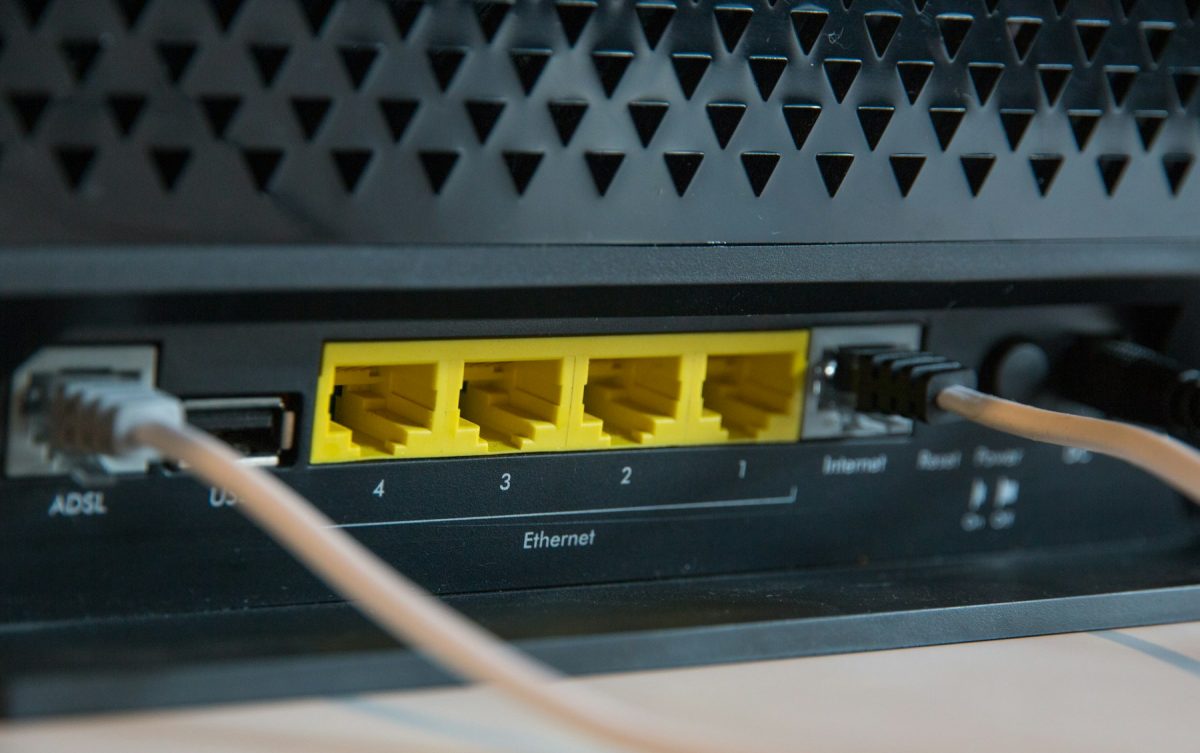
Look behind the current equipment without unplugging it. Identify the box providing Wi-Fi from its model documentation. A separate router connected to a modem or optical network terminal by Ethernet may have room to move while the provider equipment stays put. A combined gateway receiving the provider’s line has different constraints. If you cannot identify the connections confidently, limit the survey to positions reachable without disturbing them.
Mark one candidate R1 on the sketch. Trace its power and data routes with the same care as the room paths. Can both reach without tension? Will a door close on either cable? Would a person crossing the room step over a lead? Reject a candidate that requires loose cable across a walkway, a crushed lead under furniture, or moving the provider’s fiber termination. A temporary trial still needs a safe route.
Use a dry, stable surface with ventilation around the router and adapter. Keep the manufacturer’s approved orientation, clearances and separation from people. Google’s Wifi safety guide, for example, requires ventilation, an accessible outlet, unpinched cables and the supplied power adapter for its covered devices. Consult your own model’s instructions; their dimensions and limits may differ. Do not substitute an adapter simply because its cable reaches farther.
If R1 cannot be reached safely with the existing arrangement, cross it out before testing. A different surface in the original room may be a more useful experiment than a hallway location requiring new wiring.
Copy this sheet before the first walk
Fill the task and duration once, then keep them fixed. The blanks below contain no sample results. Copy the sheet into a plain text note, or leave space between the lines on paper. Write “not exposed” for connection details your device does not show.
THREE-ROOM PLACEMENT SURVEY
Date / approximate time: __________________________
Device / calling or streaming app: _________________
Task / duration / quality setting: _________________
R0 original position: ______________________________
R1 candidate position: _____________________________
R1 safe power and data route confirmed: ____________

Room A / exact seat: _______________________________
Obstacles / usual door state: ______________________
R0 task result / interruptions / time: ______________
R1 task result / interruptions / time: ______________

Room B / exact seat: _______________________________
Obstacles / usual door state: ______________________
R0 task result / interruptions / time: ______________
R1 task result / interruptions / time: ______________

Room C / exact seat: _______________________________
Obstacles / usual door state: ______________________
R0 task result / interruptions / time: ______________
R1 task result / interruptions / time: ______________

Band / connected mesh point, if shown, per run: _____
Other traffic / unusual activity, per run: __________
Repeat at problem time / result: ___________________
Keep R1 or restore R0 / reason: _____________________
Describe what happened: speech cut out, the call disconnected, playback paused, or the task completed without a visible interruption. Record repeated interruptions as counts if practical. Signal bars can be an extra note, but the task result is what determines whether the room became usable.
Make the outward walk, move once, then return
At R0, visit A, B and C with the same device and complete the chosen task at each seat. Keep the device in its normal working position and the doors in their usual state. Note competing activity, such as a household download, so a later difference has context. Do not quietly discard an inconvenient result.
Before moving the router, photograph its cable connections for your own reference, keeping passwords out of the picture. Arrange a short interruption if movement requires disconnecting power. Follow the model’s shutdown or disconnection instructions, move to R1, reconnect the documented cables to their original ports, and restore power. Wait for its normal ready indication and confirm the device has rejoined the intended Wi-Fi network. If service does not return, restore the photographed arrangement and check the model documentation; pressing Reset would create a different problem.
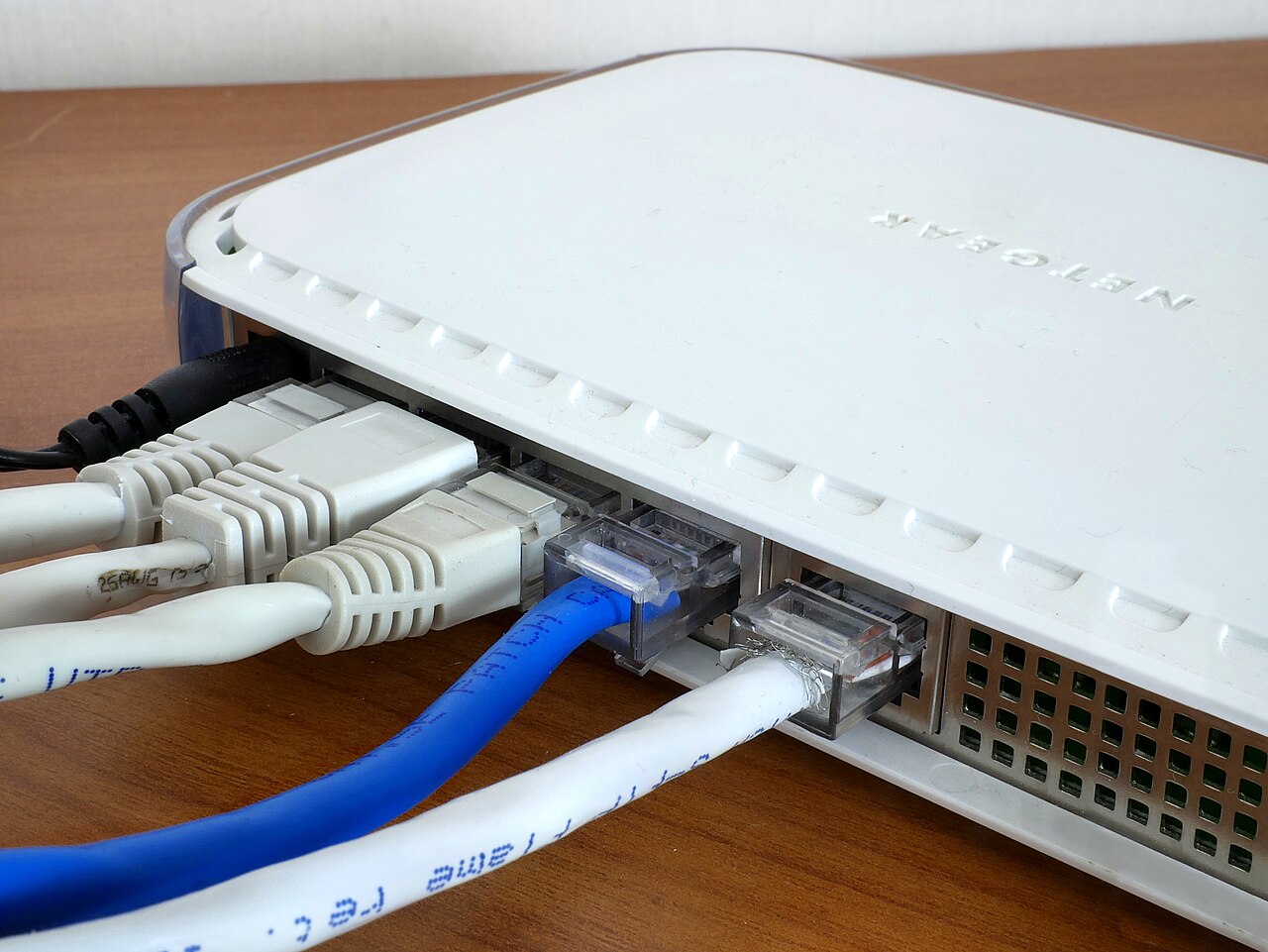
Photograph the original cable positions before disconnecting anything. This real router photo shows how a connection record identifies individual plugs and sockets; use the labels on your own model, not cable colours.
Version notes
Reference hardware photograph from 2017; port layout is model-specific. This is not a measured setup or a recommendation to move your WAN cable.Leave network names, security, channel settings and band settings alone. Visit A, B and C again, repeat the same task, and enter the results beside the originals. Keep the device’s cellular fallback out of the comparison: for a phone, temporarily turn off mobile data if appropriate, then restore it afterward. If you cannot exclude cellular assistance, label that limitation.
Record the band or connected mesh point if your device or router app exposes it. Automatic selection may change after relocation. That still describes how the household network behaves, but it prevents you from claiming that position alone explains every difference.
If the movable box is a mesh point
A wireless mesh point needs a usable connection back toward the router as well as a connection to your device. Moving it into the failing room can shorten one link while weakening the other. Mark its upstream partner on your sketch and inspect that path too.
For supported Google Nest Wifi or Google Wifi networks with multiple routers or points, open the Google Home app and select Home → Wifi → Points → Test mesh. The official mesh test guide says this measures the connection between the primary device and additional points. Run it after the move, record its result separately, and still repeat your room task. A good inter-point result does not directly measure the laptop at C.
Other brands use different diagnostics. If the documented control is absent, consult that product’s help or omit this optional reading. Move only one point during this comparison, leaving the rest of the layout in place.
Read the rooms before leaving the router there
Compare each room against itself. R1 earns its place when the troublesome task improves and the other important rooms remain usable. If the desk call becomes stable while the bedroom repeatedly disconnects, your notes describe a trade-off that needs a household decision. A larger number near the router cannot settle it.
Repeat a promising result when the original problem usually appears. If the result is inconsistent, return to R0 and repeat there too; time, network traffic or the remote service may explain some of the difference. A short survey cannot prove continuous reliability or isolate every source of interference.
If neither arrangement serves the important rooms, restore the safer working position and keep the annotated sketch. It now identifies the room and obstacle path that need attention. Use it to discuss an additional access point, a supported mesh placement or an Ethernet route with the provider or installer. Leave the final note concrete: which room still fails, during which task, and which safe position you already tried.
Sources, versions & scope
The steps describe the documented controls and expected checks; they are not a claim that every device or software release has been physically tested. Platform and version differences are stated with the procedure.