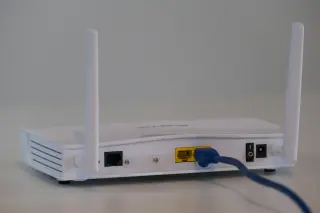
The box, the connection and the download
A router marked AX3000 can deliver a download far below 3,000 Mbps without being faulty. The number on its box, the link speed in your computer’s settings and the rate in a download window describe different things. Comparing them directly makes normal limitations look like missing performance.
Start by writing down which claim disappoints you: the router’s wireless rating, your internet plan’s download rate, or one particular file transfer. This guide unpacks the wireless rating, using a dual-band Wi-Fi 6 router as the example and Microsoft Windows 11 for the inspection steps. It does not assume every router handles multiple bands the same way.
Unpack the number on the box
TP-Link’s Archer AX55 specifications list 2,402 Mbps on 5 GHz and 574 Mbps on 2.4 GHz. Added together, those are 2,976 Mbps, presented as the AX3000 class. That class describes combined theoretical wireless rates across its radios. A single ordinary connection to this router does not receive the sum of both bands.
Even the 2,402 Mbps figure needs the right conditions and compatible client capabilities. The specification identifies a 160 MHz channel; TP-Link notes that client support and regional availability matter. A laptop with a narrower channel or fewer supported spatial streams cannot acquire missing capabilities by connecting to a more expensive router.
Spatial streams are parallel radio data streams, not the number of people using the network. For shopping, the useful comparison is the router’s per-band specification against your laptop adapter’s supported channel widths and streams. Counting antennas on the case is insufficient.
Newer equipment can complicate the single-band picture. Microsoft documents Wi-Fi 7 Multi-Link Operation, which can use multiple bands with compatible hardware and software. That does not turn every combined router rating into one device’s achievable download rate. Check the actual connection rather than applying an AX3000 example to every generation.
What the link rate has to pay for
The negotiated link rate describes radio signalling between your device and access point. Useful throughput measures delivered data. Cisco’s throughput guide distinguishes them: management traffic, acknowledgements and competition for transmission opportunities consume capacity. Weak reception and retransmissions can reduce useful delivery further.
A 1,200 Mbps link therefore does not promise 1,200 Mbps of file contents. Nor is there one reliable percentage to subtract from every link. Packet patterns, radio conditions and other traffic change the outcome. A clean bulk-transfer example is not a guarantee for a crowded apartment or an application that repeatedly waits for replies.
The channel is shared. Other active devices and nearby networks can consume transmission opportunities, even while your laptop reports a high link rate. That rate can also change as conditions change. Record it close to the transfer you are assessing; a number copied yesterday is weak evidence about tonight’s download.
Follow the other ceilings before blaming Wi-Fi
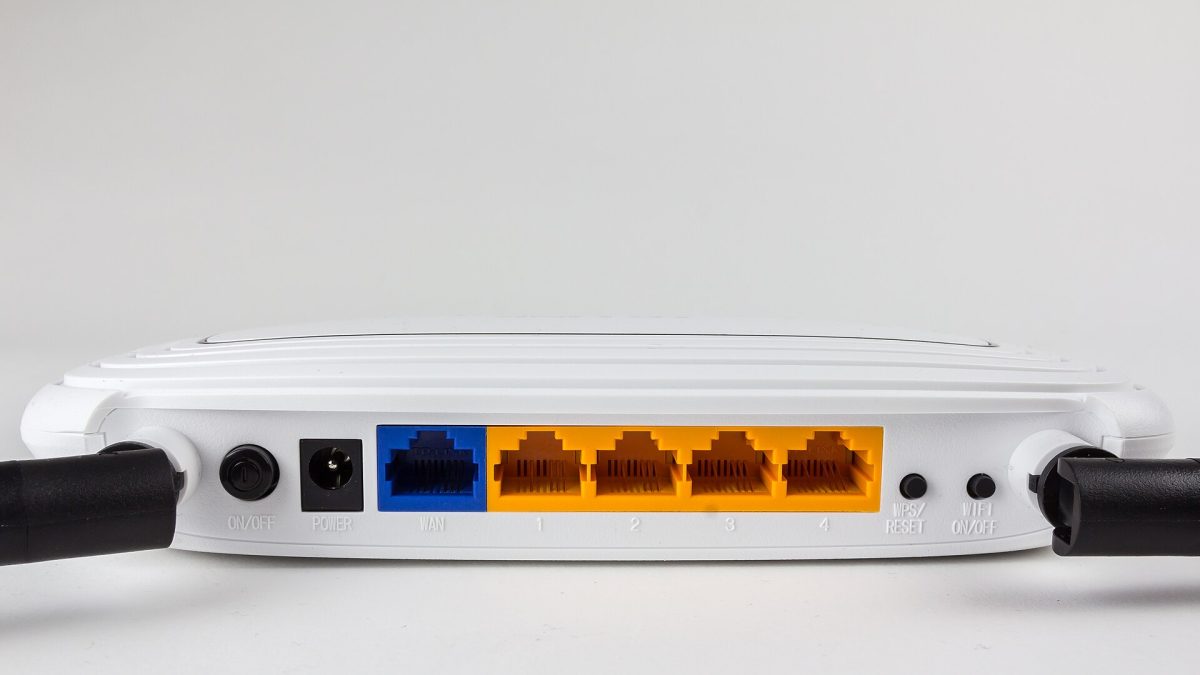
A download must also cross the router’s internet-facing port, your provider connection and the remote service. The AX55 example has Gigabit WAN and LAN ports: a multi-gigabit wireless rating does not create a multi-gigabit internet port. A fast local wireless transfer and a slower internet download can both be behaving as designed.
| Number | What it describes | What to compare |
|---|---|---|
| AX3000 | Router class across its bands | Per-band specifications and client capabilities |
| 1,200 Mbps | Laptop’s negotiated wireless rate | Useful throughput under similar conditions |
| 300 Mbps | Household internet plan | Internet results on a capable connection |
| 30 MB/s | File application’s decimal byte rate | 240 Mbps of delivered file data |
In this invented example, 30 MB/s equals 240 Mbps because each byte contains eight bits. It is neither 30 Mbps nor evidence that 2,970 Mbps went missing. The 300 Mbps plan already prevents this internet download from approaching the wireless link’s headline number. The remaining difference still needs context; this arithmetic alone cannot certify that the provider or Wi-Fi is performing correctly.
Read the application’s actual unit: MB/s and MiB/s use different multipliers. If the unit conversion is the sticking point, use the download-unit guide before comparing results.
Read your own connection on Windows 11
Use a laptop and home network you are authorized to inspect. Save ongoing work before switching connections. These checks read connection information; they do not require editing IP addresses, authentication or router security.
- Identify the active connection. Open Start > Settings > Network & internet. Check the status at the top. If Ethernet is connected, unplug the temporary cable before assessing Wi-Fi and confirm the recognized wireless network reconnects. Stop if internet access does not return; restore the cable while resolving reconnection.
- Find the wireless properties. On the Wi-Fi page, select Hardware properties to inspect the adapter’s connection details. You can also select your connected network’s properties. Record the protocol, network band and receive/transmit link speeds where shown. Labels vary by Windows build and adapter; a missing field is not a zero-speed result.
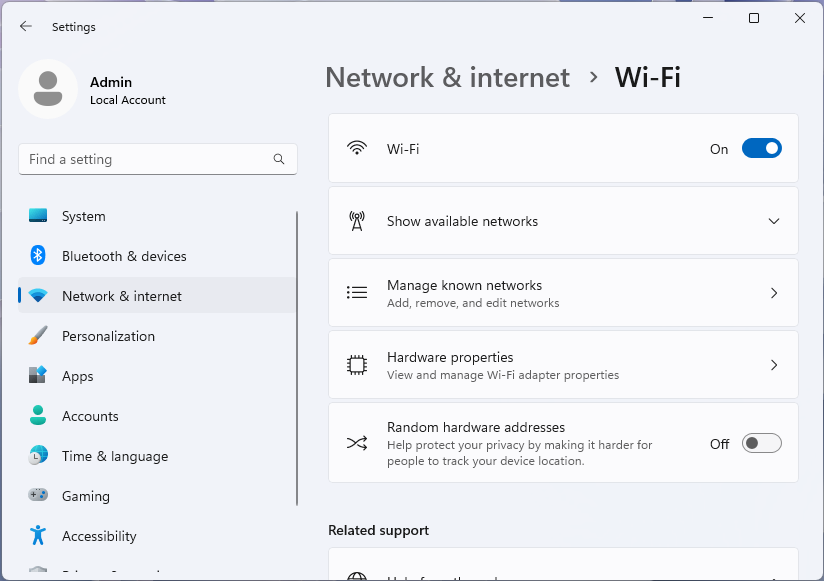
Visual 01 · Microsoft Windows 11 Microsoft Windows 11: select Hardware properties on this Wi-Fi page to inspect connection details. This image shows the entry point, not the properties values. The top Wi-Fi switch is On. Used with permission from Microsoft.
Microsoft Corporation. Microsoft Windows 11 product screenshot. Used with permission from Microsoft. Image source · Usage termsVersion notes
Microsoft Learn explicitly identifies the supplied desktop Settings screenshots as Windows 11. Current network documentation confirms the named Settings route; exact Windows build and capture date unknown. No live network comparison performed. - Keep the directions separate. A receive/transmit pair describes the two directions. Do not add them to predict one download. Note the time and location, then record the download application’s rate and unit during a sustained transfer. Avoid using its initial burst as the whole result.
- Check the comparison cable’s ceiling. If you already have a suitable cable and adapter, connect to a LAN port on the main router. Open Settings > Network & internet > Ethernet and read the receive/transmit link-speed field. A 100 Mbps link cannot demonstrate a 300 Mbps internet service. If unexpectedly low, try a known-good cable and check the adapter and port specifications before interpreting any download.
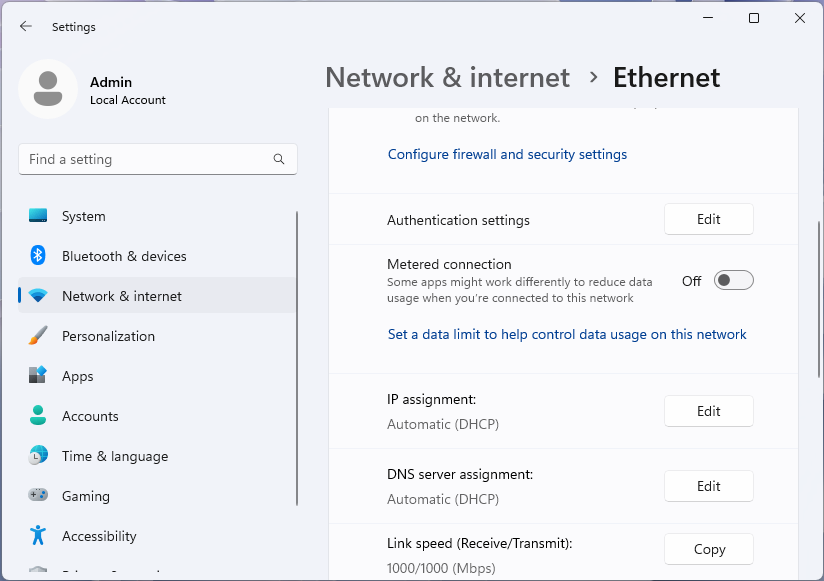
Visual 02 · Microsoft Windows 11 Microsoft Windows 11: the Ethernet link-speed row shows 1000/1000 Mbps in this official example. Read the two directions separately; these are not useful-download measurements. Used with permission from Microsoft.
Microsoft Corporation. Microsoft Windows 11 product screenshot. Used with permission from Microsoft. Image source · Usage termsVersion notes
Microsoft Learn explicitly identifies the supplied desktop Settings screenshots as Windows 11. Current network documentation confirms the named Settings route; exact Windows build and capture date unknown. No live network comparison performed.
The official Ethernet illustration shows 1000/1000 Mbps. Those are negotiated directional rates, not a speed-test result or a promise that useful downloads will reach 1,000 Mbps. Leave the nearby IP and DNS assignment controls unchanged.
If you continue with an actual wired comparison, turn the laptop’s Wi-Fi off in its Wi-Fi settings, confirm Ethernet still has internet access and keep the destination and required VPN unchanged. Afterwards, turn Wi-Fi back on, remove the temporary cable and confirm reconnection. For a fuller comparison and interpretation, follow the two-link diagnostic.
Make the purchase answer a specific limit
Before replacing equipment, finish one sentence: “The limit I need to raise is…” If it is the internet plan, a larger AX number cannot raise that subscription rate. If it is an adapter’s capabilities, another router with the same compatible connection may change little. If it is a consistently poor wireless path, placement or a wired connection may help more than a bigger combined rating.
If only one download service is slow, do not use it alone to condemn the wireless hardware. Preserve the destination, time, units and connection details when asking for help. The useful outcome is a comparison between numbers describing the same part of the journey, with a reason for any change you make.
Sources, versions & scope
The steps describe the documented controls and expected checks; they are not a claim that every device or software release has been physically tested. Platform and version differences are stated with the procedure.