Give every file a destination before you tidy
A personal tax document and a client proposal can sit on the same laptop without belonging in the same cloud account. The useful boundary is the destination: where a file is saved, which account synchronizes it, and who should retain access later. A folder called “Personal” inside company OneDrive still belongs to that company-managed storage.
This guide covers a personally owned Windows 11 PC where your employer permits work files. It concentrates on ordinary documents and OneDrive, rather than moving entire application libraries. On an employer-owned or managed computer, ask IT which storage is approved before relocating anything. Separate folders cannot override organizational controls or create privacy from the device administrator.
Start with new files and one small existing project. Leave the rest intact until the destinations work. Keep an independent recovery copy of important personal material; work backups must follow your employer’s rules.

Write down the two storage addresses
In File Explorer, open the folder holding a representative work document. Click the address bar to inspect its full path. Repeat for a personal file. Record the paths privately, with the associated account and intended audience. The folder’s friendly name alone is insufficient.
- Work destination
- An employer-approved project folder in the organization’s OneDrive, SharePoint library, or approved local location.
- Personal destination
- Your own OneDrive, or a local folder outside every synchronization root with a separate backup arrangement.
For a hypothetical setup, a proposal might belong under C:\Users\Alex\OneDrive - Example Company\Projects, while tax records belong under C:\Users\Alex\OneDrive\Personal records. These are examples, not paths to paste: actual usernames and OneDrive folder names vary. A second partition or external drive also needs its own account, sharing, and backup checks.
To create a destination, open the verified parent folder, press Ctrl + Shift + N, and name the new folder. Use an unmistakable purpose such as “Personal records” or the work project’s name. Never nest one synchronization root inside another to make the navigation look convenient.
Check the account behind OneDrive
If both OneDrive accounts are already connected, inspect them before adding anything. Select a OneDrive cloud icon in the taskbar notification area, open its settings gear, choose Settings, then inspect Account. Check the account address against your private destination note. If there are multiple cloud icons, inspect each; color alone is a poor account check.
For an approved missing account, Microsoft documents Settings → Account → Add an account. Sign in with the intended identity and inspect the proposed folder location before finishing. The sync app supports multiple work or school accounts but only one personal OneDrive account. A second personal account cannot be added through this route. See Microsoft’s account instructions.
After setup, locate the separate storage roots in File Explorer. Create a harmless sample in each, using names such as “work-location-check” and “personal-location-check.” Open the intended OneDrive website, confirm the signed-in account, and locate its sample after synchronization finishes. If a sample appears under the wrong account, stop before filing real documents and correct your destination note.
Adding an account to OneDrive is different from connecting Windows through Accounts → Access work or school. Microsoft says that connection requires organizational support for personal devices. If setup requests device management or shows unfamiliar organizational requirements, resolve those with IT rather than treating them as another folder choice.
Inspect Desktop and Documents before using them
A file saved to Desktop can enter OneDrive even when you never opened a OneDrive folder. In each connected OneDrive account’s settings, choose Sync and backup → Manage backup. Inspect the account identified in the dialog and which folders say they are backed up. Close the dialog without changing toggles during this inspection.
Microsoft’s reference below identifies OneDrive - Personal as the destination and shows Documents and Desktop backed up. Your own account and switches may differ. If a work file lands on a personal-synced Desktop, putting it inside a folder named “Work” on that Desktop does not change its cloud destination.
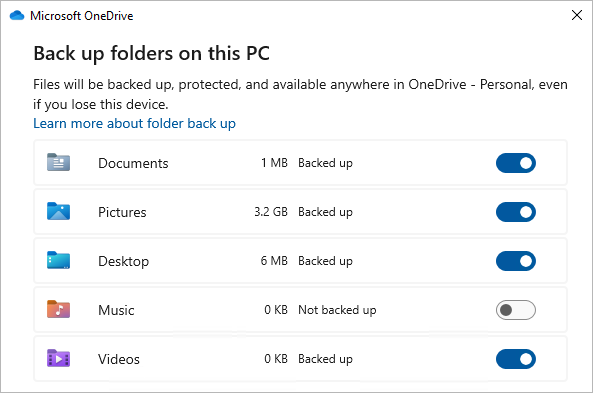
Inspect the destination account as well as the folder switches. This complete Microsoft OneDrive example sends Documents and Desktop to OneDrive - Personal. Leave switches unchanged while checking your setup; the sample sizes are vendor demonstration data.
Version notes
Current Microsoft Support reference checked 2026-10-31 shows the five-folder backup dialog and the toggle workflow documented on the same page. Exact OneDrive build and screenshot capture date are not disclosed. This is a vendor reference for inspecting the destination and current states, not a capture of a reader’s account or a completed migration.Do not switch off folder backup just to make a mixed desktop disappear. Microsoft’s current backup instructions describe choices that keep files only in OneDrive or only on the PC, with different removal consequences. Cloud-only items may need downloading first. Preserve files and understand the displayed choice before proceeding; changing backup settings is a separate migration task.
Copy one small project, then prove the destination
- Close the documents you will transfer. Confirm that each belongs in the chosen destination and that any work transfer is permitted. Do not copy company files into personal storage as a temporary staging area.
- For OneDrive items that must remain available locally, right-click the selected files or folder and choose Always keep on this device. Wait for download completion. A blue cloud indicates online-only content; Microsoft explains the states in its Files On-Demand guide.
- Use Ctrl + C, open the verified destination, and use Ctrl + V. Copying preserves the source during this check. Cancel replacement warnings rather than overwriting another document with the same name.
- Open the destination copies directly from their folder. Check meaningful contents, such as the latest paragraph or spreadsheet total. For a synced destination, also check the intended account’s website after upload. A visible filename alone does not establish a complete, current copy.
Record which location is now the working master. Keep a short migration note so you do not continue editing both copies. Only remove an obsolete source after verification, backup, and any required approval. Moving online-only items out of OneDrive can download them and remove them from cloud storage; copying first makes that consequential change deliberate.
Copying cannot undo an earlier disclosure. If a private document was uploaded to work storage, or company material to a personal account, follow the relevant reporting and removal process. Someone may already have accessed it, and retained copies or organizational retention can survive deletion.
Make the next save land correctly
In each frequently used application, create a harmless document and choose its Save As or equivalent destination picker. Inspect both the account and folder before saving. Reopen the sample through File Explorer and check its address. Do the same with one harmless browser download; browser sign-in does not establish where the downloaded file lands.
Check attachment pickers too. Recent files can place work and personal items beside each other. Navigate into the intended folder and inspect the selected filename before sending. Review Downloads regularly, but route each file by ownership rather than moving the entire folder wholesale.
If choosing the correct account remains difficult, separate Windows users provide distinct documents and settings. Microsoft recommends standard users for routine activity and notes that administrators can access all files. Our separate-user guide covers setup. Keep each session’s cloud identities appropriate; connecting the same storage everywhere can recreate the mixture.
Finish by answering two concrete questions: where will tomorrow’s client draft be saved, and where will your next personal receipt go? Open those destinations now. When both answers include a verified location and account, the separation can survive ordinary daily work.
Sources, versions & scope
The steps describe the documented controls and expected checks; they are not a claim that every device or software release has been physically tested. Platform and version differences are stated with the procedure.