Give the disappearing draft a harmless sentence
A draft can disappear while its filename stays exactly where you left it. Replace a paragraph, save, and let synchronization finish: the laptop and the cloud can now agree perfectly about the wrong contents. Agreement tells you that a change arrived. Recovery requires somewhere to find the earlier sentence.
This small lab follows three disposable text files through three different events. You will overwrite one, delete another, and separate the third from the sync system before changing it. These are proposed experiments, not results measured for this article. Write down what actually happens on your account, including missing controls.
The instructions use Windows 11, Notepad, the OneDrive desktop app, and OneDrive in a browser. Use your own private OneDrive folder and an existing trusted USB drive with room for a few text files. No drive formatting is needed. A Mac or another cloud service can illustrate the same idea, but its menus and recovery rules need separate verification.
Build a tiny stage
In File Explorer, open your own OneDrive folder and create a new folder named Disposable Sync Lab 2026-10-31, adding a suffix if that name already exists. Keep it outside shared folders and Personal Vault. If a work account prohibits this exercise, stop rather than changing its policies.
Open Notepad and use File > Save as to create these three plain-text files inside that folder. Give each file the corresponding single line:
draft.txt       The observatory opens at dawn.
vanish.txt      This sentence may leave the working folder.
island.txt      This sentence stays on the disconnected drive.
Close each saved document. Open the same account at OneDrive on the web and find the new folder. Wait for the desktop client to finish syncing, refresh the website, and inspect each file's text. If a text preview is unavailable, download that selected file and inspect the download in Notepad; do not save it back over the synced source. Filenames alone are insufficient evidence that the intended contents reached the server.
On paper, make three short entries: overwrite, deletion, disconnected copy. Beside each, record the question below, your observed contents, and whether recovery succeeded. There is no need to put account details or private information into the files.
Experiment one: where did the earlier sentence go?
Observable question: after the current contents change online, can this account recover the original sentence?
Open draft.txt from the synced folder in Notepad. Replace its entire line with The observatory opens at midnight. Save and close it. Wait for synchronization, then reopen or refresh its web preview. The change to look for is midnight. If the website still shows dawn, the overwrite has not yet been demonstrated remotely; record the delay or error before continuing.
Once midnight appears online, return to the web file list. Right-click draft.txt and choose Version history. Identify the revision preceding your edit; use its ellipsis menu and Restore. Microsoft's version-history instructions document this route for all file types. Restore only this disposable file. If the earlier revision is absent or the control is unavailable, record that recovery was not demonstrated.
After restoration, reopen the file online and then locally after sync settles. Look for the actual dawn sentence. A history entry proves less than readable recovered text. If Notepad still has an older tab open, close and reopen the file without saving that stale tab.
The meaningful observation is whether an earlier state survived outside the current document. The filename never needed to disappear. A second synchronized computer showing midnight would merely confirm that the overwrite traveled.
Experiment two: does a missing file stay missing?
Observable question: when the web copy is deleted, does the local working folder follow, and can the cloud recycle bin return its contents?
Close any open copy of vanish.txt. In the web folder, select that file alone and choose Delete, checking the selected name before confirmation. Leave the other two files untouched. Refresh the list, then inspect the local folder after sync finishes. You are looking for disappearance from both working views. A local file that remains during a sync error is an unresolved observation, not evidence of permanent protection.
Use the website's navigation pane to open Recycle bin. Select only vanish.txt and choose Restore. Return to the lab folder and read its sentence, then check the local copy after synchronization. This follows Microsoft's deleted-file recovery instructions. Do not empty either recycle bin.
Do not judge this experiment by the Windows Recycle Bin: Microsoft says cloud-deleted files do not appear in the computer's Recycle Bin or Trash. The web recovery location matters here. A successfully restored file shows that this deletion had a recovery route today; it says nothing about an item already purged from that route.
Experiment three: can the change reach an unplugged copy?
Observable question: after a new edit reaches the cloud, does the previously disconnected copy still contain the old sentence?
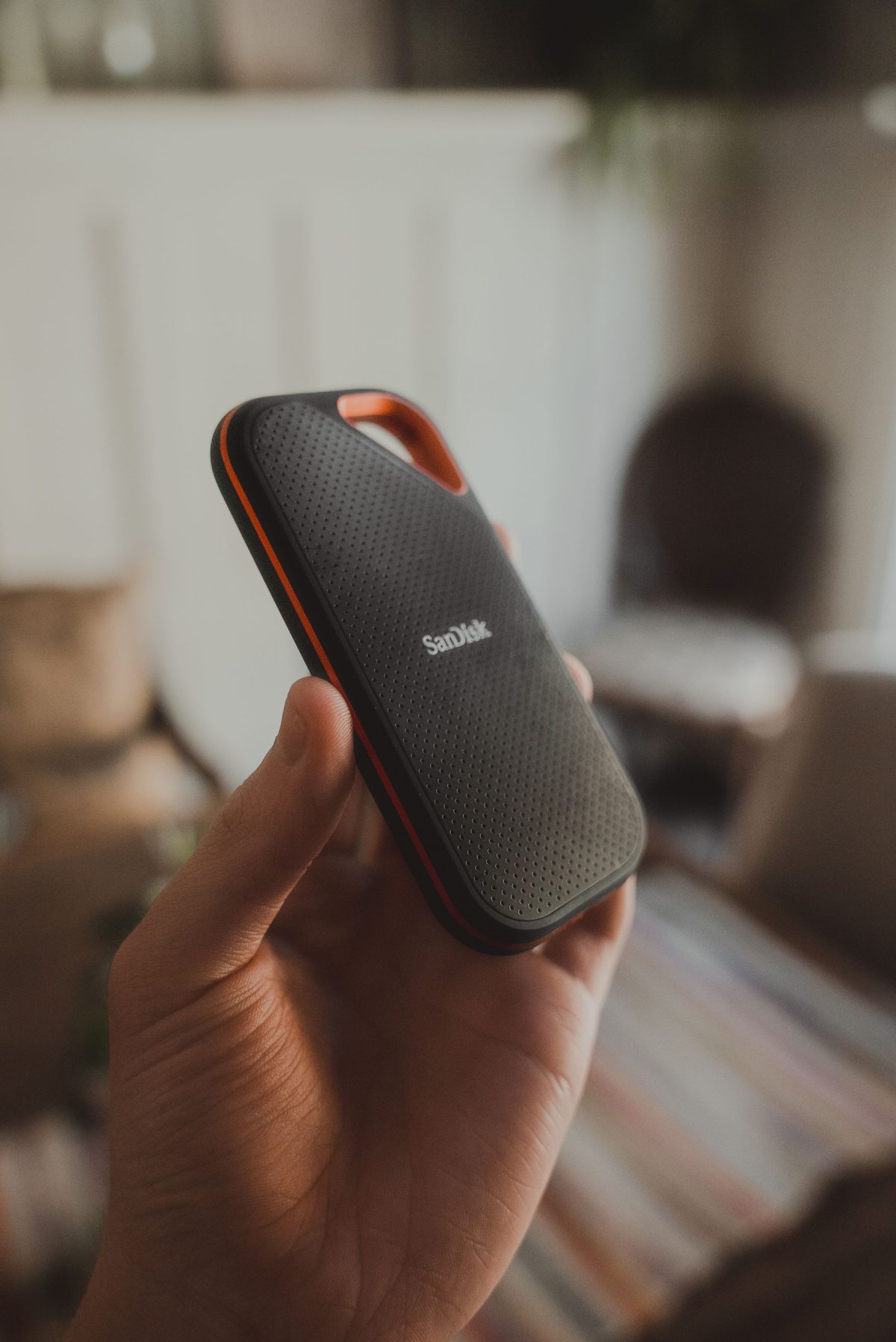
Connect your trusted USB drive. In File Explorer, copy island.txt from the lab folder, create a new folder called Sync Lab Snapshot 2026-10-31 on the USB drive, and paste there. Use Copy and Paste, not Cut or a drag whose move behavior is uncertain. Confirm the destination is the actual USB drive, not another folder under OneDrive. Open the destination file and read the disconnected-drive sentence, then close it.
This content check matters because cloud folders can display files whose data is not yet local. Microsoft's Files On-Demand documentation explains the distinction. If copying cannot complete, download only this text file from the website and copy the completed download to the USB folder. Do not count an unopened placeholder as your snapshot.
Right-click the taskbar's Safely Remove Hardware and Eject Media icon, expanding hidden icons if necessary, and choose Eject for that USB device. Following Microsoft's safe-removal guidance, wait for permission to remove it before unplugging. If Windows reports that it is busy, close its files and try again.
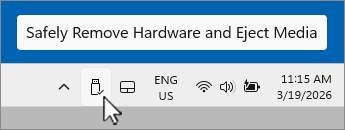
Initial Microsoft Windows 11 removal step: locate the Safely Remove Hardware and Eject Media icon, then right-click it. The device-specific Eject menu opens in the next step.
Version notes
Current Microsoft Windows 11 support reference. Exact capture build is undisclosed. This initial icon/tooltip state does not show the Eject menu or safe-removal notification; the displayed clock is not capture provenance.With the USB drive physically disconnected, edit the synced island.txt in Notepad to say The working sentence has changed. Save, close, and confirm that sentence online. Then reconnect the USB drive, open its snapshot directly, and compare. The predicted result is different sentences: the cloud has the new one, while the USB retains the earlier one. Record your observation rather than assuming the prediction succeeded.
To finish the recovery demonstration, copy the USB snapshot into a new folder on that same USB drive called Recovered Lab Sample and open the copied file. This tests whether you can retrieve readable contents without replacing the current synced version. Eject the drive again when finished.
The clock that a successful restore does not test
An immediate restore is deliberately an easy case. It does not establish how long you can wait. Microsoft's current OneDrive history article states a 30-day retention period and notes that administrators may disable document versioning. Its deletion article gives personal accounts 30 days and work or school accounts 93 days unless an administrator changes retention; permanently deleted recycle-bin items cannot be restored through that route. These are different recovery mechanisms with different limits. Confirm your account's effective policy before relying on a deadline.
The USB result answers a narrower question: a change could not propagate to storage that was disconnected. It does not establish that the drive will remain readable, survive a fire beside the laptop, or contain tomorrow's draft. The Canadian Centre for Cyber Security recommends removing backup media after copying; physical separation has a specific purpose.
Leave the snapshot dated and unchanged. If you later update it by replacing everything with the current folder, you may discard the very state you wanted to preserve. A useful next decision is concrete: how far back must an unnoticed mistake remain recoverable, and which retained copy will still contain that state? Your three observations give that question evidence: an earlier sentence recovered, a deleted sentence returned, and a sentence the latest change never reached.
Sources, versions & scope
The steps describe the documented controls and expected checks; they are not a claim that every device or software release has been physically tested. Platform and version differences are stated with the procedure.