Decide what each column is allowed to mean
A CSV can look tidy while quietly changing a product code, hiding a missing quantity or splitting an item name into two cells. The useful outcome is a workbook you can explain: preserved source data, deliberate cleanup and a short record of unresolved questions.
This workshop uses LibreOffice Calc 26.2 on Windows, with English controls and the standard menu bar. The official 26.2 guide supplies the interface reference. It is a local, small-file workflow; it does not automate a recurring supplier feed.
Keep the incoming CSV unchanged. For practice, save the following hypothetical catalogue as catalogue-source.csv in a plain-text editor using UTF-8. These are invented products and quantities, not observed business data.
SKU,Item,Stock,UnitUSD
00125," Desk lamp ",4,12.50
00126,"Cable, USB-C",3,5.00
00125,"Desk lamp",4,12.50
00127,Notebook,0,2.00
00128,Pen,,1.50
Our contract: SKU is a five-character identifier; Item is a label; Stock is a whole-number count; UnitUSD is a decimal-point price in US dollars. One row per SKU is intended. A blank stock count means unknown, while zero means none available. Real files need equivalent answers from their owner before cleanup.
There are five records and four fields per record. The comma inside the cable’s quoted name belongs to the name. The pen’s two adjacent commas preserve an empty Stock field. Those two details make useful checkpoints before anything is calculated.

Make the import preview earn your trust
Choose File → Open and select the CSV. Pause at the Text Import dialog before accepting the preview. The linked official guide’s illustration uses its own sales sample; it does not depict our catalogue.
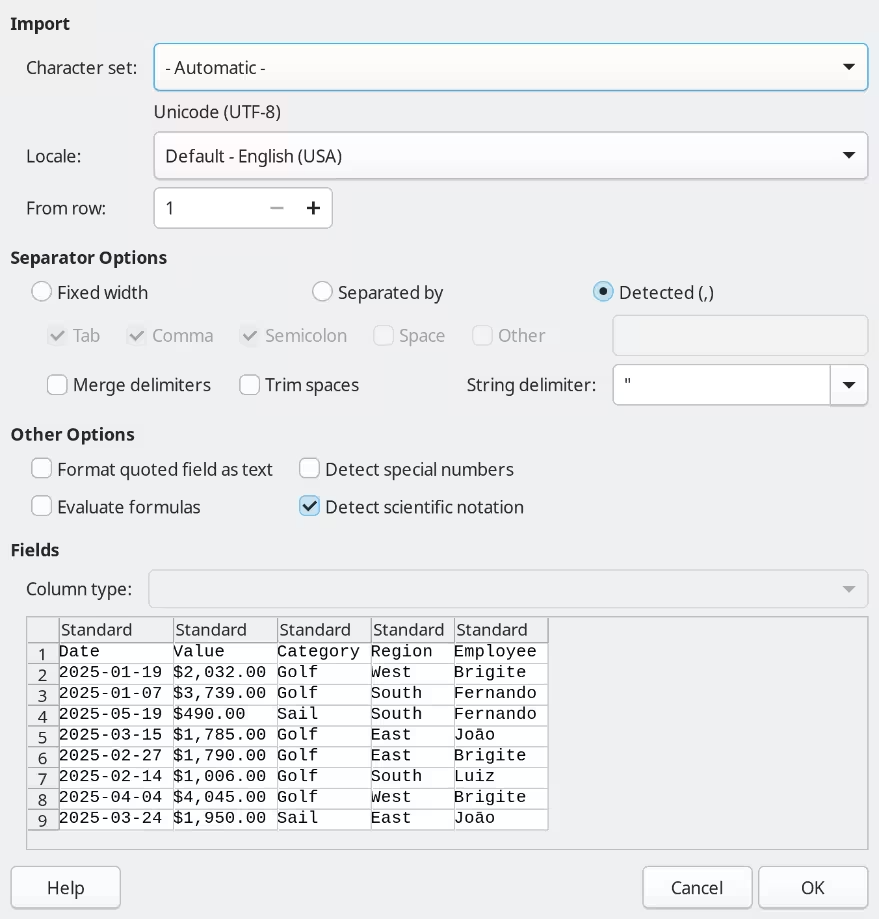
Official LibreOffice 26.2 guide, Figure 6: inspect the Text Import controls before loading. This is the guide’s sales-data starting state, not the catalogue example or its final import settings.
Version notes
June 2026 official guide explicitly based on LibreOffice 26.2, still maintained on checked date. Original image is a dialog excerpt without OS decoration; not asserted to be a Windows capture or an exact patch-build screenshot.- Choose Unicode (UTF-8) as the character set and English (USA) in the locale selector for this example.
- Under Separated by, enable only Comma. Set String delimiter to the double quote. Leave Merge delimiters and Trim spaces off. Expect four columns, an intact cable name and a blank pen quantity.
- Leave Evaluate formulas off. Disable Detect special numbers and Detect scientific notation. Select the SKU preview column and set Column type → Text; do the same for Item. Leave Stock and UnitUSD as Standard. Check the preview headers before clicking OK.
The official Text Import reference explains these controls. Disabling date detection alone does not preserve numeric-looking identifiers; their explicit Text type matters. Formula evaluation is unnecessary for this catalogue.
If the cable occupies two cells, cancel and fix the delimiter settings. If the pen’s price lands under Stock, check Merge delimiters. If a supplied name looks garbled, ask which encoding produced the file instead of replacing characters by hand.
After import, A2 must show 00125, B3 must contain Cable, USB-C, C5 must contain zero, and C6 must be empty. If the code became 125, reopen the untouched CSV and correct the import. Adding zeros afterward would guess at what was lost.
Keep the receipt beside the repair
Double-click the sheet tab and name it Raw. Use File → Save As to save catalogue-working.ods as an ODF Spreadsheet. This creates the working file without overwriting the CSV.
Choose Sheet → Move or Copy Sheet, select Copy, keep the current document as the destination and name the copy Clean. Confirm both tabs exist. Make subsequent changes on Clean; Raw is the imported baseline, while the CSV remains the original evidence.
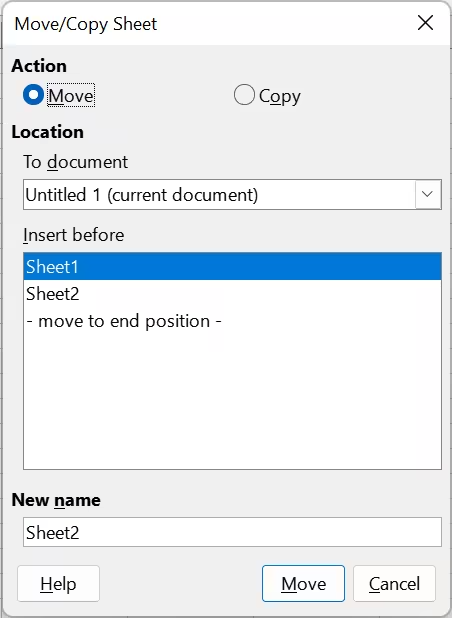
After opening Move/Copy Sheet, select Copy rather than the pictured Move default. Keep the current document as the destination and enter Clean under New name before confirming.
Version notes
Getting Started Guide 26.2, Chapter 3, Figure 21, published June 2026 and explicitly based on LibreOffice 26.2. Official release notes checked October 31 list 26.2.6 as the maintained previous branch. Opening dialog state, before choosing Copy or entering the catalogue sheet name; exact patch build is not supplied.Add ItemClean in E1. Enter =TRIM(B2) in E2, select E2:E6 and choose Sheet → Fill Cells → Fill Down. Compare B and E: the first lamp label should lose its surrounding spaces; the cable’s internal comma should remain.
TRIM also reduces repeated spaces between words. That suits these ordinary product labels, but could damage spacing that carries meaning. Keep it away from fixed-width codes or carefully spaced descriptions. If apparently identical labels still differ, inspect the source characters; do not assume every invisible character is an ordinary space.
The helper column makes the transformation visible. Leave the original label beside it while reviewing. A global replacement across the workbook would make it harder to distinguish a correction from an accidental change.
Find repeated keys without discarding their rows
For this catalogue, a repeated SKU needs investigation. In a transaction log, the same SKU could legitimately occur hundreds of times. Decide what makes a record unique before using any duplicate-removal command.
On Clean, select A1:A6 and choose Data → More Filters → Standard Filter. Use SKU as Field Name, = as Condition and Not Empty as Value. Expand Options; enable No duplications and Range contains column labels. Enable Copy results and set the destination to $H$1, in an empty area. Click OK.
The documented single-column method produces a separate unique-key list. Expect four keys beneath the copied header. Five source records versus four distinct keys signals repetition; it does not identify which row deserves deletion. The option is case sensitive, so lettered codes need a declared case convention.
Compare the two 00125 records in rows 2 and 4 across every source field and ItemClean. Their only difference here is the label’s surrounding spaces. In this hypothetical case, suppose the catalogue owner confirms row 4 is an accidental repeat. Record that decision in G4, under a G1 heading of Review, and mark it excluded. Keep both rows visible during review. Different prices or quantities would require clarification, not an automatic winner.
In G6 record “Stock unknown; awaiting source.” Do not enter zero to make a total look complete. The notebook’s explicit zero and the pen’s blank communicate different facts.
Release a checked sheet, with its limits attached
Before delivery, compare the full five-record extent against Raw. Check every SKU, the comma-bearing name, the zero and the blank. The acceptance notes for this example should account for all five input records: four intended catalogue entries, one confirmed duplicate excluded and one stock count still unresolved.
If a recipient needs a simple table, create a separate sheet containing only approved rows and columns, copying ItemClean as values rather than formulas that depend on another sheet. Keep the duplicate decision and missing-stock explanation in the working workbook. Do not label the catalogue complete until the missing quantity is resolved or explicitly accepted by its recipient.
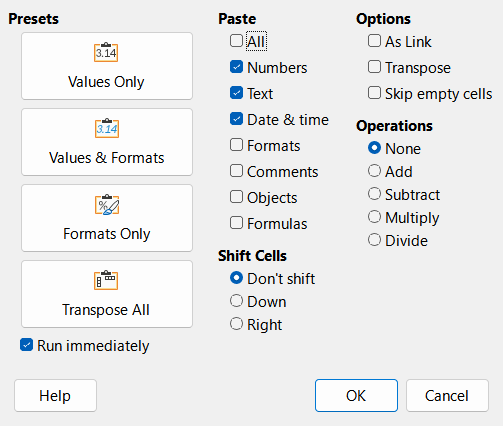
For the delivery sheet, copy the approved cells, select the destination and open Edit → Paste Special → Paste Special. Choose Values Only to paste the calculated labels without their formulas. Run immediately is checked in this official example.
Version notes
Calc Guide 26.2, Chapter 2, Figure 20; published February 2026 and explicitly based on LibreOffice 26.2. Official release notes checked October 31 list 26.2.6 as the maintained previous branch. Vendor’s complete dialog excerpt, showing values-only controls before pasting; no catalogue cells or successful delivery depicted. Exact OS and patch build are not supplied.Save and reopen the ODS workbook; confirm Raw, Clean and the notes remain. If CSV is required, save a separately named Text CSV copy of the delivery sheet. A CSV cannot preserve the multi-sheet review trail. Reimport that copy with the same field rules and check its codes and blanks before handing it over.
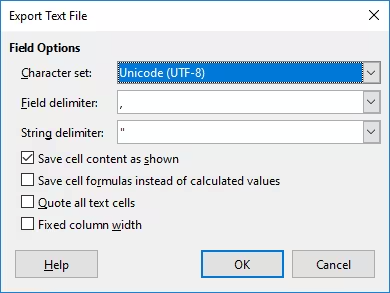
When saving the separate Text CSV delivery copy, Calc offers these export controls. The official 26.2 guide’s reference shows UTF-8, comma and double-quote delimiters, with formula export unchecked. Compare the options with the recipient’s requirements; this is not the saved catalogue or a successful reimport.
Version notes
Official Getting Started Guide 26.2, published June 2026 and explicitly based on LibreOffice 26.2, Figure 8. The official release-notes page on 2026-10-31 lists 26.2.6 as the maintained mature previous branch and 26.8.2 as latest branch. Platform-neutral reference; no specific OS or patch-build capture claimed.Use Edit → Undo immediately after a mistaken cleanup. After closing, recovery should come from the retained baseline or original CSV, not remembered cell values. The official Calc guide covers sheet handling and saving; keep the ODS master as the place where the decisions remain understandable.
Sources, versions & scope
The steps describe the documented controls and expected checks; they are not a claim that every device or software release has been physically tested. Platform and version differences are stated with the procedure.