Give the record a job before polishing the prose
A page of discussion can be accurate and still leave everybody unsure what happens next. An actionable meeting record answers four questions: what was decided, who will deliver what, when it is due, and what still needs a decision. You should be able to find those answers without rereading the conversation.
This workshop uses Google Docs in a desktop browser. Start with notes you are authorized to edit and keep the original rough material while you reconcile it. You do not need a transcript, an AI summary, or an automatic task integration. The optional assignment controls below require a work or school account; the written record works without them.
Choose one person to maintain the record and another appropriate participant to confirm disputed decisions. That avoids a tidy rewrite acquiring authority simply because it looks finished. Label the document Draft until that confirmation happens.

Sort the rough notes into three kinds of statement
Read through once without rewriting everything. Mark each useful line as a decision, an action, or an open question. Keep supporting context only where it explains a choice, a dependency, or a disagreement. A suggestion belongs among open questions until someone with authority accepts it.
Consider this hypothetical note from a small team's website review: “Friday launch? Priya checking form. Two pages missing. Alex can draft. Need approval.” Rewriting it as “Launch Friday; Priya and Alex to finish” invents a decision, a deadline, and shared responsibility. Instead, ask what the form check covers, which pages are missing, who approves them, and whether Friday is a target or an agreement.
- Decision
- Record the agreed choice, the person or group confirming it, and any condition. For example: “Keep the existing site live until the replacement enquiry form passes review.”
- Action
- Record a named owner, a concrete deliverable, a due date, and evidence of completion. “Check form” needs an outcome such as a linked results note and a list of unresolved failures.
- Open question
- Record the missing decision, who will obtain the answer, and the next review point. “Launch date unconfirmed; chair to revisit after form review” is useful even without a promised launch date.
When a detail is missing, write “owner unconfirmed” or “date to agree.” Do not quietly turn the person mentioned most often into the owner. Ask them to accept the work and date, or leave the uncertainty visible.
Build one record people can return to
In your Google Doc, use a title containing the meeting date and subject, such as “2026-10-30 — Website review — Draft.” Add the attendees who actually participated, the record's maintainer, and the review deadline. Put Decisions, Actions, and Open questions in visibly separate parts of the document. These are working labels you type, not special software features.
If the meeting is already in your Google Calendar, you can optionally insert its details: type @ in the document, choose Meeting notes, search for the event, and select it. The details appear in the document. Inserting them alone does not attach the notes to the event.
According to Google's meeting-notes instructions, an organizer can choose Share & attach when prompted; a non-organizer gets a sharing prompt without attachment. Check the intended recipients before proceeding. If notes already exist or you lack event-editing permission, use the existing shared record or ask the organizer rather than creating competing attachments.
Calendar and the notes are separate records after insertion: later event changes do not update the document's details, and editing its attendee list does not invite anyone. Recheck the date and attendance when preparing the final record.
Make each action independently finishable
Use one short paragraph per action, with a stable identifier such as A1. Keep that identifier when the wording changes so a follow-up can refer to the same commitment. An action should describe something its owner can deliver, rather than a hoped-for result controlled by somebody else.
Hypothetical action A1: Priya will check the replacement enquiry form's required fields and confirmation message by 3 November 2026, 15:00, Europe/London. Done means a linked results note covering both checks, with remaining failures listed. Status: awaiting owner confirmation.
Write the date explicitly; “next Tuesday” becomes ambiguous when somebody reads the record later. Include a time zone if a timed handoff crosses locations. For a dependency, name the blocking action: “A2: Alex drafts the two missing pages after the approved outline arrives.” Give A2 its own agreed deadline rather than assuming A1's date covers everything.
Keep status simple: awaiting confirmation, open, blocked, or done. For blocked work, add the missing input and who will pursue it. For done work, add the evidence link and completion date. A checked box without evidence tells a later reader very little.
If the team already uses a task tracker, create or update the actual task there and put its link beside the action. Agree which place owns changing status. The meeting record preserves the commitment and decision context; avoid maintaining two conflicting due dates.
Use comments to settle the uncertain parts
Highlight the disputed passage, choose Add comment in the toolbar, and ask a specific question. Enter @ plus the intended person's name or email, select the correct suggestion, and click Comment. An ordinary mention requests attention; it does not itself confirm ownership.
For work or school accounts, you can instead turn that comment into an assignment: include the person's email preceded by @, select Assign to [name], then click Assign. The recipient gets an email. If the assignment option is absent, keep the named owner in the document and request confirmation through your team's usual channel. See Google's comment and action-item guidance.
Keep the deliverable and date in the document itself. A comment is useful for discussing a commitment, but the next reader should not have to reconstruct the record from a sidebar.
When a discussion is settled, update the body before resolving its comment. If you closed it too early, open Show all comments, use All types to find resolved threads, and choose Re-open. For assigned work, use Done after verifying completion.
Issue the record, then preserve its changes
Open Share, enter the intended recipients, and select Commenter for reviewers or Editor for maintainers. Check Notify people if you want an email, then send. Ask one recipient to confirm access. A mention does not establish file access; organization rules can restrict external sharing. Google's sharing guidance also explains that parent-folder access is inherited. Check that audience before placing sensitive notes there.
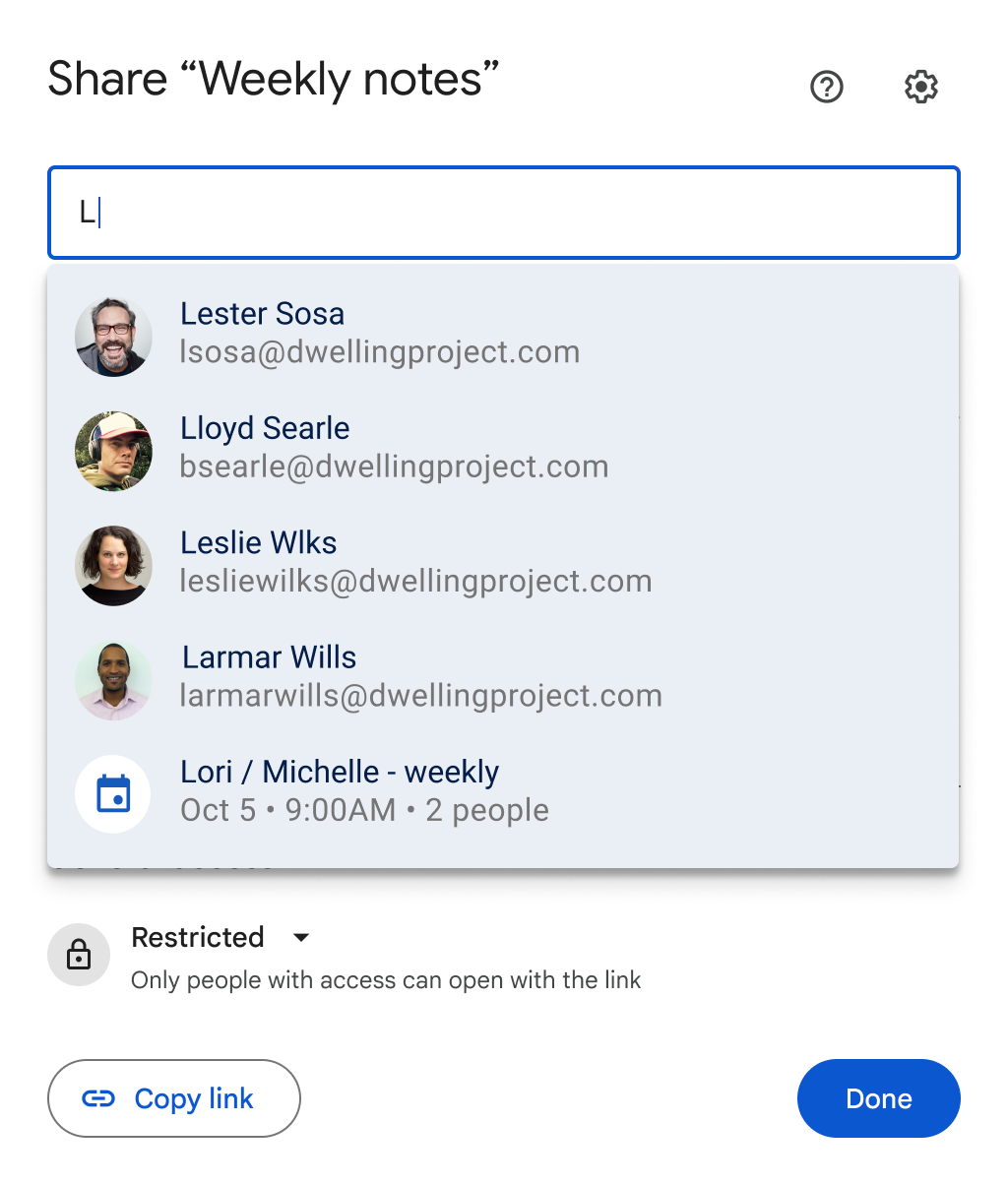
In Share, inspect the full email address beside the intended person before selecting a suggestion. This Google example shows the recipient lookup stage; choose the role and notification settings afterward.
Version notes
Official January 11, 2024 demonstration of the calendar-aware sharing dialog. Current Drive Help still documents suggested recipients for work or school accounts, and Google’s revised July 2025 sharing demonstration corroborates the same dialog structure. Exact deployment/build is unspecified. This image shows only recipient lookup; the Calendar suggestion is not selected. Complete 1024 × 1204 original retained.After confirmation, replace Draft with the agreed status and record who confirmed the decisions and when. Send the same document link with a brief request to review outstanding ownership or date questions. Keep unresolved points clearly labeled. Silence should not be recorded as acceptance unless the group has explicitly agreed that convention.
If an edit accidentally removes a decision, editors can click Last edit at the top right to inspect version history. Beside the earlier entry, choose More → Make a copy to recover the missing passage separately. Compare it before bringing the text back. Restoring an entire version changes the current document, so coordinate that larger repair with collaborators first.
At the next review, begin with open and blocked actions. Record changed dates with a reason, retain completed evidence, and link any replacement decision to the earlier one. The record is doing its job when an absent colleague can identify the current decision, the next owner, and the remaining uncertainty.
Sources, versions & scope
The steps describe the documented controls and expected checks; they are not a claim that every device or software release has been physically tested. Platform and version differences are stated with the procedure.