Why a fast download can spoil a small call
A call sounds normal until someone starts a game download. Voices break up, replies arrive late, and pausing the transfer brings the conversation back. That repeatable collision suggests bufferbloat: excessive waiting in network queues when a connection gets busy. It deserves a load test before you buy faster service.
Throughput describes how much data moves each second. Latency describes how long a response takes. A connection can deliver plenty of megabits while keeping small, urgent packets waiting behind bulk traffic. A call needs timely delivery in both directions; its modest bandwidth requirement does not protect it from a crowded queue.
The queue may sit in your router, modem, wireless link or upstream equipment. A poor test result cannot identify the guilty box. This guide uses Waveform in a desktop browser to establish the pattern, then offers a bounded configuration trial for an existing OpenWrt router with LuCI and SQM installed.
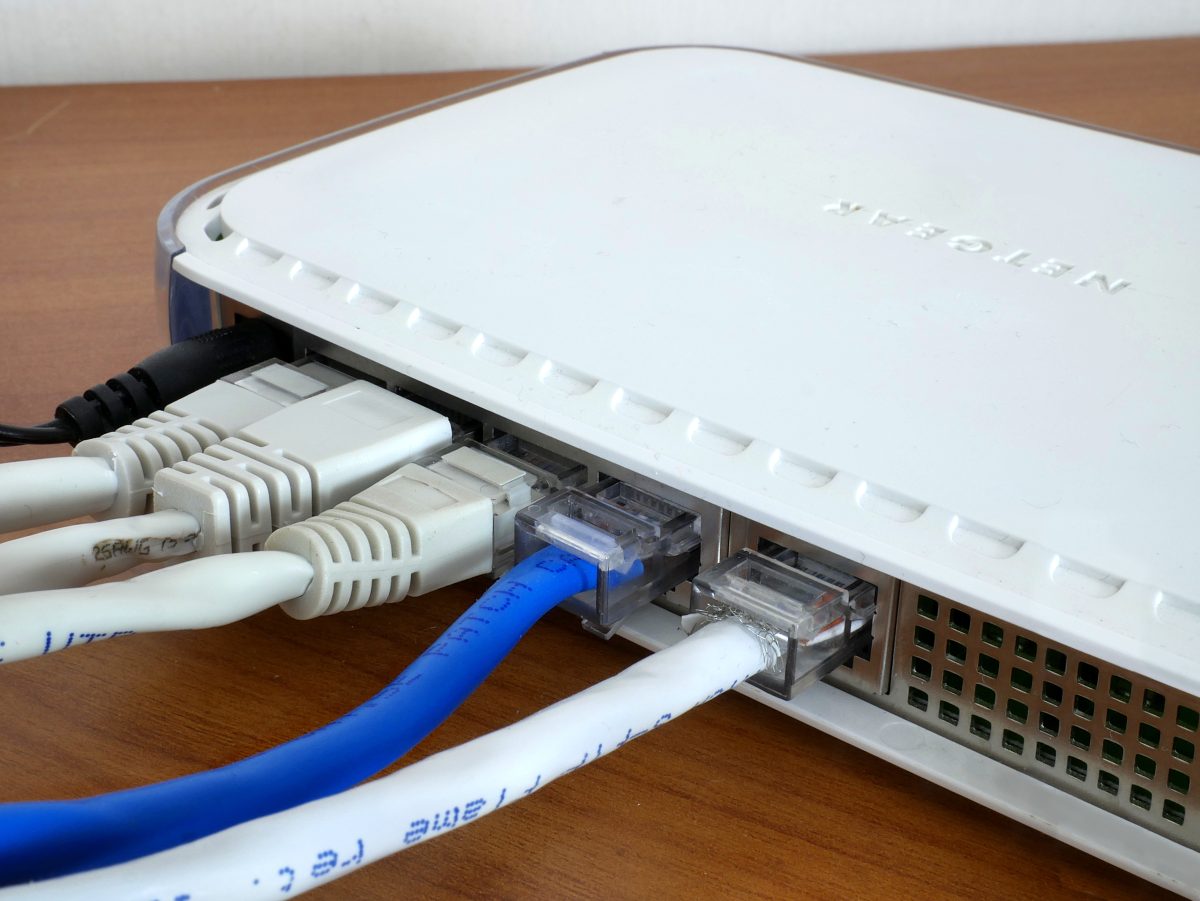
First, check whether the failure follows the transfer
Choose a nonessential call with a willing participant. Keep the calling device, location and app fixed. Begin with optional downloads and backups paused. Listen for a stable conversation, resume one known large transfer, then pause it again. Note whether both people hear trouble and whether it clears after the transfer stops.
Repeat that sequence once if practical. A failure that follows the transfer twice gives you a useful lead, not proof. If the call remains bad with transfers stopped, investigate the call app, local device or connection before changing queue settings. If the router visibly restarts or all connectivity disappears, investigate that interruption separately.
Check uploads too. Photo sync or a backup may be saturating the smaller upstream allowance while a visible download gets blamed. Change one activity at a time. For an important call happening now, leave optional transfers paused and resume them afterward; diagnosis can wait.
Measure the wait during download and upload separately
Run the bulk test outside a live call. It deliberately fills the connection and consumes data, so arrange a quiet window and check any data allowance. Close other bandwidth-heavy tabs and pause optional household transfers you control. Keep required workplace VPN protections in place and record their presence.
- Connect a capable computer to a router LAN port by Ethernet where possible, and switch that computer away from Wi-Fi for this comparison. A slow adapter or port can itself become the limiting link; record its limitation.
- Open the Waveform bufferbloat test in a desktop browser and start its test. Keep the tab in the foreground through the idle, download and upload phases. Run only one test at a time.
- Record the unloaded latency, the added latency during download and upload, and both transfer rates. Keep the units: milliseconds for latency and Mbps for throughput. Preserve the result rather than collecting only its letter grade.
- Once the connection is quiet again, repeat twice with the same setup. These three runs are a practical comparison, not a certification protocol. Note inconsistent results and failed attempts.
Waveform distinguishes the idle delay from the increase under load. In a hypothetical result, 18 ms unloaded with +160 ms during download means roughly 178 ms during that phase, not 160 ms total. An upload increase of +12 ms would point toward a stronger download-side symptom. These invented numbers illustrate interpretation, not measurements from a tested router.
A browser test measures its own path and workload, not your call server. Look for a recurring rise that agrees with the pause-and-resume observation. If the test fails to finish, record the failure and try again after closing heavy local tasks; a missing result is not zero delay.
Use the wired comparison to choose the next move
- Wired tests stay responsive; the usual Wi-Fi location does not.
Repeat wirelessly on the same computer, with Ethernet disconnected. This shifts attention toward the wireless path. Use Ethernet for calls where feasible, or compare a closer location. WAN queue settings cannot guarantee a fix for a congested radio link.
- Wired tests also show large increases under load.
Investigate queue management at the internet bottleneck. As a temporary workaround, use the transferring app's bandwidth limit if available. Record its original limit, reduce the busy direction, and repeat the call comparison. Check whether the app uses MB/s or Mbps: a hypothetical 8 MB/s limit is about 64 Mbps.
- Tests stay responsive, but only one call app fails.
Try the same app without the transfer and compare another call service. Device load or the application's route remains possible. Avoid treating a bufferbloat grade as a diagnosis of every call failure.
An OpenWrt trial: manage the queue before it grows
Smart Queue Management combines traffic shaping with queue control and fair sharing. Setting a rate below the available capacity helps your router control the bottleneck. A generic “prioritize calls” switch does not necessarily provide that behavior. For other router platforms, consult the exact model's documentation.
The following trial assumes you already administer an OpenWrt internet gateway with luci-app-sqm installed. It does not cover firmware installation or an access point behind another gateway. Record existing SQM and offloading settings before changing them, and use a local wired connection outside working hours.
- Open Network → SQM QoS → Basic Settings. Select the internet-facing device under Interface name; check Network → Interfaces if uncertain. Do not copy another router's device name.
- Enable the SQM instance and enter download and upload rates at 90% of your repeatable baseline rates. The fields use kbit/s. For a hypothetical 200/20 Mbps baseline, enter 180000 down and 18000 up. Entering 180 instead would impose a drastically smaller limit.
- Under Queue Discipline, choose
cakeandpiece_of_cake.qos. Leave advanced queue options at their defaults. Under Link Layer Adaptation, match the connection type and overhead using OpenWrt's connection-specific table; DSL and Ethernet framing differ. - Under Network → Firewall, ensure hardware flow offloading is disabled; it conflicts with SQM. Save and apply the changes, then repeat the same wired tests and a nonessential call with the transfer running.
Expect some loss of peak transfer speed in exchange for lower loaded delay. If delay persists, lower the affected direction modestly and retest. If there is no effect, recheck the selected interface and offloading. If throughput falls far below the configured rates, router CPU capacity may be limiting; OpenWrt's detailed guide explains that boundary. Highly variable service rates may also defeat a fixed limit.
Undo an unsuccessful trial by clearing the instance's enable checkbox and applying, then restoring any other recorded settings. This stops that instance's shaping; it does not uninstall SQM. If the admin page disconnects, reconnect locally before making further changes. Do not factory-reset the router as a troubleshooting shortcut.
Keep the setting only if calls remain usable while the troublesome transfer runs, with an acceptable speed tradeoff. Otherwise, retain the wired results, activity notes and before/after settings for the router maintainer or provider. The useful outcome is a repeatable explanation of when the delay appears.
Sources, versions & scope
The steps describe the documented controls and expected checks; they are not a claim that every device or software release has been physically tested. Platform and version differences are stated with the procedure.