A shared connection can handle browsing comfortably and still interrupt a meeting when someone starts a large upload. The useful target is a conversation that stays intelligible while the household works, with picture quality increased only after that holds.
This guide uses Google Meet in desktop Chrome on a home connection you are allowed to manage. It concentrates on coordinating simultaneous traffic and changing Meet’s video demand. Phone apps and other meeting services have different controls. Arrange a short practice meeting with someone who can report what they actually hear.
If the call is breaking up now
Tell the other participants you are reducing video. Switch your camera off using the camera control in the call. Ask anyone sharing your connection to pause optional large transfers until the meeting finishes. Keep the meeting tab open; repeatedly leaving and rejoining makes it harder to judge whether a change helped.
Listen for complete sentences and ask whether your own voice is now clear. Your self-view cannot confirm what reaches someone else. If only one participant sounds broken while everyone else is clear, ask that participant to check their connection before rearranging your household network.
Camera off stops sending your picture; it does not stop incoming video. If that first action is insufficient, use the receive setting below. Save router restarts and adapter changes for a break, when a temporary disconnection will not lose the conversation.

Make room for every caller, including their uploads
Agree on the meeting window with the people sharing the line. Ask about phone photo backups, cloud-file uploads, game downloads and streaming on televisions, as well as other calls. Closing a browser tab on your laptop will not pause a backup running on someone else’s phone.
Use each application’s own pause or scheduling control for optional transfers. Write down what you paused and when to resume it. Do not delete queued files or disable backup permanently. If another person needs an essential transfer, agree on a later call test rather than disconnecting their device without warning.
Check both upload and download capacity. In Google’s network planning guidance, 720p video can use up to 1.7 Mbps in each direction per participant; usage changes with the meeting. Those figures are planning references, not a promise of your actual consumption.
Hypothetical example: a home measures 50 Mbps download and 5 Mbps upload. Two laptops each sending 1.7 Mbps would account for 3.4 Mbps upstream. Add a hypothetical 2 Mbps file upload and demand reaches 5.4 Mbps, beyond that measured upload capacity. The large download number does not solve the shortage. Pausing that upload is a more direct experiment than buying a new webcam.
A speed test itself generates traffic. Run it outside the important call and stop it before comparing conversation quality. Keep its upload result with your notes, but judge the arrangement with all the household’s expected calls active. One quiet-house test cannot establish what happens at the busiest hour.
Set a modest video ceiling in Meet
Record the existing video selections first so you can restore them. Google’s in-meeting instructions give this route on a computer:
- In the meeting, open More, the three-dot control, then Settings and Video.
- Under Send resolution (maximum), select Standard definition (360p).
- Under Receive resolution (maximum), select Standard definition (360p). Close the settings panel and continue the practice conversation.
Send controls the picture other people receive from you; receive controls what you see. According to Google’s resolution options, the 360p receive choice uses a single feed and turns off other participants’ thumbnails. Expect less detail and fewer visible faces. These are maximum settings, so selecting a resolution does not guarantee Meet will sustain it.
If speech still breaks up, reopen Video and set receive to Audio Only, then keep your own camera off too. Audio Only on receive does not independently switch off your outgoing camera. You lose incoming video; when a presentation is essential, ask the presenter for a permitted document link and confirm you can follow the relevant material.
Keep the lower settings through a representative stretch of conversation. Change one ceiling at a time when restoring quality, asking the other participant whether speech remains clear. If it deteriorates, return to the last stable selection. Recheck the settings at the next meeting instead of assuming every session will inherit your choice.
Try one wired seat before changing the router
If reduced traffic helps only partly, compare the same laptop on Ethernet during a practice call. First read the router’s printed labels: use a free LAN socket intended for local devices, and leave the occupied WAN or Internet lead in place. The hardware photograph shows separate WAN and LAN labels; it does not establish your model’s port roles or speed. Check its manual when labels differ.
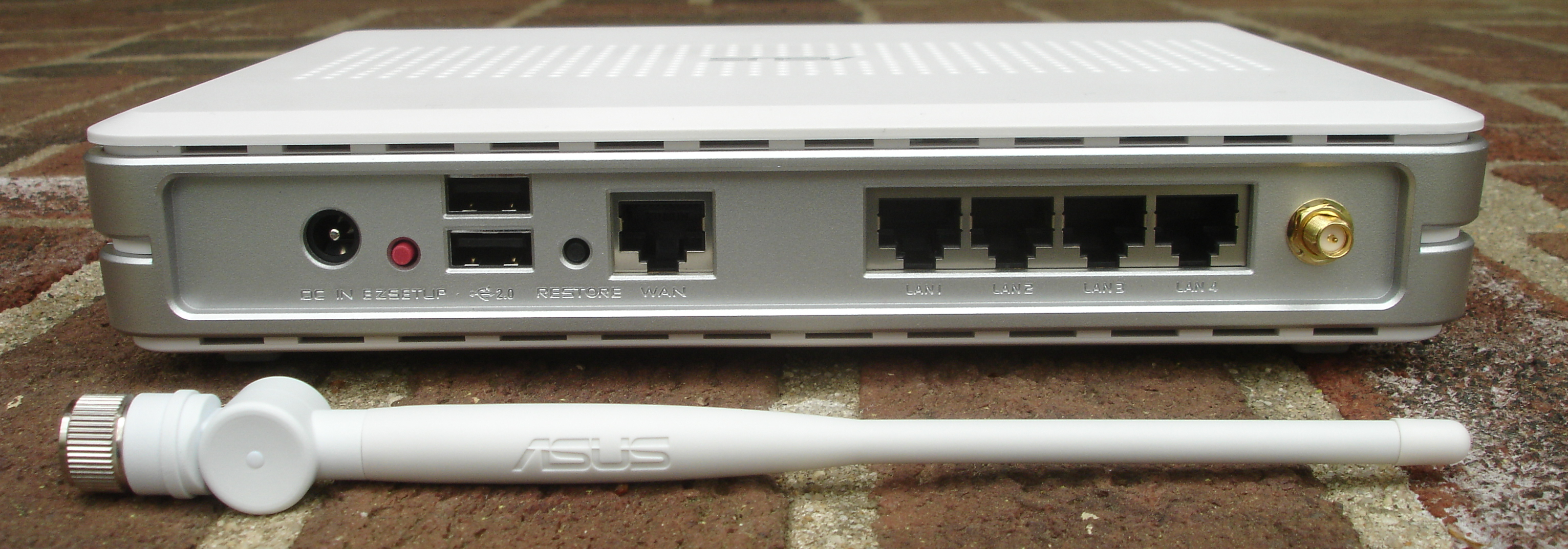
Locate the printed LAN labels before selecting a socket for the laptop cable. This dated ASUS example separates WAN from LAN 1–4; consult your own model manual. Empty sockets show label locations only, not a completed wired connection. Do not remove an antenna; the detached antenna belongs to the source photograph.
Version notes
Evergreen physical label reference, photographed 2008; not a current model recommendation, setup walkthrough or software interface. Printed labels alone do not prove operating mode, negotiated speed or PoE support. Display photograph resized for loading speed; the full-size link preserves the original download.Connect the laptop’s Ethernet port, or a compatible Ethernet adapter, to that LAN socket. Confirm an ordinary website loads. During the agreed test break, turn the laptop’s Wi-Fi off through its normal network control so the comparison actually uses the cable. Expect a possible brief interruption when the connection changes.
Repeat the conversation with the same video settings and household workload. If it improves, keep that wired seat for important meetings while investigating wireless coverage separately. Ethernet removes the laptop’s wireless hop, but the home’s internet capacity is still shared. If nothing improves, avoid treating an extra Wi-Fi access point as a proven fix.
If the wired connection fails, turn Wi-Fi back on, disconnect the test cable and restore the earlier setup. Do not move the provider’s incoming cable to make room. Without an available adapter, try the laptop closer to the router as a separate comparison, keeping other conditions steady.
Turn the successful test into a household arrangement
Note the meeting time, active callers, paused transfers, connection type and video settings. A useful success record says that both sides heard complete sentences during the expected shared workload. A sharp self-preview or one high speed-test result is weaker evidence.
If trouble persists, use More options → Troubleshooting & help in Meet and record the recommendation. Google’s quality troubleshooting guide also recommends closing nonessential apps. Save work before closing them, then repeat the same comparison. Persistent trouble on a quiet wired connection warrants a report to your provider or workplace IT with times and observations.
Do not enable router “priority” features simply because they sound helpful. Google warns that some QoS arrangements can worsen Meet quality. Any later router experiment needs its own recorded original settings and a quiet maintenance window.
After the meeting, resume each paused transfer and confirm progress. Restore any video quality you want to try next time. Keep a simple shared rule: calls get an agreed window, large transfers get a scheduled return, and everyone knows which temporary changes still need undoing.
Sources, versions & scope
The steps describe the documented controls and expected checks; they are not a claim that every device or software release has been physically tested. Platform and version differences are stated with the procedure.