What changed when the fan got loud?
A laptop that becomes louder during a video call poses a different question from one that starts rattling at an empty desktop. Before looking for a quiet setting, identify the sound, the work happening and whether the noise settles afterward. Otherwise, a setting can hide the symptom without explaining it.
This guide covers Windows 11 laptops with cooling fans. The Windows checks apply across brands; the Surface observations and Dell support route below are identified separately. There is no universal safe noise level or CPU percentage that decides whether every laptop needs repair.
Start a short note: the application in use, whether the charger is connected, the surface underneath, and whether the sound is a smooth rush of air or an irregular scrape. Record any slowdown or shutdown too. A repeatable description is more useful than “it sounds loud.”
Separate a cooling response from a warning
A smooth fan sound that grows during demanding work and eases afterward fits a cooling response. Microsoft explains that Surface fans respond to workload; charging and a warm environment can also increase cooling demand. A newly configured Surface may be busy updating and synchronizing even when its owner has stopped typing.
Ask what the laptop was doing before the noise began. Did you join a call, launch a game, start an export or connect power? Is an update still progressing? Do not call that situation idle merely because the foreground window looks quiet. Equally, do not assume that every sound inside the case is the fan.
Grinding or rattling deserves service attention, particularly if it persists during light use. Repeated unexpected shutdowns also end the quiet-setting experiment. If the enclosure is swollen or there is a burning or chemical smell, shut down, disconnect the charger and stop using the laptop; Dell identifies these as stop-use conditions. Do not open a swollen enclosure.
Check the air path before the control panel
Save your work. Place the laptop on a hard, flat desk with its ventilation openings unobstructed. Remove papers or fabric against the case and move it away from direct sunlight. Dell lists obstructed vents and dust-clogged cooling fins among causes of heat and louder fans.
For a closer external look, shut down, unplug power and let the case cool before turning it over. Use the exact model's manual to locate vents; a row of holes is not automatically an intake. Check for visible lint, damage or an accessory covering an opening. You are inspecting the outside, not removing the base.
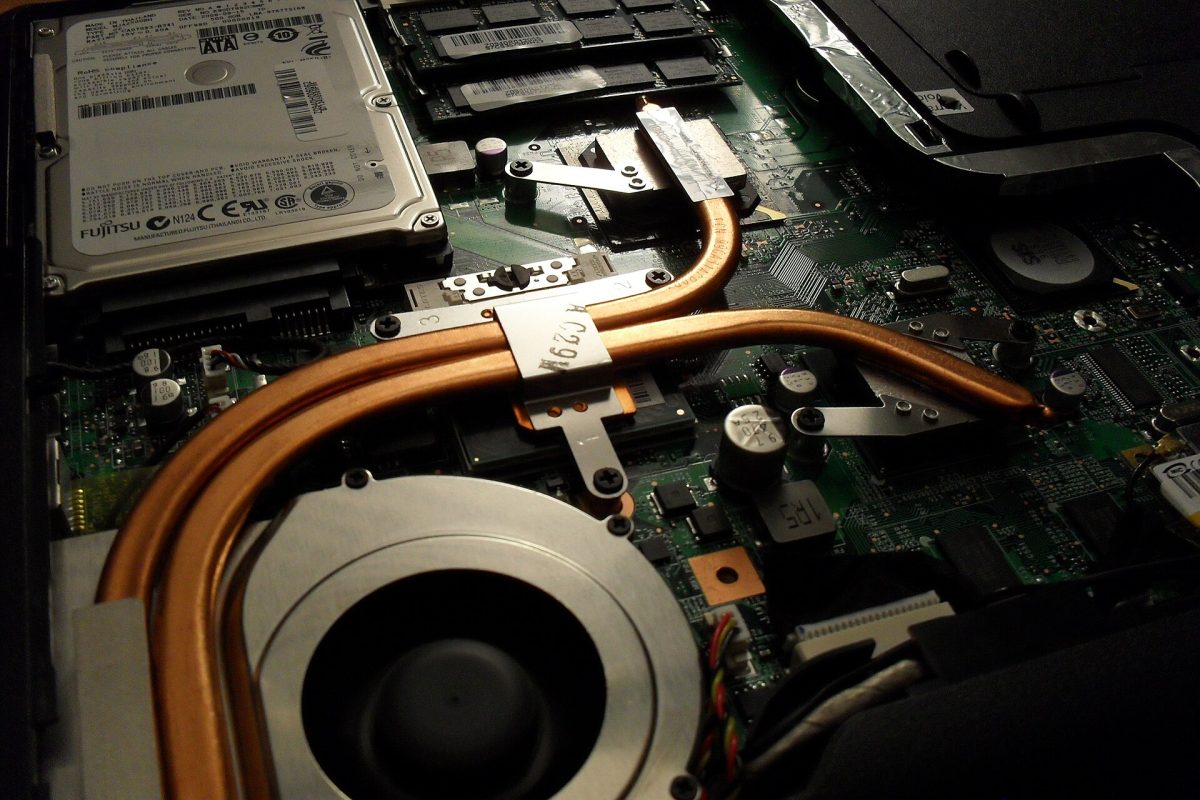
If cleaning appears necessary, follow that model's published maintenance instructions or arrange service. Do not push tools through the grille. The cover photograph illustrates internal cooling parts; it is not a disassembly instruction. Clear-looking outside vents cannot prove that the internal cooling path is clean.
Watch one noisy episode in Task Manager
Keep the laptop on the desk and use the same power connection for this comparison. Save open documents first. Then observe ordinary work rather than launching a stress test.
- Press Ctrl + Shift + Esc to open Task Manager, the shortcut documented in Microsoft's system-tools guide. Select Processes, then the CPU column heading. If the highest percentages are at the bottom, select the heading again. Watch which application repeatedly rises to the top.
- Note whether that application is doing something expected. An export that is progressing is different from a familiar app consuming resources after its job has finished. A brief spike is only a lead; watch the pattern through the noisy episode.
- If an optional application is involved, save its documents and close it through its own menu or window controls. Leave updates, security scans and unfamiliar system processes alone. The goal is a recoverable comparison, not a cleaner-looking process list.
Select Performance, then CPU, to watch the activity history while listening for a change. The image shows Microsoft's example CPU view, not a measurement of your laptop. Task Manager helps connect sound with work; this graph is not a thermometer or fan-speed gauge.
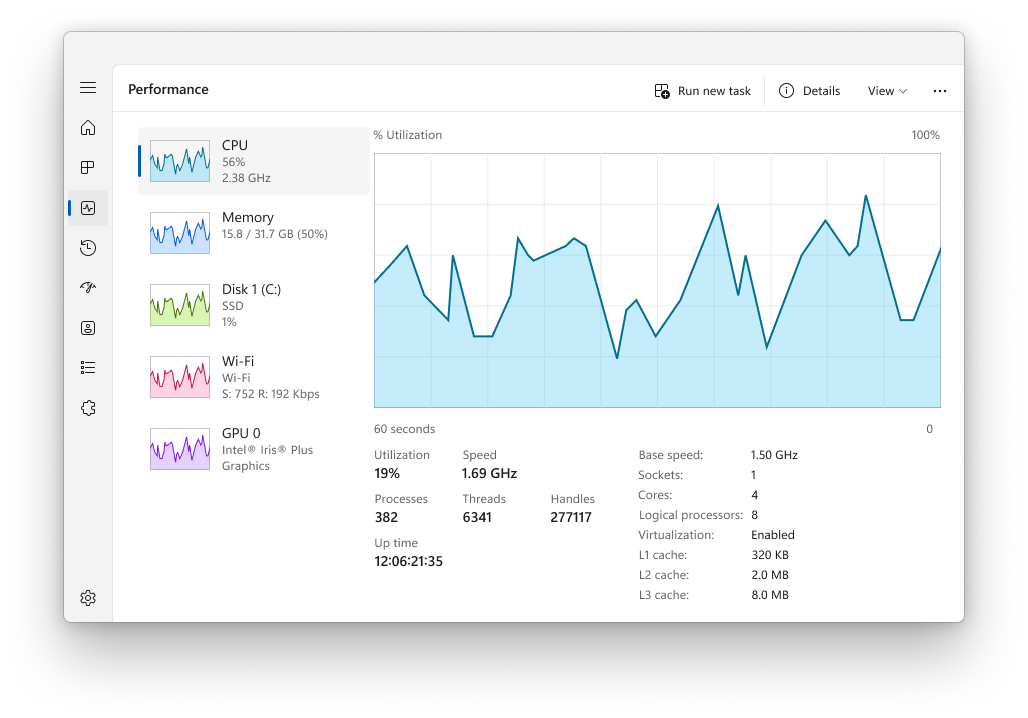
Microsoft Windows 11 Task Manager: Performance → CPU displays the activity history for the listening comparison. These are Microsoft’s example readings, not this article’s test results or a temperature measurement. Used with permission from Microsoft.
Version notes
Official Windows 11 sidebar Task Manager illustration; exact build unknown. CPU is selected for the article’s CPU inspection step.Allow a few minutes after the optional work stops before judging the sound. A quieter fan together with reduced activity supports a workload explanation. Reopen the saved application and repeat the same ordinary task if needed. If the noise consistently returns with that task, you have a useful reproduction for the application's support team.
For example, hypothetically, closing an unused meeting app might lower CPU activity and the fan might settle. Reopening it and reproducing both changes strengthens the connection. It still does not establish a defective fan, an exact temperature or a promised noise reduction.
If noise continues despite little CPU activity, record that result. Check whether a graphics-heavy task is still running before treating the laptop as idle. A quiet CPU graph alone does not clear the cooling hardware. Save work and restart once if a process seems stuck; persistent symptoms deserve model-specific support.
Only then try a power-mode comparison
If the machine behaves normally but is louder than you want during light work, try one reversible change. Open Start > Settings > System > Power & battery. Write down the current Power mode and which power condition you are changing. Microsoft's Windows power-mode guide distinguishes settings for plugged-in and battery use.
On a PC offering Best performance, Balanced and Best power efficiency, try Balanced if Best performance is selected. If already Balanced, Best power efficiency is a further comparison. Surface documentation instead names Recommended for quieter operation; follow the label actually offered on your device.
Repeat the same light task with the same apps, location and charger state. Judge both sound and usefulness: does the fan settle, and does the work remain responsive? A quieter export that takes longer may be a reasonable tradeoff, but it is not evidence of a repaired cooling system.
To undo the trial, return to the same Power mode control and restore the recorded option for that power condition. If the selector is unavailable, Microsoft notes that a custom power plan may be responsible. Leave it unchanged during this first investigation; do not reset an unfamiliar or managed plan just to expose a selector.
Give support a reproducible symptom
If irregular noise persists or light work still causes sustained loud cooling after a restart, contact the laptop maker with the exact model and your notes. Dell owners can follow the linked fan-diagnostic procedure for supported models; keep any error and validation codes. Another brand needs its own documented diagnostic route.
Include the trigger, charger state, observed application activity, airflow checks and whether restoring the original power mode changed anything. Avoid stacking fan-control utilities, firmware adjustments and processor limits onto an unresolved symptom. A technician can act on “rattles at the desktop after restart” or “smooth airflow only during this export” far more readily than a list of settings changed without comparison.
Sources, versions & scope
The steps describe the documented controls and expected checks; they are not a claim that every device or software release has been physically tested. Platform and version differences are stated with the procedure.