The SIM swap tells you where to start
A phone that loses service immediately after a SIM change may be reading the new card perfectly well. Reading a SIM, accepting another carrier and registering an active line are separate hurdles. Repeating the swap cannot fix every one of them.
This guide focuses on iPhones, especially models with a physical SIM tray. It also covers the first checks when an eSIM replaces a physical card. Use the exact message and a few controlled comparisons to decide whether you need a replacement card, carrier help or device service.
Connect to trusted Wi-Fi and write down what changed: replacement SIM from the same carrier, move to another carrier, or conversion to eSIM. Keep the old card and activation instructions. Record the error before dismissing it; “No SIM” and “No Service” lead to different checks.
Read the message before changing settings
- No SIM or Invalid SIM
Start with the card, tray and carrier restrictions. Apple’s SIM-alert guidance recommends checking the plan, lock status and physical seating, then trying another SIM if necessary.
- No Service or Searching
The phone has not connected to a cellular network. This message alone does not establish whether the cause is the card, account, coverage or phone.
- SOS or SOS only
This is not ordinary service. Apple documents emergency calling through other carrier networks in Australia, Canada and the United States. Do not make an emergency call to test the SIM.
- SIM not supported
Check the carrier lock early, especially after changing networks. Save the complete alert for support instead of assuming a damaged card.
If bars return but only mobile internet fails, record that as a different symptom. A failed web page with Wi-Fi off does not by itself mean the SIM is undetected. Likewise, a working chat app over Wi-Fi does not demonstrate cellular recovery.
Can this phone and SIM join the new carrier?
Open Settings → General → About and find Carrier Lock. Apple’s unlocking instructions say No SIM restrictions means the iPhone is unlocked. If that wording is absent, contact the carrier that locked the phone. Apple cannot perform that unlock.
An unlocked result clears one restriction; it does not confirm that your new line is activated or that the carrier accepts this exact phone. Ask the receiving carrier to check compatibility using the device details it requests through its official support channel. A SIM fitting the tray proves only physical fit.
For a replacement from the same carrier, ask whether the replacement card has been assigned to your line and activated. For a number transfer, ask whether the transfer is complete and which SIM should currently work. Do not cancel the old service as a troubleshooting experiment. The carrier must explain its transfer state and recovery route.
If an unlock is pending, get its status from the original carrier. After it confirms completion, Apple instructs physical-SIM users with another carrier’s card to remove the card and insert the new one to activate. A restart or settings reset cannot substitute for carrier approval.
For a physical SIM, check the fit once
Use the tray opening and eject hole identified for your own iPhone model. The photograph shows an older iPhone’s partially withdrawn tray, seated SIM and eject tool. It illustrates those physical parts only; tray position and card orientation vary, and it is not a current iOS screen or a recommended phone model.
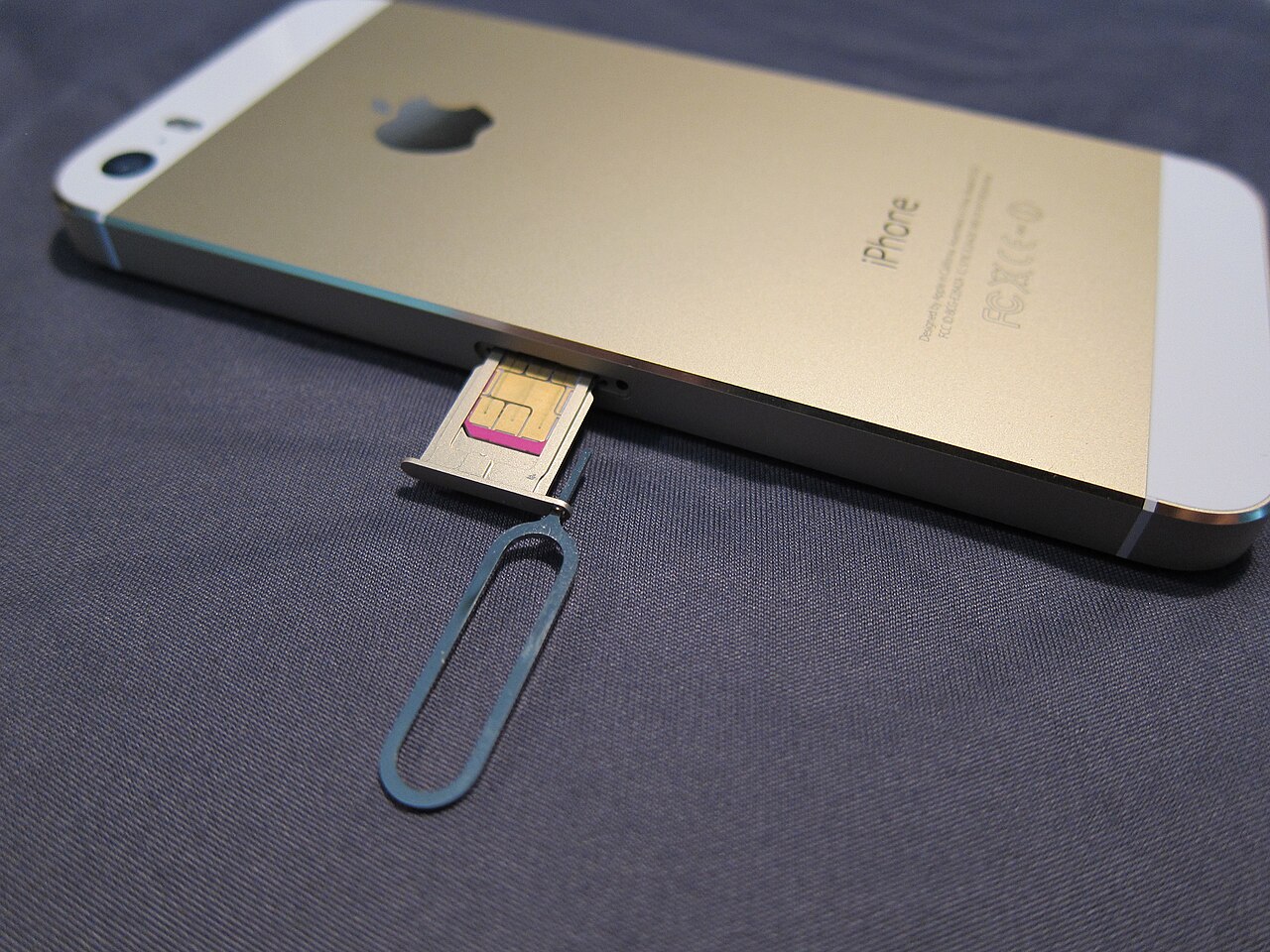
Physical reference: the tray holds the SIM and the eject tool enters the hole beside it. This older iPhone 5s shows the parts only; locate the tray and follow the orientation for your own model.
Version notes
Calerusnak photograph dated 14 July 2014, supplied as an official Commons 1280px thumbnail. Evergreen physical-parts reference checked against Apple SIM removal guidance on 2026-10-31. Not a current iPhone model recommendation or software screenshot. Downloaded bytes unchanged.- Consult Apple’s SIM removal guide for your model. Remove a case if it obstructs the tray. Insert the eject tool into the hole beside the tray and push inward gently. Stop if it will not release; get carrier or Apple help instead of forcing it.
- Remove the tray and inspect the card’s fit. Match its notched corner to the tray so it sits properly. Use the tray supplied with this phone; a similar-looking tray from another model can fit incorrectly.
- Reinsert the tray completely in its original orientation. It should close securely without being loose. If the card is damaged, does not fit or prevents proper closure, ask the carrier for the correct replacement.
Check whether the alert changes after reseating. Moving from “No SIM” to “No Service” is useful evidence that the symptom has changed, but service still needs checking. Tell support both messages rather than describing every stage as “the SIM does not work.”
If your model has no SIM tray, skip this operation. For an eSIM problem, contact the carrier about the installed line. Do not delete the eSIM as a reset: preserve it while the carrier establishes how service can be restored.
Give the intended line a clean retry
Work in a place where the new carrier is expected to have coverage. Follow Apple’s No Service guidance in this short sequence, observing the result after each change.
- Open Settings, turn Airplane Mode on for at least 15 seconds, then turn it off. Check the status again. Leave Airplane Mode off when finished.
- Restart the iPhone and check again. Note whether service returns and then disappears, or never returns.
- While connected to Wi-Fi, open Settings → General → About. Install a carrier-settings update if prompted. An absent prompt is not proof of activation.
- On a Dual SIM iPhone, open Settings → Cellular, tap the intended line and check Turn On This Line. Enable it if off. If the intended line is missing, ask the carrier to check setup rather than deleting another working line.
Keep a note of any line switch you changed so you can restore it. If updating iOS is needed, do that with a backup and dependable power and Wi-Fi; avoid combining an update with repeated SIM swaps, because it becomes harder to identify what helped.
Use a comparison to choose the next call
If your old SIM is still active, trying it again can provide a useful comparison. Hypothetically, the old card works in this iPhone but the replacement does not: that points toward the new card or its activation, without proving which. An old card already deactivated during a transfer tells you much less.
For continuing SIM alerts, ask a carrier store to test another appropriate card, as Apple recommends. A known working, compatible card helps separate one suspect SIM from a phone-side problem. Avoid cycling through friends’ cards with unknown activation or carrier restrictions.
Give support the exact message, phone model, lock result, swap type and comparison results. Ask the carrier to verify activation, local outages, account restrictions and whether the device is barred. If it clears those checks and suspects hardware, arrange device service.
After recovery, briefly turn Wi-Fi off, make an ordinary call if your plan includes voice, and open a small web page if it includes data. Check an incoming call too, especially after a number transfer. Restore Wi-Fi afterward. Successful outgoing service alone does not establish that incoming calls to the transferred number reach this SIM. Keep any remaining failure specific; avoid erasing the phone just to repeat these checks.
Sources, versions & scope
The steps describe the documented controls and expected checks; they are not a claim that every device or software release has been physically tested. Platform and version differences are stated with the procedure.