A photo library can take days to reach the cloud even when films stream perfectly. Streaming mostly brings data into your home; backing up sends it out. The number that matters is your upload speed, and it may be much lower than the download speed advertised for your connection.
This guide plans a first upload of ordinary photo and video files using OneDrive on Windows 11, with OneDrive already signed in. It covers sizing, timing and keeping the connection usable. If your collection lives inside a photo application's library database, use that application's export instructions first; copying a database is not the same as exporting its pictures.
Count what actually has to leave the PC
In File Explorer, locate the folders you intend to upload. Select them, right-click and choose Properties. Wait for counting to finish, then record Size and the file count. Size on disk describes local allocation and is not the useful transfer figure. For several folders, select them together rather than counting overlapping parent and child folders twice.
Include videos, RAW photographs and any companion files you intend to preserve. A few long videos can outweigh thousands of JPEGs. If Windows shows a byte total, keep it for the calculation below rather than assuming its displayed GB label uses decimal units.
Check that your OneDrive account has enough unused storage for the proposed copy. Keep the source folders and a separate local backup intact throughout the upload. Cloud capacity and broadband capacity are separate limits: a faster connection cannot fix a full account.

Measure from the machine that will upload
- Pause existing cloud uploads using the OneDrive controls below, and wait until other large household transfers have stopped. Use the PC and connection you intend to leave uploading.
- Open FAST.com in a browser and let its initial download test finish. Select Show more info, then wait for the upload measurement to finish.
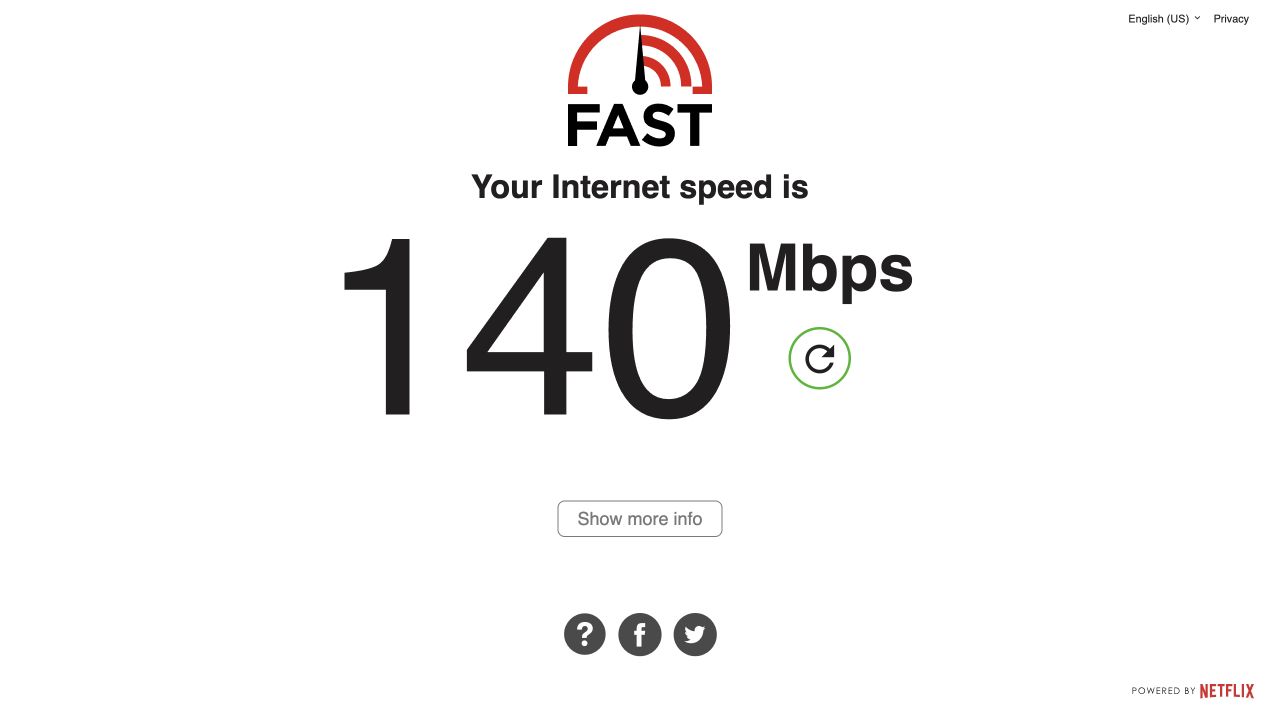
Visual 01 · FAST.com, English (US), desktop browser Choose Show more info to reveal the upload measurement. The large 140 Mbps figure is this capture’s download result, not upload capacity or an expected speed for your home.
Original browser capture by Signal Desk; FAST.com interface © Netflix. Image source · Usage termsVersion notes
Fresh unaltered viewport capture from the live FAST.com website on 31 October 2026. The captured collapsed result screen matches the instruction immediately before selecting Show more info. A web interface, independent of Windows build. - Record the Upload result and its unit, along with the time and whether you used Wi-Fi or Ethernet. Repeat at the time you expect the backup to run; a quiet afternoon result may not represent the evening.
FAST.com's large opening number is download speed. Its expanded view supplies upload and latency, using transfers to Netflix servers. That estimates this test path, not a guaranteed rate to Microsoft's storage. Tests consume data too, so avoid repeated runs on a tightly metered connection. Keep client addresses and location details private if saving results.
If practical, compare near the router or over an existing Ethernet connection before committing to several nights. A better local link can remove a Wi-Fi bottleneck; it cannot exceed the internet service's upstream capacity.
Turn megabits into a calendar estimate
Connection rates use bits; file sizes use bytes. There are eight bits in a byte. For decimal gigabytes, the ideal transfer time is:
Hours = library GB × 8,000 ÷ upload Mbps ÷ 3,600If you recorded bytes, divide by 1,000,000,000 to obtain decimal GB first. Our transfer-time calculator uses the same relationship for either direction: enter the upload rate here, despite the tool's Download time name.
| Upload rate | Ideal time |
|---|---|
| 5 Mbps | 44 hours 27 minutes |
| 20 Mbps | 11 hours 7 minutes |
| 50 Mbps | 4 hours 27 minutes |
These rounded figures assume every available bit carries your files continuously. They exclude pauses, retries, protocol overhead and time spent scanning files. Treat them as optimistic planning bounds. A speed test's brief peak is especially unsuitable as a promise for a large collection.
Also check your internet plan's data allowance and whether uploads count. Sending a 100 GB collection needs roughly that much file payload before overhead or retries. Scheduling it overnight changes congestion, not the amount of data sent.
Rehearse one dated folder before the whole library
Choose a representative folder containing both pictures and videos. Note its byte size. Copy it into your existing OneDrive folder in File Explorer, using a distinct name such as Photo upload pilot. Leave the original outside OneDrive unchanged. Do not drag the only copy and assume it will remain in its original location.
Open the OneDrive cloud icon in the taskbar notification area and watch its activity. Let the pilot finish without adding more folders. Record the elapsed time from the copy starting until OneDrive reports completion. This includes local preparation, making it a practical rehearsal rather than a pure network benchmark.
For a hypothetical example, a decimal 1 GB pilot completing in ten minutes averages about 13.3 Mbps across that interval. At that same overall pace, 100 GB would take about 16 hours 40 minutes. Allowing only eight uploading hours each night means part of a third night. A collection with many more tiny files may behave differently.
Use a few dated batches for the full collection so you can identify what finished. Keep the PC powered and awake during each planned window. Time spent asleep or offline adds directly to the calendar wait.
Distinguish a long upload from a stopped one
Circular arrows mean synchronization is in progress; they do not establish that bytes are moving steadily. A red cross means a file or folder cannot sync. Open the OneDrive icon and read the specific message rather than recalculating the finish time. Microsoft's icon reference distinguishes these states from paused or unsigned-in accounts.
If progress stops, check for a pause, an account-storage warning, a disconnected source drive or a named file error. Correct the reported condition and resume. Do not delete queued files, reset OneDrive or move the whole collection simply because the ideal estimate expired.
After completion, open OneDrive on the web in the same account, locate each batch and check representative photos plus a long video. Download a sample to a separate folder and open it. A local green tick describes availability on the PC; it is not an independent restore test. Keep your separate backup: synchronization can propagate deletions. Only after verifying the remote copies should this upload count as a completed part of your backup plan.
Sources, versions & scope
The steps describe the documented controls and expected checks; they are not a claim that every device or software release has been physically tested. Platform and version differences are stated with the procedure.