A private DNS service still receives the names your device asks it to resolve. Encryption protects the trip to that service; it does not hide the question from the service answering it. Choosing one means deciding whom to trust with those questions and checking what they retain.
This guide uses Android’s built-in Private DNS setting, with Cloudflare’s ordinary 1.1.1.1 resolver as a concrete example. It covers the setting, its limits and a reversible change on a personal phone. No provider account or extra app is needed.
What is actually inside a DNS question?
DNS helps turn a name into an address a device can contact. In a hypothetical visit to https://shop.example/order/123?gift=yes, a normal DNS question concerns shop.example. The path /order/123 and query string ?gift=yes are not part of that lookup. Passwords and message contents are not normal DNS fields either.
A directly contacted resolver receives the requested name and query type, sees the request’s arrival time and receives a source IP address. That address might represent a household or shared mobile connection rather than one identifiable person. A revealing hostname can still expose an interest or service even without the page’s contents.
Queries are imperfect evidence of deliberate browsing. Apps and embedded resources generate requests; browsers may prefetch names, and caches can avoid repeat queries. The IETF’s DNS privacy analysis explains these distinctions. A query log is neither a complete browsing history nor proof that someone intentionally opened every listed service.

Encryption changes who can read the lookup
With encrypted DNS, somebody observing the network path cannot simply read those DNS questions as plaintext. The chosen resolver can read them because it terminates that encrypted connection. The IETF specifically distinguishes protection on the wire from privacy at the resolver.
Your internet provider still carries your traffic. DNS encryption alone does not conceal all destination information or make the connection anonymous. Websites also continue receiving your visits, and their account sessions and cookies continue working. Android Private DNS is not a tunnel for all the phone’s internet traffic.
Translate a privacy claim into a question you can answer. If your concern is readable DNS on public Wi-Fi, encrypted transport addresses that exposure. If your concern is the resolver keeping a record of requested names, you need its data policy. If your concern is a website recognizing your signed-in account, changing DNS will not solve it.
These are separate decisions. Do not treat a successful connection after changing DNS as evidence that tracking stopped, or assume a service called “private” has agreed to your preferred retention period.
Read past “no logs” to the exceptions
For any provider, find the policy for the exact service you intend to use. Search it for source addresses, query names, retention, sharing and aggregated data. A policy for a VPN, business security dashboard or browser partnership may cover a different product.
Cloudflare’s public resolver commitments provide a useful worked example. They say personal data is not sold or used for ad targeting. Limited transaction and debugging logs include query names, types and timestamps. The policy sets a 25-hour deletion window for those logs and truncated source addresses, with an exception for limited sampled log data used to make aggregates.
Read the other qualifications too: sampled network packets from at most 0.05% of infrastructure traffic are an exception to its source-IP storage commitment, for troubleshooting and denial-of-service mitigation. APNIC has limited access to anonymized research data without client IP addresses. Aggregated statistics may remain indefinitely.
That is a narrower promise than “nothing is recorded.” It describes retention and use, rather than a technical inability to see incoming requests. Keep the policy URL and date with your notes so you can revisit the same promise later. This guide has not independently audited provider compliance.
Try the Android setting with a route back
Start while browsing works. Choose two ordinary public sites you already use and note whether both open. Record your current Private DNS choice and any existing hostname before editing. Leave managed phone settings to the administrator; an unfamiliar existing hostname may support required filtering.
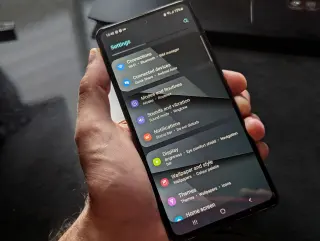
- Open Settings → Network & internet → Private DNS. If it is absent, search Settings for Private DNS. Some layouts place it under Advanced.
- Note whether Off, Automatic or Private DNS provider hostname is selected. Copy an existing hostname accurately into your private notes.
- To try Cloudflare’s ordinary resolver, select Private DNS provider hostname, enter
one.one.one.one, and tap Save. Enter the hostname alone, withouthttps://or a trailing path. - Reopen the setting and check the saved hostname. Load the two public sites again. If you also want to use it on mobile data, turn Wi-Fi off briefly, repeat those checks, then restore Wi-Fi.
Google documents the choices and Save control; Cloudflare supplies the hostname and says the manual setting applies across networks, including cellular. Its current guide describes encrypted DNS using DNS-over-TLS or DNS-over-HTTP/3. Merely entering a numeric DNS address in a router is a different procedure and does not establish encryption.
Successful page loads show that those tasks still work. The saved hostname shows your selected configuration. Neither observation verifies every app’s DNS route or proves the provider’s retention practices. Apps, browsers and VPNs can have their own resolution arrangements; avoid claiming a whole-phone privacy audit from these checks.
If the connection stops working
If new pages fail immediately after the change, return to Private DNS and restore the exact previous choice and hostname, then tap Save. Retry the same sites on the same network. Recovery after rollback makes the new DNS configuration or its reachability a useful suspect; it does not prove the provider is down everywhere.
Check spelling before trying again. If the problem affects only one network, retain the working configuration while investigating that network’s requirements. For a guest Wi-Fi sign-in page, restore the prior DNS choice and complete the legitimate sign-in, then retry your chosen provider. If it still fails, leave the working setting in place.
If rollback does not help, stop changing DNS repeatedly: the original problem may lie elsewhere. If you temporarily use Automatic, remember that it does not select the custom provider you entered. Google recommends keeping Private DNS enabled, but its name alone is no assurance about a particular operator’s data policy.
Keep the change only when ordinary tasks work and you accept the named provider’s actual commitments. Your useful result is a recorded configuration, an understood trust decision and a known recovery path.
Sources, versions & scope
The steps describe the documented controls and expected checks; they are not a claim that every device or software release has been physically tested. Platform and version differences are stated with the procedure.