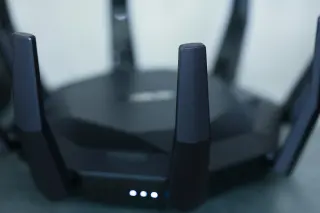
Prepare for the moment the network disappears
A router update interrupts the very connection you would normally use to look up help. Prepare the way back while the router still works: save its settings, download the correct firmware, and keep recovery instructions on the computer that will perform the work.
This guide covers a personally managed ASUS router running stock ASUSWRT, using its local web interface. For emergency restoration, it assumes access to a Windows 11 computer with Ethernet. It does not cover ISP-managed gateways, third-party firmware or updating an entire AiMesh system. Check your exact model’s support page before proceeding; similar product names do not establish compatibility.
Firmware is the router’s operating software. A configuration backup records settings. Neither substitutes for the other: a settings file cannot repair an interrupted firmware installation, and reinstalling firmware does not promise to recover your household’s configuration.
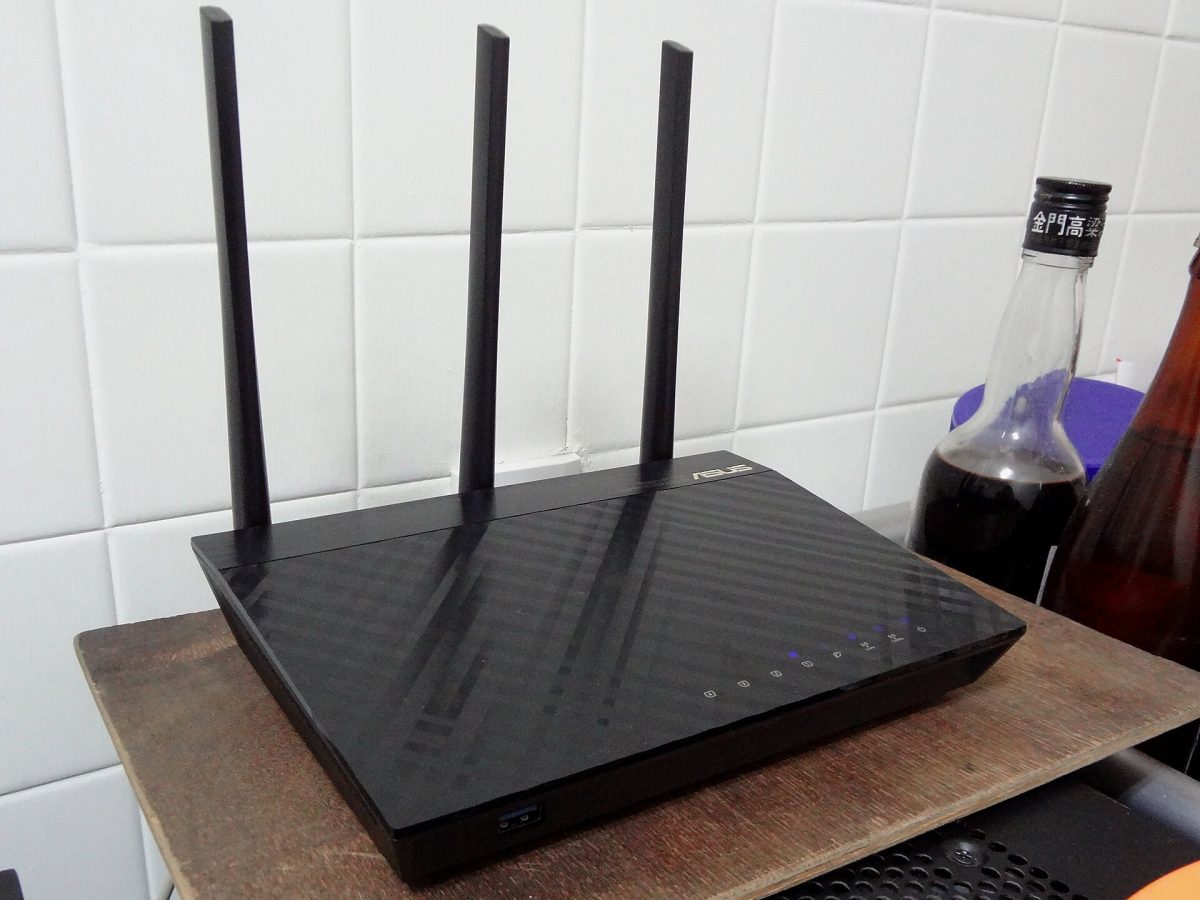
Assemble an offline recovery envelope
Choose a maintenance window with nobody depending on a call, upload or remote access. Tell the household when connectivity will disappear. Leave time afterward for rebuilding settings; do not start just before leaving home. Keep power stable and avoid moving the router or its power strip during the job.
Create a private local folder named with the router model and date. Temporarily disconnect both Wi-Fi and Ethernet, then open the saved document in that folder to confirm it is available offline. Reconnect afterward. Cloud placeholders are poor emergency instructions. Put these records beside it:
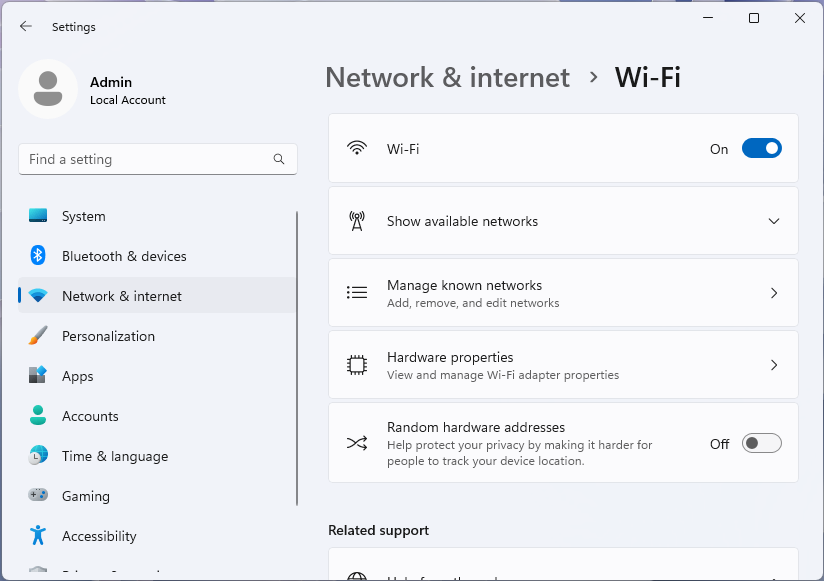
For the offline-folder check on Microsoft Windows 11, open Settings → Network & internet → Wi-Fi and turn the top Wi-Fi switch Off, then restore it after checking the saved document. The pictured switch starts On.
Version notes
Microsoft Learn explicitly identifies the supplied desktop Settings screenshots as Windows 11. Current network documentation confirms the named Settings route; exact Windows build and capture date unknown. No live network comparison performed.- The complete model name and hardware revision from the router label, plus the installed firmware version shown in its interface. Photograph the label for your own records without publishing its identifiers.
- The local administration address and administrator credentials, stored securely. The Wi-Fi password and router administrator password serve different purposes; verify you can actually sign in now.
- The internet connection details needed after a reset: connection type, any ISP-supplied PPPoE credentials, and required VLAN or static-address information. Ask the ISP now if essential details are missing.
- A short inventory of settings you would need to recreate: Wi-Fi names, guest access, address reservations and any deliberately configured forwarding or VPN rules. Record only features you actually use.
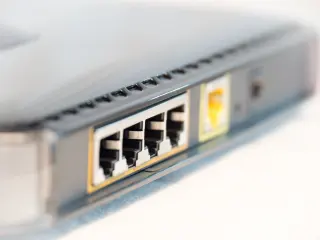
Inspect the router’s port labels and locate its Reset control without pressing it. Identify a LAN port for the computer, keeping the internet cable’s original position recorded. Test the Ethernet cable and adapter while everything works. Port colors vary; use the labels and model manual rather than assuming every blue socket has the same role.
Save a restorable settings file
On the local router page, open Administration → Restore/Save/Upload Setting and select Save setting. Leave the debugging-sharing checkbox beside that button unchecked: ASUS warns that this option removes the original password and produces a file you should not import back into the router. Its configuration backup guide documents the distinction.
Confirm that a nonempty .CFG file reached your local folder. Keep the original filename and note its date and source firmware separately. Treat the file as sensitive network configuration; do not send it to a public forum. Saving it is a preparation step, not a successful restore test.
ASUS limits configuration imports to the same model. A backup is also no guarantee that older settings will behave correctly after a firmware change. Keep the written inventory so you can rebuild manually if importing causes problems. Do not erase your only backup while troubleshooting a new one.
Download before you disconnect
Find the exact model on ASUS Support. Read the firmware release notes for prerequisites, restrictions and configuration changes. Download the appropriate stock firmware and extract its archive. If the model or revision does not match, stop. Never rename a neighboring model’s firmware to persuade the uploader to accept it.
Download the model’s manual and save the ASUS rescue instructions offline. Check whether the model’s utility downloads include ASUS Firmware Restoration. For example, the RT-AX86U Pro support listing explicitly supports Windows 11 and says this utility is for failed upgrades, not a working router’s routine update.
If offered for your model, download and install that utility beforehand. Keep the extracted firmware beside it. Having an installer in Downloads is less useful if installation later needs attention you could have resolved while online. If no documented rescue method exists for your model, identify its support route before taking the network down.
Perform one update, then establish what changed
Use the tested wired connection. Sign into the router’s local address, then follow ASUS’s manual web update procedure: Administration → Firmware Upgrade → Upload. Choose the extracted firmware file and confirm the file selection. The .CFG backup belongs in the settings page, never in the firmware uploader.
Leave power connected while upload, installation and reboot complete. Temporary loss of the page is expected; do not repeatedly submit the file or interrupt the router because the browser stopped responding. Allow the documented update process to finish.
Reconnect and sign in again. Compare the reported firmware version with the package you selected and your before-update record. A returned Wi-Fi name alone does not prove that the intended software installed.
ASUS recommends a factory reset and fresh setup after updating. Prepare for that recommendation: Administration → Restore/Save/Upload Setting → Factory default → Restore clears configuration. Only confirm when your ISP details and rebuild notes are ready. Afterward, complete Quick Internet Setup using the saved details. A factory reset does not mean returning to the previous firmware.
Before restoring advanced rules, check ordinary service. Open a new website from the wired computer, reconnect a phone to the intended Wi-Fi, and try one household task such as printing. If applicable, check guest access separately. Keep a brief before/after log; otherwise a forgotten printer connection can look like a failed update.
Match recovery to the failure
The router page works but internet access does not: inspect the WAN cable position and saved ISP settings first. Record the router’s connection status. A firmware reflash is a poor first response when the local interface works and a required connection detail is missing.
You need saved settings back: the settings page’s Upload accepts the same-model .CFG backup. Let the reboot finish and sign in with the restored credentials. If that import recreates the fault, use factory reset and rebuild from your notes rather than repeating the same import.
A failed flash prevents normal access: use the saved model-specific rescue instructions. ASUS’s generic example connects Ethernet, sets the computer’s IPv4 address to 192.168.1.10 with mask 255.255.255.0, then holds Reset while reconnecting router power until the power light flashes slowly. Confirm that sequence applies to your model. In Firmware Restoration, use Browse for the extracted firmware, then Upload; wait for completion and reboot.
Record the computer’s original adapter settings before changing them. After rescue, restore those settings; for an ordinarily automatic connection, restore automatic IP and DNS assignment. Leaving a temporary static address behind can make a recovered network appear broken. If rescue still fails after rechecking the documented connection and sequence, contact ASUS with the model, file used and observed light pattern.
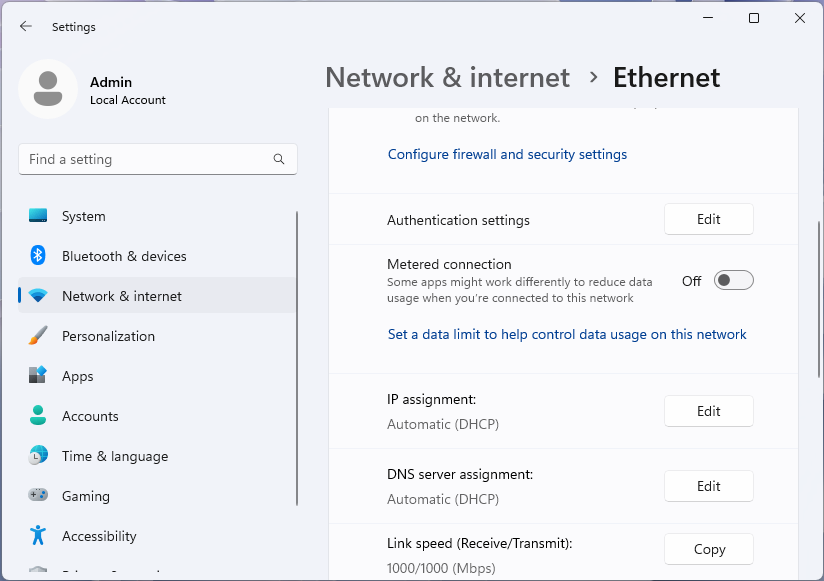
After rescue, restore the adapter’s recorded settings. For a normally automatic Microsoft Windows 11 Ethernet connection, check both IP assignment and DNS server assignment: Microsoft’s example shows Automatic (DHCP) for each.
Version notes
Microsoft Learn explicitly identifies the supplied desktop Settings screenshots as Windows 11. Current network documentation confirms the named Settings route; exact Windows build and capture date unknown. No live network comparison performed.Keep the offline folder until the network has handled normal household use. Recovery means a reachable administration page, verified firmware and working everyday connections—not simply a progress bar reaching its end.
Sources, versions & scope
The steps describe the documented controls and expected checks; they are not a claim that every device or software release has been physically tested. Platform and version differences are stated with the procedure.